


Moving pictures from an Android phone to a Windows PC is now smoother than ever, with Google’s Quick Share joining classic USB transfers and reliable third‑party tools. Whether you want a one‑time dump of vacation shots or an ongoing backup routine, the right method depends on speed, convenience, and how much control you want over your files.
Fastest Method: USB Cable Transfers for Large Galleries
A cable remains the quickest and most dependable way to import a large gallery. Connect your phone with a data‑capable USB‑C cable, unlock the device, and set the USB mode to File Transfer or MTP in Android’s USB preferences. On Windows, use the Photos app’s Import button or open File Explorer, navigate to This PC, select your phone, then open the DCIM folder to drag and drop.
- Fastest Method: USB Cable Transfers for Large Galleries
- Wireless Transfers Made Easy With Quick Share on Windows
- Cross-Platform Apps Worth Considering for File Transfers
- Cloud Backups That Double as Seamless Photo Transfers
- Troubleshooting File Formats and Preserving Photo Quality
- Which Method Should You Use for Android-to-Windows Photos
Port and cable choice matters. USB 2.0 tops out at 480 Mbps, while USB 3.2 Gen 1 can reach 5 Gbps, and high‑quality cables are critical for hitting real‑world speeds. In practice, a 2 GB album that may take 5–10 minutes over USB 2.0 can finish in about a minute on a solid USB‑C to USB‑C link, assuming your phone and PC support faster lanes and your storage isn’t the bottleneck.
Pro tip: If Windows doesn’t recognize the device, try another port, a different cable, or toggle the phone’s USB mode. Keeping the screen unlocked during the first connection and allowing file access often resolves detection hiccups.
Wireless Transfers Made Easy With Quick Share on Windows
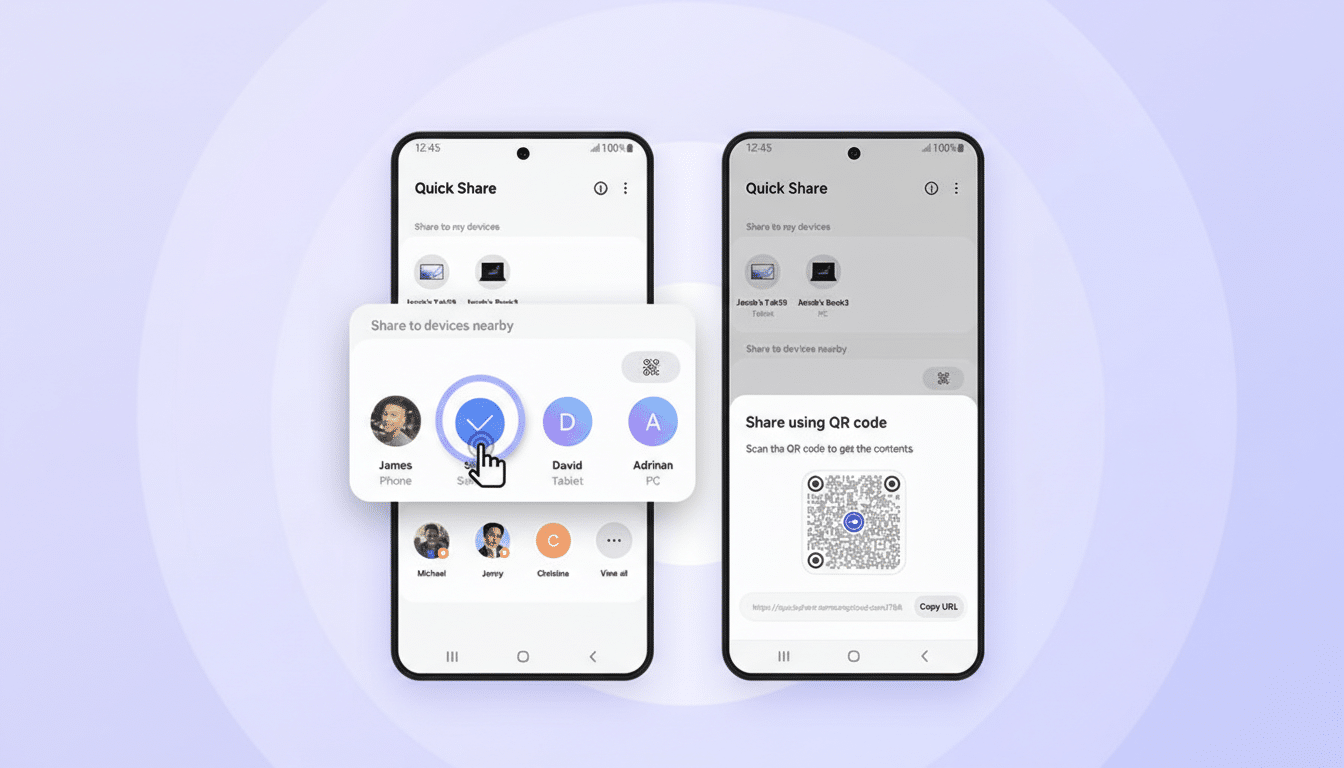
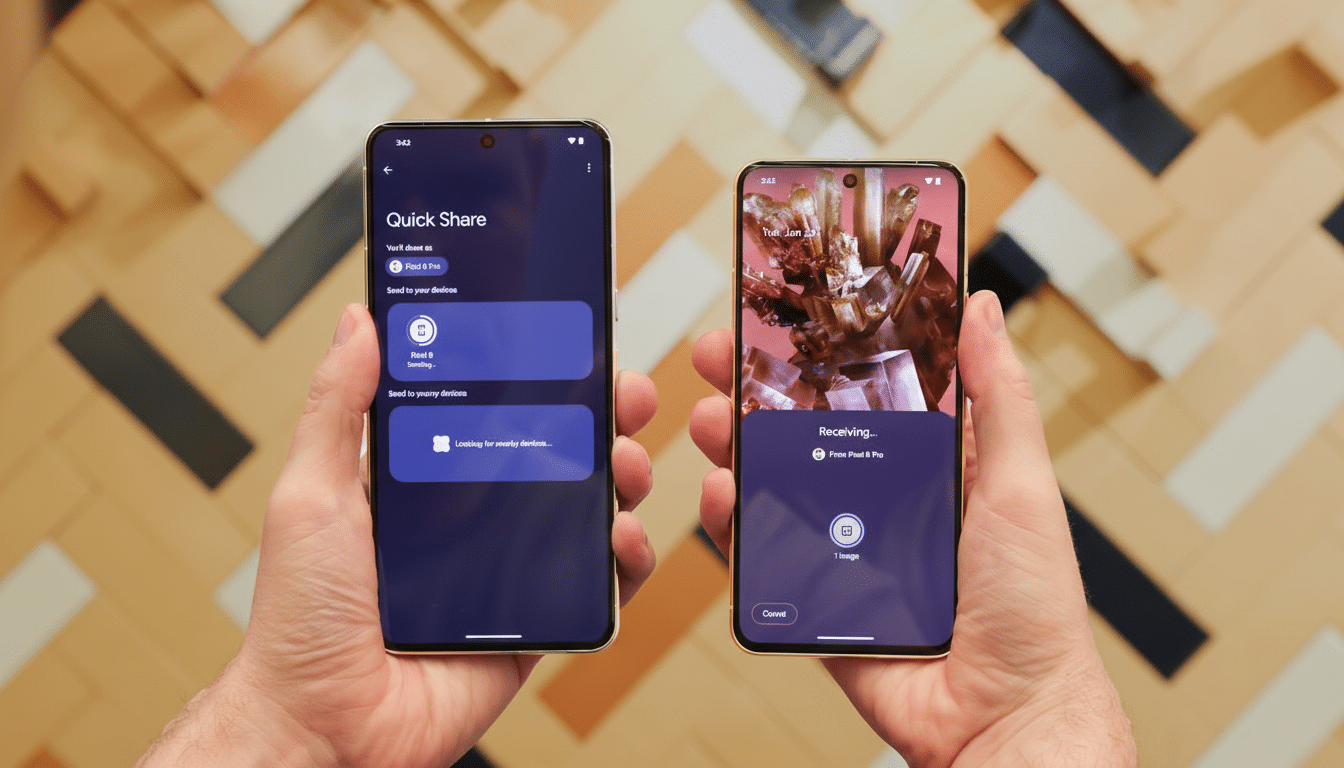
Quick Share, built into modern Android phones and available as a companion app on Windows, streamlines cable‑free transfers on the same network. After installing the Windows app and setting your PC’s visibility to Contacts or Everyone, you can select photos on your phone, tap Share, choose Quick Share, and pick your PC. Accept on the desktop and the files land in your chosen folder automatically.
Because Quick Share relies on local connectivity, performance can rival mid‑tier Wi‑Fi transfer rates on a strong router, making it ideal for batches of photos without hunting for a cable. In office tests, Wi‑Fi 5 and Wi‑Fi 6 networks commonly deliver hundreds of Mbps for peer‑to‑peer transfers, though throughput varies with distance, interference, and firewall rules. If discovery fails, ensure both devices are on the same subnet, disable metered connections, and briefly pause VPNs.
Security is built into the workflow: you approve incoming transfers on the PC, and visibility settings limit who can see your device. It’s a smart balance of speed and control for daily use.
Cross-Platform Apps Worth Considering for File Transfers
Third‑party tools can add features beyond basic sharing. AirDroid pairs your phone and PC for wireless file moves, clipboard sync, and even remote access, useful if you manage media across multiple machines. LocalSend, an open‑source option, discovers devices on your local network and transfers files offline without an account or external servers, appealing to privacy‑first users and mixed environments spanning Windows, macOS, and Linux.
Both apps are straightforward: install on each device, confirm discovery, choose your photos, and send. Expect speeds similar to your local Wi‑Fi conditions and fewer headaches than emailing yourself attachments or juggling messaging apps.
Cloud Backups That Double as Seamless Photo Transfers
Cloud services remain a convenient bridge between phone and PC, while safeguarding your library. Google Photos can automatically back up your camera roll over Wi‑Fi, after which you can access the images from the Windows Photos app or the web and save locally. Remember, Google accounts include 15 GB shared across services, so heavy shooters may want a paid tier.
Microsoft’s OneDrive offers camera uploads on Android and syncs seamlessly to your PC’s Pictures folder, a strong pick if you already have Microsoft 365 with 1 TB of storage. Dropbox and similar services work similarly. Cloud is slower for giant libraries but unbeatable for set‑and‑forget resilience and cross‑device access.
Troubleshooting File Formats and Preserving Photo Quality
If photos don’t show up, check that you’re looking in DCIM or Pictures folders. Some Android cameras store screenshots, downloads, or social exports in separate directories, and “Motion” or burst photos may create extra files. Windows 11 handles HEIF and HEIC with Microsoft’s codec extensions; if you see blank thumbnails, install the codecs or convert to JPEG on the phone before transfer. For 4K and HDR video, HEVC support may require an additional extension.
To preserve quality and metadata like timestamps and location, avoid sharing methods that downscale images. Direct USB, Quick Share, and reputable file‑transfer apps keep originals intact, including EXIF data, which helps Windows Photos group and search accurately.
Which Method Should You Use for Android-to-Windows Photos
For big projects or archival imports, use a fast USB connection for maximum speed and reliability. For everyday convenience, Quick Share is the sweet spot—fast, simple, and native across Android and Windows. If you value automation and redundancy, enable cloud backups and let sync bring new shots to your desktop. With Windows powering roughly 72% of desktops worldwide, according to StatCounter, these pathways ensure your Android photos move where you need them, when you need them, without friction.
