


The latest Android Quarterly Platform Release quietly includes a feature power users have been begging for: casting the contents of a connected external display to a Cast-enabled target. In Android 16 QPR3 Beta 1, you can cast the same contents of what is displayed on an attached external monitor or TV connected over USB‑C. It’s a tiny change with major implications for desktop-mode workflows, presentations, and remote collaboration.
What’s New in QPR3 Beta 1 for External Display Casting
Google has modified the system’s Cast dialog so that it doesn’t see the phone as the only source being cast from. This dialog now shows any external display connected as a source you can select. You tap it, pick a Cast target, like a Chromecast or a TV running Google TV, and Android sends the external monitor’s view — and not your phone’s screen — to that destination.
- What’s New in QPR3 Beta 1 for External Display Casting
- Why External Display Casting Matters for Android Users
- How to Try External Display Casting in QPR3 Beta 1
- Performance Expectations, Network Needs, and Key Limitations
- Implications for Android Desktop Mode and Workflows
- The Bottom Line: A Small Change With Big Usability Gains

The change comes after a similar move in the initial release of Android 16 that enabled users to screenshot external displays. Recording and casting, when considered alongside each other, address the two most prevalent methods that people use to share what’s on a second screen. It’s also another step in Google’s larger effort to prepare Android for the desktop experience under its internal “Aluminium OS” project, which spawned enhancements to windowing, input devices, and multi-display behavior over the last couple of years.
Why External Display Casting Matters for Android Users
Until now, if your phone was powering a monitor with desktop mode on it, casting from Android mirrored the phone’s display, not the big screen where all your apps actually were. That broke everyday situations: showing a slide deck in a meeting, sending the code demo to broadcast, or having that kiosk layout appear on the lobby television. QPR3 closes that loop by allowing the monitor to be the source.
This cuts down on cable shuffling for hybrid work and classrooms. One phone can feed the conference room display through USB‑C and also rebroadcast that same view to remote participants using a Cast receiver on another screen. Developers, trainers, and support people can present to people in the room or across the building.
How to Try External Display Casting in QPR3 Beta 1
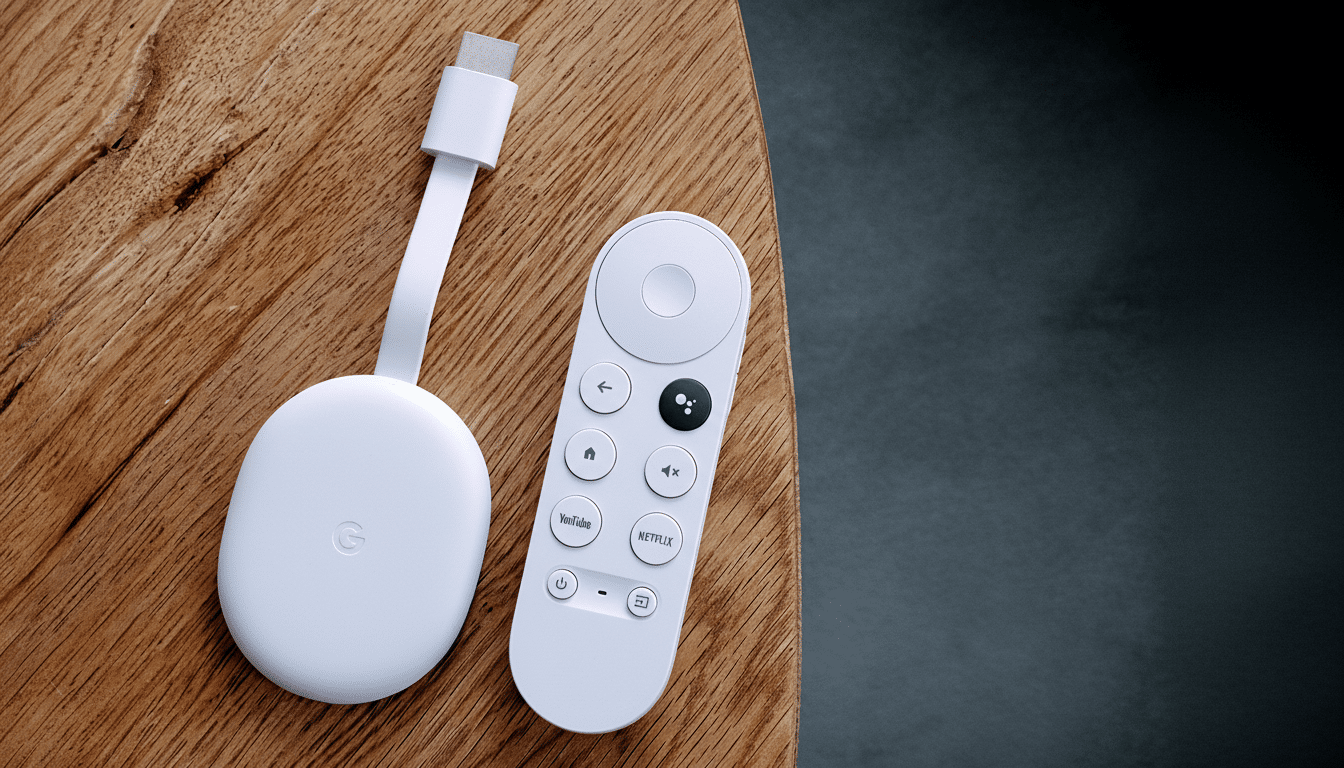
Join the Android Beta Program, and update to Android 16 QPR3 Beta 1 on a supported device, such as one of the most recent Pixel phones. Use a USB‑C to HDMI adapter, or a cable connected to your TV, to display and use apps on the big screen. Open Quick Settings, tap Cast, and select the external display inside the “Cast your screen” dialog. Finally, choose a Cast target on the same Wi‑Fi network, such as a Chromecast or TV with built‑in Cast support, and start mirroring.
If you don’t see the external display in the list, make sure that it’s turned on and connected to your phone; switch to a different video cable if you have one; and check that the Cast receiver or Apple TV isn’t sleeping or otherwise unavailable. You might not be able to cast from enterprise‑managed devices, for example; your system admin has the final say over allowed cast destinations.
Performance Expectations, Network Needs, and Key Limitations
There will be some lag because this is wireless casting. It’s great for slides, documents, browsing, and even B‑movie–quality video playback, but fast‑twitch gaming or high‑frame‑rate movie watching may come across as laggy. A strong 5 GHz or Wi‑Fi 6 connection with little to no interference, and being close to the access point, improves stability and image quality.
DRM‑protected content may be restricted or may not display when connected to an HDMI input on some video devices, such as projectors.
That’s in line with the casting and screen‑recording rules that already exist for Android. Also, since this feature is housed in a beta, it’s possible that behavior will change prior to the QPR3 stable rollout; keep an eye on the Android Beta Program release notes for any updates.
Implications for Android Desktop Mode and Workflows
Casting to an external display may seem small, but it is a key function toward any desktop‑class OS. It also fits with Google’s more recent efforts on freeform windows, a better task‑switching experience, enhanced keyboard and pointer support, and improved multi‑display detection. Collectively, these enhancements lower the friction of operating a phone as if it were a less‑embellished PC.
Industry observers have long pointed out that polish on multiple screens is a differentiator for platforms straddling mobile and desktop. Google is doing away with functional limitations that, up until now, had users packing a laptop for demos and on‑premises meetings, with Android 16 bringing support for external display recording and QPR3 introducing casting. The phone and a cable will do for many use cases: sales, training, field service.
The Bottom Line: A Small Change With Big Usability Gains
Android 16 QPR3 Beta 1 gives you the ability to cast exactly what your external monitor is showing, a deceptively simple change that leads to cleaner presentations and more believable desktop‑mode utilization. It’s more proof that Google’s desktop dreams for Android are leveling up from experiments to ready‑for‑prime‑time features — one sensible step at a time.
