


For folks upgrading to a new Windows device who are dreading the hours it might take to reinstall apps, copy files, and reconfigure settings, there’s now an easier way.
The company’s all-in-one kit includes migration tools alongside disk-imaging and secure-wiping functionality—all in a single purchase—offering to turn what is often an hours-long chore into a guided, step-by-step process that usually finishes before your coffee gets cold.
- What’s included in the PC transfer kit, exactly
- Why this transfer method is faster than doing it manually
- Data safety considerations and recognized secure standards
- Who it’s for and what you should realistically expect
- How it works in minutes from download to secure wipe
- Bottom line on the $25 transfer kit deal and value
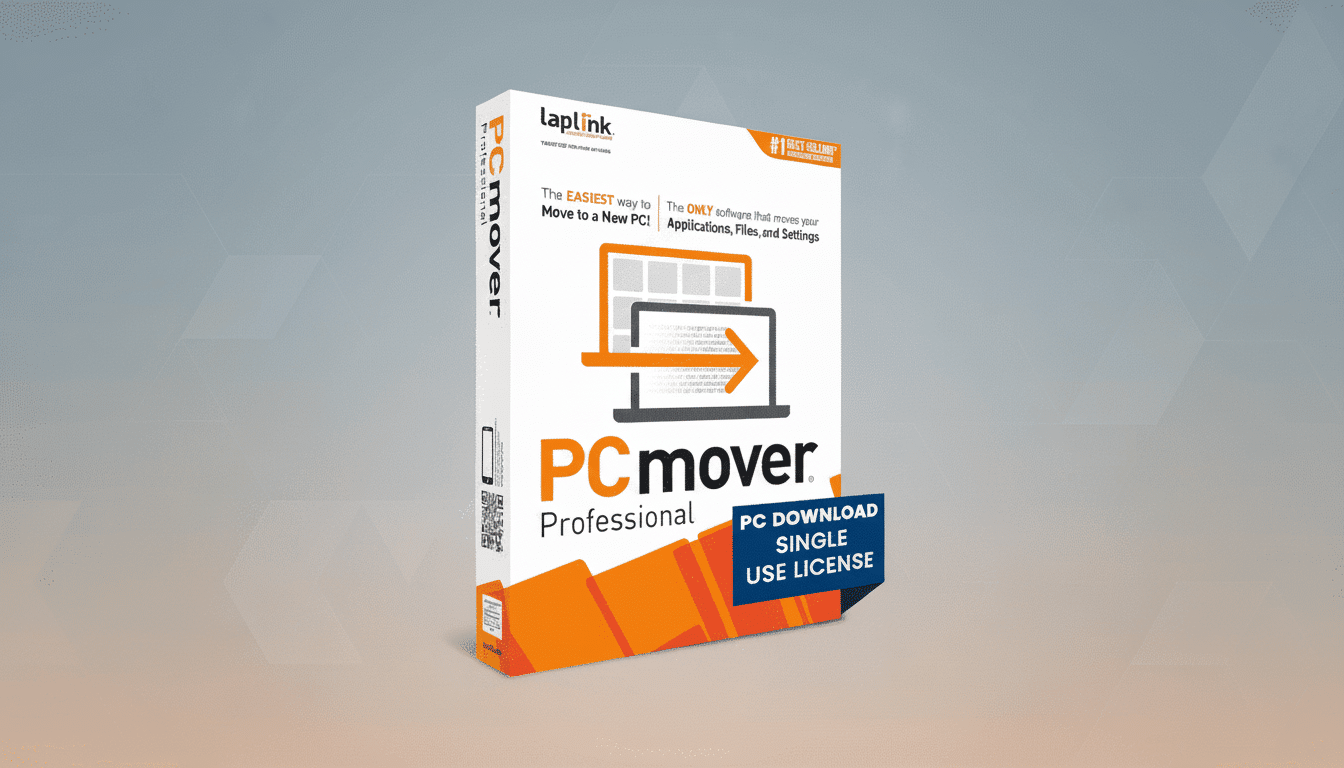
Right now, the bundle’s price has been reduced to $24.97 from a list price of $129.85—in an 81% drop that puts pro-grade utilities at your fingertips for everyone getting their PC ready for a refresh or handoff. The pitch is relatively straightforward: transfer what counts in a matter of minutes, have it backed up for safety, and then erase the old drive to industry standards.
What’s included in the PC transfer kit, exactly
The focus of the offering is PC migration software that moves user profiles, documents, photos, settings, and many installed applications to a new Windows PC from an older one. Install it on both machines, pick what to bring over, and let it do the heavy lifting—no hunting for license keys or re-tweaking preferences for each app.
Then we have a full disk-imaging tool. It takes a sector-by-sector snapshot of your system before you make any irreversible changes to it. And if anything goes sideways—if you lose some files, or unexpectedly have compatibility problems—just mount the image or restore it entirely, effectively gifting yourself a time machine.
Lastly, a secure erasure utility can wipe the source drive when you’re ready to sell, recycle, or repurpose the old PC. It employs repeat-overwrite techniques that adhere to accepted data sanitization standards, so that personal information, cached credentials, and browser histories no longer reside on the device you’re getting rid of.
Why this transfer method is faster than doing it manually
Those manual migrations are time-consuming because they’re fragmented: you move some files to an external drive, reinstall a dozen apps, click through menus to restore settings and fonts, only to find on day three that an essential plug-in or font got left behind. A specific migration tool, on the other hand, consolidates the entire data, apps, and preferences move into one straightforward process.
Consider transfer speed alone. A household library is big—easily topping 200GB. For data alone, and over a brand-spanking-new Gigabit wired network (a theoretical 125 MB/s), it’s somewhere around the order of half an hour; on Wi‑Fi 6, longer still. The time sink isn’t the raw bandwidth—it’s all the manual setup around it. App reinstallation (with settings and a profile) typically involves hours of work saved, not to mention that it allows you to get back up and running in the way you left off if you’re an advanced user who has slowly transformed their system over years.
Real-world example: a small design studio that was migrating a senior editor out of their five-year-old tower into a new laptop used a similar approach—image, migrate, verify, wipe. The user was productive in the morning, and that fallback image lay there on network-attached storage for two weeks just to be safe. The studio was saved from a full afternoon of billable downtime.

Data safety considerations and recognized secure standards
Even before any transfer, a clean image is table stakes for IT pros and other risk-averse users. For this very reason, Microsoft’s own deployment guidance suggests full, restorable backups before upgrades and migrations.
On the retirement side, secure wiping is not optional. The company’s analysis of used drives has repeatedly unearthed leftover personal and corporate data on a sizable percentage—one frequently cited report put the share at 42 percent containing recoverable details. It is that kind of exposure the final step in this bundle is intended to guard against.
If your use case is governed, set the erasure settings in accordance with accepted guidance (for example, NIST Special Publication 800-88). Maintain a proof-of-erasure report that lists the serial number for each device; many auditors consider that the gold standard in disposing of devices.
Who it’s for and what you should realistically expect
The kit is meant to facilitate Windows-to-Windows moves—a home user upgrading an aging desktop, families passing on a laptop, freelancers refreshing to a faster rig, or small businesses that want a predictable, repeatable process without standing up enterprise deployment tools.
There are limits. Not all applications migrate cleanly; drivers and deeply licensed software may need to be reactivated or freshly installed. Corporate domain-joined systems could be subject to IT policies—always check with your admin before personalizing your system. And transfers are only as speedy as your connection, so a wired Ethernet link will almost always outpace Wi‑Fi.
If you don’t care about moving apps and only want your files, a cloud backup or Windows’ onboard File History might be enough. But for everyone else who wants their desktop, preferences, and everyday programs to feel like old friends from day one, migration software is the speed play.
How it works in minutes from download to secure wipe
- Download and install the migration tool on both PCs, connecting them to the same network. Select the user profiles, apps, and folders you want to transfer, and start it up.
- Take a full disk image of the source system and put it on an external hard drive or NAS for rolling back in the near term.
- Once you have confirmed that everything works as expected on your new PC, run the secure erase utility (with the disk attached, of course) and save the file containing the erasure report.
Bottom line on the $25 transfer kit deal and value
Normally retailing for $120.97 (81% off the combined MSRP), this bundle is a convenient shortcut for anybody who appreciates time and peace of mind. You receive a guided transfer, an insurance-grade backup, and a compliant wipe all in one transaction. For the majority of upgraders, that’s the quickest, safest journey from old PC to new.
