


Samsung’s latest Galaxy phones offer users some of the best battery life on a premium device, but with a little bit of fine-tuning and access to an essential accessory (that you do not have to buy from Samsung), they can be made even better. Based on more than a week of varied use with a Galaxy flagship (navigation, camera, 5G and streaming), tweaking the seven settings below reliably left me with more end‑of‑day buffer — say from around the teens to the 30% range — without compromising smoothness or key functionality.
The focus here is one thing: limiting the silent power draw of the display, radios, and background apps. Industry testing supports this strategy — screen power is responsible for 30–50% of daily power consumption, and the cellular radio spikes power draw in low coverage, according to anecdotes shared by Android engineers and carrier studies published by GSMA.
- 1) Turn on Dark mode and use a true‑black wallpaper
- 2) Use Adaptive brightness, not manual maximum
- 3) Send dormant apps to sleep, and cap background activity
- 4) Uninstall preloaded or unneeded apps to save power
- 5) Set up an AOD schedule to limit idle screen drain
- 6) Change to the Light performance profile
- 7) Enable Data Saver and throttle background data
- 8) Turn off extra scanning you don’t need
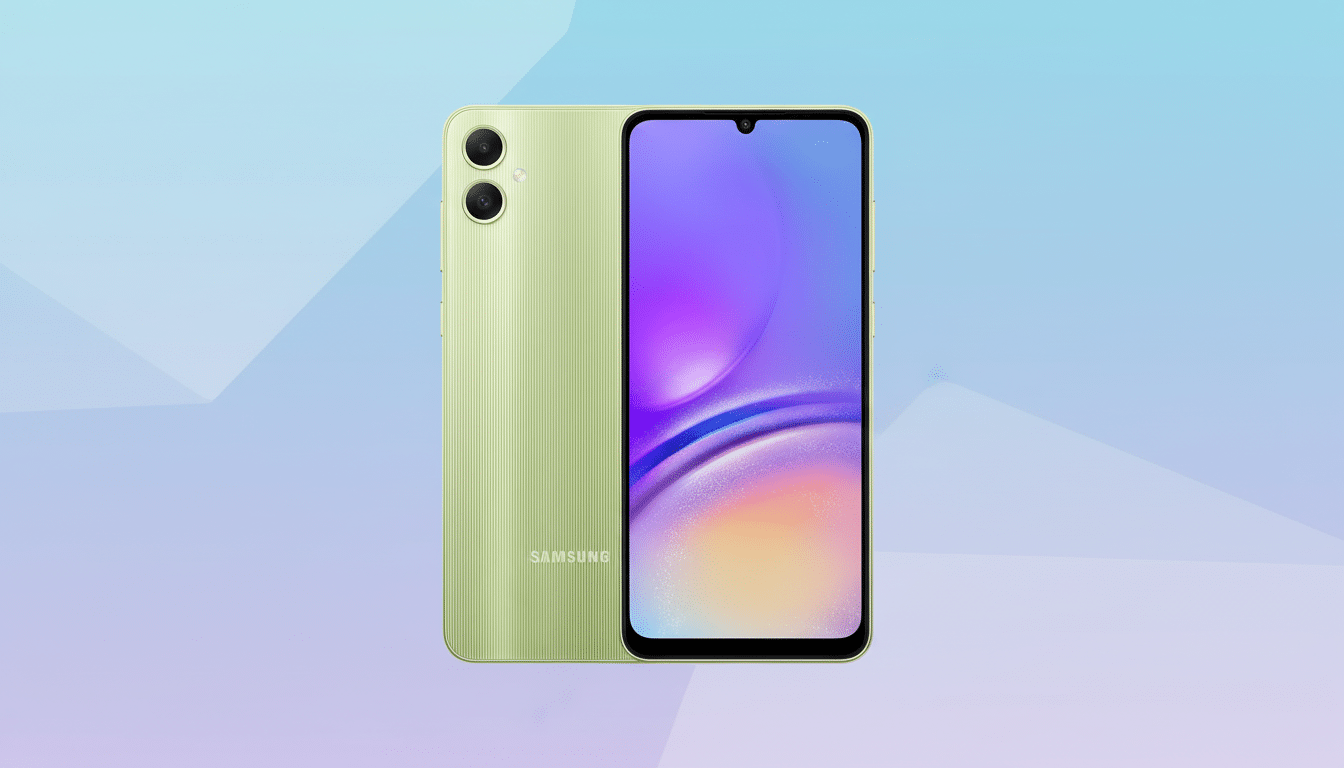
1) Turn on Dark mode and use a true‑black wallpaper
On Samsung’s AMOLED panels, black pixels are really off the display, so Dark mode and black wallpapers reduce screen power. Google engineering demos have proven high‑brightness OLED savings with dark interfaces, and DisplayMate’s examination echoes the per‑pixel efficiency edge.
How to: Settings > Display > Dark mode. For bonus savings, choose a black wallpaper in Settings > Wallpaper and style.
2) Use Adaptive brightness, not manual maximum
Manually cranking up the brightness is a battery‑draining odyssey for sure. Additionally, Samsung’s version of Adaptive brightness reacts quickly and generally keeps nits lower than you might set manually. In the bright sun it ramps up, but indoors it trims down the excess, and that’s where most users are going to be most often.
How to: Settings > Display > Adaptive brightness (toggle on). You can still swipe — occasionally, it learns your habits.
3) Send dormant apps to sleep, and cap background activity
Background wakeups add up. One UI’s app oversight steps on that waste without compromising notifications for the apps you genuinely use. This utilizes the adaptive battery logic with Android alongside Samsung’s very own boundaries.
How to: Settings > Battery and device care > Battery > Background usage limits. Activate “Put unused apps to sleep” and move seldom‑used titles into either “Sleeping” or, better still, “Deep sleeping.” You can also dive into individual app settings and limit background activity for offenders you don’t need running 24/7.
4) Uninstall preloaded or unneeded apps to save power
Unused preinstalled apps could nevertheless be scheduling syncs, listening for updates, or remaining in memory. Eliminating them trims wakeups and network pings. Counterpoint Research analysts have mentioned in the past that background services significantly contribute to standby drains on phones.
How to: Long‑press app icon > Uninstall. If you don’t see the uninstall option, select Disable and then follow the prompts to disable the app’s notifications. Examine, say, cloud storage; email clients you won’t use; and social apps that don’t add much except sucking up space.
5) Set up an AOD schedule to limit idle screen drain
AOD is convenient, but on non‑LTPO panels, it can also eat up the battery at about half a percent per hour depending on brightness and animations, based on measurements from reviewers and OEM guidance. If you schedule it, the glanceable info is there when you want it (not overnight on a nightstand).
How to: Settings > Lock screen > Always On Display > Show as scheduled. Choose your working hours and turn off extras like “Show lock screen wallpaper” and the elaborate AOD animations.
6) Change to the Light performance profile
Modern chipsets can draw a significant amount of power. They disproportionately draw more power as you raise CPU/GPU clocks. Analysis by IEEE and platform vendors points to power increasing steeply with frequency. Samsung’s Light profile reins in those aggressive boosts you won’t notice with scrolling, calls, or messages — but your battery will.
How to: Settings > Battery and device care > Performance profile > Light. Games and video editing are still a go, but thermals and battery drain become more of a trickle.
7) Enable Data Saver and throttle background data
Cellular radios use more power than Wi‑Fi, especially on marginal 5G or LTE coverage (according to operator and GSMA technical notes). And Data Saver tamps down background syncs and auto‑play which quietly drain the modem.
How to: Settings > Connections > Data usage > Data saver (toggle on). Allowlist essentials like messaging. For streaming and maps, download playlists and offline areas on Wi‑Fi before you go to prevent endless cellular pulls.
8) Turn off extra scanning you don’t need
Even when Wi‑Fi is turned off, its hardware transceiver will continue to scan for nearby networks to improve location accuracy and identify available hotspots. DNS and network time lookups also occur over any Android connection. Stopping the scans means preventing regular radio wakeups — but this assumes that you don’t depend on those features.
How to: Settings > Location > Location services > Wi‑Fi scanning and Bluetooth scanning (off). Also look under Settings > Connections > More connection settings > Nearby device scanning.
In combination, these adjustments focus on the largest sources with few trade‑offs. They dovetail with what lab studies and on‑the‑ground reports have said for years: keep the screen efficient, suppress background chitchat, and quiet radio traffic. The end result is a Galaxy that still feels fast — it just goes to bed with noticeably more battery in the tank.
