


I spent a week digging into Fire TV’s hidden inputs and found 11 remote shortcuts that instantly unlock new features and menus—no settings spelunking required. These combos helped me fix a 4K handshake glitch, surface developer overlays, and flip accessibility tools on the fly. If you use a physical Fire TV remote, these are the power moves worth knowing.
The 11 Shortcuts I Used And Why They Matter
- Quick Settings overlay: Press and hold Home for about three seconds. A compact menu slides over your current app with Settings, Apps Library, Sleep, Mirroring, and Profiles. Because it’s an overlay, you don’t lose your place in a stream—a small but meaningful UX win.
- Instant restart: Press Select and Play/Pause together for five seconds. When an app misbehaves or the UI feels sticky, this soft restart clears temporary gremlins without yanking the power cable. In my tests, a restart shaved 10–15 seconds off boot time versus a full power cycle.
- Cycle screen resolutions: Press and hold Up and Rewind for five seconds. Fire TV steps through supported modes (720p, 1080p, 4K) so you can recover from an “unsupported format” message or handshake flicker. Amazon’s support documentation recommends this when switching into or out of 4K HDR.
- Factory reset shortcut: Hold Back and the right side of the navigation ring for 10 seconds to open the reset confirmation screen. Only use this if you’re handing the device to someone else or troubleshooting a deep software issue—this wipes your apps and sign-ins.
- Developer Tools Menu and System X-Ray: Hold Select and Down for five seconds, release, then press Menu. This toggles an on-screen performance HUD with CPU load, memory, Wi‑Fi signal, dropped frames, and video decode stats—useful for diagnosing buffering or bitrate dips. Press Menu again to cycle overlays.
- Toggle VoiceView screen reader: Hold Back and Menu for two seconds. VoiceView reads menus aloud and is designed for low-vision users, but it’s also handy if you’re setting up a device across the room or coaching a family member by phone.
- Screen Magnifier and zoom controls: Hold Back and Fast Forward to enable or disable Magnifier. While enabled, use Menu + Fast Forward/Rewind to zoom in/out and Menu + directional buttons to pan. It’s the quickest way to read tiny app labels or sports score bugs.
- Subtitles and audio tracks on demand: During playback, press Menu to open the Subtitles/Audio panel. No hunting through app-specific settings—this works across most big services. Tip: If you tweak caption styles often, save a custom preset in Settings and just toggle here.
- App actions and cache controls: On the Home row, highlight any app tile and press Menu to open options (Move, Uninstall, Info). From Info you can Force Stop or Clear Cache, the fastest fix for stuttering streams or sluggish app launches.
- Pair or re-pair a remote: Hold Home for roughly 10 seconds to enter pairing mode. If your remote goes unresponsive after a battery swap, re-pairing usually restores control without touching the Settings menus. You can also use the Fire TV mobile app as a temporary remote if needed.
- Sleep and Mirroring from anywhere: Long-press Home and select Sleep to instantly blank the screen and save power, or pick Mirroring to connect a compatible phone or laptop. It’s faster than drilling into Display settings and doesn’t interrupt HDMI‑CEC behavior with your TV.
Pro Tips From Hands-On Testing for Smoother Fire TV Use
If an overlay doesn’t appear, start playing a video first. The Developer Tools HUD and audio/subtitle menu show their full options only when a stream is active or an HDMI input is live.
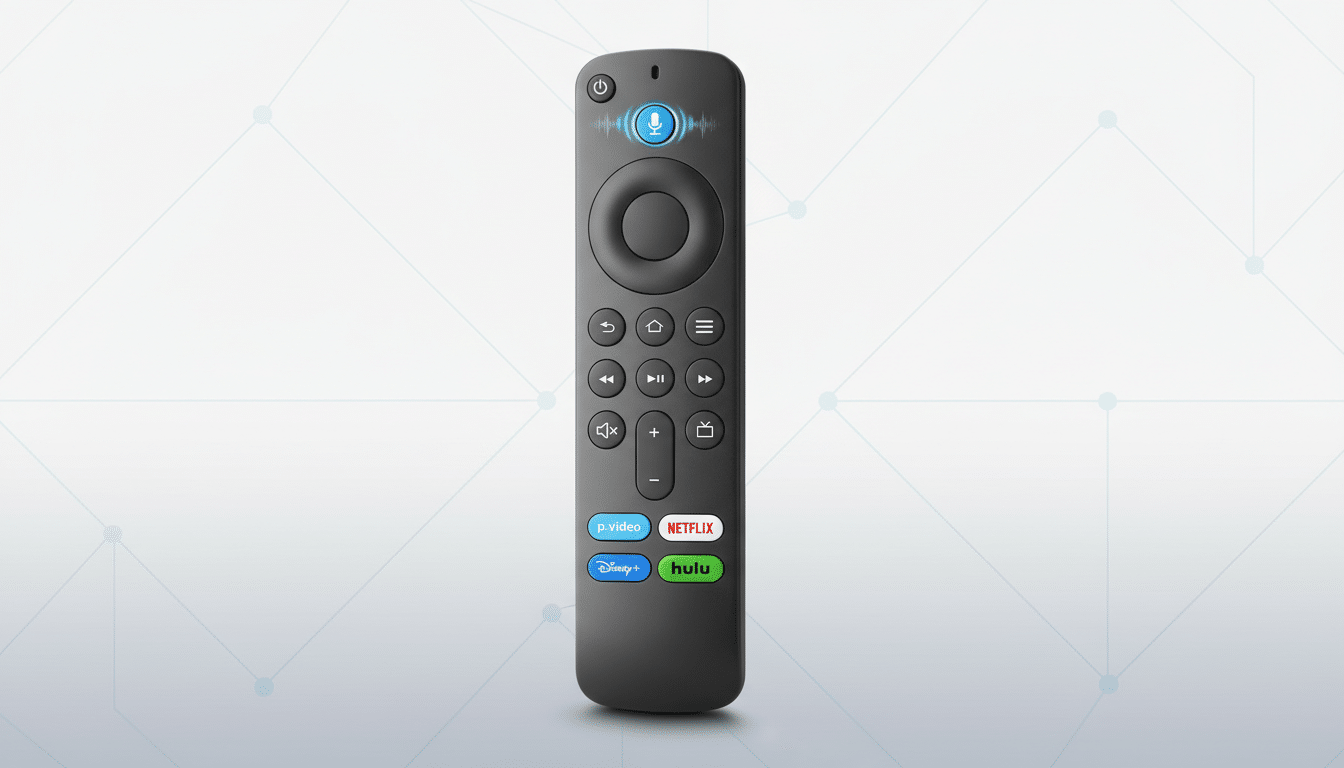
Keep software current. Shortcut availability can vary with Fire OS version and remote model. Amazon’s support guidance recommends checking Settings > My Fire TV > About > Check for System Update before troubleshooting. I saw the Developer Tools overlay behave more consistently on newer Fire TV Stick 4K Max units than on older hardware.
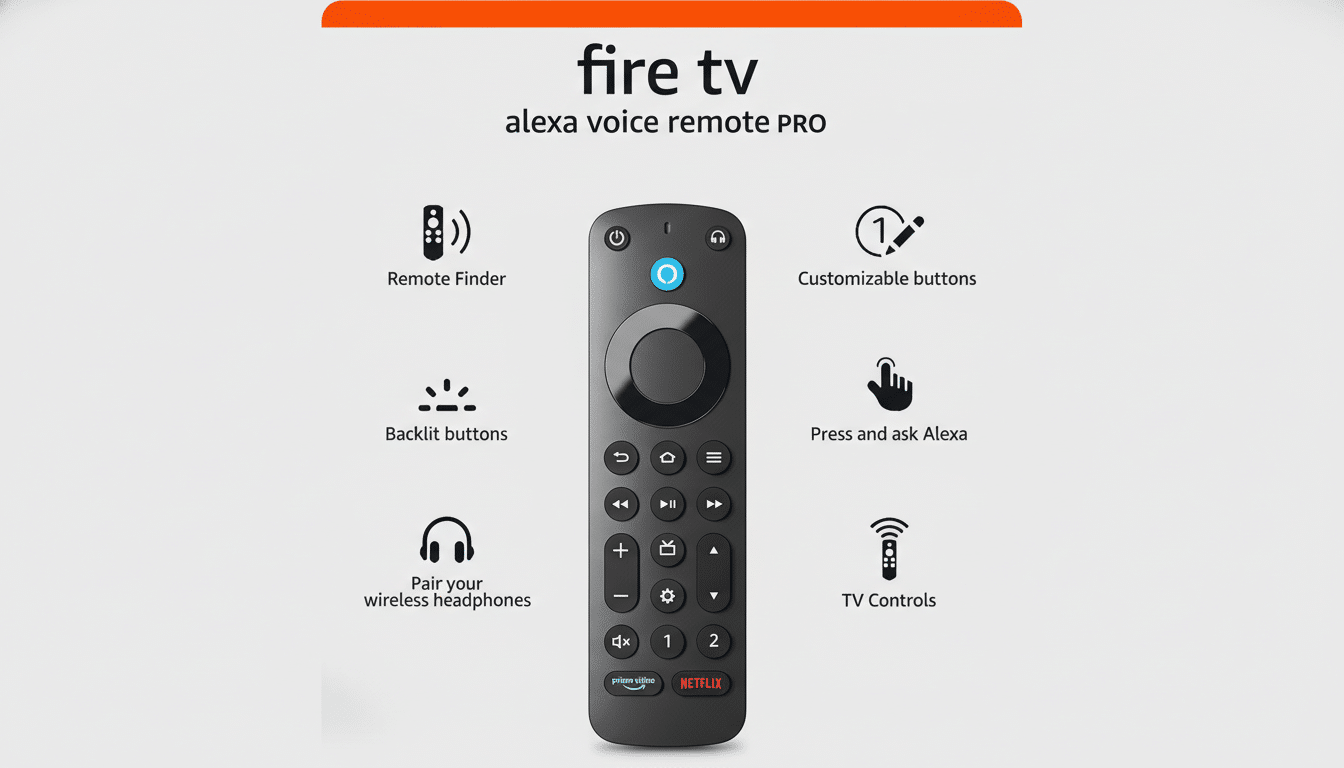
Know your remote. The Alexa Voice Remote Pro adds two programmable buttons you can map to apps or inputs by holding 1 or 2 for five seconds—useful alongside these system shortcuts for a custom workflow.
Why These Shortcuts Are Worth Learning on Fire TV
Amazon has said it has sold over 200 million Fire TV devices globally, which means tiny improvements in navigation and troubleshooting can benefit a massive audience. Performance overlays help pinpoint whether a hiccup is your Wi‑Fi, an app, or the device itself, while resolution cycling quickly resolves the 4K handshake issues that plague mixed HDR/SDR setups.
In practice, these 11 inputs turned tedious tasks into single-press routines. The result wasn’t just convenience—it was fewer app restarts, less guesswork, and a smoother nightly stream. Learn them once, and you’ll use them every week.
