


Self-hosting is moving from hobbyist niche to mainstream as people tire of subscription creep and want control over their data. If you want a no-cost starting point that doesn’t fight you at every turn, Ubuntu Server is the standout. It’s light on resources, rich in documentation, and quick to set up — ideal for running your own cloud, media server, or password vault at home.
That’s not just hype. W3Techs data shows Ubuntu leading among Linux distributions powering the web, a sign of its stability and wide support. Here’s how to turn a spare PC or mini‑PC into a capable, secure, and friendly self‑hosting box in an afternoon.
- Why Ubuntu Server Stands Out for Self-Hosting
- What You Need to Begin with Ubuntu Server
- Install Ubuntu Server in Minutes on Any PC
- Make It Point and Click with Cockpit Web Console
- Optional Desktop for Newcomers Learning Linux
- Install Apps the Easy Way with Snaps or Containers
- Lock It Down and Keep Ubuntu Server Updated
- First Self-Hosting Wins to Try on Ubuntu Server
Why Ubuntu Server Stands Out for Self-Hosting
Ubuntu’s Long Term Support releases ship with five years of security updates, a predictable six‑month cadence for new features, and broad hardware compatibility. You get the familiar apt ecosystem, plus Snap packages for one‑command installs and automatic updates.
It’s also beginner‑friendly without dumbing things down. Tools like UFW (the uncomplicated firewall), cloud‑init, and excellent upstream documentation reduce guesswork. If you need help, you’ll find answers quickly in the community and official guides from Canonical.
What You Need to Begin with Ubuntu Server
A modest machine with a 64‑bit CPU, 2GB of RAM (4GB recommended), and 20GB+ of storage is enough for most starter projects. Wired Ethernet is preferable for reliability. You’ll also want router access for port forwarding or a mesh/VPN approach for remote access.
Optionally reserve a static IP on your router and pick a domain name with dynamic DNS support. It’s not required for day one, but it makes adding HTTPS certificates and external access far easier later.
Install Ubuntu Server in Minutes on Any PC
Download the latest Ubuntu Server LTS image, write it to a USB drive, and boot your machine. During setup, create a non‑root user, select OpenSSH Server, and accept automatic security updates. Stick with the default ext4 filesystem unless you specifically want ZFS snapshots.
After first boot, update the system: sudo apt update && sudo apt full-upgrade -y. If you plan to access the box often, set a hostname you’ll remember and confirm your IP via ip a.
Make It Point and Click with Cockpit Web Console
Prefer dashboards to shell prompts? Install Cockpit, a web-based admin console that centralizes logs, storage, networking, services, and updates.
Run: sudo apt install cockpit -y, then enable it with sudo systemctl enable --now cockpit.socket. Visit http://SERVER:9090 in a browser to log in. From there, you can monitor CPU and memory, manage users, inspect services, and add modules for containers and storage.
Optional Desktop for Newcomers Learning Linux
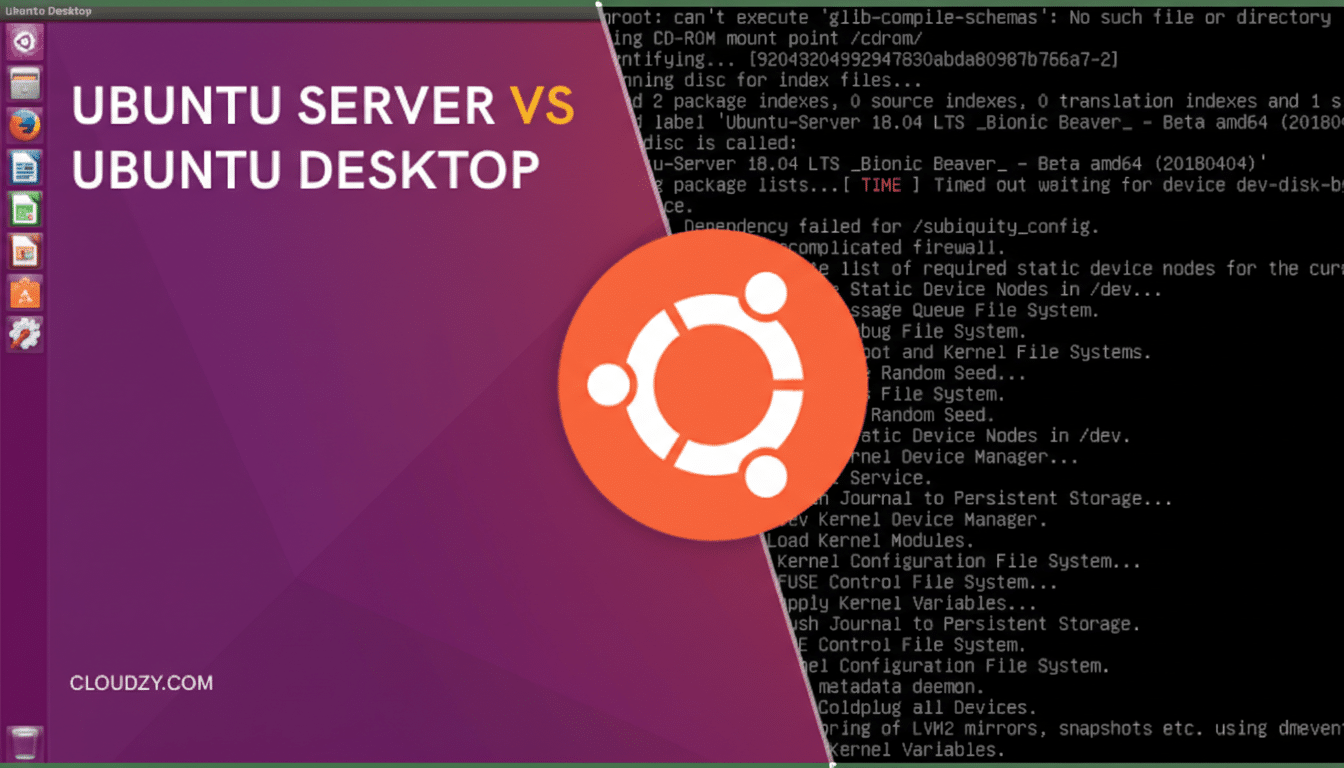
If you’re brand new to Linux, a lightweight desktop can smooth the learning curve. Install Tasksel, then choose a minimal desktop: sudo apt install tasksel dialog -y and sudo tasksel. Reboot when finished. Remember a GUI uses extra RAM, so skip this if you’ll mostly manage via SSH or Cockpit.
Install Apps the Easy Way with Snaps or Containers
Snaps are the fastest route to popular self‑hosted apps with automatic updates. Examples: Nextcloud for personal cloud (sudo snap install nextcloud), Jellyfin for media streaming (sudo snap install jellyfin), and AdGuard Home for network‑wide blocking (sudo snap install adguard-home). Note that many Snap configs live under /var/snap/.
If you prefer containers, install Docker or Podman from Ubuntu’s repositories and manage them inside Cockpit’s Containers module. Containers keep services isolated and reproducible, which is useful as your stack grows.
Lock It Down and Keep Ubuntu Server Updated
Turn on the firewall early: sudo ufw allow OpenSSH, sudo ufw allow http, sudo ufw allow https, then sudo ufw enable. If you installed a desktop, the Gufw app provides a friendly rules editor.
Enable automatic security patches with: sudo dpkg-reconfigure -plow unattended-upgrades. Add Fail2ban to throttle brute‑force attempts (sudo apt install fail2ban), and use Let’s Encrypt via Certbot for free TLS certificates once you expose services to the internet. Guidance from national cybersecurity agencies and OWASP consistently emphasizes strong defaults and timely patching as the highest‑impact defenses.
First Self-Hosting Wins to Try on Ubuntu Server
Start with one project you’ll use daily. Great candidates: Nextcloud for files and calendar, Jellyfin for media, or Home Assistant for smart‑home control. Each has active communities and migration guides to move off big‑tech platforms.
For remote access without opening router ports, set up a mesh VPN like WireGuard or a zero‑config overlay such as Tailscale. This approach keeps services private while remaining accessible from your phone or laptop.
The bottom line: with Ubuntu Server’s stable base, Cockpit’s friendly dashboards, and one‑command app installs, self‑hosting is no longer a weekend‑breaking project. In a few hours, you can reclaim key services, cut recurring costs, and keep your data where it belongs — with you.
