


Google is bringing a small but important change to Meet that should keep time with more than a few video calls in the month ahead. It’s a change that removes one of the last remaining limitations in Chrome: Users no longer have to port sound directly from a specific tab into a call, also allowing for cleaner demos, better training sessions, and more consistent multimedia playback from any app on your computer.
What changed in Google Meet’s new system audio sharing
Meet now offers an “Also share system audio” toggle when you present a window or your entire screen on macOS or Windows. Turn it on, and anyone in the call will hear whatever your device is playing out—whether that’s a video player, a DAW, whatever kind of hacky slideshow you’ve packed with embeds for sound effects, or even just some background app. The native “Also share tab audio” option is still there for Chrome tabs, but unlike before you don’t have to limit it to the browser.
- What changed in Google Meet’s new system audio sharing
- Why system audio sharing in Meet matters for presenters
- How to turn on device audio when presenting in Google Meet
- Compatibility and rollout details for system audio in Meet
- How Google Meet’s system audio compares to competitors
- Pro tips and common pitfalls when sharing system audio
- Bottom line: what Meet’s system audio sharing delivers
Practically speaking, that means you can narrate a product walkthrough while referencing native app audio beneath, or run a training video in its natural habitat without the detour of having to upload it somewhere and share a single tab.
Why system audio sharing in Meet matters for presenters
Audio is frequently the tripwire when it comes to virtual presentations — crackly screen recordings, double echoes caused by a microphone and speaker in the same room, that classic “no one can hear this video” moment. System audio sharing was “one of the top requested Meet features,” Google said, and it’s easy to see why. It makes for simpler setups, less reliance on third-party routing tools, and puts Meet on more even ground with competitors who already allow you to share computer sound.
The timing correlates with the way people really work. Gallup says that 52% of employees who can work remotely are currently working in hybrid mode, and multi-app demos have become de rigueur for sales, onboarding, and classroom training. If a platform can make audio “just work,” then speakers can concentrate on their content instead of managing awkward tactics.
How to turn on device audio when presenting in Google Meet
Start or join a Meet, click Present, and then select Window or Entire Screen. In the prompt that follows, turn on “Also share system audio.” If you were to share a Chrome tab instead, you will still encounter “Also share tab audio.” For best results, set the audio output of Meet to your system default and use headphones for less feedback. First time around on macOS, you’ll be prompted to give Meet permission to capture system sound—grant that permission in System Settings if necessary.
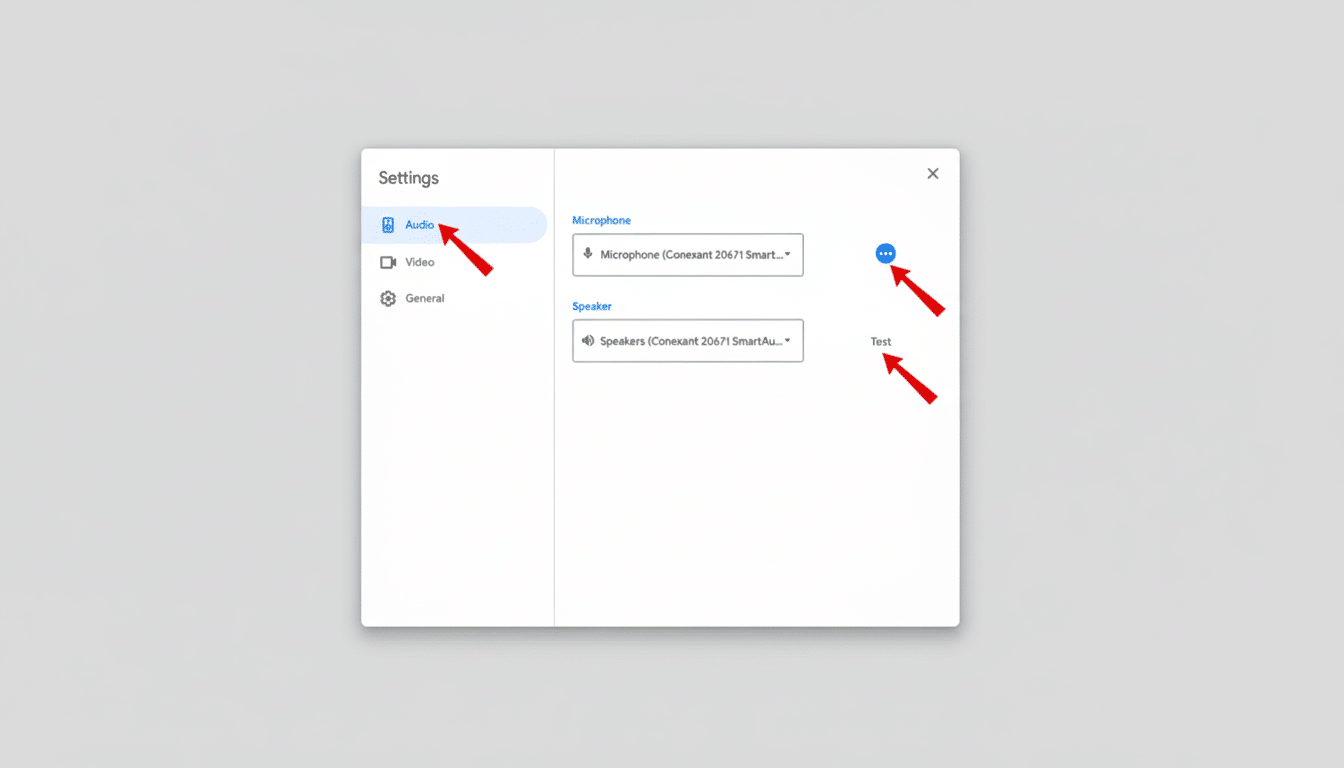
Volume control is still down to the system, so use your OS mixer and app volumes if your participants are reporting that levels are low or hot. If you are sending your audio through mixers or virtual devices, make sure that the default output is the right one you want to share!
Compatibility and rollout details for system audio in Meet
The feature is rolling out to Google Workspace customers on rapid release domains and personal Google accounts, with more general availability later. It requires Windows 11 or higher, macOS 14 or higher, and Google Chrome version 142 or above. Adaptive audio configurations that use multiple microphones and speakers on one device are currently not supported for system audio sharing, Google says.
How Google Meet’s system audio compares to competitors
Well before a quiet year at home led millions to join video calls themselves, Zoom and Teams had offered a “share computer sound” feature, so Meet’s move is more than just a nice-to-have — it’s table stakes in any modern business tool. The upside for Meet users: less dependence on utilities like Loopback or VoiceMeeter to record app audio, fewer cables and interfaces to worry about in hybrid rooms, and a more consistent experience when presenters switch off.
Pro tips and common pitfalls when sharing system audio
Since system audio mikes everything, silence the things you don’t want heard. Turn on Do Not Disturb so that you can avoid pesky notification chimes, shut down talkative apps, and test levels with a colleague before going live. If there’s an echo, use headphones and make sure that only one device in the room has its mic on. For both classroom and webinar use cases, a brief pre-roll slide can be used to remind attendees to first test their own volume before engaging in “false” troubleshooting.
Bottom line: what Meet’s system audio sharing delivers
Meet’s device audio sharing eliminates a stubborn friction point during online presentations. It’s a simple toggle with oversized impact: less fiddling, more polished sound, and a seamless path to sharing exactly what you’re seeing — now with the audio to go with it.
