


Android’s biggest advantage is choice, and nowhere is that clearer than the home screen. Swap out the stock launcher and you can change how your phone works in minutes — and often for free. After testing a range of options and reviewing Google Play data and user feedback, these six launchers consistently deliver a cleaner, faster, or smarter experience than most defaults.
Why You Might Ditch the Default Android Launcher
With Android powering roughly 70% of smartphones worldwide according to StatCounter, even small efficiency gains or better ergonomics scale to millions of users. Third-party launchers can reduce clutter, surface the right apps faster, and add power features your OEM skin might skip — without changing your underlying system or apps.
The best picks below prioritize minimal friction, thoughtful notifications, and customization that respects battery life. They’re easy to install, easy to remove, and most cost nothing to try. Download numbers and ratings referenced here are from Google Play listings at the time of testing.
The Six Android Launchers to Try Right Now
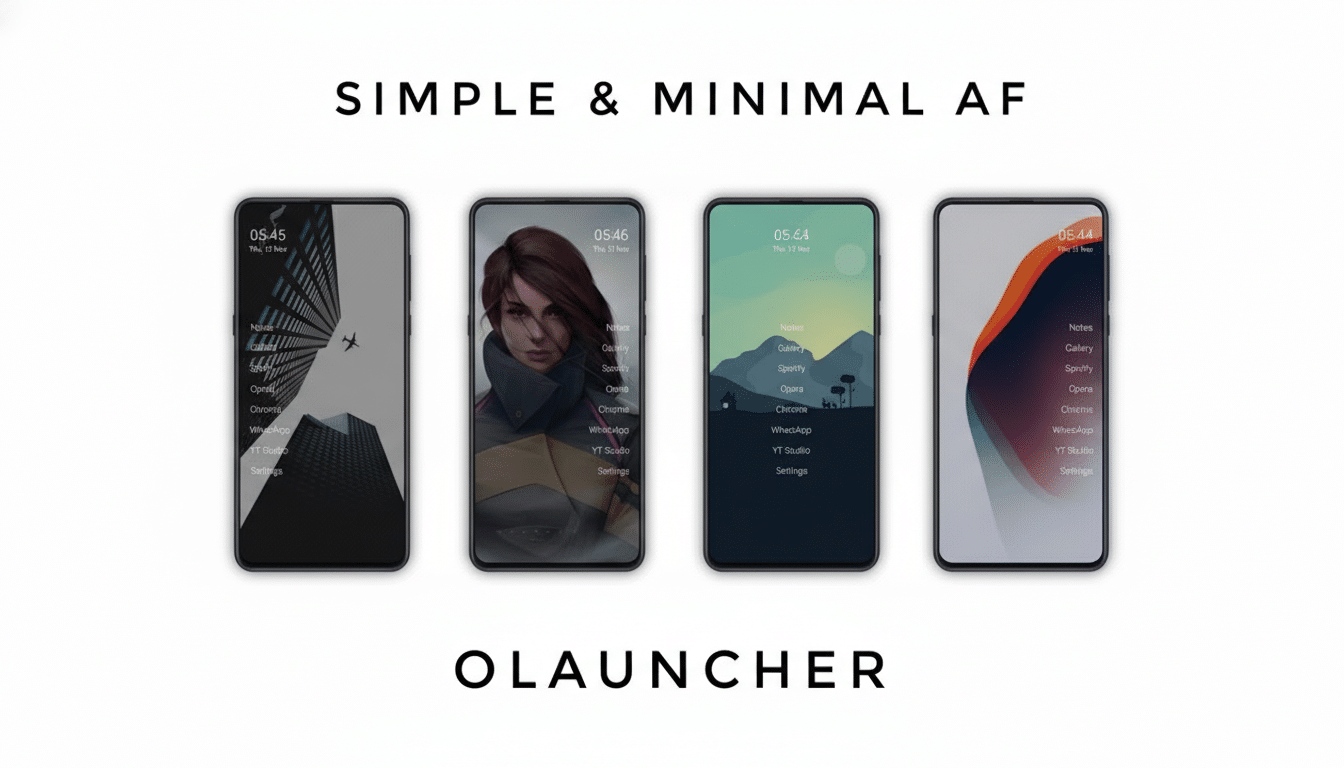
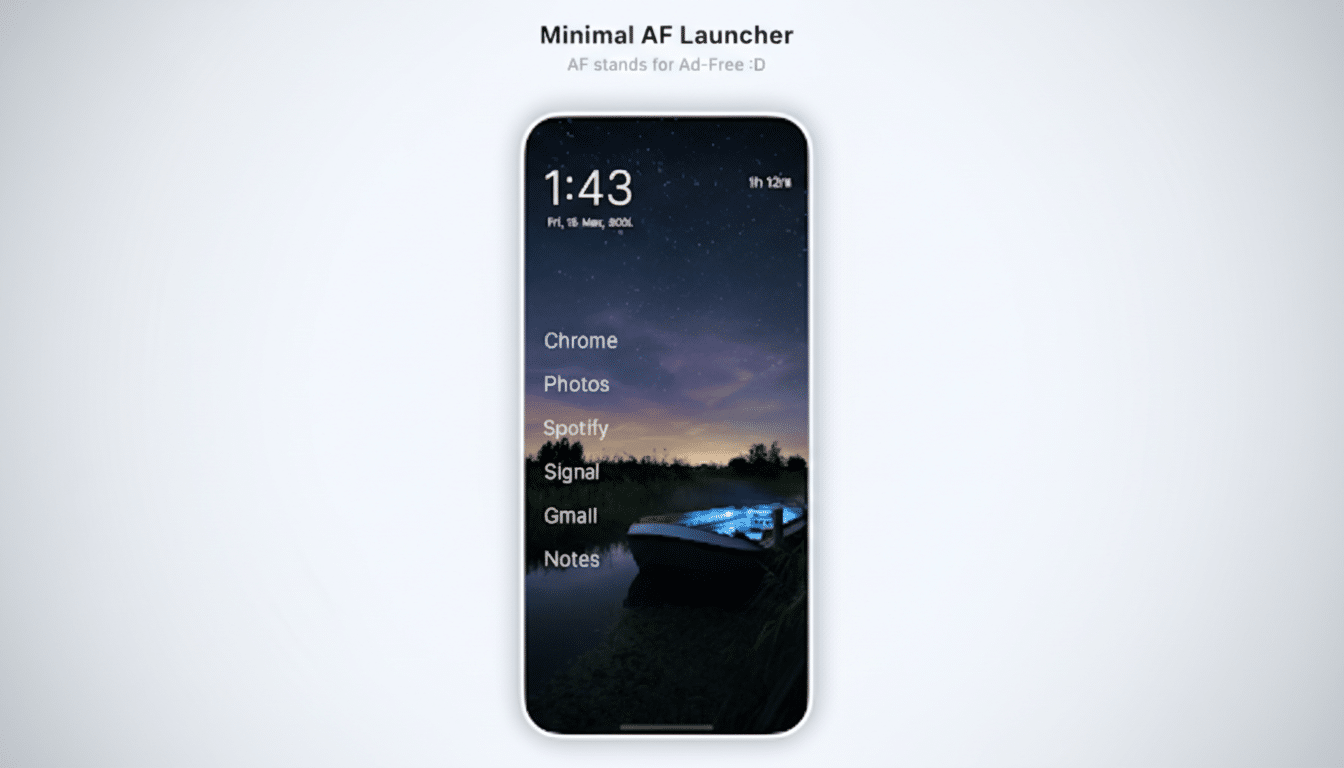
- Olauncher Minimalist Launcher — For pure focus. Olauncher strips the home screen to essentials: a clean clock, weather, and a simple app list by name. No icons, no distraction. It’s delightfully fast on older hardware, requests minimal permissions, and has no ads. If you’re intent on curbing doomscrolling, its pared-back approach helps build better habits. Free, with an evolving pro variant in development.
- Niagara Launcher — For speed with smarts. Niagara centers a vertical, adaptive list that puts your most-used apps within easy reach, and it embeds notifications so you can glance and act without jumping between screens. It’s an Editors’ Choice pick on Google Play with millions of installs, and the Pro tier unlocks calendar and weather integrations, widget stacks, icon options, and custom fonts. Pro is $9.99 per year or $29.99 lifetime.
- Microsoft Launcher — For Windows and Microsoft 365 users. If your day lives in Outlook, OneDrive, To Do, and Edge, this launcher ties it together. A personalized feed surfaces news, calendar, docs, and contacts; “Continue on PC” lets you move quickly from phone to desktop. It feels familiar yet more configurable than many OEM skins. Free to use, with deep Microsoft account integration.
- Square Home — For tile lovers and power organizers. Inspired by the classic Windows Phone interface, Square Home converts your screen into resizable, interactive tiles. It’s surprisingly efficient once you map tiles to workflows (think: a tile that jumps straight into your transit card, or a contact tile for one-tap calls). There’s a free trial; the full version runs about $2 per year or $5 lifetime.
- Lynx Launcher — For a desktop-like workflow. Modeled after the GNOME desktop, Lynx provides a tidy dock, an alphabetical app list on a right swipe, and theme controls that make Android feel more like a focused workstation. If you live in productivity apps, Lynx keeps navigation predictable and fast. A $4 in-app Pro upgrade adds more transitions, icon controls, and dark mode tuning.
- Action Launcher — For tablets and customization fans. Action’s layout shines on larger screens, and clever touches like Covers (tap for app, swipe for its folder) and Shutters (swipe to peek at a widget) save time without clutter. It’s a strong fit for budget tablets and older phones that need a snappy, familiar feel. Free core version, with optional Adaptive Pack (about $5) and Plus upgrade (around $7) for advanced features.
How We Chose These Android Launchers and Why
We prioritized stability, smooth navigation, and thoughtful design over novelty. Test metrics included cold and warm app launch feel, notification handling, widget performance, and battery impact during a typical day of messaging, media, and maps. We cross-referenced Play Store ratings and download bands, looked for transparent monetization, and favored launchers that request only necessary permissions.
Setup Tips and Safety Checks for Switching Launchers
Switching is simple: install your launcher, press Home, and set it as default. You can revert anytime via Settings under Apps and Default Apps. Keep your OEM launcher installed as a fallback, export your layout if the new launcher supports backups, and vet permissions — a good launcher doesn’t need access to your contacts or microphone to do its job.
If you juggle many apps or want a calmer phone, any of these six can make your device feel new again. The default launcher gets you started; the right alternative gets out of your way.
Sources referenced: Google Play Store listings for install ranges and ratings, StatCounter Global Stats for mobile OS share, and Android Developers guidance on launcher behavior and APIs.
