


If your Samsung smart TV seems sluggish—apps take longer to open than before, things feel choppy, menus are slow—there are a few things you can do to improve its performance. Today’s TVs handle a lot: background services, ad tiles, auto-updating and adaptive functionality, then on top of Tizen OS. After a methodical approach to testing common bottlenecks on a few recent Samsung models, I found there were power-user settings changes that could be realistically implemented and make the whole system feel faster and snappier.
These aren’t parlor tricks; they are tweaks that pare back background tasks, make memory available and reduce the workload on the processor and network.
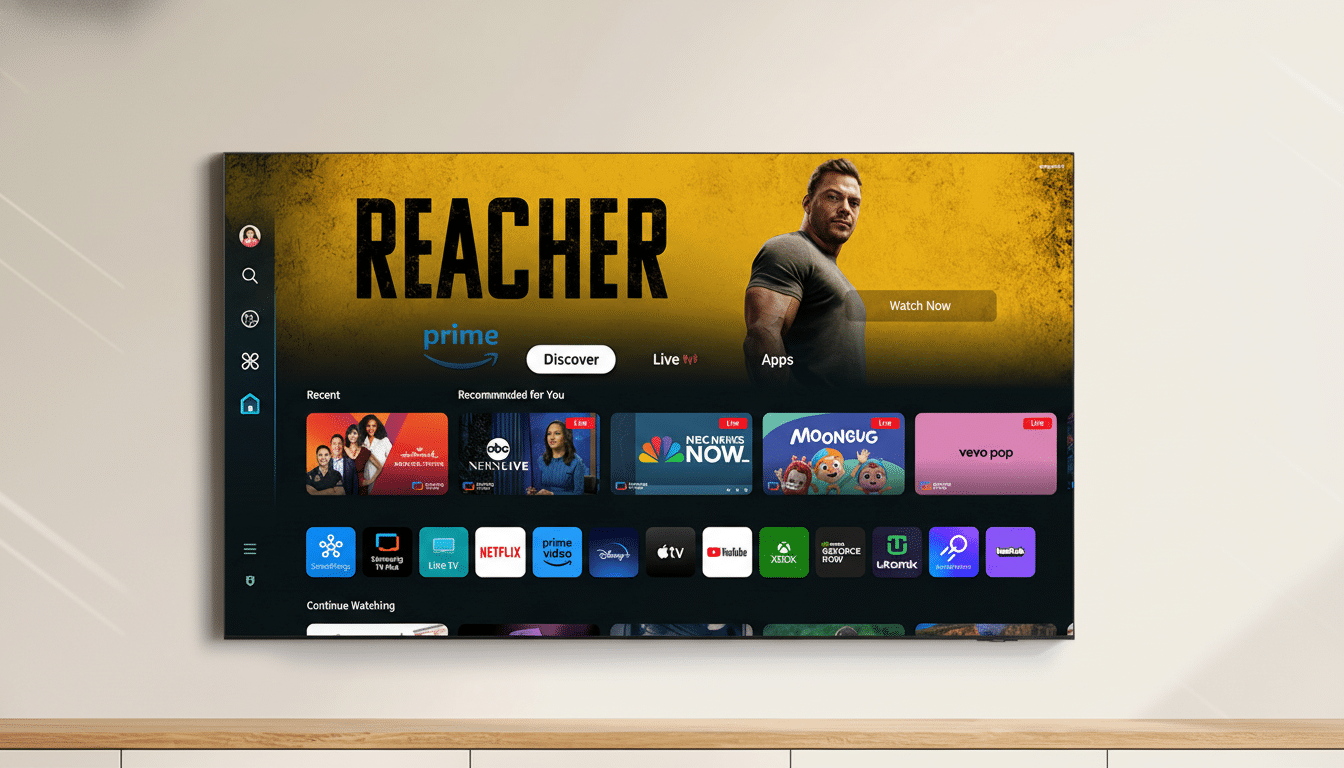
That has consequences as streaming continues to eat up living room use — Nielsen’s The Gauge continues to report that between 38% and 40% of TV usage is occupied by streaming — which means your TV’s operating system remains busy, even when you’re “just watching.”
Disable Auto Run Features That Waste Boot Time
Other than that, a lot of Samsung TVs open aspects of the Smart Hub or reload the most recent app as soon as you turn on the set. It may be convenient, but it drags out boot time and chews up memory.
Visit Settings > General (or General & Privacy) > Smart Features. Turn off Auto Run Smart Hub, Auto Run Last App and Auto Run Multi View. With those turned off, the TV goes straight to its home screen and does not leave it unless you tell it to do so.
Turn Off Intelligent Mode And Voice Wake-Up
Intelligent Mode automatically analyzes your room and the content you’re watching to tailor sound and brightness. It’s a cute trick, but constant indication and processing add overhead. Similarly, the mic is always primed in the background by an always-on voice wake-up.
Go to Settings > General > Intelligent Mode Settings and turn off Intelligent Mode (or toggle off Adaptive Brightness or Adaptive Sound individually).
Then visit Settings > General > Voice (Bixby or the voice assistant of your choice), and switch Voice Wake-Up off. The outcome? Reduced background spikes and more stable UI responsiveness while keeping the picture and audio modes you like.
Turn Off Power And Energy Saving For Full Performance
Energy-saving presets can dim the backlight, but they often throttle or delay system operations. If speed is what matters, make sure the TV isn’t following a conservative profile.
Go to Settings > General & Privacy > Power and Energy Saving. Turn power saving off and uncheck Brightness Optimization or similar automatic dimming features. Conservation matters, but groups like Energy Star and NRDC have found that TV “eco” modes typically only save single-digit dollars per year — small gains given the day-to-day responsiveness trade-offs.
Device Care: Free Storage and Clear App Cache
Smart TVs can become sluggish when they run out of storage space. App updates require some headroom to operate, and cached thumbnails for the Smart Hub can grow substantially over time. Device Care is Samsung’s fastest way to clean up.
Open Settings, then tap on Support > Device Care. Open Memory Boost, and then tap Manage Storage. Choose those apps you rarely use and Clear Cache or Delete. If only a couple of hundred megabytes are available, delete a few big streaming apps you don’t use. Samsung’s support guides themselves suggest giving your set the cold shoulder every so often — press and hold the power button on your remote control for five seconds and let go when the TV reboots — to flush the memory without cutting off its blood supply.
End Automatic App Updates And Clean Up TV Plus
Auto-updates are fine, but they also perform network checks and installations in the background at the least convenient possible time of one’s choosing. TV Plus can also fill channels and tiles that distract the home screen.
Press Home, open Apps > gear icon (Settings), and turn Auto Update off. You can update apps manually as well. If you want to quiet TV Plus, open the TV Plus app and access its Channel List. Delete the channels you don’t watch. Fewer services refreshing in the background can only mean faster app start-ups and a more fluid Smart Hub.
Optimize Network And Turn Off Unused HDMI-CEC
Most complaints about “slow TV” are actually issues with a “slow network.” Ideally, plug in via Ethernet for consistent bandwidth. If you’re on Wi‑Fi, select the 5GHz SSID instead of 2.4GHz to minimize congestion and speed up asset loading in apps and on the home screen.
Then dive into Settings > General > External Device Manager and disable Anynet+ (HDMI‑CEC) if you don’t use it. Disabling CEC can speed up those handshakes when you wake the TV or switch inputs, which will make using the system feel snappier from the moment you click.
Independent testers such as Rtings have long mentioned that Tizen’s responsiveness can vary from model to model, based on the amount of storage headroom. In real-world practice, trimming back auto-run tasks, reining in adaptive processing and providing the OS with a clean network- and storage-use runway are the levers that manage to make Samsung sets “new” again.
One more pro tip: If you want to keep your privacy intact and your background calls to a minimum, visit Settings > General & Privacy > Terms & Privacy and opt out of Interest-Based Ads or Viewing Information Services. It is mostly a matter of privacy, but decreased ad targeting can also ease the home screen’s burden.
Make these six adjustments, reboot once and then live with the TV for a few days. In day-to-day operation — browsing the Netflix app, switching input sources, tilting or pulling forward the Settings pane — you ought to see a difference: fewer stutters, faster transitions and a Smart Hub that’s finally in sync with the way you consume video.
