


Samsung’s stylus is no longer just a Note-era relic. The S Pen now spans premium phones, foldables, tablets, and even select Windows laptops—and it’s evolving again. With the latest Ultra flagship removing Bluetooth from the in-body S Pen and a recent foldable omitting stylus support entirely, choosing the right S Pen now depends more on your device and how you work. Here’s the expert guide to the models, features, and best picks in 2026.
What the S Pen is today: technology, feel, and basics
At its core, the S Pen is an EMR-based stylus that talks to a digitizer under the screen—no battery needed for basic writing, hovering, and precision input. On modern Galaxy phones and tablets, the pen typically uses a 0.7mm tip and recognizes 4,096 pressure levels, matching pro tools like Microsoft’s Surface Pen 2 and many Wacom styli. Paired with 120Hz displays and Samsung’s handwriting prediction, strokes feel immediate and natural.
- What the S Pen is today: technology, feel, and basics
- The S Pen lineup: phone, tablet, Fold, Pro, Creator
- Device compatibility snapshot for phones, foldables, tablets
- Key features that matter for writing, art, and control
- Power tips, battery management, and S Pen care
- Which S Pen should you buy for your Galaxy device
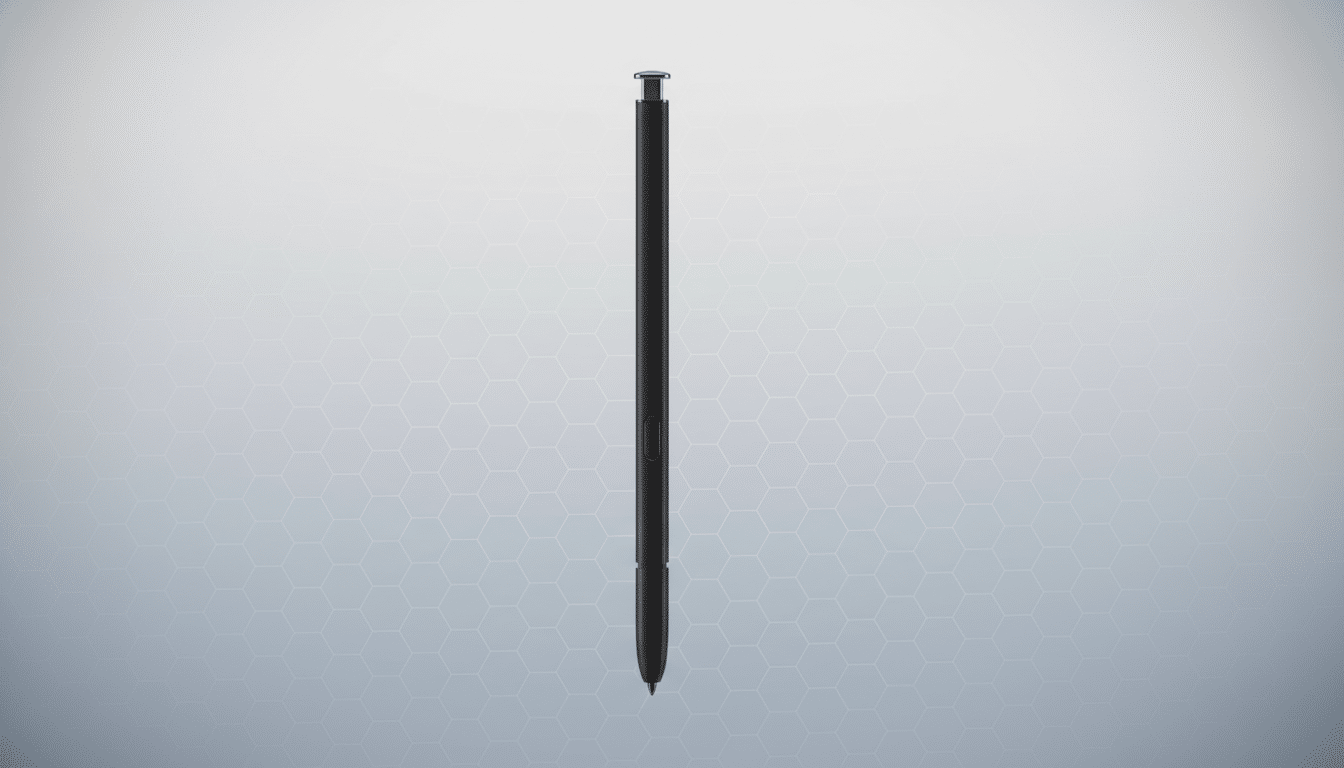
Phone-integrated S Pens use a supercapacitor to power optional smart features. A quick top-up inside the device fuels roughly 30 minutes of Bluetooth features per charge. Samsung has estimated idle consumption around 0.5mAh (about 0.01% of a 5,000mAh battery) and roughly 100mAh under heavy use (about 2%). Even if the charge runs out, you can still write—only the wireless tricks drop away.
The S Pen lineup: phone, tablet, Fold, Pro, Creator
Built-in phone S Pen: Compact and light (around 3g), it slides into the phone chassis. Earlier Ultra models included Bluetooth for remote controls; the latest Ultra’s pen is passive again, so remote shutter and gesture commands aren’t available. You still get the full writing experience with 4,096 levels, palm rejection, and hover.
Tablet S Pen: Bundled with flagship Galaxy Tab S devices, the pen is larger (about 9g) and more comfortable for long sessions. It attaches magnetically to the back to charge, and on many recent tablets supports Bluetooth features like Air Actions. The size and balance make it a better pick for sketching and note marathons.
S Pen Fold Edition: Built specifically for foldables with ultra-thin glass, it uses a spring-loaded, retracting tip rated to give way at roughly 500 gf. There’s no Bluetooth and no charging. It’s the safe choice for the Galaxy Z Fold 3 through Fold 6. Note that a newer Fold model dropped the S Pen digitizer entirely, so it doesn’t support any stylus.
S Pen Pro: The power user’s tool. It adds Bluetooth, device switching, and a USB-C port with a battery that lasts up to 16 days. A physical switch toggles between standard glass and foldable mode by locking or retracting the tip. It’s also the only S Pen you can locate with SmartThings Find—a real lifesaver if you misplace gear.
S Pen Creator Edition: A larger, passive stylus with tilt support and a comfortable barrel aimed at artists. No battery, no Bluetooth, and no retractable tip—so it’s not for foldable screens. Think of it as a studio-friendly pen for tablets and supported phones.
Device compatibility snapshot for phones, foldables, tablets
Phones: All Galaxy Note models support the S Pen. Galaxy S21 Ultra supports external S Pens, while S22 Ultra, S23 Ultra, S24 Ultra, and the latest Ultra include an in-body pen. The newest Ultra’s pen is passive, so Bluetooth tricks don’t apply there.
Foldables: Galaxy Z Fold 3, Fold 4, Fold 5, and Fold 6 support stylus input with the S Pen Fold Edition or S Pen Pro in foldable mode. A recent Z Fold generation removed the digitizer to prioritize thinness, and a budget Fold variant also lacks support.
Tablets and laptops: Galaxy Tab S-series flagships (such as the Tab S9 family) ship with an S Pen. Recent Tab A models generally do not support stylus input. On Windows, Samsung’s third- and fourth-gen Galaxy Book 360 machines include S Pen support, with S Pen Pro offering broad compatibility.
Key features that matter for writing, art, and control
Air Command: The central hub for S Pen shortcuts. Launch it by removing the pen or tapping the floating icon to access Notes, Smart Select, Screen Write, Translate, and more. You can pin your favorite apps for pen-first workflows.
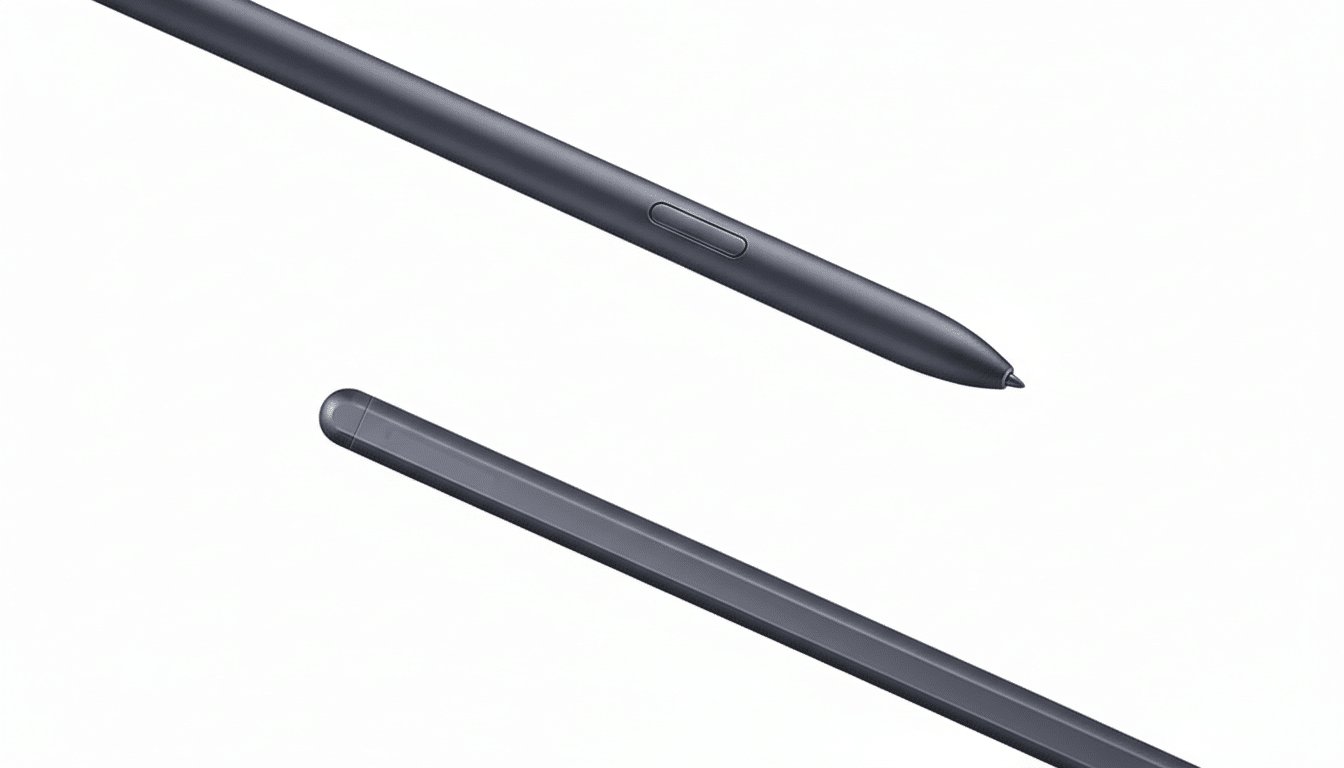
Smart Select and Screen Write: Capture the whole display or lasso just what you need. Smart Select can record animated regions into GIFs and, with One UI 6.1.1, adds faster selection flow and a Sketch to Image option that turns rough doodles into finished artwork using on-device generative tools.
Screen Off Memo and Direct Writing Input: Pop the pen and write on the lock screen instantly, or handwrite into text fields system-wide. Notes sync through your Samsung account, making upgrades painless.
Translate and hover tools: Hover to preview content with Air View, or translate words via Google’s engine—handy when scanning menus or documents. Magnify and Glance boost accessibility and multitasking by enlarging content and pinning apps as mini-thumbnails you can reopen with a hover.
Creative and camera extras: PENUP is a social space for coloring and drawing challenges. AR Doodle anchors sketches in 3D space through the camera. Bluetooth-enabled S Pens add Air Actions for media control and a camera shutter with a range of about 30 feet—great for group shots—though not available on the newest Ultra’s passive pen.
Power tips, battery management, and S Pen care
Avoid loss with proximity alerts that ping your phone when the pen is left behind. If you rely on Air Actions, keep the “Keep S Pen Connected” toggle on; if battery life matters more, turn it off and reconnect on demand. Power users can enable multiple S Pens at once for quick swapping.
Replace worn nibs to preserve feel and screen health, especially if you press hard or sketch for hours. For foldables, only use the Fold Edition or S Pen Pro in foldable mode to protect the ultra-thin glass. If you need cross-device control and remote features, the S Pen Pro is the safest long-term bet.
Which S Pen should you buy for your Galaxy device
Latest Ultra owners: The bundled pen covers writing, hovering, and precision. If you want remote camera control or gestures, add an S Pen Pro.
Fold 3–6 owners: Choose the S Pen Fold Edition for simplicity or the S Pen Pro for cross-device use and find-my-pen tracking. Skip unsupported Fold models entirely.
Tablet artists and note-takers: The included Tab S Pen is excellent; step up to the Creator Edition for a studio grip and tilt work, or the S Pen Pro for Bluetooth controls and device hopping.
Bottom line: Match the pen to your hardware first, then to your workflow. With 4,096 pressure levels, tight latency, and a deep software toolbox, the right S Pen can turn a Galaxy device from a great screen into a serious canvas and controller.
