


PlayStation is cueing up a new State of Play, and the full presentation will be streamed live for everyone. Whether you’re on console, phone, or desktop, here’s exactly how to watch it as it happens—plus a few expert tips to get the cleanest feed, avoid takedowns if you plan to co-stream, and catch every reveal without buffering.
Where To Watch The Official PlayStation State Of Play Stream
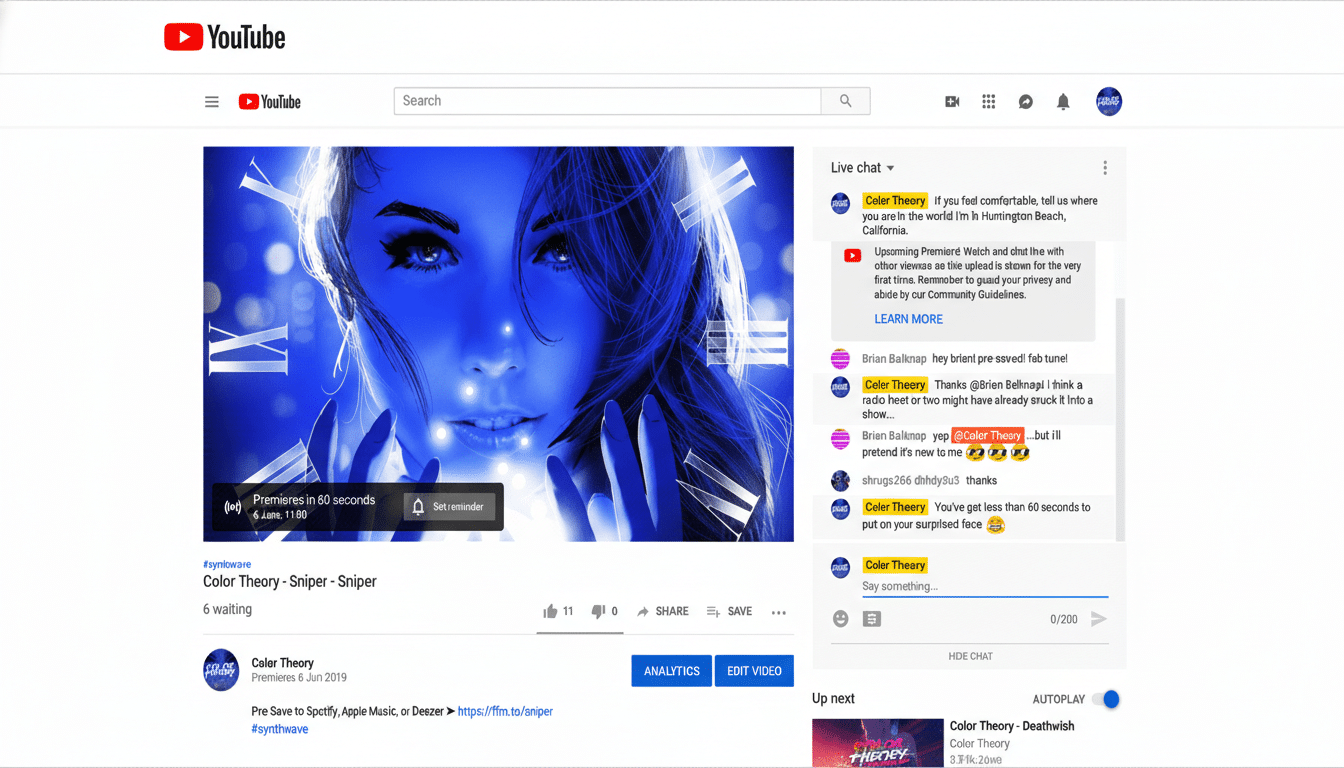
The primary broadcast will run on the official PlayStation channels on YouTube and Twitch, with mirrored versions on regional PlayStation accounts. Sony Interactive Entertainment typically sets up a YouTube Premiere lobby ahead of time; use the Set Reminder button so you’re notified the moment it goes live. If you prefer to watch on a TV, open the YouTube app on PS5, PS4, or your smart TV and search for “PlayStation State of Play.”
- Where To Watch The Official PlayStation State Of Play Stream
- Start Time And Length For The PlayStation State Of Play
- How To Get The Best Stream Quality For State Of Play
- Accessibility And Language Options For State Of Play
- How To Co-Stream Safely Without Takedowns Or Mutes
- What The State Of Play Format Typically Includes
- Pro Tips Before It Starts To Ensure A Smooth Stream
You can also expect an embedded player on the PlayStation Blog, which usually posts a companion article with asset drops and post-show recaps. Mobile viewers can follow PlayStation on YouTube or Twitch and enable push notifications to get an instant ping when the stream starts.
Start Time And Length For The PlayStation State Of Play
Sony has indicated this State of Play runs for roughly 60 minutes, a signal that the lineup spans both first- and third-party updates. Exact local start times are listed in the description of the YouTube Premiere and on PlayStation’s social channels; those listings auto-convert to your region, so you don’t have to do the math. If you’re juggling time zones, add the Premiere to your calendar directly from the YouTube page to avoid missing the opening trailer.
How To Get The Best Stream Quality For State Of Play
Live State of Play broadcasts typically target 1080p at 60 frames per second, with a 4K re-upload available shortly after. On YouTube, force a higher bitrate by tapping the gear icon and selecting 1080p60 or the “Advanced” quality option. For the smoothest experience, close other bandwidth-heavy apps, switch to a wired connection if possible, and cast via Chromecast or AirPlay to avoid underpowered TV apps that auto-cap quality.
If the main YouTube feed hiccups, keep a backup open on PlayStation’s Twitch channel. Major showcases often draw hundreds of thousands of concurrent viewers across platforms, so having a secondary tab ready can save you from missing a world premiere.
Accessibility And Language Options For State Of Play
PlayStation’s YouTube channels typically offer localized subtitles and alternate-language versions across regional accounts. Turn on closed captions for English or your preferred language via the CC button. If you need descriptive audio or additional accessibility features, check the PlayStation Blog and regional channels at showtime—Sony often details available options there when the stream goes live.
How To Co-Stream Safely Without Takedowns Or Mutes
Creators planning live reactions should be mindful of licensed music and trailer content IDs. To reduce the risk of automated mutes or takedowns on platforms like Twitch and YouTube, lower game audio during music-heavy segments or use platform-provided “soundtrack safe” modes if available. Include clear commentary, keep your webcam overlay visible, and review any co-streaming guidance PlayStation posts on social channels. After the show, trim problematic segments in the VOD editor before turning monetization back on.
What The State Of Play Format Typically Includes
State of Play presentations are tightly edited: a rapid cadence of trailers, gameplay slices, and brief developer VO. Expect a mix of PlayStation Studios titles, third-party exclusives, multiplatform releases, and occasional PS VR2 spotlights. Deep dives and blog posts often drop immediately after the broadcast, so check the PlayStation Blog for extended feature lists, platform details, and pre-order windows once the stream wraps.
Pro Tips Before It Starts To Ensure A Smooth Stream
Set reminders on the YouTube Premiere and follow PlayStation on social platforms for the direct stream link at go time. Update the YouTube and Twitch apps on your console or TV ahead of the show, sign in so your subscriptions sync, and pre-select your preferred quality setting. If you’re watching in a busy household, switch to Ethernet or schedule downloads for later to preserve bandwidth during the biggest trailers.
Finally, if you want to rewatch specific reveals, wait for Sony’s channel to publish individual 4K trailer uploads shortly after the broadcast—those are the best versions to analyze frame by frame.
