


Your PC’s boot-time trust anchor might be on borrowed time. Microsoft and major PC makers have begun replacing aging Secure Boot certificates that many machines still rely on to start Windows safely. If those certificates lapse before they’re updated, some systems could refuse to boot trusted software or miss critical pre-boot security fixes. The good news: you can check your status in under a minute and get ahead of any disruption.
What’s Actually Expiring in Secure Boot Certificates
Secure Boot is a UEFI firmware feature that allows only verified code to load during startup. It works through a cryptographic chain of trust: the Platform Key (PK) held by the PC maker, a Key Exchange Key (KEK), and two databases that list what’s allowed (DB) and what’s blocked (DBX). Microsoft’s Production Certificate Authority (CA) and the Windows UEFI CA are central to this process.
- What’s Actually Expiring in Secure Boot Certificates
- How to Check Your PC for Updated Secure Boot CAs in 30 Seconds
- If You’re Not Up to Date on Secure Boot Certificates
- BitLocker, Linux, and Dual-Boot Scenarios to Consider
- Why This Secure Boot Certificate Update Matters Now
- Bottom Line and Next Steps to Keep Secure Boot Current
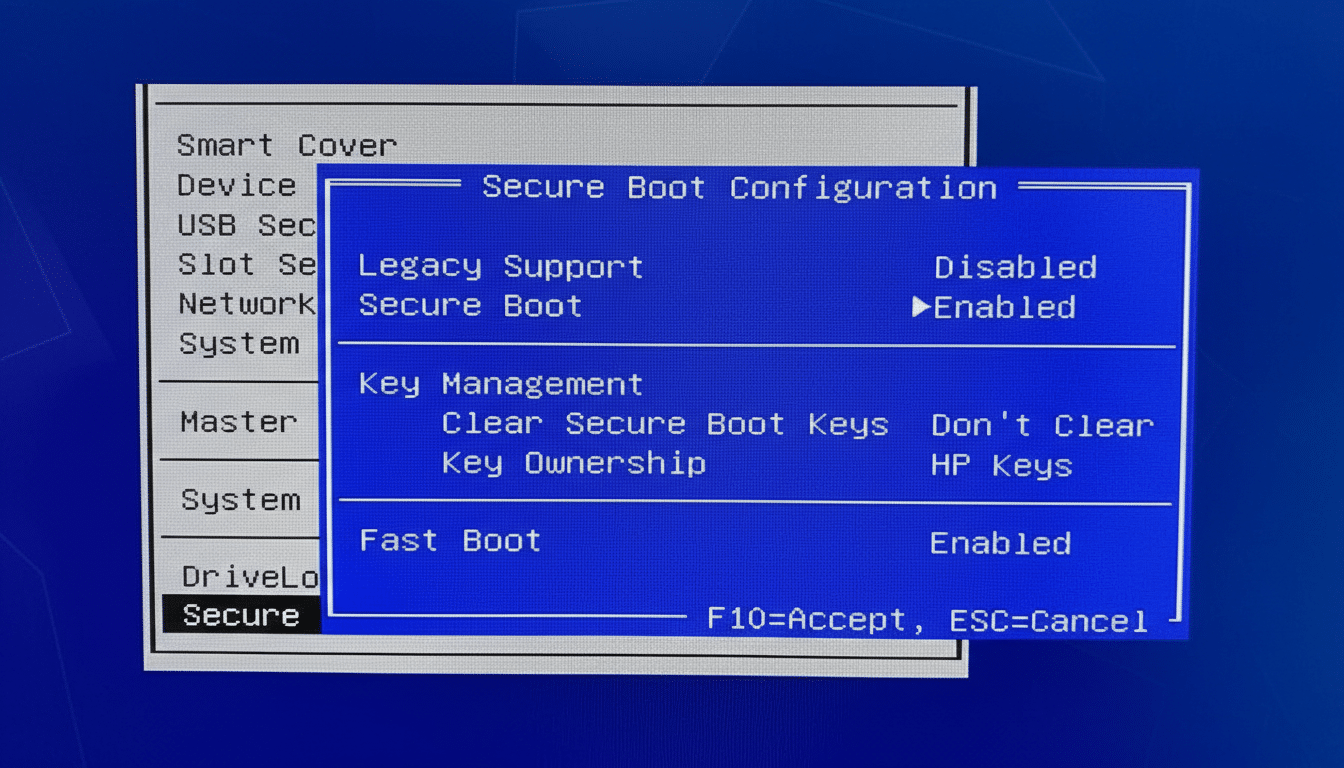
Many PCs still carry older Microsoft-issued KEK and UEFI CA certificates. As they age out, they stop validating new or updated boot components. Practically, that means two risks: your system may balk at serviceability updates to pre-boot code, or in extreme cases, fail to launch the OS under Secure Boot. Turning Secure Boot off avoids a hard stop, but it weakens protections and can complicate access to BitLocker-encrypted drives.
How to Check Your PC for Updated Secure Boot CAs in 30 Seconds
Windows includes a quick PowerShell test that looks for the newer Windows UEFI CA entry. Open PowerShell as an administrator and run:
([System.Text.Encoding]::ASCII.GetString((Get-SecureBootUEFI db).bytes) -match ‘Windows UEFI CA 2023’)
If the result is True, your Secure Boot trust store already includes the updated certificate. If you see False, you likely need a firmware update to refresh the Secure Boot certificates. You can also check the Windows Security app, which Microsoft says will display certificate status messages as the rollout progresses.
If You’re Not Up to Date on Secure Boot Certificates
Start with Windows Update and your OEM’s support tool (for example, Lenovo Vantage, Dell Command Update, HP Support Assistant, ASUS Armoury Crate). Install available UEFI/BIOS or “system firmware” updates first, then apply any pending Windows updates and reboot twice. The certificate refresh often arrives as a coordinated firmware plus OS update sequence.
Major OEM systems running supported Windows releases should receive the new certificates automatically. Business PCs managed by Microsoft services or enterprise tools typically get them through normal monthly maintenance. If you built your own desktop or run an older motherboard, check the board maker’s downloads for a UEFI update specifically mentioning Secure Boot or certificate updates.
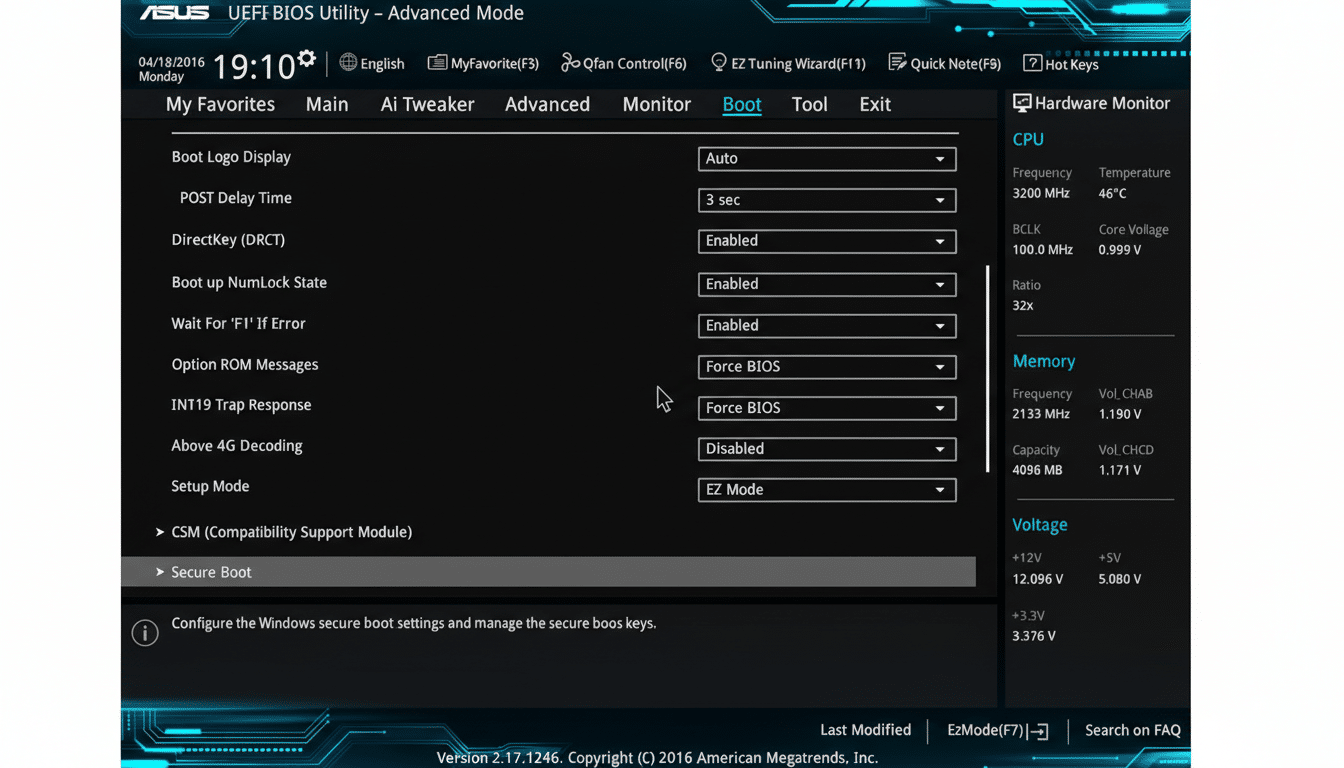
Avoid manual certificate tinkering. The PK and KEK are deliberately hard to replace to stop bootkits from sneaking under the OS. Installing unofficial keys or third-party tools can put the device into an untrusted state or block future updates.
BitLocker, Linux, and Dual-Boot Scenarios to Consider
If you disable Secure Boot as a workaround, BitLocker may prompt for a recovery key because the boot chain changed. Have your recovery key on hand before toggling firmware settings. You can retrieve it from your Microsoft account, your organization’s key escrow, or the printout/USB backup you created when enabling BitLocker.
Dual-boot users shouldn’t panic. Microsoft has coordinated with Linux vendors so modern distributions that support Secure Boot (including Ubuntu, Fedora, Linux Mint, and openSUSE) can continue to boot with updated signatures. If you wiped Windows entirely, you may need to install a motherboard or OEM firmware update manually to get the new trust anchors, or temporarily run with Secure Boot off.
Why This Secure Boot Certificate Update Matters Now
Firmware is a growth area for attackers because it runs before antivirus and EDR tools. Microsoft has reported that more than 80% of enterprises have encountered at least one firmware-targeted incident, and incidents like the widely discussed BootHole vulnerability showed how revoking bad bootloaders via the DBX is essential to closing gaps. Without current certificates, devices can’t reliably receive those pre-boot protections.
Scale is another concern. With well over a billion active Windows devices, even a small slice missing a certificate refresh translates to many at-risk PCs. That’s why Microsoft and OEMs have been seeding these updates quietly for newer systems and staging guidance for older fleets.
Bottom Line and Next Steps to Keep Secure Boot Current
Run the PowerShell check now. If you’re missing the updated Windows UEFI CA entry, apply OEM firmware and Windows updates until it reads True. Keep Secure Boot on whenever possible, and never import custom keys unless instructed by your hardware maker or a trusted enterprise policy. For edge cases—servers, IoT boxes, or home-built rigs—consult the device vendor’s documentation or support channels.
This is a one-time housekeeping event that pushes your PC’s root of trust forward for years. Spend a few minutes verifying it today and you’ll avoid a far more stressful boot-time surprise later.
