


Migrating to a new computer should be an upgrade, not a weekend project. But relocating apps, files, and settings all too often becomes a scavenger hunt for installers, license keys, and misplaced preferences. The quickest route to a seamless handoff blends three types of software: a migration tool for apps and settings, an imaging tool to capture everything in a full backup, and a secure erase tool to wipe the old machine when you’re finished.
Here are three pro-selected apps that handle those jobs with minimal fuss, along with some practical advice I’ve learned from numerous real-world migrations.
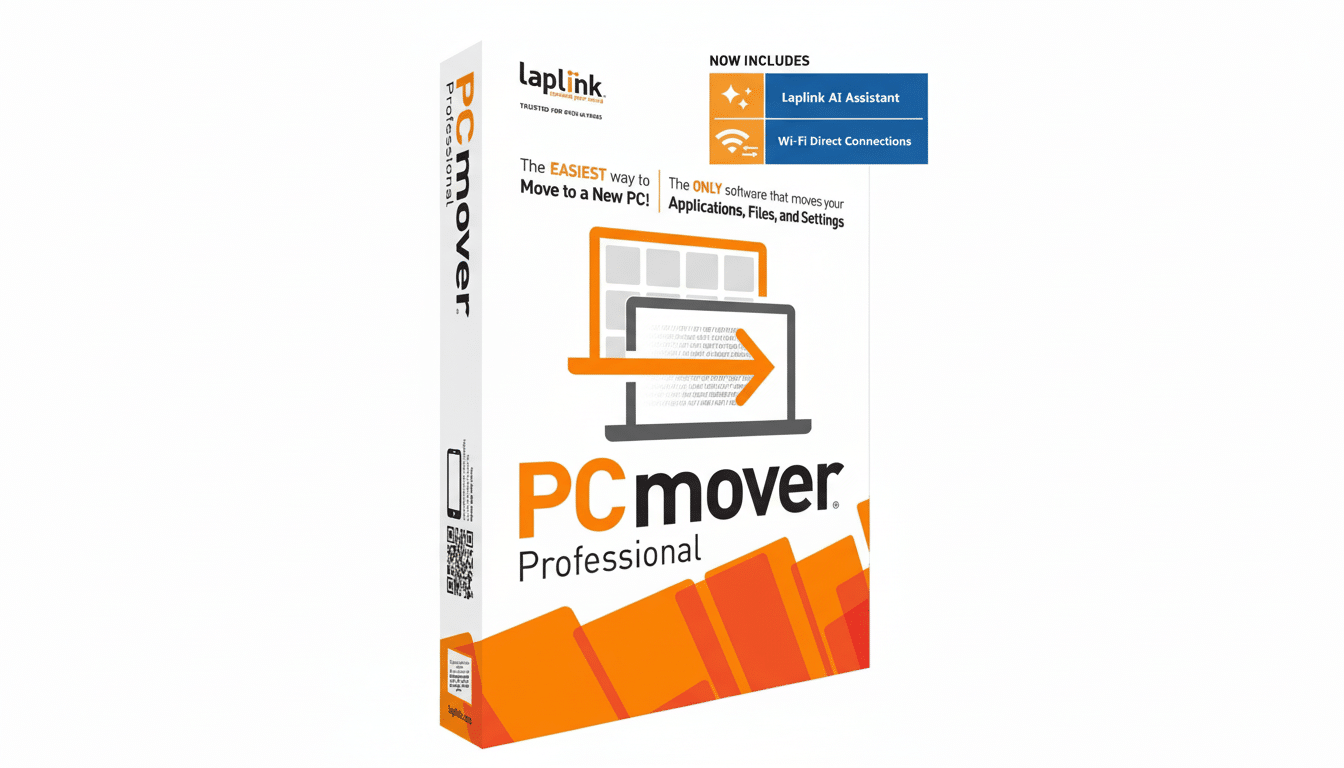
Move apps and settings between PCs using PCmover
Laplink PCmover Professional is as close as you can get to picking up your old PC and dropping it on the new one. It moves applications, user profiles, and files — and a large amount of system configuration. Microsoft has worked with Laplink on migration utilities for Windows transitions, and it makes sense: It reduces the pain of tracking down installers and manually reconfiguring software by hand.
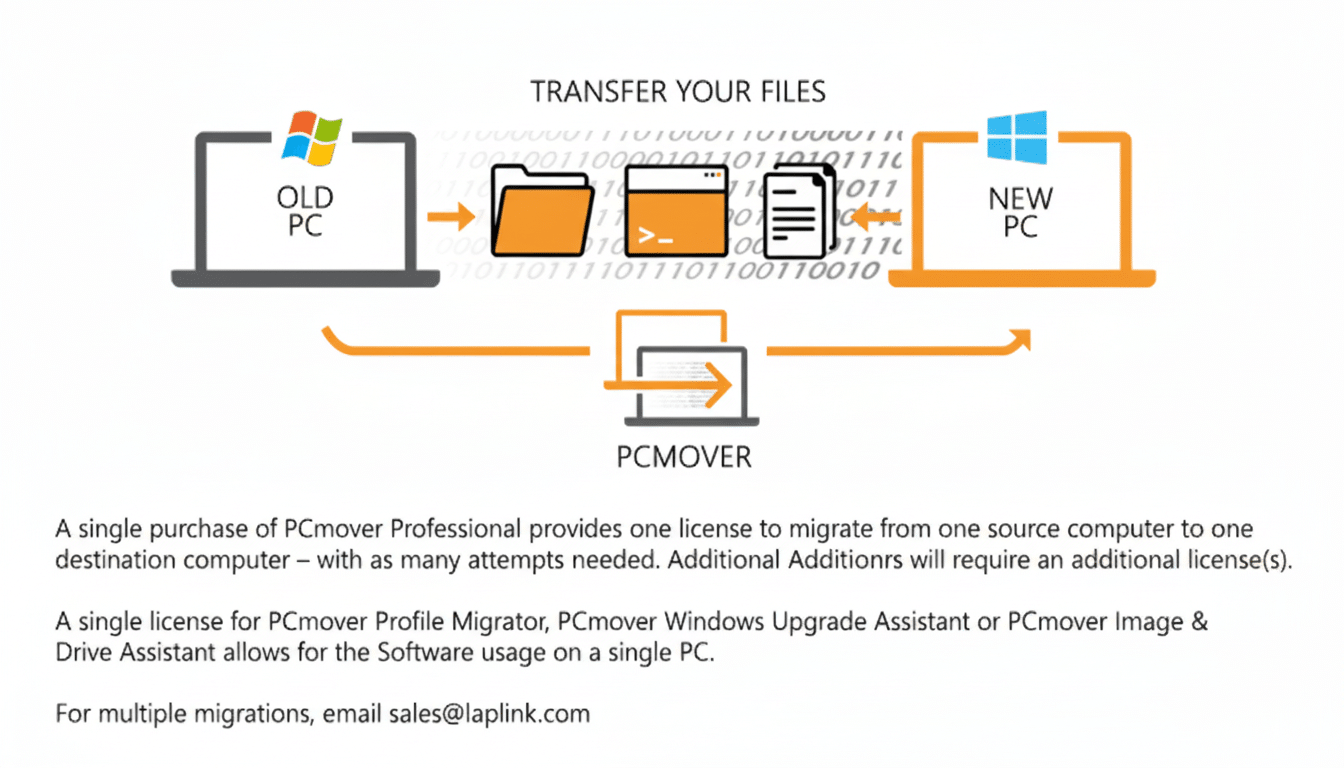
How it works: Install PCmover on the old and new PCs, select what to move, and do the transfer over Ethernet, a high-speed USB transfer cable, or a local network. Apps that require reactivation from the vendor will prompt you to log in or enter a key. For the quickest transfers, opt for wired Ethernet. Transferring approximately 500 GB over Gigabit typically takes about an hour and a half to two hours, depending on drive speeds and the number of small files.
Pro tip: Before the process begins, log out of software that connects licenses to hardware — like creative suites, password managers, and some security tools — so you can activate them on your new PC without a headache.
Image your old drive with Macrium Reflect
Even the most perfect migration needs a safety net. Macrium Reflect produces a full image copy of your old system, including hidden partitions and the boot record. If something goes wrong, you can recover individual files or the whole machine. Its Rapid Delta Restore and differential backups accelerate protection subsequent to the initial image. Competitors, such as Acronis Cyber Protect Home Office, offer similar full-disk imaging; just pick the interface and feature set you like best.
The right way is: image the old device, check the backup, and create bootable rescue media. If the new computer you want to move to requires carrying an entire setup forward (for instance, for a legit critical app that’s difficult to reinstall), Macrium offers a ReDeploy feature that can help adapt an image for new hardware and, in theory, spare headaches around drivers.
Why it matters: Drive failures are uncommon but still happen. Multiyear analyses from cloud backup companies like Backblaze reveal annualized failure rates in the low single digits — a modest risk that looms large during a migration. An image is enough to keep that risk close to zero.
Wipe the old PC clean securely with Eraser
Once the transfer is finished and verified, don’t simply “delete” files on the old PC. Use Eraser to erase files; you can choose whether the data is securely erased, specify the number of passes a write-over takes, and select the type of overwriting that occurs. It supports both the U.S. DoD 5220.22-M (E) and Gutmann methods. For SSDs, use the drive manufacturer’s utility (in Samsung’s case, Magician or a vendor-provided secure erase) to perform a controller-level wipe or a cryptographic erase triggered specifically for NAND flash storage. Enterprises, including refurbishers, use tools such as Blancco Drive Eraser that provide an auditable wipe; for home and small office users, utilities such as Eraser or those available from the manufacturer are good enough.
Target your wipe at browser caches, downloads, documents, financials, and any folders used by tax or password apps. If you’ll be reselling or recycling the machine, step things up with a full-drive routine and an exported certificate or log (if your tool offers this support).
A proven game plan for a zero-drama PC move
- Create an inventory: Note critical apps, fonts, plug-ins, and the details of your licenses. Screenshots of settings pages from complex applications (DAWs, IDEs, photo editors) can save time later.
- Back up again: this time, in triplicate. Don’t just trust your files to a single external hard drive or even a server — follow the 3-2-1 rule and keep three copies of anything important on two different media, with one stored offsite. An image and a cloud sync folder tick two boxes quickly.
- Get a quick connection: Plug both PCs into the same router using Ethernet (it’ll only work if they’re near each other or you can run long cables). If Wi-Fi is all that’s available, spring for Wi‑Fi 6 or 6E and reduce interference.
- Batch your migration: First transfer apps and user profiles with PCmover, verify that things launch and sign in correctly, then move over big media libraries or other large data blocks. This stair-step process is easier to troubleshoot.
- Validate before wiping: Use the new computer for a few days, confirm that backups can be restored, and only then securely erase the old one.
The bottom line: a faster, safer, zero-drama PC move
Use PCmover to lift your software and settings, Macrium Reflect to safeguard everything with an image, and Eraser or an SSD maker’s tool to clear the old PC according to NIST standards. With this trio, migrating to a new computer is as little like starting over as possible, letting you pick up exactly where you left off — only faster.
