


Samsung has launched the One UI 8.5 beta, and registrations are already open in some areas. If you’re eager to start using the overhauled Quick Settings, revamped lock screen tools and handy cross-device storage sharing before anyone else, however, you can be checking out the beta software (after a quick install) in minutes—assuming your device and region are supported. Here’s how to download it now, and tips to prevent the most common snags in the upgrade that users are reporting.
Which Galaxy phones are eligible for the One UI 8.5 beta?
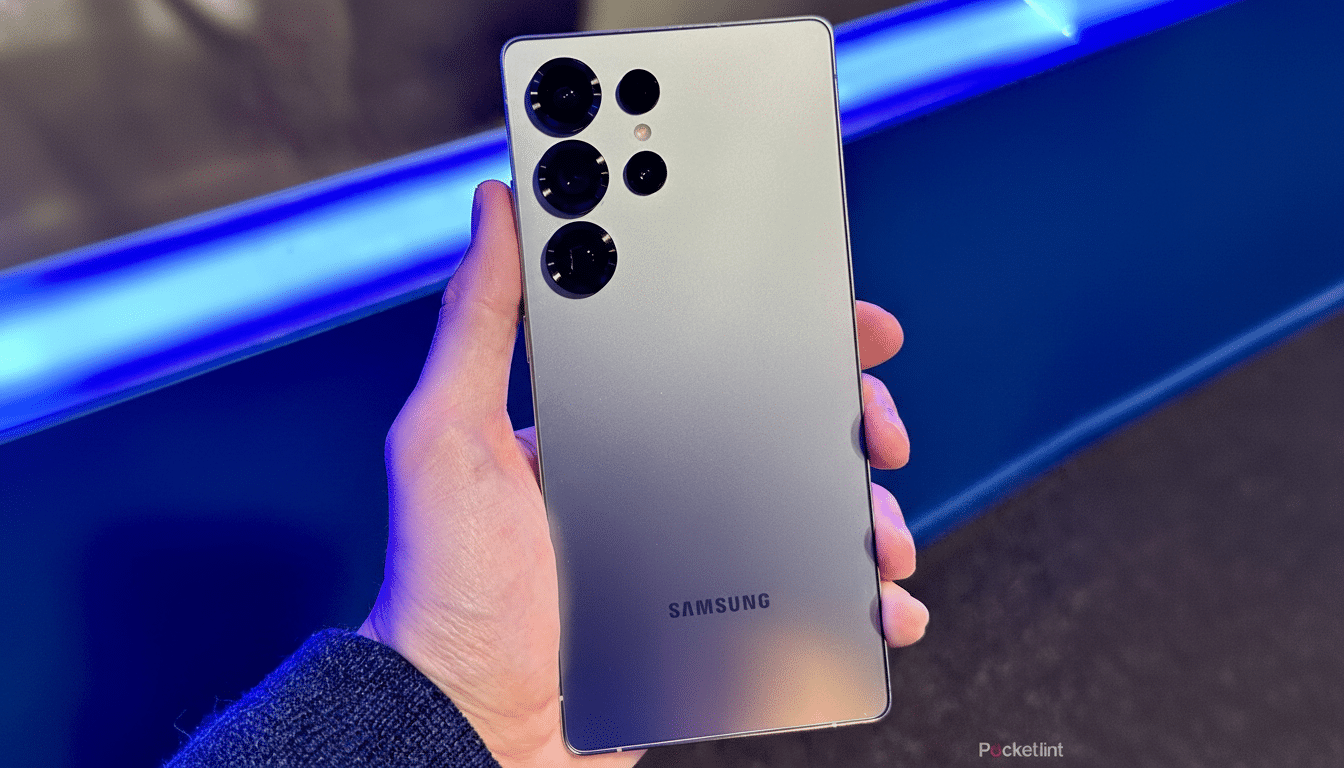
At launch, the beta will be exclusive to the Galaxy S25 range. That’s the Galaxy S25, Galaxy S25 Plus and Galaxy S25 Ultra. The same can’t be said for the Galaxy S25 Edge and Galaxy S25 FE, neither of which are included in this beta wave.
- Which Galaxy phones are eligible for the One UI 8.5 beta?
- Get your phone ready before you sign up for the beta
- Enroll in the One UI 8.5 beta in Samsung Members
- Download and install the One UI 8.5 beta update
- If you don’t see the beta banner or software update
- How to leave the beta program or roll back safely
- What’s new and exciting in Samsung One UI 8.5 beta
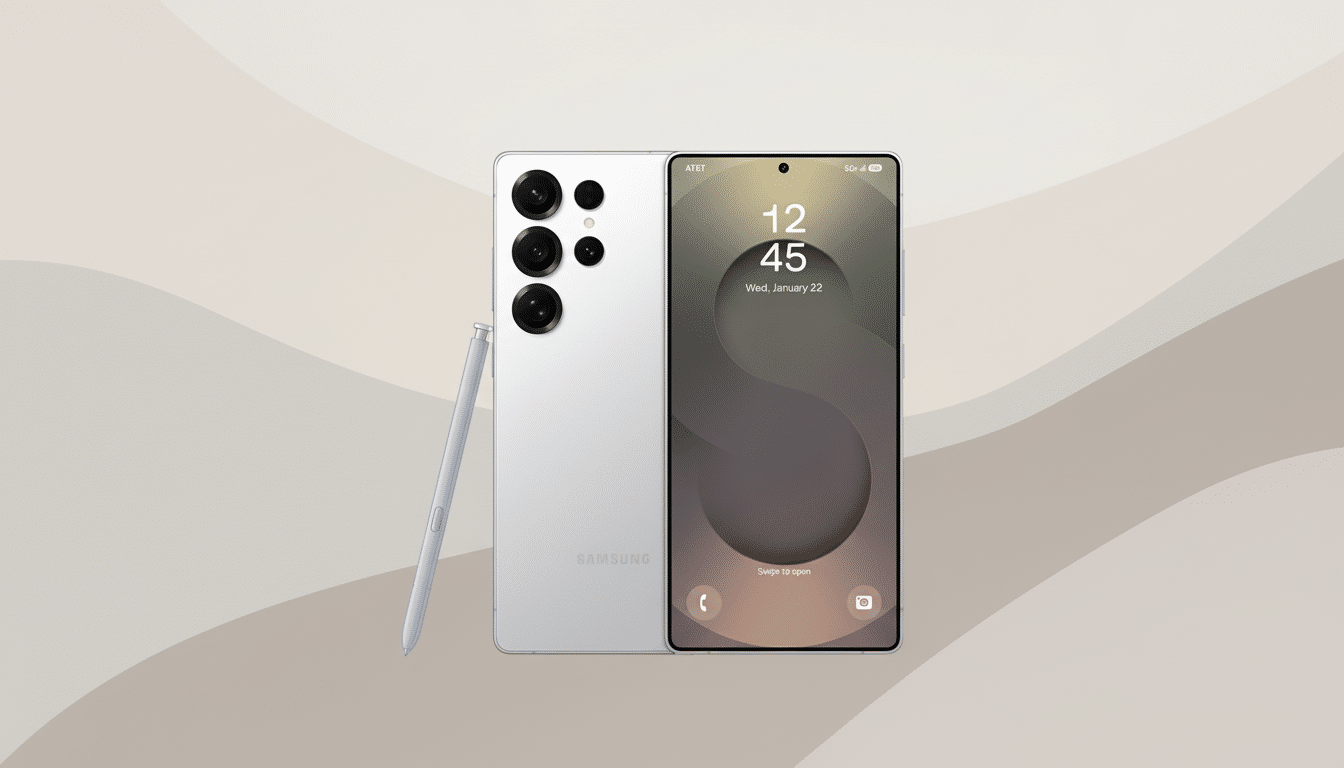
The availability is being staggered by market, Samsung said. You should be in one of these countries: United States, United Kingdom, South Korea, India, Germany or Poland. Your Samsung account region must correspond to your location for the registration banner to display consistently.
And expect wider-device coverage later; Samsung generally staggers beta access before making the stable release available. Below are some of the limited waves for each region and model.
Get your phone ready before you sign up for the beta
- Back up everything. Back up using Samsung Smart Switch on a PC/Mac or cloud backup. Beta software can contain bugs, and downgrading usually removes data.
- Charge the device more than 50% and connect it to stable Wi‑Fi. The download is typically in the 2–3GB range, and installation can last from 10 to 20 minutes.
- Update your current software. Before you try the beta, make sure yours is up to date: Head over to Settings > Software update > Download and install.
Enroll in the One UI 8.5 beta in Samsung Members
- Download and install (or open) the Samsung Members app, and log in with your Samsung account. Make sure to check whether your account region matches the phone you are using.
- Navigate to the One UI Beta Program card in the Members home tab. It’s usually a top-line banner, space permitting. Tap on it to access the registration page.
- Scroll through the terms and tap Join. You will either see your status update to Joined. If it says Processing or errors out, then see the troubleshooting section below.
Download and install the One UI 8.5 beta update
If you qualify, then go to Settings > Software update > Download and install. You should see the One UI 8.5 beta package there. Download to your PC, check for confirmation, and then restart when you’re prompted. Once set up, you will be on the beta build.
If you do not see the update right away, be patient.
Samsung likes to roll out beta builds in waves in order to manage server load, so it might take a little while before an update shows up after you join.
If you don’t see the beta banner or software update
- Make sure you are enrolled: Check and see if in Samsung Members your status shows as joined the One UI Beta program in your profile or Notifications.
- Re-enroll: From the Beta Program page, open the menu (three dots), select Beta program settings, opt out and rejoin. This often refreshes your status.
- Freshen the app environment: Upgrade Samsung Members and Galaxy Store system apps, clear the Members app cache and reboot your phone. Try transitioning between Wi‑Fi and mobile connections to help narrow the potential scope of filtering.
- Verify region tie-in: If your Samsung account or device CSC does not match, the banner will not be shown. You can use a local SIM and double-check your account region which in some cases can also be a solution.
Community forums, such as threads on the r/OneUI subreddit, suggest that some people are receiving an indefinite “Processing join request” message. In most cases the status changes to Joined after some time, Samsung seems to be releasing slots in batches. If you have another compatible S25 model, try signing up there to see if it’s available in your market.
How to leave the beta program or roll back safely
You can leave the program through Samsung Members > Beta program settings > Withdraw. Getting back to a working software generally involves doing a full restore with Smart Switch on a PC/Mac using the emergency recovery tools. Prepare to do a factory reset and restore from backup.
What’s new and exciting in Samsung One UI 8.5 beta
One UI 8.5 introduces a cleaner, speedier Quick Settings panel, and additional lock screen customisability with the new option to share storage between Samsung devices connected to the same account. Earlier testers also say there are smoother animations and more intelligent device handoff performance. Like with any beta, there will be a couple of apps that don’t work — usually banking or payment services — but the feature leap is large enough for power users.
If you meet the device and region requirements, signing up through Samsung Members is the fastest way to give it a go. Do a full backup, wait for the banner, and be patient if you come across this temporary enrollment queue. The payoff is early access to Samsung’s next major software refresh.
