


Microsoft has confirmed it can provide BitLocker recovery keys to law enforcement when served with a valid legal order, a reality that surprises many Windows users who assumed their encrypted data could never leave their control. The catch is simple but critical: if your recovery key is saved to the cloud under your Microsoft account, it can be compelled and disclosed. If it never leaves your custody, it can’t be handed over.
BitLocker remains an essential defense against theft and loss, but the way you store its recovery key determines who ultimately has access. Here’s what changed, why it matters, and how to keep your key out of reach without giving up on strong disk encryption.
- What Microsoft Confirmed About BitLocker Key Disclosure
- Why Cloud Backup Changes Your BitLocker Key Risk
- How To Keep Your BitLocker Recovery Key Safe Offline
- Extra Hardening For Travelers And Power Users
- What To Expect From Lawful Requests For BitLocker Keys
- Bottom Line: Control Your BitLocker Recovery Key Custody
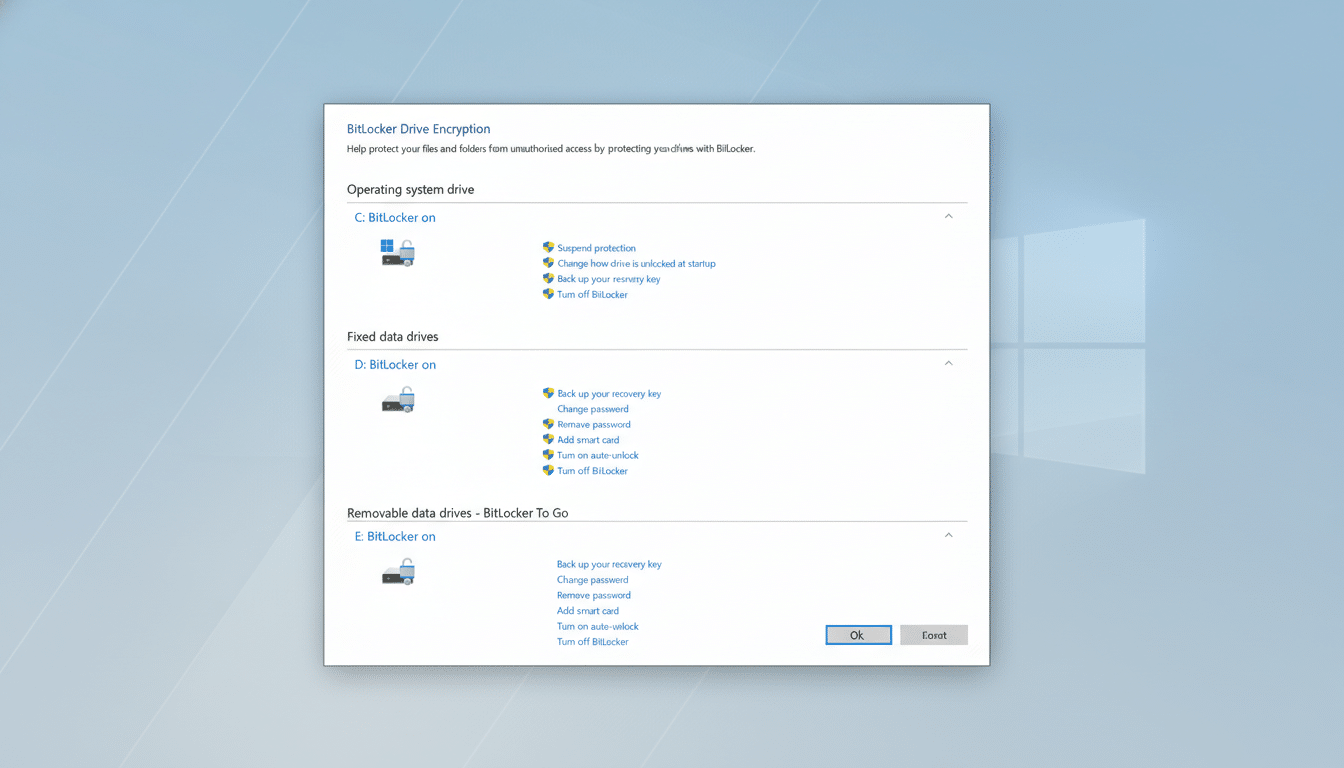
What Microsoft Confirmed About BitLocker Key Disclosure
Microsoft told reporters it will disclose BitLocker recovery keys in response to a lawful request if the key is backed up to the company’s cloud. Forbes reported a recent federal case in Guam in which investigators obtained keys associated with devices in a COVID relief fraud probe. Security experts believe this may be the first confirmed instance involving BitLocker key disclosure by Microsoft.
According to reporting, Microsoft receives roughly 20 BitLocker key requests per year. Many cannot be fulfilled because users never uploaded their keys. Microsoft declined a separate 2013 request reportedly seeking a BitLocker backdoor, underscoring the difference between creating systemic access and disclosing specific keys stored in the company’s cloud.
Why Cloud Backup Changes Your BitLocker Key Risk
BitLocker’s encryption is strong; the weak link is key custody. When your recovery key is backed up to your Microsoft account (or an organizational cloud directory), that key becomes subject to lawful process targeting the provider. It also increases exposure in the event of account compromise or a breach of the provider’s infrastructure.
Civil liberties groups like the Electronic Frontier Foundation have long warned about “key escrow,” where third parties hold copies of decryption keys. The trade-off is convenience versus control. Transparency reports from major tech firms show large volumes of legal demands each year; while BitLocker-specific requests are a tiny fraction, defaults that escrow keys shift the balance toward disclosure.
How To Keep Your BitLocker Recovery Key Safe Offline
First, check your status. In Windows 11 or Windows 10, open Settings, select System, then About. Look for BitLocker or Device Encryption. If BitLocker is off, consider turning it on—especially for laptops that leave your home or office.
When prompted to back up your recovery key, avoid the options that save it to a Microsoft account or Entra ID. Instead, save the key to a file on a removable USB drive you keep offline, or print the key and store it in a secure physical location. A reputable password manager with strong 2FA can also hold the key as a secure note, but do not store a USB key backup in the same bag or drawer as the PC.
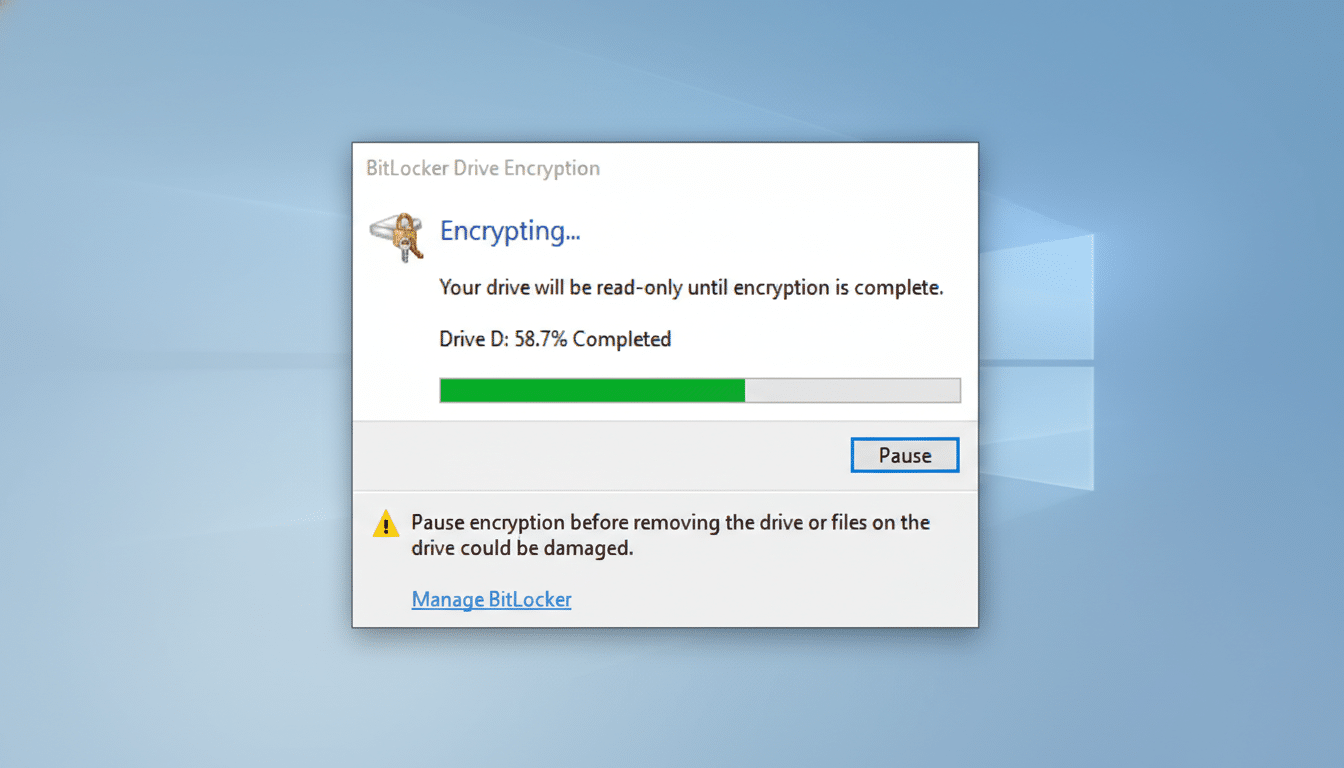
If your key is already in the cloud, sign in to your Microsoft account and remove it from the BitLocker recovery keys section after you’ve made a safe offline copy. For work or school PCs, ask your IT team where keys are escrowed and what internal controls govern access. Enterprises should enforce strict, auditable processes for key retrieval and limit who can authorize it.
Windows Home users should know that “Device Encryption” can auto-upload a recovery key upon sign-in with a Microsoft account. If you want tighter control, you can disable Device Encryption, upgrade to Windows Pro, enable BitLocker, and back up the key offline. Pro editions also let you require pre-boot authentication (TPM + PIN) via Group Policy, adding a second factor beyond the hardware TPM.
Extra Hardening For Travelers And Power Users
Enable Secure Boot and keep firmware and Windows updates current to block boot-level tampering. When crossing borders or leaving devices unattended, fully shut down instead of sleeping to limit memory-resident attacks. Consider separating sensitive data into a secondary encrypted volume with its own key you never store in the cloud.
If you use hibernation or Fast Startup, be aware of potential cold-boot risks. A TPM + PIN requirement at startup mitigates some of these scenarios by ensuring a human factor is needed before the disk decrypts.
What To Expect From Lawful Requests For BitLocker Keys
Providers respond only to valid legal process and, in many jurisdictions, must notify users unless prohibited. Microsoft’s transparency materials indicate a small annual volume of BitLocker key demands relative to overall data requests. If your key is not escrowed with Microsoft (or your organization), the company cannot hand it over; investigators would then need to pursue other avenues, such as seizing the device and attempting forensic access.
This is not a reason to abandon encryption. It’s a prompt to make explicit choices about where your recovery key lives and who can reach it under the law.
Bottom Line: Control Your BitLocker Recovery Key Custody
BitLocker still offers robust protection against the most common threat—a lost or stolen laptop. The difference between “only me” and “me plus whoever can lawfully compel my provider” is where you store the recovery key. Keep it offline, keep it backed up in at least two secure places, and, if possible, add a TPM + PIN at startup. With those steps, you get strong encryption without unintended key escrow.
