


If you’ve ever squinted at your Amazon e-reader and tried to figure out exactly what model it is, then sat there wondering which Kindle it may be, fear no more — we’re here to help. On top of this, the lineup is over a decade old, and there are a lot of models that can look similar to each other. The good news: a recent software switcheroo makes the answer only a few taps away on most devices, and there are trustworthy backup routes if yours is older. Here is the definitive, expert guide to let you know quickly which Kindle model you have.
On modern Kindles, you can find it instantly
Your model name shows up near the top of Settings if you’re running version 5.14 or higher on a Kindle device. Open Settings, tap Device Options and then Device Info. The model name will be listed on the first line (such as Kindle Paperwhite 11th Generation or Kindle Scribe). Amazon brought this quality-of-life change to eliminate confusion as screen and bezel sizes vary, and it now encompasses current models and many from the last few years.
- On modern Kindles, you can find it instantly
- If your menu looks different, try these options
- Verify via your Amazon account for model details
- Use the serial or model number to identify your Kindle
- Physical clues that can help narrow down your model
- Kids editions and special cases you might encounter
- Not an e-reader? Check whether it's a Fire tablet
- Why model identification matters for your Kindle
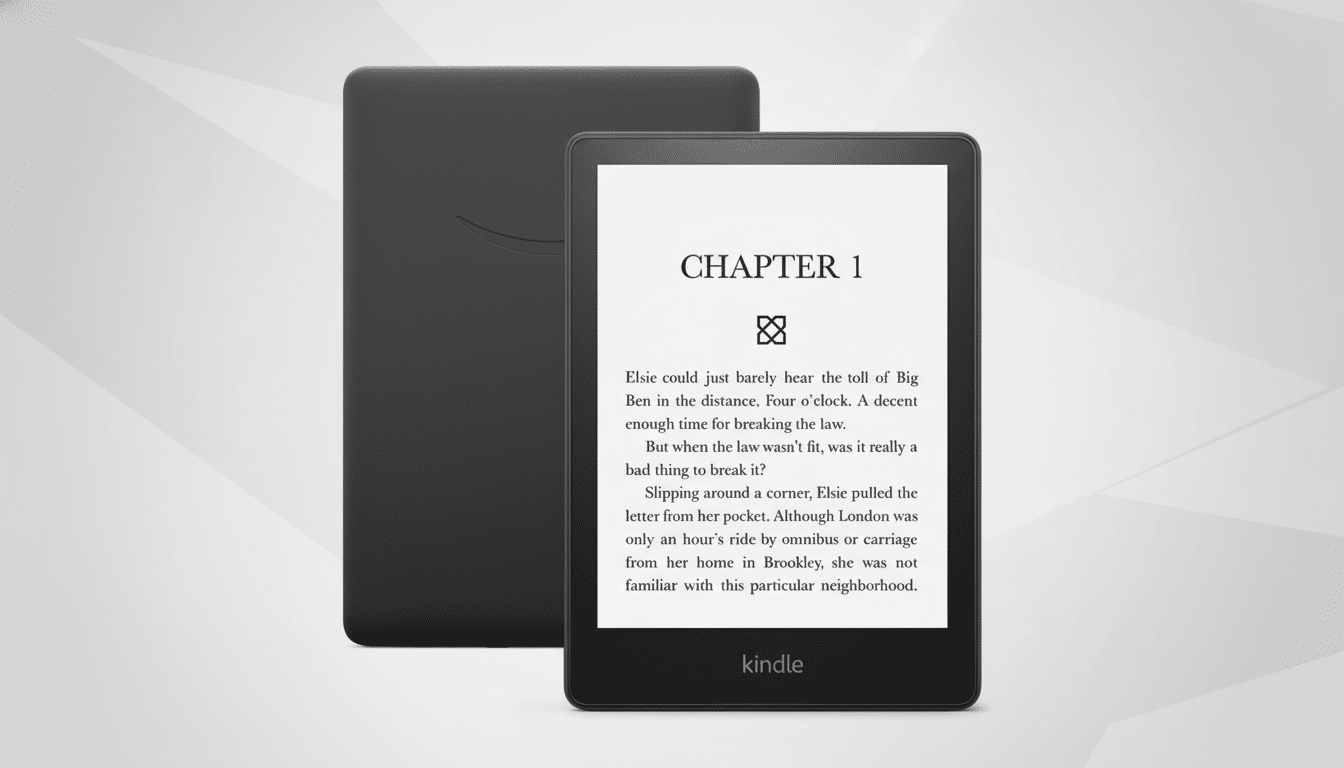
If your menu looks different, try these options
Older Kindles might not show the model name in Device Info. Not to worry — there are two reliable substitutes. First, go to your Amazon account and visit its Manage Your Content and Devices page; there you should get the list of every Kindle you’ve ever registered, along with an indicator that normally will show the exact model. Second, check the serial or model numbers of your device against a table of known identifiers.
Verify via your Amazon account for model details
Log into your Amazon account and navigate to Manage Your Content and Devices, followed by the Devices tab. Select your Kindle, and find the description line (usually on the right-hand side) for its generation and model. This process is even more useful if you’ve taken possession of a second-hand Kindle or have bought one, and want to check exactly what version it is before ordering a case, stylus, or replacement cable. Amazon’s own help documentation directs buyers here when model specifics are not available on-device.
Use the serial or model number to identify your Kindle
Or you can determine which Kindle you have with the device's serial and model number. Open Settings, go to Device Options, and then tap Device Info to locate the serial number. On many devices, a model number is printed on the back cover near the regulatory text; it also tends to appear somewhere on the original box. Give the serial to Amazon support, and they'll tell you for sure (or consult well-established user-maintained references such as the MobileRead Wiki, which provide a chronological list of prefixes by generation). For older or deregistered devices, this is the most accurate path.
Physical clues that can help narrow down your model
A story is told in the ports and buttons. If the Kindle charges via USB-C, you're looking at recent generations: Paperwhite 5 (6.8-inch, released 2021), this year’s entry-level Kindle (11th gen, 6-inch), and the large-screen Kindle Scribe (with Pen). Micro-USB is a nod to past models such as the Paperwhite 4 (2018), the 2019 basic Kindle and all Oasis generations.
Consider the bezel and controls. For the Oasis line, an asymmetrical frame with physical page-turn buttons is key; and it’s worth noting that the 2019 Oasis introduces a warm light you can adjust, whereas the model released in 2017 does not. If it’s a big canvas, with a wide bezel on one side and support for stylus input, it’s likely the Kindle Scribe. A flush-front screen with pressure-sensitive page areas evokes the Kindle Voyage, a memorable one-off that is still beloved among collectors.
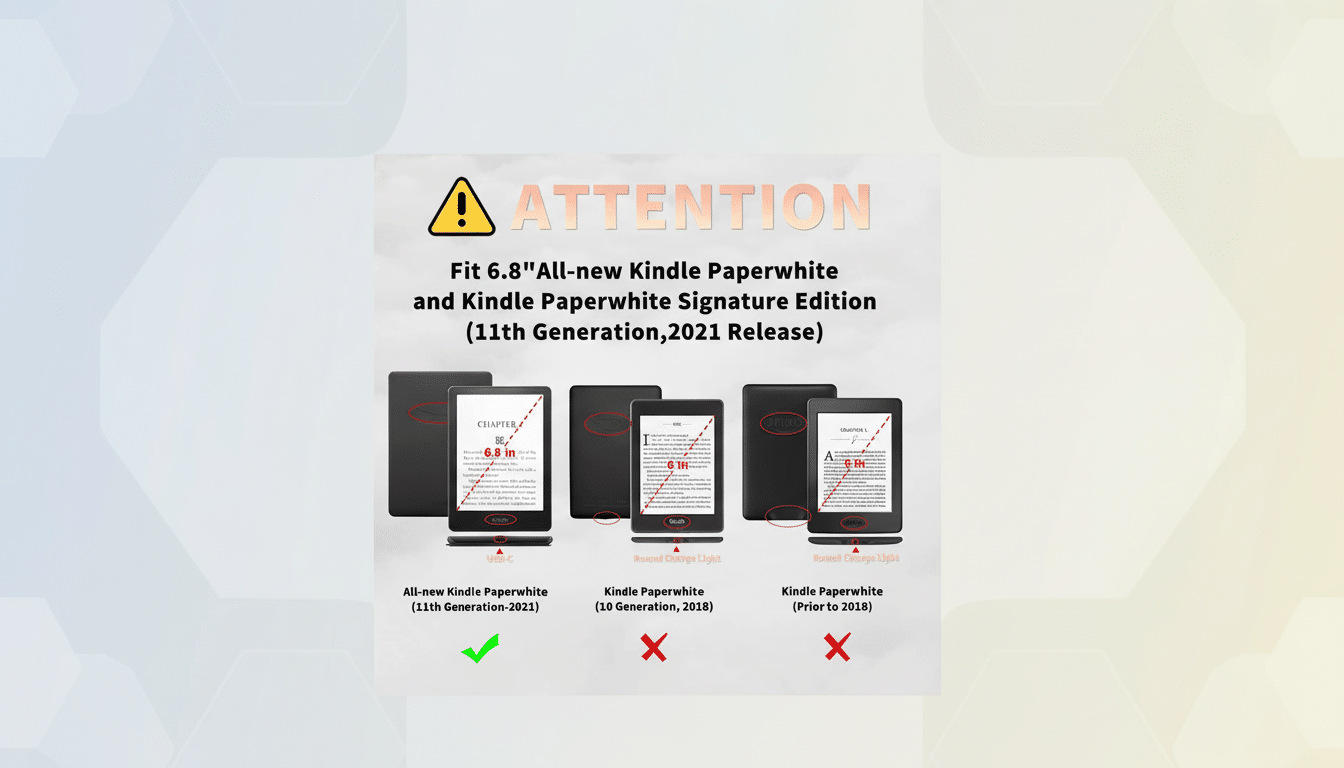
Screen features help too. If you can warm the front light to yellow hues, chances are you’re in possession of a Paperwhite 5 or Oasis 2019; the Paperwhite 4 has no warmth control. And if your device doesn’t even support a front light, then you have one of the much older basic Kindles. Size is another clue: the basic models are 6 inches; Paperwhite 5 rises to 6.8 inches; Oasis, to 7 inches; Scribe is larger than that and allows writing.
Kids editions and special cases you might encounter
Kindle Kids editions are built on the same hardware as their adult counterparts but come with a colorful case and kid-oriented software. A Kids variant has a Parent Dashboard in Settings or a simplified home screen under a child profile; if you see one of those, it’s likely running on the Kids version. For what it’s worth, cases and subscriptions are different, but the model (basic Kindle or Paperwhite) decides which accessories are compatible or which functions the device can have.
Not an e-reader? Check whether it's a Fire tablet
The answer lies in your device: If it runs full-color apps and is designed to look like an Android tablet, then you have a Fire tablet and not a Kindle e-reader. To determine which Fire you have, open Settings and look under Device Options for the listed model. There are substantial differences between accessories and software updates for Fire tablets and E Ink Kindles, so make sure you check before investing in more parts.
Why model identification matters for your Kindle
At the most basic level, naming your Kindle properly guarantees that you purchase the right case, charger, and screen protector; it also helps point to which software features you can expect, such as warm light, Bluetooth audio so you can listen to Audible books via headphones or a speaker — and, predictably enough, stylus support.
That’s important for longevity: E Ink displays sip power over the course of weeks, according to E Ink Holdings, but firmware support and spare-parts availability differ by generation. As Pew Research Center discovered when it reported in 2016 that about a third of American adults read e-books in any given year, there’s a healthy secondhand market — correct model IDs aid resale value and warranty support.
The bottom line: Begin with Settings on-device if your firmware is 5.14 or later; confirm via your Amazon account as a backup, falling back to serial or model numbers for accuracy; and use physical markers as cross-references. In minutes you’ll know exactly which Kindle you own — and receive the accessories and support necessary to safeguard your investment or enjoy your device.
