


After years of squeezing every drop from my iPad’s battery, I finally found a set of six settings that added literal hours to my day. Apple rates most iPads at up to 10 hours of web or video use, but real life—multitasking, streaming, gaming, a blizzard of notifications—chips away at that. Tweaking these controls delivered immediate gains without sacrificing the features I actually rely on.
What follows isn’t a gimmick. It’s a practical playbook grounded in how iPadOS manages power, how LCD and mini‑LED displays draw energy, and what independent testers consistently report: the screen and background activity are the biggest battery hogs. Labs like RTINGS and long-running guidance from Apple’s own support documentation align with that conclusion.
- Lower Screen Brightness to Cut Power Draw
- Shorten Auto‑Lock to Reduce Idle Screen Time
- Trim Location Services to Stop Background Drain
- Limit Background App Refresh to Save Power
- Quiet Notifications to Cut Wasteful Screen Wakes
- Control Wireless Radios for Better Standby Life
- What Changed in Real Use After Six Tweaks
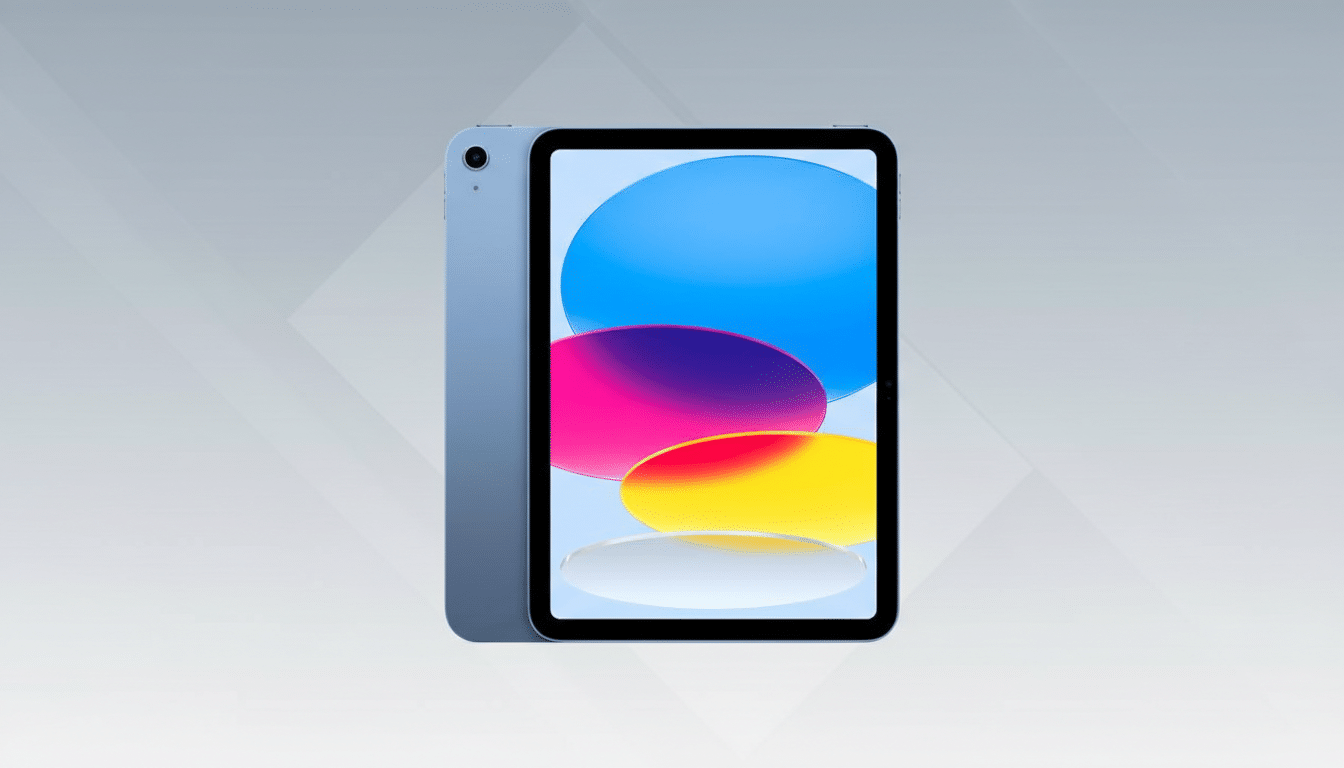
Lower Screen Brightness to Cut Power Draw
Your display is the single largest power consumer. On iPads with LCD or mini‑LED backlights, higher brightness directly increases energy draw. Dropping brightness from around 80% to 40% has translated into more than an extra hour for me during mixed use, and that’s consistent with lab findings that show steep savings at moderate levels.
Two quick wins: enable Auto‑Brightness (Settings > Accessibility > Display & Text Size) so the iPad dims in darker rooms, and keep True Tone on to avoid unnecessarily bright whites. If you need full blast outdoors, fine—just bring it back down indoors.
Shorten Auto‑Lock to Reduce Idle Screen Time
Every minute your screen stays on after you put the tablet down is wasted battery. I moved Auto‑Lock from 5 minutes to 2 (Settings > Display & Brightness > Auto‑Lock). If you set the iPad aside a dozen times a day, that simple change can claw back 30–40 minutes of screen‑on time.
Special case: if you previously set Auto‑Lock to Never for recipes, music, or patterns, switch it back when you’re done. The difference is night and day over a full charge cycle.
Trim Location Services to Stop Background Drain
GPS, Wi‑Fi scanning, and Bluetooth beacons constantly triangulate your position. That’s useful for maps and ride‑hailing—but wasteful for casual games and streaming apps. I edited app permissions to While Using, not Always (Settings > Privacy & Security > Location Services), and disabled location entirely for apps that don’t need it.
Go one layer deeper: in System Services, I turned off features like Location‑Based Alerts and Significant Locations. Apple acknowledges these background services consume power, and turning off the nonessentials tightened my standby drain by a noticeable margin.
Limit Background App Refresh to Save Power
Background data fetches add up. I kept refresh on for messaging and note‑taking but disabled it for streaming apps, games, and shopping (Settings > General > Background App Refresh). That cut silent network checks and background CPU activity, both measurable drains over the course of a day.
If you use Mail heavily, consider switching non‑critical accounts from Push to Fetch or manual. Fewer wake-ups equal fewer power spikes—something battery engineers and reviewers alike highlight as a low‑friction win.
Quiet Notifications to Cut Wasteful Screen Wakes
Each alert wakes the screen and lights up the backlight. If you get 60 pings daily and your display stays on for 8–10 seconds each time, you’re burning away 8–10 minutes of display time with zero value. I turned off badges and banners for non‑urgent apps (Settings > Notifications) and leaned on Scheduled Summary to bundle the rest.
Pair this with a Focus mode for work or travel. The side effect is delightful: fewer distractions and longer sessions between charges.
Control Wireless Radios for Better Standby Life
Wi‑Fi, Bluetooth, and AirDrop continually scan for connections. When I don’t need accessories or transfers, I turn off Bluetooth and set AirDrop Receiving to Off. For longer stints away from known networks, I disable Wi‑Fi entirely. Do it in Settings for a full shutoff—Control Center temporarily disconnects but does not fully power down radios.
The gains are most obvious during standby. With radios quiet, my overnight drop fell to almost flat, especially when combined with tighter notifications.
What Changed in Real Use After Six Tweaks
The cumulative effect was immediate: heavier days that used to leave me at 15–20% by evening now routinely finish above 40%. On travel days—streaming, maps, and notes—I’m seeing one to two extra hours before I reach for a charger. That aligns with broader testing from reviewers who consistently find display and background activity reductions deliver outsized gains.
If you want to validate your own results, open Settings > Battery to view screen‑on time, screen‑off time, and per‑app usage. It’s the clearest way to see which changes are paying off—and which apps deserve tighter limits or an uninstall.
You don’t need to baby your iPad to make it last. Target the big drains, keep what matters to you, and let iPadOS do the rest. The difference, in my case, is measured in hours, not minutes.
