


One UI 8.5 beta for Samsung delivers a more intelligent and flexible Power Saving experience that reaches beyond the on/off switch. The feature now includes two separate modes and granular controls that allow you to stretch your battery life without giving up the apps that matter most. Here is a brief but expert guide to finding it, tuning it, and using it well on Galaxy phones that are running the beta.
Where to Get Power Saving Mode on One UI 8.5 Beta
- Quick Settings: Swipe down from the top of your screen twice to open Quick Settings all the way. Find the Power Saving tile. If you don’t see it, tap the Edit button and pull Power Saving into your active tiles. Long-pressing the tile will immediately take you to the advanced options.
- Settings menu: Open Settings, go to Battery, and tap Power Saving. Battery might be listed under Battery and Device Care on some devices. The beta also makes modes easier to understand with clearer descriptions and adds a gear icon next to each mode for customization.
Standard vs. Max: What Changes Under the Hood
Standard mode is the color saver, doing exactly what Samsung used to do with the classic option but more transparently. You can also expect display refresh-rate throttling, minor backlight-level curtailments, minimized CPU bursts, reduced background syncs, and optional toggles to restrict location checks, vibrations, and Always On Display. The target is to address invisible drains without making your phone feel different.
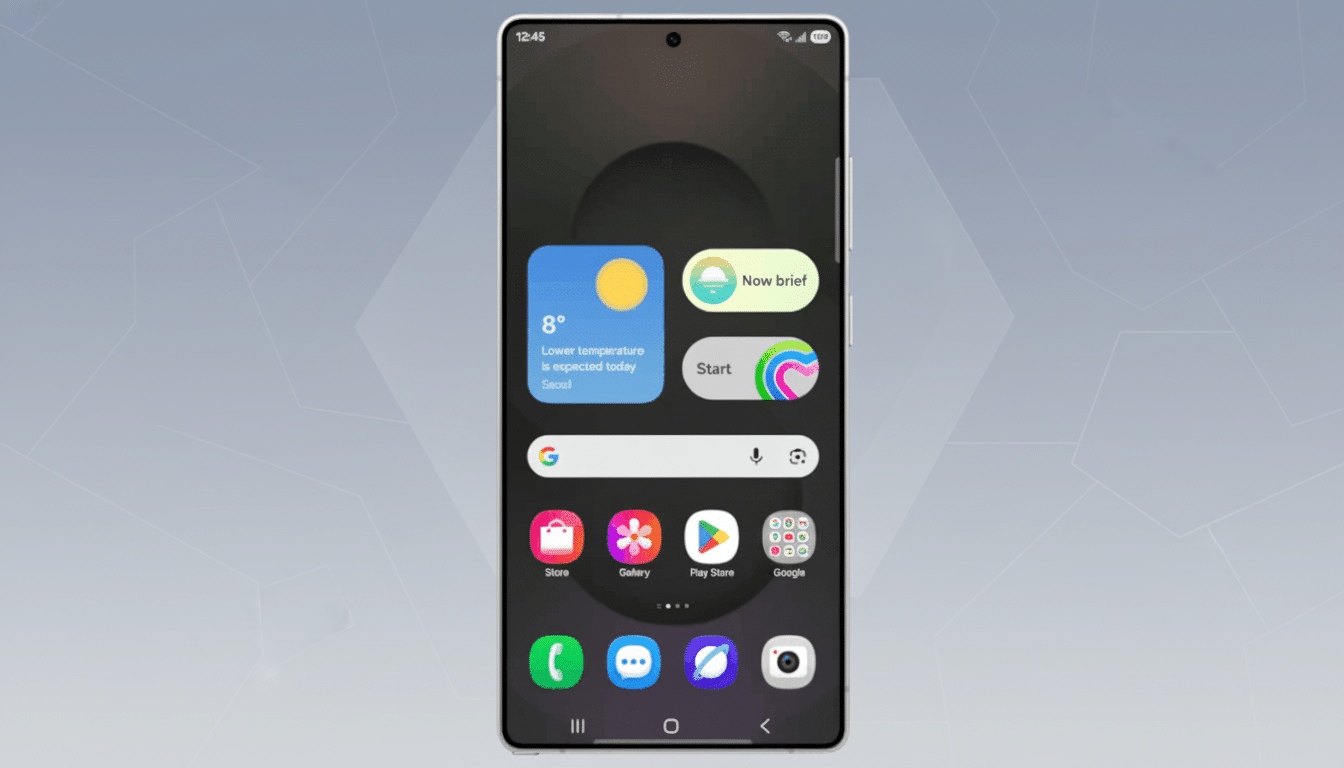
Maximum mode goes further. It takes all the standard tweaks, aggressively restricts background activity, and silences notifications from nonessential apps. Key apps are automatically whitelisted — Clock, Google Play Store, Google Wallet, Messages, and Phone are whitelisted by default — so you won’t miss alarms, payments, or calls. You can add additional apps to this allowlist so your critical applications won’t get clipped.
Practically speaking, Maximum is for when you’re desperate to keep your phone alive. Max in action: On a Galaxy S25 at around 90% charge, One UI’s on-device estimator guesstimated almost three days of runtime with Max enabled. Battery life varies depending on your signal quality, amount of screen time, and camera use — and you will notice that difference right away.
How to Personalize Each Mode for Better Battery Life
Tap the gear icon next to Standard to tweak what the mode changes. You can keep high refresh rate for smooth scrolling, or leave AOD on and haptics enabled if those are important to you. The beta surfaces these switches so that you can dial in just the right combination of endurance and experience.
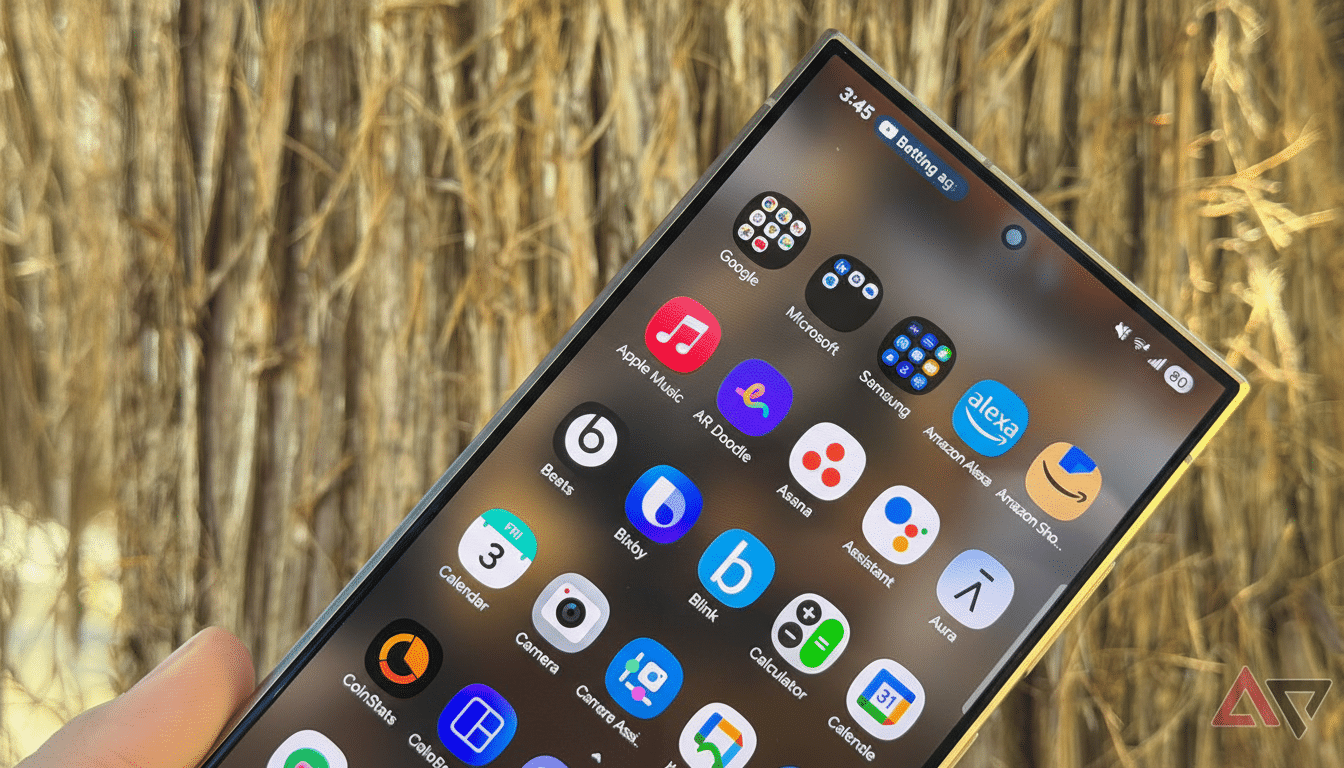
To look over the list of essential apps, tap the gear icon for Max. You’ll want to see the built-in stuff first, and then all installed apps. Turn on any extra apps you rely on — say, your authenticator app, or one for navigation, ride-hailing, or work chats — so they keep syncing and alerting in Maximum mode. This targeted approach preserves the critical flows while making everything else go silent.
When to Use Each Mode: Real-World Scenarios
- Standard: Save for long, no-compromise life. It’s perfect, say, for long commutes or conference days — any time you’ll be away from a charger but still need regular notifications and smooth performance.
- Maximum: When power is at a premium, you’ll have the ability to switch to Maximum as needed. The mode draws hard lines to banish idle drain from chat apps, social feeds, and location-heavy services that wake radios more than you’d like. This is a root cause of energy waste identified by Android platform engineers and measured in industry testing.
How to Make the Most of Your Gains Like a Pro
- Pair with routines: There’s Bixby Routines to auto-enable Standard at, for example, 30% battery and toggle over to Maximum around 15%. You can also set up modes to kick in depending on location (airports), time of day, or when particular apps are launched.
- Make smart use of connectivity: Radios consume battery, especially in places with weaker coverage. If data isn’t essential to you, try downgrading from 5G in Network settings or use Wi‑Fi where possible. Several lab tests of smartphone stamina have demonstrated that radio behavior can be the most power-hungry aspect in low signal.
- Audit battery use: Go to Settings > Battery to see which apps top your usage. If an app that likes the background too much keeps shooting to the top of the list, block it from running in the background in Maximum mode or restrict its background data via Mobile Data options.
- Mind the display: High brightness and high refresh mean your screen is the biggest power suck. The refresh cap in Standard mode is a low-key win, and manually lowering the brightness for marathon sessions adds to your savings without sacrificing usability.
Availability and Supported Devices for the Beta
The enhanced Power Saving mode is one of the features included in the One UI 8.5 beta, which is available for the Galaxy S25 series in some markets via the Samsung Members beta program. A broader release is anticipated with One UI 8.5 stable. Samsung’s beta release notes and developer guidance mention that a broader release will bring the dual-mode framework and customization options to additional devices.
Bottom line: One UI 8.5’s updated Power Saving feature is not a power toggle; it’s a power toolkit. With two modes, simple controls, and app-level exceptions, it offers you significant battery-life gains without putting your phone in lockdown unless you want to.
