


Apple’s penchant for a Liquid Glass look in iOS 26 is a love‑it or hate‑it design swing. If you don’t like the glossy translucency and soft focus layers, here it is straight up: There’s no master on-off switch to assassinate it systemwide. But you can tone it down quite a bit with several settings that prioritize clarity, slow motion, and silence visual flair.
What Liquid Glass Changes Across iOS 26’s Interface
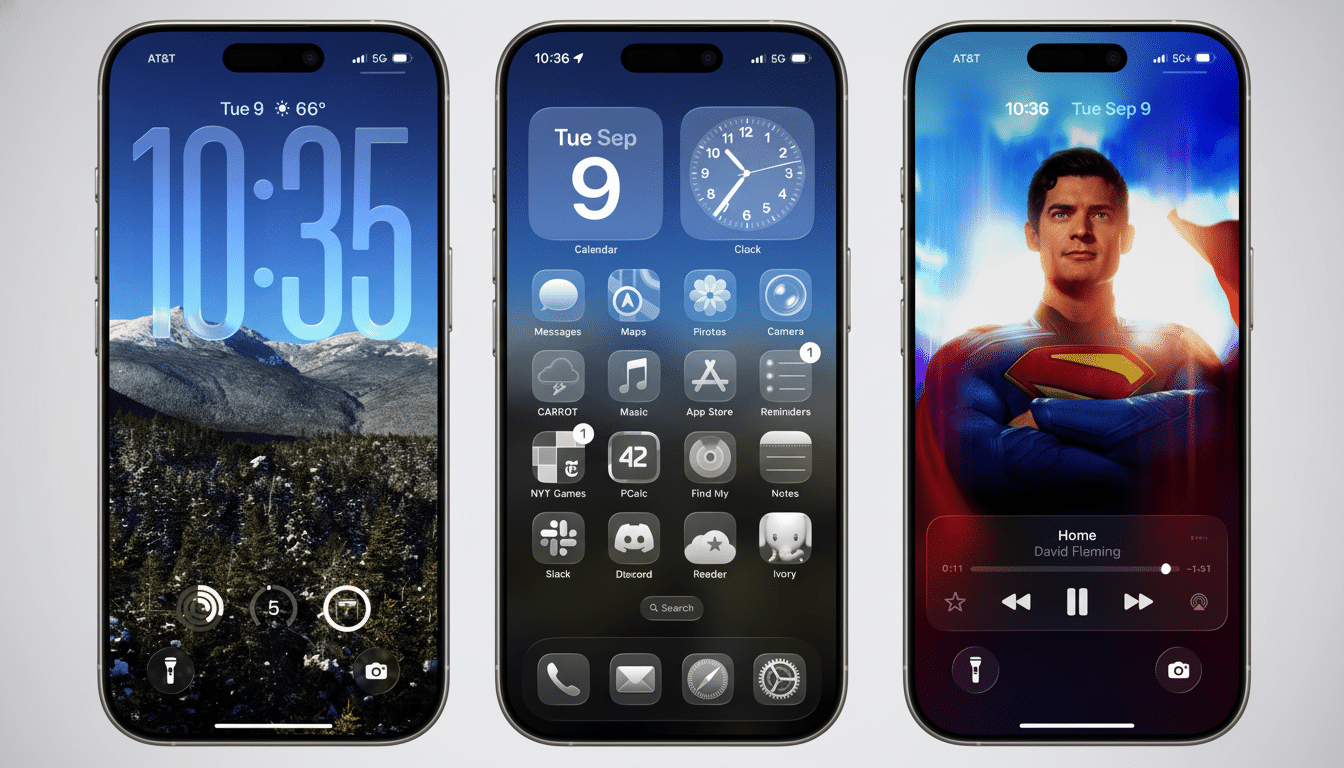
Liquid Glass certainly takes depth and translucency to the extreme. You’ll notice it primarily in folders, the Dock, Control Center panes, notification banners, and system menus that blur whatever’s behind them. Apple’s Human Interface Guidelines have long advised using translucency to hint at layers and hierarchy, and iOS 26 takes that aesthetic further with stronger blur, bright highlights, and dynamic color tints based on your wallpaper.
- What Liquid Glass Changes Across iOS 26’s Interface
- Can You Turn It Off Completely? Here’s the Reality
- Quick Ways to Tone It Down with Accessibility Settings
- Adjust Your Home Screen Aesthetics to Reduce Glare
- Additional Accessibility Tweaks to Consider
- Why Apple Still Keeps the Glassy Aesthetic in iOS
- Bottom Line: You Can Reduce, Not Remove, Liquid Glass
Can You Turn It Off Completely? Here’s the Reality
Nope. There is no universal “Liquid Glass” toggle in Apple’s settings for all of your devices. After all, historically the company makes controls accessible or legible in this version of the switch, rather than a reversal of significant visual systems. With that said, the same Accessibility tools Apple recommends for boosting contrast and motion can dramatically dull the effect without altering your iPhone’s functionality.
Quick Ways to Tone It Down with Accessibility Settings
Start with transparency. Navigate to Settings > Accessibility > Display & Text Size and enable Reduce Transparency. This trades glassy panels for a greater degree of opaque surfaces, resulting in folders, the Dock, and system sheets appearing flatter and cleaner against your wallpaper.
Boost contrast next. Under that same Display & Text Size menu, turn on Increase Contrast. It also subtly enhances borders and separation between text so translucent areas don’t appear quite so hazy. A lot of designers use WCAG contrast guidance (4.5:1 for body text) as a baseline for readability, so this toggle helps the interface lean toward that standard.
Cut down animations. Go to Settings > Accessibility > Motion and flick on Reduce Motion, then turn on Prefer Cross‑Fade Transitions. This swaps the glassy parallax and zoom‑ish effects for gentler fades, which not only is calmer to look at but can also feel a little smoother on older iPhones.
Improve visibility of elements. In Display & Text Size, still try Bold Text and Button Shapes. Neither changes Liquid Glass, but both help your labels and tappable areas stand out against a translucent background, which usability research from the likes of Nielsen Norman Group lists as reducing cognitive load.
Add a shortcut for speed. In Settings > Accessibility > Accessibility Shortcut, choose Reduce Transparency and Reduce Motion. Now a triple‑click of the side button can instantly toggle those effects when bright backgrounds or busy wallpapers make it more difficult to read the interface.
Adjust Your Home Screen Aesthetics to Reduce Glare
Icon tints and Home Screen personalization can duck down and away from the “glass” vibe. With a long press on an empty area and jiggling icons, or selecting Edit then Customize once this screen appears, you can switch the grid over to the lozenge style or even a darker version of what’s there. Take down the color intensity to a muffled shade and folders and the Dock are less reflective in tone, more homogenous.
Your wallpaper is actually pretty important and we don’t just mean aesthetically. Translucent layers draw color and brightness from what’s beneath, so high‑contrast photos can make blurs pop jarringly. Choose a solid, gradient, or low-noise texture. Dark Mode, along with a darker wallpaper, equals the least glare and can help stretch battery life a bit on OLED models by illuminating fewer pixels.
Reconsider widgets and placement. Bigger widgets put opaque squares that fade your glass effect throughout your pages. Organize apps into folders to minimize background “shine through,” which occurs when lots of small icon labels are placed over a light image.
Additional Accessibility Tweaks to Consider
Softening: From the Settings app, go to Accessibility > Display & Text Size and decrease White Point to help take out any intense highlights that may make glassy surfaces feel too bright.
Some users may also find a little bit of relief with Smart Invert, which dims the luminescence in some views without turning colors entirely inside-out like Classic Invert.
If notifications seem particularly splashy, try Summary to batch them or switch off app banners you don’t seek. Less popping-into-existence of translucent panels at arbitrary times also helps lower the overall visual noise floor.
Why Apple Still Keeps the Glassy Aesthetic in iOS
Apple’s design system is expressed in depth, motion, and color that connect to content, background colors, and your wallpaper. It conveys what is foreground, and — after a fashion, by means of suggestively heavier borders — it conveys what is background. Though Apple so often adds to controls within its Accessibility groups at the request of users, it almost never offers a kludge off-switch for main visuals. Expect refinements, not removal.
Bottom Line: You Can Reduce, Not Remove, Liquid Glass
There’s no way to shut down Liquid Glass completely in iOS 26, but you can relegate it to the background. You can also deactivate transparency effects and increase contrast to enhance legibility, reduce motion for less dizziness‑inducing shifts, use subtly tinted or darker Home Screen appearance settings, and choose wallpapers with as little noise and clutter as possible. The upshot is a cleaner, calmer interface that retains the new features in iOS 26 but with the gloss dialed way down.
