


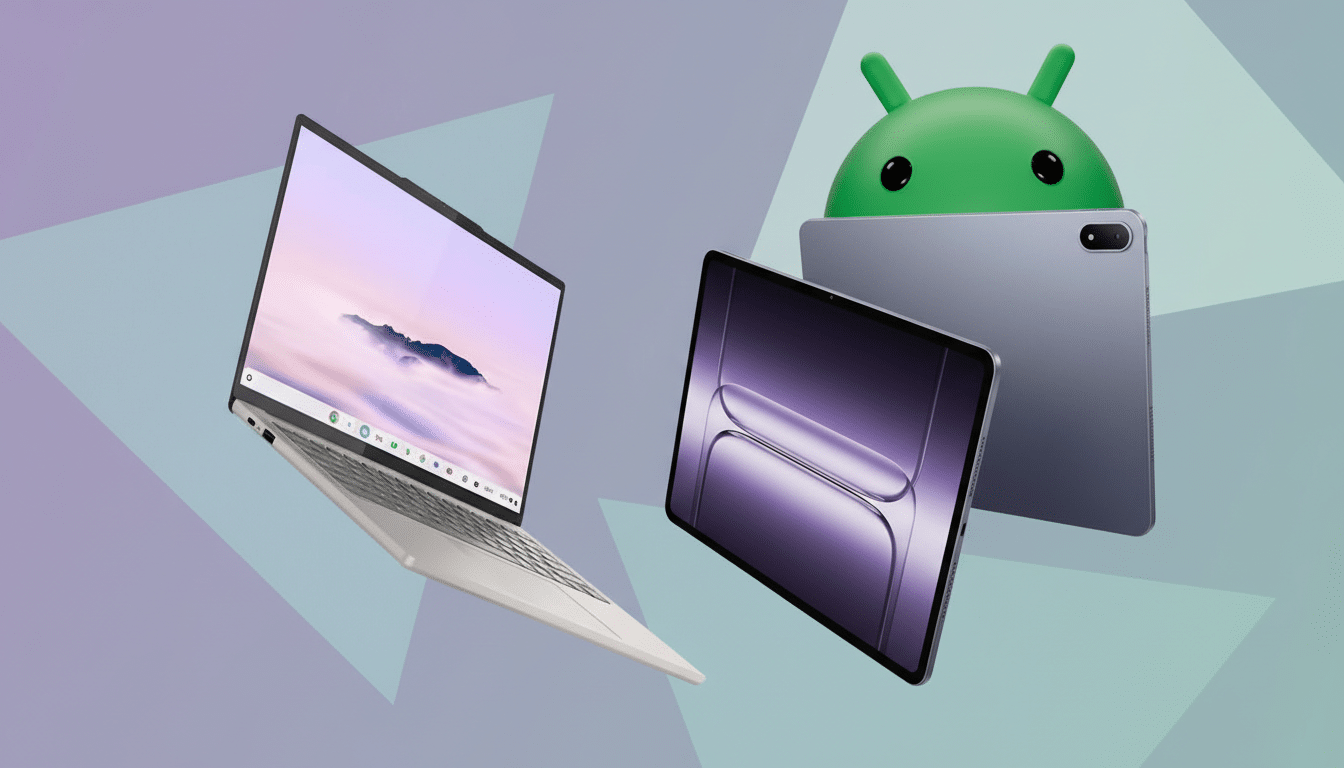
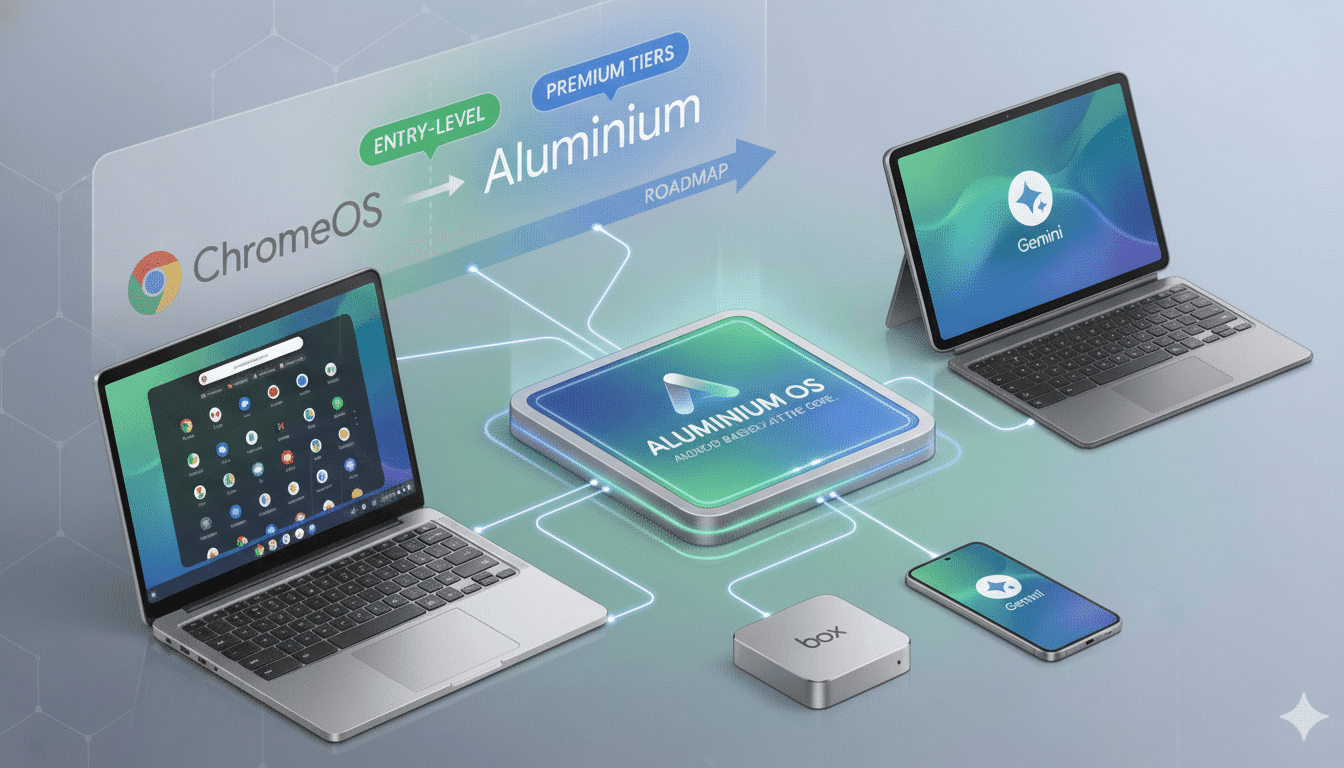
Google’s next-gen desktop platform Aluminium OS is quietly shaping up around Gemini, and we now know how you’ll call it up and what the first-run flow looks like. Fresh references in the Google app beta point to a system-level Gemini that launches from a status bar icon or a dedicated keyboard combo, signaling an assistant designed to live at the heart of the experience rather than in a browser tab.
How You Will Trigger Gemini On Aluminium OS
Two primary entry points are in the works. First, a persistent Gemini icon appears in the top-right status area of Aluminium OS. Click it, and Gemini springs into view. Second, keyboard access is built in: press the Google key plus Space to invoke it instantly. Many Chromebooks already ship with a Google-branded key, so this mapping mirrors how Windows users tap the new Copilot key or how macOS relies on Command+Space for Spotlight—instant recall, no cursor travel.
Under the hood, string references in the Google app v17.5.41 beta explicitly mention “Turn on by selecting the Gemini icon from the top right corner of your screen or press [GoogleKeyIcon] + Space.” That’s a rare level of specificity for an unannounced desktop feature and a strong signal the shortcut is a core interaction model, not an experiment.
What The Status Bar Icon Tells You About Gemini
Leaked animations show a “breathing” Gemini icon in the status bar—a subtle pulse that likely indicates readiness or background activity. Visual affordances like this are becoming standard for AI on desktops, helping users distinguish between passive presence and active listening or processing without intrusive notifications. Expect the icon to double as both a launcher and a state indicator, similar to how microphone or camera LEDs convey system status on laptops.
From Setup To First Use: Onboarding For Gemini
A dedicated setup animation and onboarding flow are also in development. One consent screen calls out “Ask Gemini to help with writing, planning, brainstorming, and more,” underscoring the assistant’s productivity arc. The inclusion of a hotword consent reference suggests voice activation may be available as an opt-in, in addition to icon and keyboard triggers. That aligns with Google’s broader approach on Android, where Gemini can run as a typed assistant, a voice assistant, or embedded suggestions.
Expect the first-run experience to clarify what data is used, where processing occurs, and how to manage permissions—an increasingly important checklist for enterprise and education deployments. Google has emphasized on-device AI with Gemini Nano on Android for privacy-sensitive tasks, while more advanced models run in the cloud; Aluminium OS may inherit a similar tiered approach, though final details remain unconfirmed.
What Gemini Will Actually Do On The Desktop
The early descriptions point to a catch-all productivity assistant. In practice, that likely means quickly drafting emails or documents, summarizing pages and PDFs, turning notes into task lists, and generating itineraries or schedules—all from a universal overlay you can summon anywhere. Because Aluminium OS merges Chrome OS and Android foundations, Gemini could gain richer context—understanding what’s on screen in a Chrome tab, an Android app, or a system window—to offer smarter actions without endless copy-paste.
If Google follows its Android playbook, look for inline “help me write” fields in text boxes, context-aware suggestions in system menus, and the option to pin Gemini responses as cards or snippets. The aim is not a separate chatbot, but an assistant that feels like a native layer woven through the desktop.
Why This Integration Matters For Aluminium OS Users
System-level invocation is the dividing line between a novelty and a habit. By giving Gemini a hardware-level shortcut and a permanent place in the status bar, Google is signaling that AI will be the primary way users navigate, create, and retrieve information on Aluminium OS. It’s also a logical response to platform moves elsewhere: Microsoft has added a Copilot key to new Windows keyboards, and Apple is infusing system experiences with AI features tied to on-device processing.
For schools and enterprises—the traditional strongholds of Chrome OS—predictable access methods and clear setup flows are critical for training and policy management. A consistent trigger like Google key + Space reduces friction for support teams and helps standardize workflows across large fleets.
What We Still Don’t Know About Gemini On Aluminium OS
Key details are still under wraps: which Gemini model tiers will be available by default, how deeply on-screen context will be integrated, what the offline behavior looks like, and how admins will control features at scale. Release timing and hardware requirements also remain unanswered, though the presence of a Google key shortcut hints at tight integration with existing Chromebook-style keyboards.
What’s clear is the direction. Aluminium OS is being architected with Gemini at center stage, accessible in a snap via icon or keyboard, and framed by a desktop-first setup that makes AI a default part of the computing experience rather than an add-on. When it arrives, Gemini won’t just be present on Aluminium OS—it will be the way you use it.
