


Google’s next‑gen assistant is finally coming to smart speakers and displays — but plenty of Google Home users haven’t encountered Gemini yet. The rollout started at the end of October and widened in a broader wave in early December, however, many devices are still on the old Google Assistant. If your Gemini account is not working, here is how to turn it on right now — and why you might still be waiting for access.
Confirm Your Early Access Eligibility for Gemini
Google Home is gating Gemini via an early access program granted to your Google account. Open the Google Home app, tap your profile pic in the top right corner, go to the Home settings, and scroll down to Early access. If you’re invited to join, enroll and give it a minute. These changes are driven by server‑side flags, so approval and activation can take up to a few hours or even days.
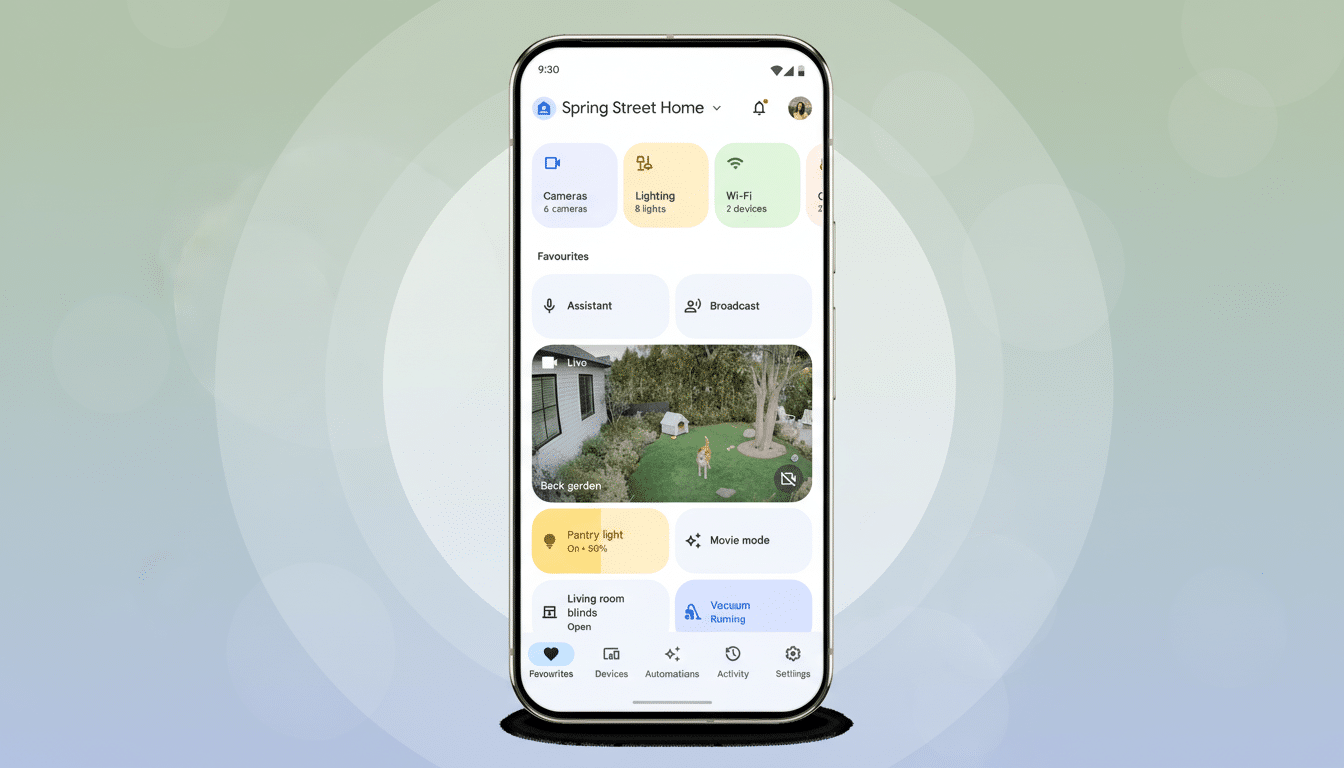
For Early Access, once you know you’re in, give it at least a day past your enrollment. Staged rollouts may be conducted in batches and, even if you’re eligible, the switch might not show up on your account or individual Home devices for a while.
Activate the Gemini Upgrade in Google Home
Once in early access, go into the Google Home app, tap your profile picture, and navigate to Home settings. You’ll see a Gemini prompt at the top — tap Get started. You will be shown onboarding screens that explain what’s new; keep tapping Next, and then tap Upgrade to confirm.
Post‑update, you have the option to choose a Gemini voice and whether responses work for you or guests. If you have Nest Hub displays, you’ll continue to see the classic Assistant animation while responses are being driven by Gemini. To check, try saying “Hey Google, who are you?” and it ought to say that it is Gemini.
Still Missing the Prompt? Try This Deep Link
Some users have had luck forcing the setup process. On an Android phone, tap here while in Google Chrome and you’ll be sent directly to Assistant’s voice settings within the Google Home app. This deep link is supposed to bring you right into the Gemini onboarding screens. There are reports that this may sometimes accomplish only the new voice, rather than enabling all features, but it’s worth a last try if seeing the prompt doesn’t work.
Common Roadblocks and Fixes for Enabling Gemini
Ensure you’re using the same Google account in the Home app that owns your speakers and displays. If you control multiple Homes, make sure that you’re in the right one from the home selector. Account mismatches are a common reason you never see that Gemini prompt.
Update your phone’s Google Home app and Google app to the most recent software. Next, reboot your phone and power‑cycle your speaker or display (by unplugging for 10 seconds). Some users confirm the server flag flips don’t show up until a new app session or even a restart.
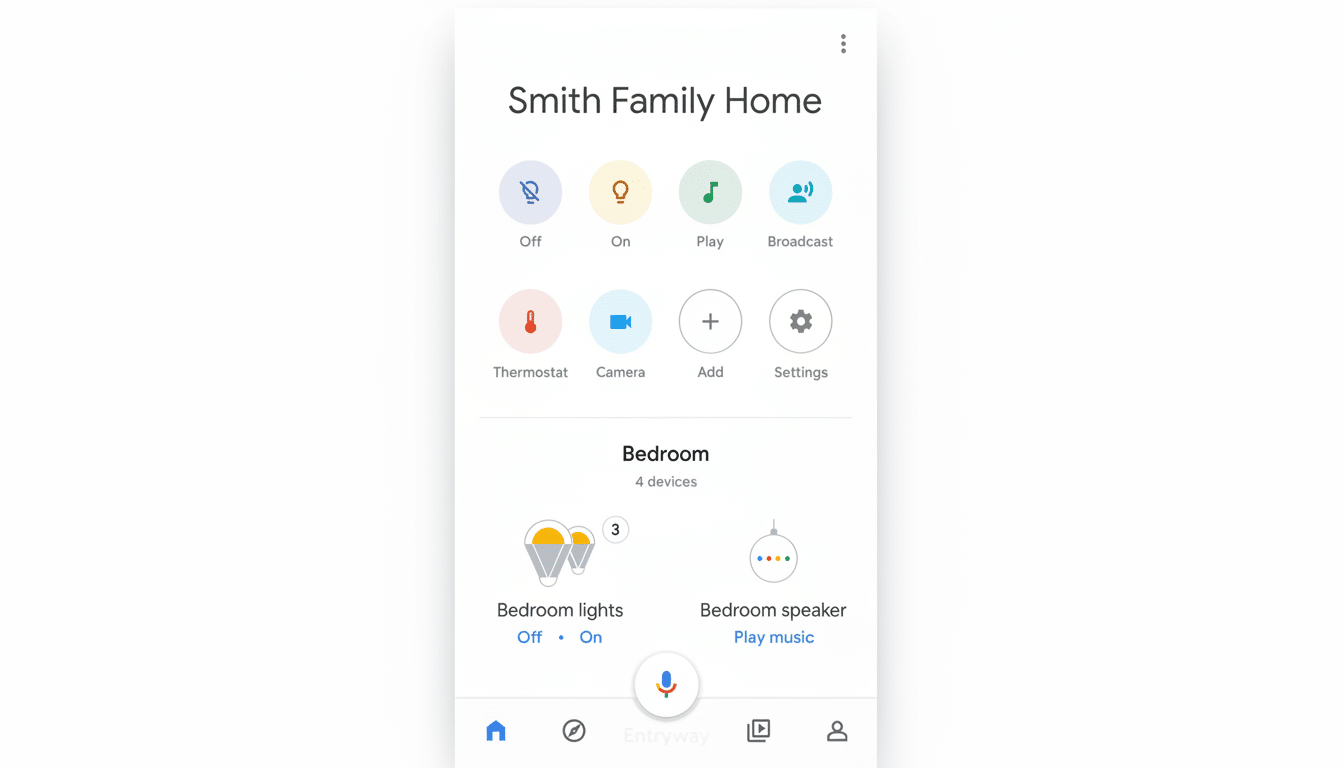
Be sure that the language of your device is supported and you have Voice Match set up for your account. Managed or supervised profiles (with some Family Link child accounts) and some types of Google Workspace accounts are usually ineligible to participate in early access programs. If you have one of these, try it with a plain personal Google account.
If you haven’t got Gemini yet after trying everything up to here, try removing and re‑adding one speaker in the Home app to test. This essentially refreshes capabilities for that device without affecting your whole setup. And as always, you’ll want to make sure Web & App Activity is turned on for personalized responses in accordance with the guidance Google offers through its Help Center.
What’s Different About Using Gemini on Google Home
Gemini seeks to give better results for more natural conversations, a better carry‑through of context, and helpful responses for follow‑up questions. In its early access phase, smart home controls, timers, media playback, and routines still function, with Gemini on the spot for general queries and chattier interactions. Google has positioned this as an evolution, not a day‑one rip and replace, so expect capabilities to grow over time.
Initial feedback on community forums and from reviewers seems to indicate response phrasing is more conversational and less stilted compared to classic Assistant. But some edge features might temporarily fall behind as Google shifts things around. If a command behaves weirdly, rephrase it in another way or work around with a routine.
Understanding the Rollout Timeline for Gemini on Home
Google started turning Gemini on across Google Home devices in late October, with a particularly significant second wave Dec. 4 through Dec. 6, according to company communications and user reports received by CNET. There will be a rolling release of these sorts of staged updates to help with scale and reliability. It is not atypical for the change to be taken up by two identical devices in separate homes a few days apart.
Bottom line: sign up for early access, start the upgrade in the Home app, and use the deep link if necessary. If you’re eligible and have not yet received the update, it probably means you’re waiting in line for a subsequent server‑side batch. Keep an eye on the Home app — when you get that prompt, making the switch to Gemini will take only a minute.
