


Microsoft is weaving Copilot deeper into Windows 11, bringing AI agents to the taskbar search field and adding a Copilot button directly inside File Explorer. The move aims to make AI assistance feel native to everyday workflows, shaving steps off common tasks like summarizing documents or kicking off research with a single keystroke.
Taskbar Agents Move Into Search on Windows 11
In the Windows 11 taskbar, pressing the @ key inside the search bar now pulls up a roster of Copilot agents you can prompt directly. In Microsoft’s demo, a “Researcher” agent tackled a broad request and delivered a long-form report, complete with a notification when the work was done. The interaction runs inline with the system search UI, which reduces context switching and makes Copilot feel less like a separate chatbot and more like a built-in utility.
- Taskbar Agents Move Into Search on Windows 11
- File Explorer Gains One-Click Previews with Copilot
- Availability and Requirements for Windows 11 Copilot
- Why Microsoft Is Embedding Copilot Everywhere
- Governance, Privacy, and Risk for Copilot in Windows 11
- What Changes for Daily Work with Copilot in Windows 11
Crucially, notifications and background execution suggest Microsoft is leaning into agentic workflows that take on multi-step jobs and report back when finished. For knowledge workers juggling meetings and messages, that “set it and forget it” pattern could be the difference between using AI once a week and using it several times a day.
File Explorer Gains One-Click Previews with Copilot
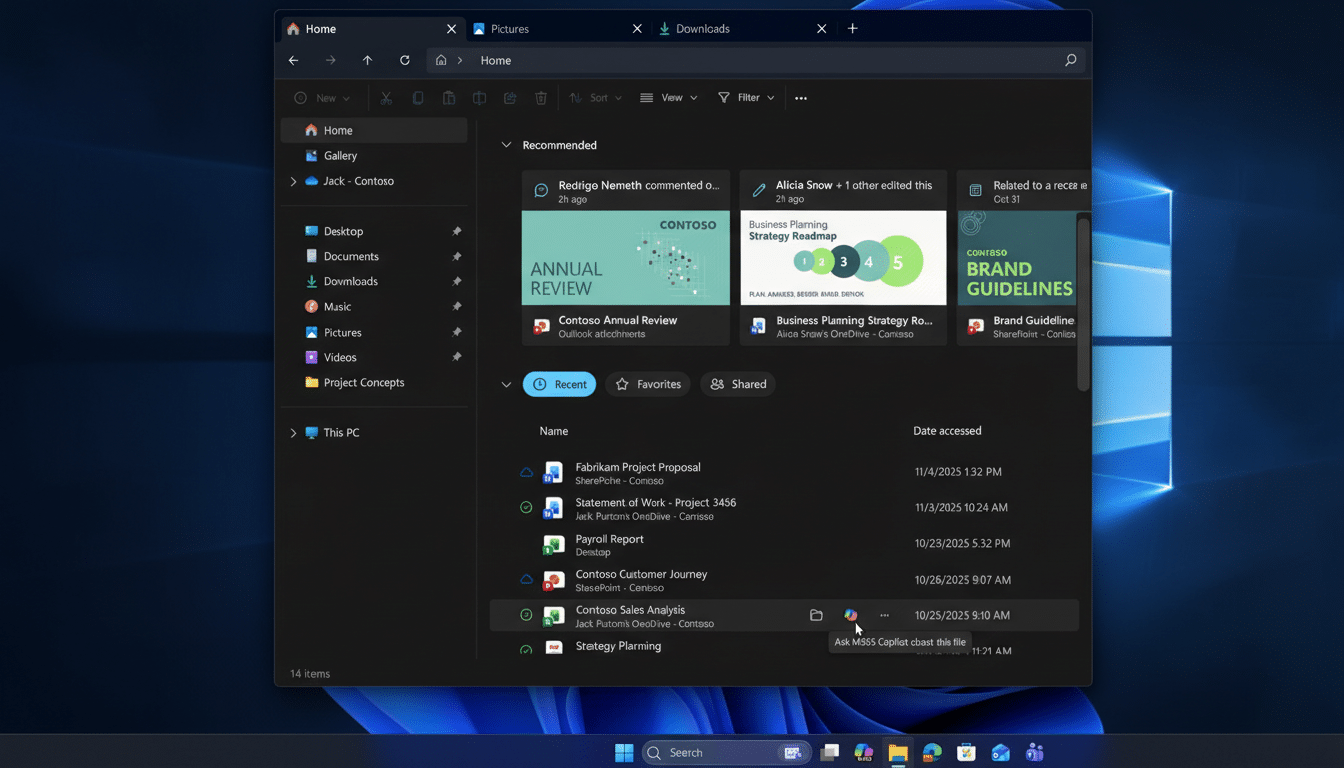
In File Explorer, eligible files now show a small Copilot icon. Click it, and Copilot can summarize a document, extract key findings, or answer questions about the contents without opening the app tied to that file. In Microsoft’s walkthrough, a user pulled a finding from a report in seconds—no hunting for the right application, no loading times, and no manual skimming.
Expect the best results on common business formats—Word, PowerPoint, PDF, and text—where Copilot already has strong grounding via Microsoft 365. Enterprise permissions still apply: Copilot can only analyze what the user can access, and results live within your tenant’s security boundaries.
Availability and Requirements for Windows 11 Copilot
These features target Windows 11 users signed in with Microsoft 365 Work or School accounts and who have Copilot access provisioned by their organization. Microsoft typically staggers rollouts through its Microsoft 365 Roadmap and Windows channels, so some tenants will see the changes earlier than others.
Owners of Copilot+ PCs also get expanded capabilities: systemwide voice transcription, contextual screenshotting for easier recall of on-screen moments, improved natural-language device search, and enhanced text generation in any app with a text box. The underlying advantage is the NPU found in new AI PC designs, which offloads AI tasks for faster, more private on-device processing.
Why Microsoft Is Embedding Copilot Everywhere
Microsoft’s strategy is clear—put Copilot where work happens. The company already introduced a physical Copilot key on new keyboards to lower the friction even further. Adoption remains the hurdle: according to reporting from Windows Central, only about 3.3% of Copilot users currently pay for premium tiers, prompting Microsoft to test deeper integrations that create daily habit loops.
There is also internal debate about how aggressively to integrate AI across Windows, again noted by Windows Central, signaling Microsoft may tune the visibility and defaults as feedback rolls in. The broader industry trend supports the push: major analyst firms expect AI-enabled PCs to drive the next refresh cycle through 2027, and rivals are embedding assistants across platforms, from Apple Intelligence on macOS to Google’s Gemini in Workspace tools.
Governance, Privacy, and Risk for Copilot in Windows 11
For IT leaders, the File Explorer and taskbar hooks raise familiar questions about data leakage, auditing, and user education. Microsoft positions Copilot results within existing compliance frameworks like Microsoft Purview, with tenant-level controls to manage data access and plugin scope. Still, recent security incidents covered by industry press have underscored the need for strong policies, clear prompts, and least-privilege access.
Best practice: pilot Copilot features with a small group, monitor prompts and outcomes, and set guidelines on what content is appropriate for AI summarization. Configure data loss prevention rules and review audit logs to ensure AI actions align with corporate policy.
What Changes for Daily Work with Copilot in Windows 11
These integrations shave minutes off repetitive tasks. Examples: ask @Researcher to outline market sentiment while you jump on a call; tap the Copilot icon beside three proposals to pull a side-by-side comparison; use voice to transcribe a hallway conversation, then paste the action items into Teams. It is not flashy—intentionally so. The power lies in removing micro-friction dozens of times a day.
The bottom line: by stitching Copilot into the taskbar and File Explorer, Microsoft is turning Windows 11 into an AI-forward workspace. If the experience proves fast, accurate, and respectful of organizational boundaries, it could lift engagement—and eventually the share of users who upgrade to paid plans. If it feels noisy or intrusive, expect Microsoft to recalibrate quickly.
