


Look closely at the plastic tab inside your USB-A port. If it is blue, that is your cue that the port supports SuperSpeed USB at up to 5 Gbps. In practical terms, a blue port is the shorthand most manufacturers use for what the USB Implementers Forum now calls USB 5 Gbps, formerly known as USB 3.0 and later USB 3.2 Gen 1.
Here is the twist most people miss: the color convention is common but not mandatory. The USB-IF does not require port colors at all, and many laptops skip them for design reasons. That is why two identical-looking ports on the same machine can behave very differently.
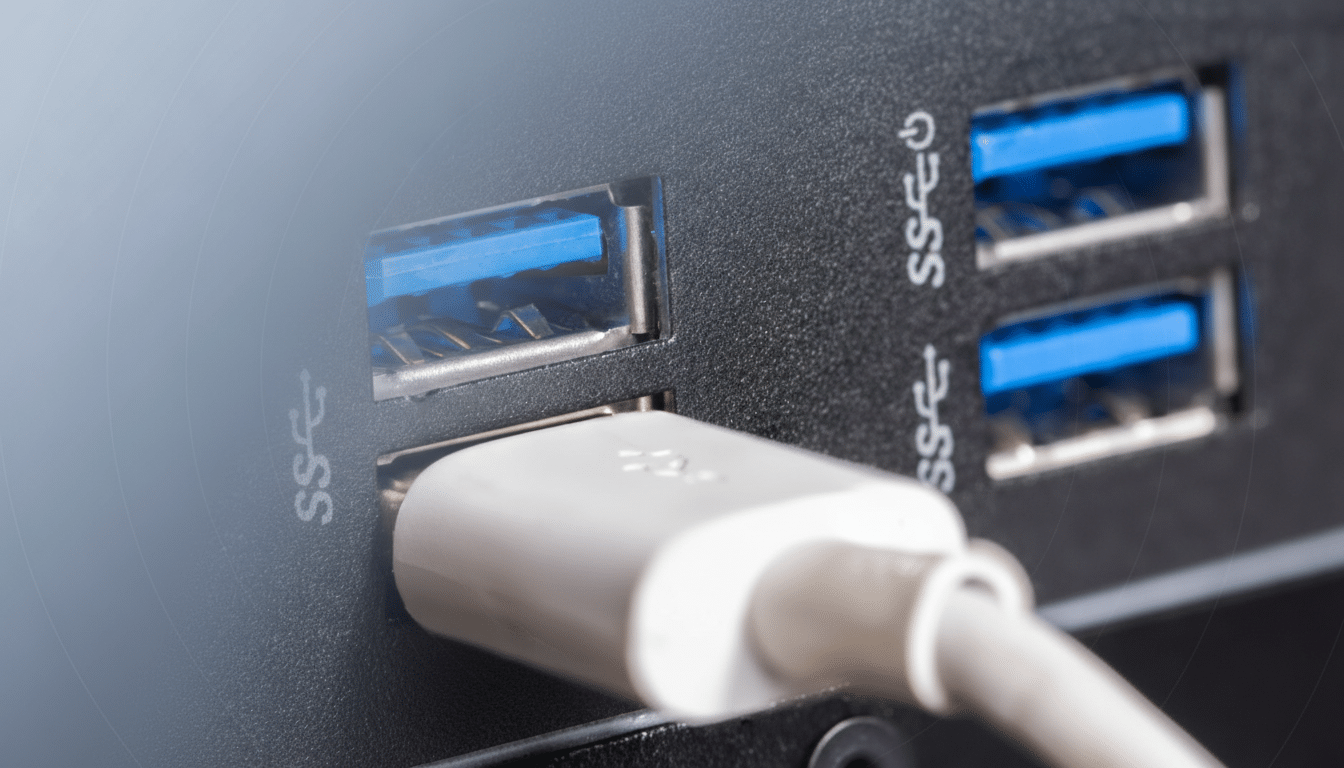
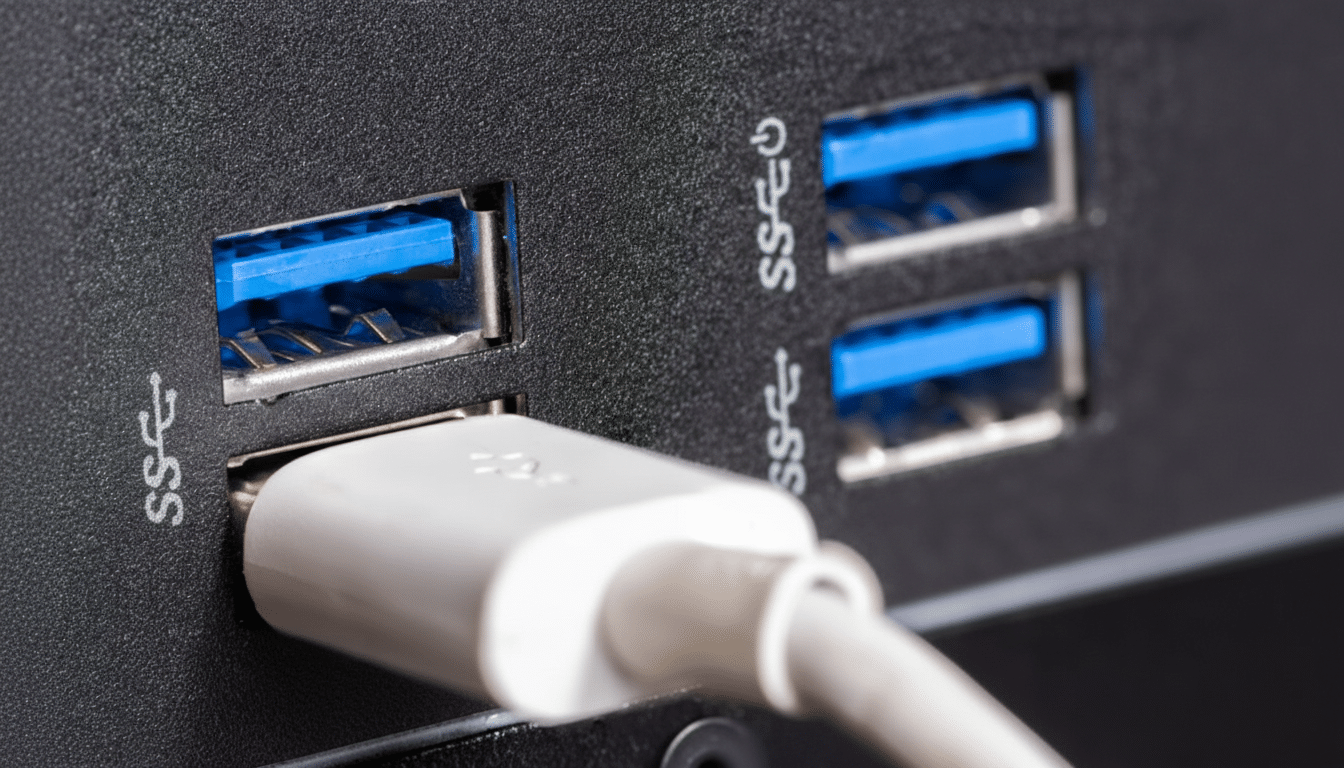
What a blue USB-A port really means for speed
A blue USB-A port generally denotes a 5 Gbps data lane with backward compatibility to USB 2.0 devices. You might also see “SS” or “SS 5” printed next to the port, signaling SuperSpeed. Plug an external SSD or fast flash drive into this port and you can expect real-world transfers in the 350–500 MB/s range, depending on the device and overhead.
Blue does not guarantee power features. Charging rates depend on the port’s power budget and the device’s negotiation via USB Battery Charging or USB Power Delivery, which are separate from data speed. Check for a battery icon or a wattage mark if you care about fast charging.
Beyond blue: the other common USB colors
Black typically indicates USB 2.0 at 480 Mbps, a legacy workhorse fine for keyboards and mice but painfully slow for big file moves. White is even older, associated with USB 1.x, and is rare on modern hardware.
Teal or turquoise often shows up on newer motherboards and hubs for higher tiers like USB 10 Gbps (formerly USB 3.2 Gen 2). You can see close to 900 MB/s on a good SSD with this port, roughly double what a blue port can sustain.
Red, yellow, or orange sometimes marks “always-on” charging ports that supply power even when the PC sleeps. Vendors also use these colors for higher current output. Treat these as power hints, not speed promises, and check the spec sheet for the actual watts.
A critical caveat: color is an informal convention. Some brands color everything black for aesthetics, while others use custom hues. When in doubt, the printed labels and the manual tell the truth; the plastic insert may not.
USB-C and Thunderbolt port icons matter more
USB-C rarely uses colored inserts, so the icons do the heavy lifting. Look for simple speed marks like 5, 10, or 20 next to “USB,” which correspond to 5 Gbps, 10 Gbps, and 20 Gbps. In 2022, the USB-IF moved away from the “SuperSpeed” names in favor of clear Gbps labeling, precisely to reduce confusion.
The lightning-bolt icon indicates Thunderbolt. Thunderbolt 4 tops out at 40 Gbps, with robust requirements for PCIe bandwidth and dual 4K display support. Intel’s Thunderbolt 5 ups the ante to 80 Gbps with a 120 Gbps “Boost” mode for displays, while remaining backward compatible. USB4 is the broader standard family here, commonly 40 Gbps today, and newer USB4 Version 2 can reach 80 Gbps and asymmetric 120 Gbps in specific scenarios.
For charging, USB Power Delivery labels or wattage markings matter most. A port labeled 100 W can fast-charge a laptop; a plain data-only port cannot, even if it is very fast for files.
Real-world USB speed math and practical examples
Port speeds are headline maximums. Because of protocol overhead, device controllers, and media limits, you rarely hit the exact number on the box. A 5 Gbps blue port typically delivers around 400 MB/s; a 10 Gbps port lands near 900 MB/s with a capable NVMe-based USB enclosure.
Translate that into time and it gets tangible. Moving a 50 GB video project over USB 2.0 could take well over 15 minutes and often much longer. The same transfer on a blue 5 Gbps port might take about 2–3 minutes. On a 10 Gbps connection with a fast SSD, you are often done in about a minute. Hook the same SSD to 20 Gbps or Thunderbolt and the storage becomes the limiter, not the bus.
How to verify your USB, USB-C, and Thunderbolt ports
Check the product spec sheet first; reputable OEMs list per-port speeds and charging capabilities. On Windows, open Device Manager and expand Universal Serial Bus controllers to see controllers labeled USB 3.2, USB4, or Thunderbolt. On macOS, System Report under USB and Thunderbolt provides lane and speed details. On Linux, lsusb -t offers a concise tree with speeds.
Do not forget the cable. A slow or charge-only cable can throttle a fast port. Look for certified markings such as USB 10 Gbps, 20 Gbps, 40 Gbps, or an e-marker for 5 A 100 W power. The USB-IF operates a certification program that vendors can cite on packaging, and that stamp is often a better predictor of performance than color alone.
Bottom line: color helps, specs and labels decide speed
Blue means 5 Gbps and generally faster data than older black ports, but color is only a clue. The authoritative answer lives in the labels, the icons, and the spec sheet. Match your fastest drives to your fastest ports, use certified cables, and you will see the speed your hardware was built to deliver.
