


Apple is pulling the plug on the legacy version of its Home platform, and households still running the older Home architecture are being urged to update immediately. If you ignore the prompt, you could see automations misfire, remote access vanish, or select accessories go offline as the older system falls out of support.
The move caps a multi-year transition to Apple’s rebuilt Home architecture, which underpins newer features, tighter security, and broader compatibility with Matter devices. Many users have already received emails and in-app notices reminding them to finish the migration before functionality starts to degrade.
- What Is Changing in Apple Home and Why It Matters
- Who Must Update and the Full Device Requirements
- How to Update Your Apple Home Setup Step by Step
- What Could Break If You Delay Upgrading Your Home
- What You Gain After Upgrading to Apple’s New Home
- Expert Troubleshooting If The Upgrade Stalls
- The Bigger Smart Home Picture and What Comes Next
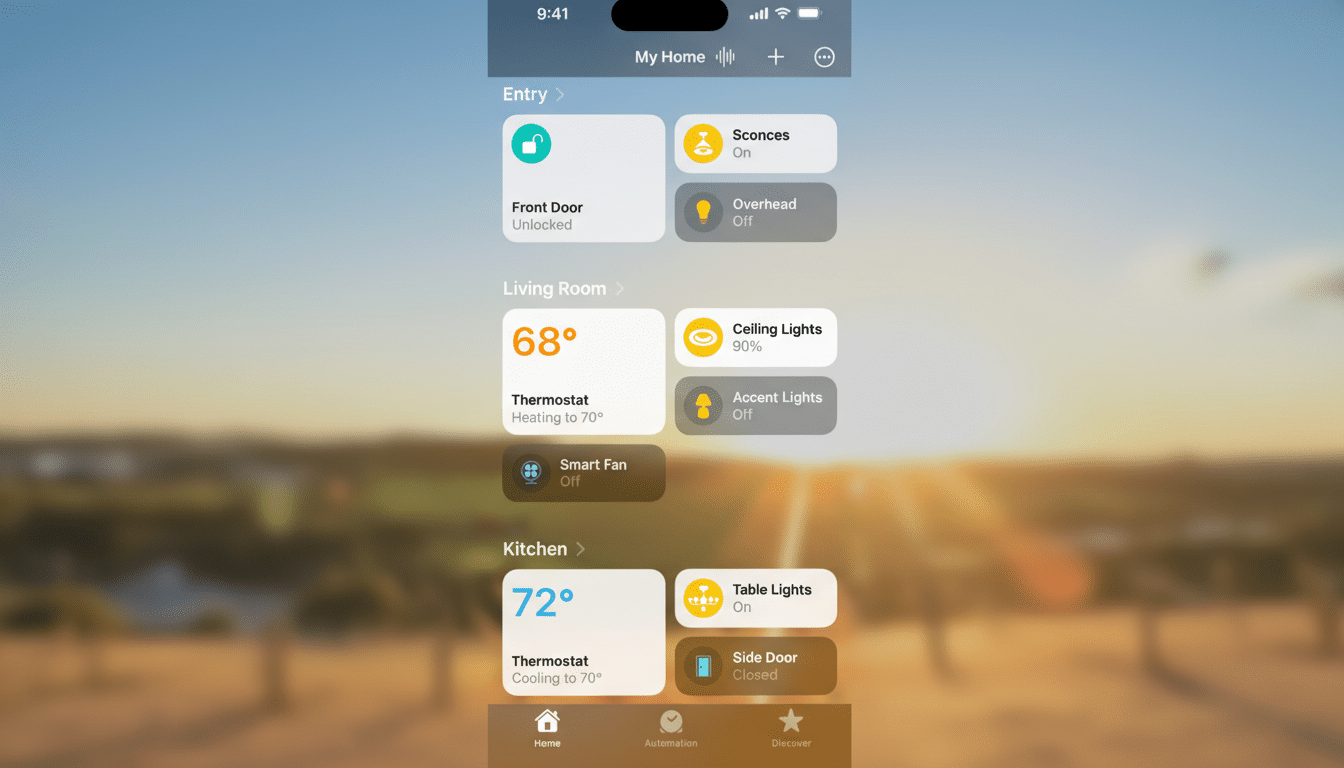
What Is Changing in Apple Home and Why It Matters
The “old” Home experience dates back to 2016 and relies on an earlier HomeKit stack. Apple’s modern Home architecture—reintroduced alongside iOS 16.4—was designed to improve reliability, speed up accessory responses, and support the cross-brand Matter standard stewarded by the Connectivity Standards Alliance. In plain terms, scenes should trigger faster, devices should stay connected more consistently, and setup across brands is simpler.
Staying on the legacy system means no more security fixes or performance improvements. It can also block new device types from working correctly—particularly Matter and Thread accessories—because the older platform lacks the updated protocols and hub behavior that newer products expect.
Who Must Update and the Full Device Requirements
Anyone managing a Home with Apple TVs or HomePods acting as hubs should ensure everything is on current software. The updated Home architecture generally requires iOS or iPadOS 16.2 or later on every iPhone and iPad that controls the home. Practically, that means an iPhone 8 or newer on the phone side, and recent Apple TV or HomePod models as hubs. For Thread and Matter reliability, a HomePod mini or Apple TV 4K with Thread support is strongly recommended.
Crucially, all members invited to your Home must be on compatible OS versions. If one person lags behind, the upgrade can stall or certain features may not appear for everyone.
How to Update Your Apple Home Setup Step by Step
Start on your iPhone or iPad: open the Home app, go to Home Settings, then choose Software Update. If you see “Update Home Architecture” or “Update Now,” follow the prompts. You may also see accessory firmware updates listed here; apply them as recommended.
Next, confirm your hubs are current. On Apple TV, open Settings, select System, then Software Updates. On HomePod, check the Home app’s Home Settings under Software Update. Keep your devices on the same Apple ID with iCloud Keychain and two-factor authentication enabled for a smoother migration.
What Could Break If You Delay Upgrading Your Home
Users who skip the update may notice scenes and automations running late or not at all—especially time-based or presence-based routines like “Good Night” or “Arrive Home.” Remote control through a hub can stop responding, Siri commands may fail more often, and invited users could lose access to shared homes.
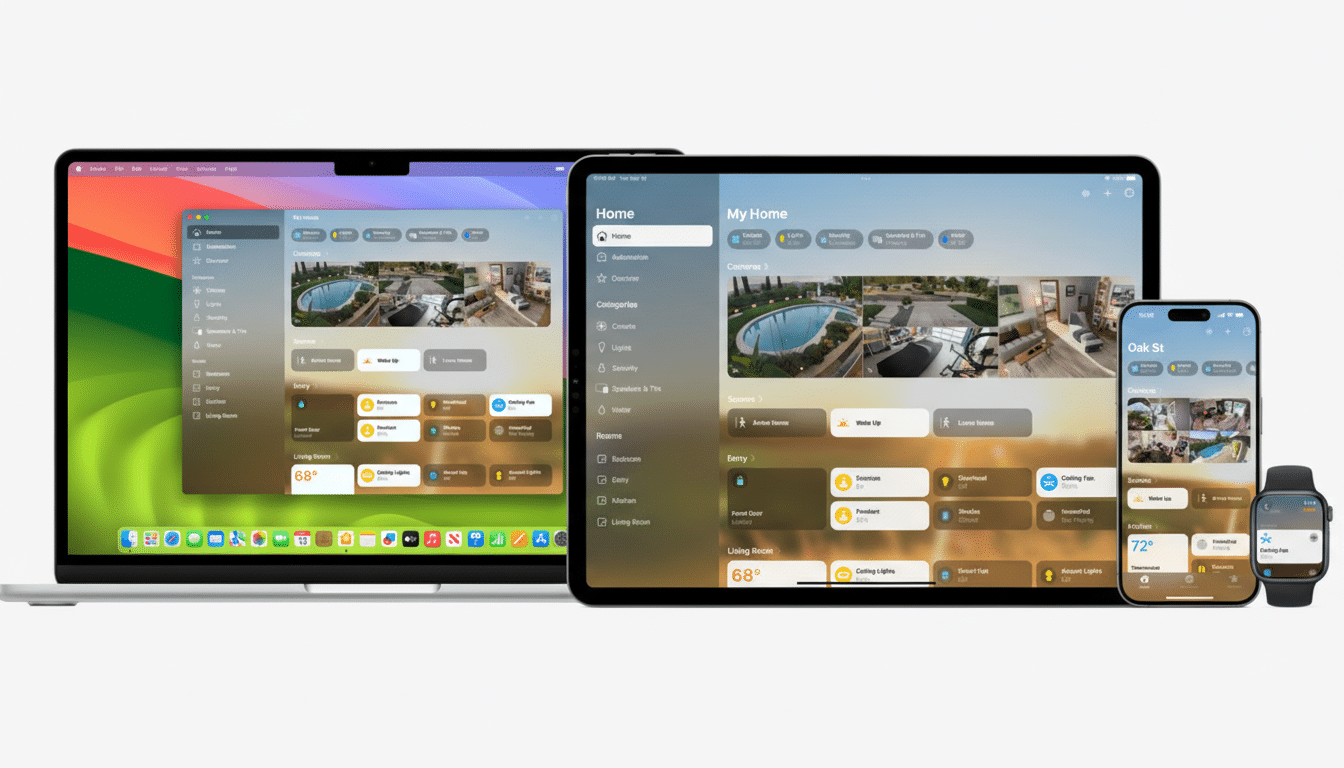
HomeKit Secure Video recordings may become unreliable, and older hubs can have trouble bridging newer Thread or Matter gadgets. In mixed setups—say, a Thread smart lock, a Matter light switch, and legacy Wi-Fi bulbs—the old architecture can be the weak link that drags down the whole home’s responsiveness.
What You Gain After Upgrading to Apple’s New Home
Beyond stability and security, the updated Home experience unlocks a better feature set: richer activity history for doors, locks, and sensors; more precise automations; expanded device categories including robot vacuums introduced through newer Matter specifications; and streamlined guest access so visitors can control what you permit without handing over the keys to everything.
Support for technologies like Home Key on compatible locks improves convenience, enabling quick, secure unlocking with iPhone or Apple Watch. Combined with updated hubs (HomePod mini or Apple TV 4K), Thread and Matter devices typically join faster and stay online more reliably.
Expert Troubleshooting If The Upgrade Stalls
If the architecture update hangs, check that every home member is on a supported OS and signed into iCloud with Keychain on. Power-cycle Home hubs (unplug a HomePod or restart Apple TV) and reboot your router. Temporarily disable VPNs or Private Relay if device discovery fails. Remove any outdated or duplicate hubs from Home Settings, then try the upgrade again.
Apple Support documentation notes that large homes with many accessories may take time to migrate; let the Home app finish in the foreground and keep devices on Wi-Fi and power. If all else fails, consider creating a fresh home and re-adding accessories, starting with your hub and critical devices before layering on the rest.
The Bigger Smart Home Picture and What Comes Next
This cutoff nudges Apple households toward the Matter era, where devices from different brands interoperate more seamlessly across platforms from Apple, Google, Amazon, and others. The Connectivity Standards Alliance continues to expand Matter’s device library and features, making timely platform updates essential to keep pace with new categories and capabilities.
If your home still runs the legacy setup, make today the day you upgrade. It is the simplest way to protect your automations, keep your accessories responsive, and unlock the features Apple has been building toward over the last few releases.
