


The vast majority of people get a new TV, hook up HDMI cables, and never use the USB port again. That’s a missed opportunity. But there’s a lot more than meets the eye to those little USB jacks — they unlock playback, peripherals, power, updates, and even better streaming without having to add another box.
With smart TVs now in the majority of living rooms — industry researchers at Leichtman Research Group say smart TV penetration is north of 70 percent — it’s worth knowing what that USB port can and cannot do.
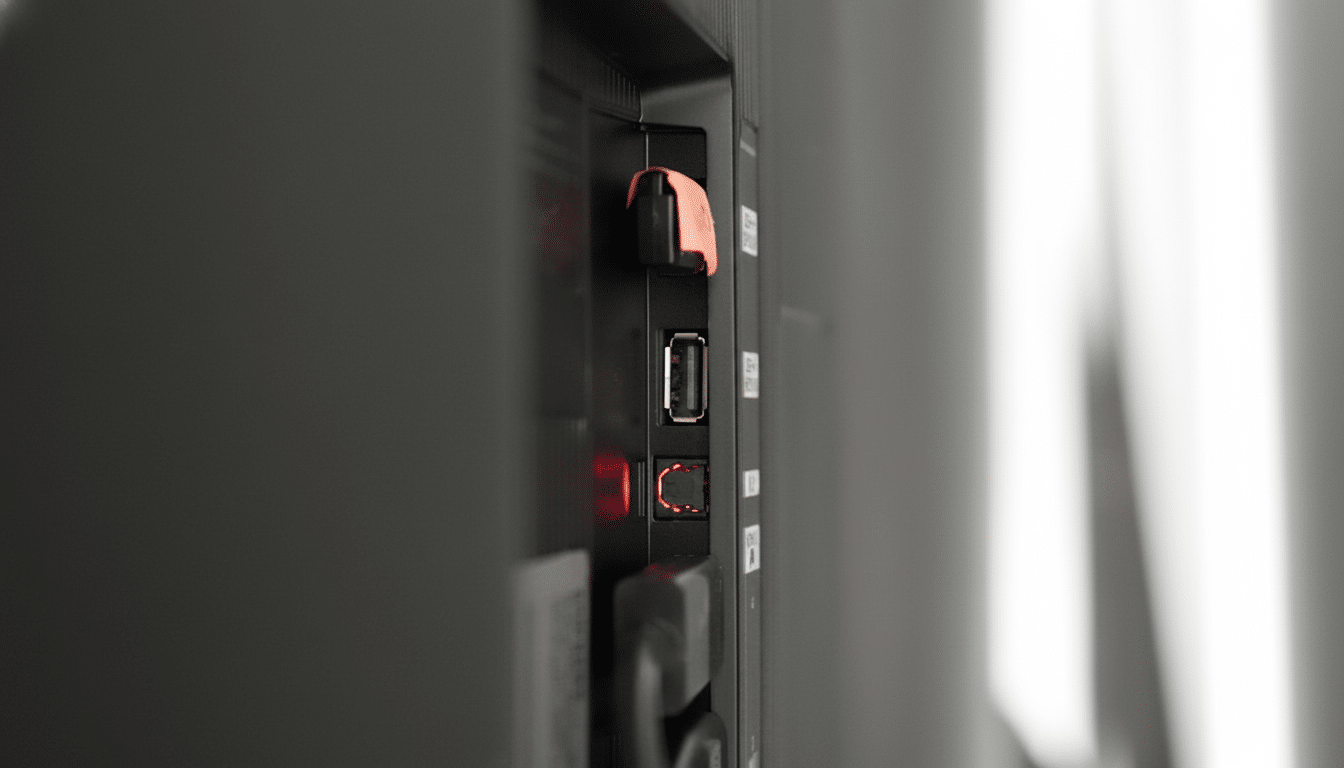
Here are five practical, underappreciated applications for putting it to good use.
Play Photos and Videos Directly from Any USB Drive
Insert a flash drive or external SSD, and many TVs will automatically index your files for local playback. It’s a quick way to play a slideshow of the latest family photos, screen some vacation videos, or flip through proofs of your design work on a big panel without having to light up a laptop. Most sets will play common formats, including MP4, MKV, MP3, JPG, and PNG (look to your TV’s manual for specific codec compatibility), and read FAT32 or exFAT drives; consult your television’s manual for supported file systems.
Pro tip: Leave your gallery on the drive and set the TV to pull images from USB when idle. The files are read directly from an SD card/USB stick, so you avoid crowding the limited internal memory and slowing down menus and apps. A few manufacturers say in support documentation that avoiding internal storage eases cache strain and aids overall responsiveness.
Turn the TV into a Giant Workspace with USB Devices
If you’ve ever daydreamed about having more screen real estate, your TV can step in as a massive computer monitor. USB allows you to connect a wireless keyboard and mouse using a small 2.4 GHz dongle, or plug in wired peripherals for more accuracy. USB Human Interface Device (HID) support is widespread on platforms such as Android TV and Google TV, so navigation is instantaneous.
This arrangement works well if you are working with spreadsheets, timeline editing, or two browser windows open alongside. There’s a reason creative pros often spring for 27-inch monitors: productivity scales with space. A 55-inch TV won’t measure up to a calibrated pro display for color but is a big canvas for multitasking and presentations.
You can even install a USB webcam on compatible systems. Google has enabled video calls with UVC webcams on a few Google TV interfaces, and the Fire TV Cube from Amazon also works with webcams for Zoom. It’s not universal, but where it works, a cheap USB camera turns your living room into a conference room.
Power Streaming Sticks and Charge Gear with Caution
That USB port can be used to power streaming sticks and low-draw accessories, minimizing wall-wart clutter. The USB Implementers Forum cites 5V at up to 500 mA for USB 2.0 and up to 900 mA for USB 3.0; some TVs will also deliver power at a rate of 5V at 1A. Earlier-generation HDMI-based streaming sticks often work fine off TV-supplied USB power, while newer and faster models may still want or even require their included adapters.
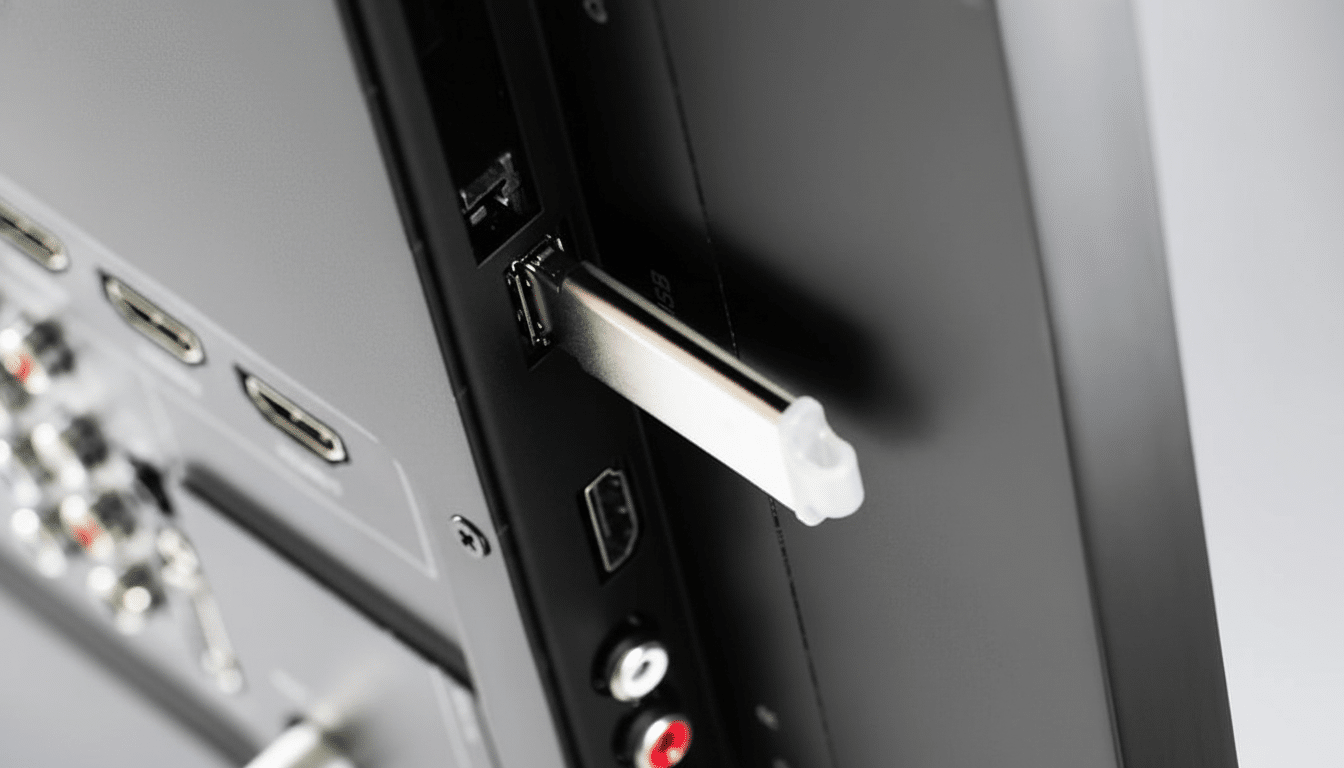
You can even trickle-charge controllers, earbuds, or possibly your phone in a pinch. Expect it to charge more slowly than with a wall adapter. A streaming stick that has to reboot every time you open an app or lags when asked to do anything might indicate the port isn’t providing enough current. For anything with a beefy processor or when you need performance, use the included power brick.
When Wi-Fi Is Not Working, Update Firmware Offline
USB is not just for files; it’s a lifeline to firmware. If your TV is not connected to the Internet, or has been unavailable to connect for a while, and you’re missing important system updates (manufacturers release new versions regularly), you can download the latest software from the manufacturer’s website and install it onto your TV by using a USB device, which should solve issues with your current software. Large brands such as Samsung, LG, Sony, Hisense, and TCL provide firmware files and release notes on their support sites.
Why bother? Updates can bring new formats, enhance HDR tone mapping, fix streaming problems, and provide security patches. Typically, this includes formatting a drive to FAT32 or exFAT, copying a vendor-provided folder onto the drive, and then rebooting the TV. It’s simple insurance that helps an especially old set feel new.
Get Rock-Solid Streaming with USB Ethernet
An adapter such as this one, which gets power via the TV’s USB port, can be particularly useful if your TV Wi-Fi infrastructure struggles with 4K streams.
Most TVs will support popular chipsets from ASIX or Realtek, enabling you to connect via USB. Wired connections cut down interference and buffer spikes — important when services recommend consistent bandwidth, like Netflix’s 25 Mbps advice for Ultra HD.
Setups are simple: plug the adapter into USB, click in an Ethernet cable from your router, and look in Network settings for “wired” status. Not all TVs support USB Ethernet, but where it does make the connection, stutters are eliminated and bitrates remain steady (especially in apartments or other Wi-Fi-congested areas).
Bonus for broadcast viewers: In many regions, manufacturers allow PVR functionality over USB to record live TV onto an external drive. Availability depends on country and tuning standards, and recordings are usually encrypted to the TV, but it’s a great way to time-shift free-to-air channels.
The bottom line: That neglected USB port on your TV can do more than just charge your phone. With a small cache of drives and adapters, you’ll unlock the same capabilities as add-on boxes — while maintaining a clean setup and stable streams.
