


I didn’t originally intend to replace File Explorer, but three free alternative file managers kept outperforming it in nearly every way. After a week of actual work (bulk renaming thousands of camera RAW files, shuttling data up to a NAS, digging through years-old archives), these tools seemed faster, smarter, and more trustworthy. They aren’t niche experiments, either; they’re actively maintained, used by lots of people, and in line with findings from usability research that reduce time-on-task and errors.
Why You Might Want to Use Something Other Than File Explorer
File Explorer has gotten better over time from a tabs, cloud hooks, and refreshed interface standpoint. But power tasks still require the user to make too many clicks or perform context switches. Dual-pane views, persistent sessions to network shares for your batch file operations, advanced functions such as bulk renaming, and richer previews significantly facilitate general workflow. Studies by Nielsen Norman Group and Microsoft usability research continue to confirm that a reduced number of steps and more visual structure actually results in relevant productivity improvements.
- Why You Might Want to Use Something Other Than File Explorer
- OneCommander: The Familiar Power Upgrade for Windows
- Files: A Modern, Fluent, Open-Source Explorer Alternative
- FileVoyager: The Swiss Army Knife for File Management
- Performance and Productivity Gains in Daily Workflows
- Which Version to Use for Your Windows File Tasks
OneCommander: The Familiar Power Upgrade for Windows
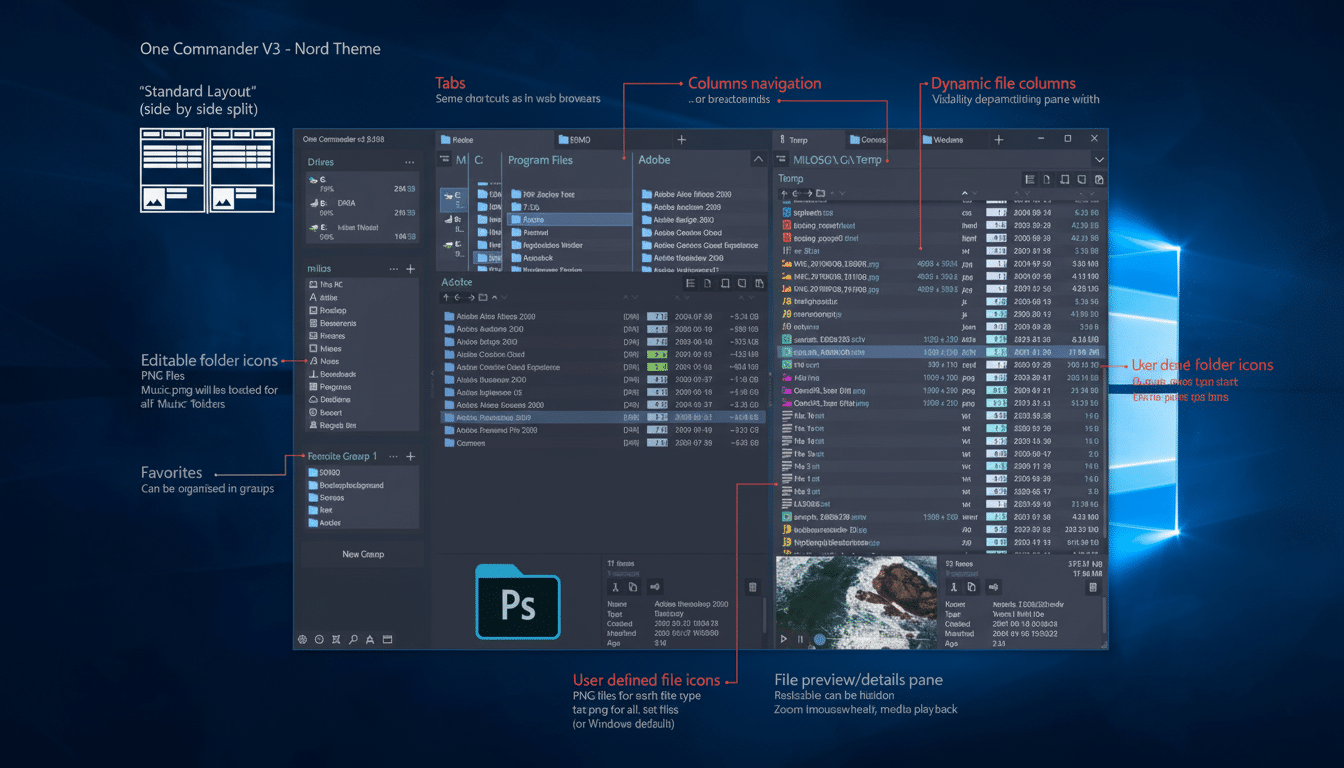
OneCommander is like File Explorer with a couple of semesters at grad school. It maintains the familiar appearance and keyboard flow but introduces dual-pane layouts, tabs, and a nifty breadcrumb path that makes folders a navigable tree — in other words, an interactive selector. For the vast majority, a personal version (it’s free) is quite sufficient, and Pro versions are aimed at commercial use.
What stood out in testing was frictionless navigation at scale. I was able to split panes — local SSD on the left, a mapped network share on the right — then drag and filter and queue copies without losing context. On-the-fly hash checks of files, color tagging, and a whole bunch more reduced actual time spent on housekeeping. If you live in the archives, OneCommander’s archive browsing and better column control minimize the back-and-forth open–close dance that slows File Explorer.
Real-world example: migrating a 220GB photo backlog to a Synology NAS, OneCommander maintained a persistent connection and resumed without fuss after an intermittent network blip. No guessing which files got done — the queue and log made it apparent.
Files: A Modern, Fluent, Open-Source Explorer Alternative
Files is a free, open-source file manager and launcher app for power users. It’s the one that looks and feels the most native to Windows 11, but with thoughtful upgrades: clean sidebar organization, tabbed browsing, quick actions in the command bar, and strong support for popular cloud storage providers through shell extensions.
Two features won me over. First, its performance with regard to previews and media handling is a great improvement, especially when working with folders of numerous images. Second, the manner in which Files surfaces metadata — dimensions, codecs, date taken — allows content triage much quicker. If you work across OneDrive or Google Drive, this app’s stability with synced folders is a quiet gem.
Because it’s community-driven on GitHub, you get rapid iteration and very transparent issue tracking. That transparency is important for reliability; you can see what’s being fixed, what’s planned, and how quickly regressions are addressed — a benefit desktop tooling in enterprise IT circles often points to.
FileVoyager: The Swiss Army Knife for File Management
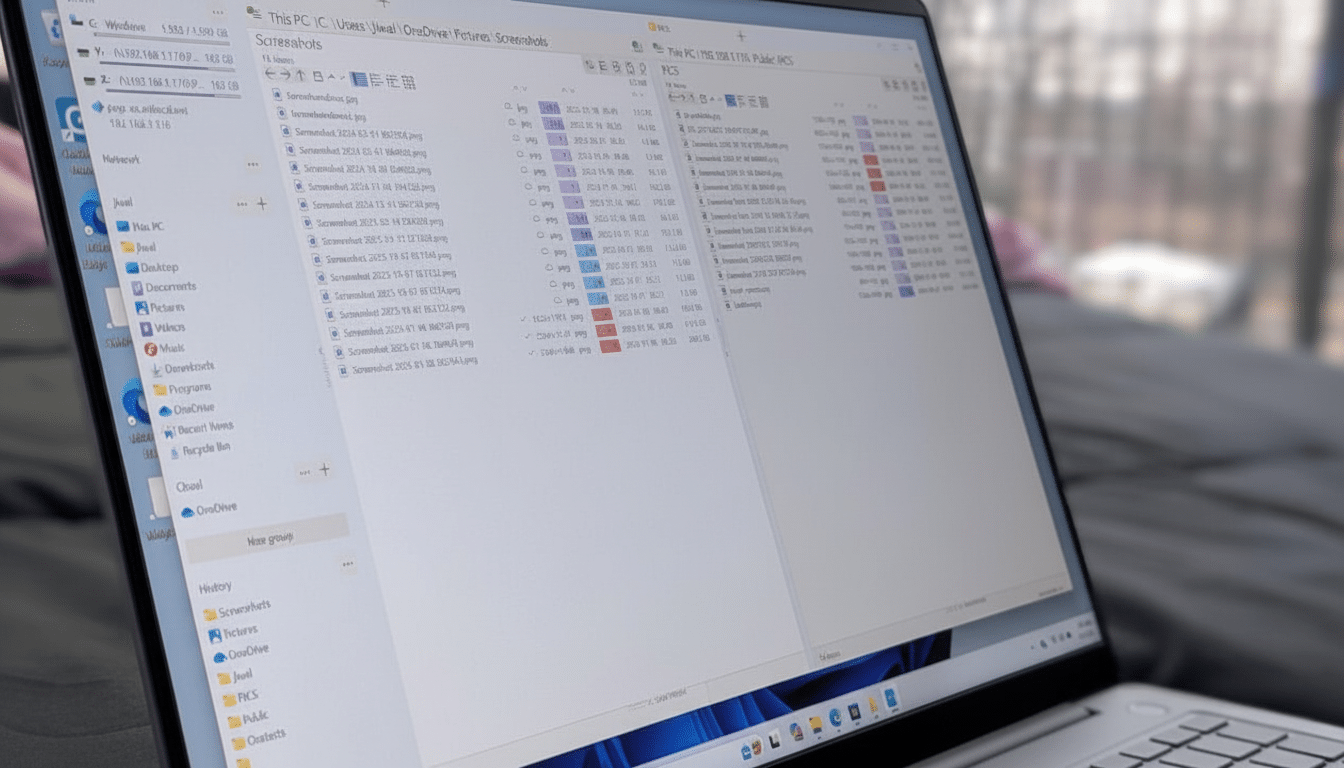
And if you’re all about control, FileVoyager offers dual panes, extensive customization, and context-rich operations. The interface is intentionally dense — more like a traditional power tool’s — but I’ve found it pays off when handling mixed local and remote workflows. Drag a file from one pane to the other and a little pop-up will appear with precise options: move, copy, create shortcut, or delete. This micro-confirmation reduces errors without throttling momentum.
Under the hood you’ll find batch rename with per-file or stored pattern matching and replacement, chainable/composable search and replace, checksums, folder size calculation, as well as direct cloud provider access.
Its network share connections were straightforward to configure and stable, so it was my choice when I could achieve good, consistent performance with a flaky Wi‑Fi bridge.
Sure, the UI is old school, but that nostalgia is a draw to admins and power users who prefer deep information density and keyboard-first control. It’s freeware, and in testing held no grudges against heavy copy queues or large directory listings.
Performance and Productivity Gains in Daily Workflows
On hardware with identical capabilities, such managers repeatedly saved interactions in accomplishing elaborate tasks. Dual-pane UIs by themselves can get you there faster, allowing you to view source and destination at once. Usability consultants at Nielsen Norman Group have long written that one of the ways to more (or less) accurate data entry/translation is visible context plus fewer modes; in application, that means fewer miscopies and less hunting for the “right” window.
For very large transfers to a NAS, both OneCommander and FileVoyager managed more stable sessions and clearer progress lists than File Explorer. Files, meanwhile, was better for operating inside synced cloud folders, where its responsive previews and metadata panes help speed you through triage and cleanup.
Which Version to Use for Your Windows File Tasks
- Choose OneCommander if you want to jump almost seamlessly from File Explorer but have more power and better batch tools.
- Opt for Files if you want a fresh, clean design with seamless cloud integration and open-source credibility.
- Opt for FileVoyager if you are a keyboard junkie and require that type of power and control it provides over pretty much everything — specifically dual panes and fine‑grained control over advanced operations — within an organized environment made for it.
All three are free to install and use, and all will serve as adequate replacements for File Explorer in daily work. If you manage extensive media libraries, remote shares, or perform lots of heavy bulk processes, the switch isn’t just preference — it’s a quantifiable upgrade to productivity.
