


All families have ‘that’ tech support group chat, and at home I tend to be the one relaying most of it. What I’ve discovered over years of watching others is that a few Android functions can dramatically reduce befuddlement, increase safety and speed up day-to-day operations for older users. I’m not trying to turn them into power users; I’m simply trying to remove any friction and build confidence.
There is a genuine need here: More than eight in 10 adults over 50 now own a smartphone, according to surveys by AARP, but many underuse phone features that can make life easier. With that in mind, here’s a list of the 10 Android features I showed my parents how to use — and why you should teach yours, too:
- Use Google Wallet Tap to Pay for Faster, Safer Checkout
- Use Do Not Disturb with Smart Exceptions for Peace
- Use Quick Share for Pain‑Free, Fast File Transfers
- Set Instant Camera Launch and Use Volume Buttons as Shutter
- Use Screen Sharing to Get Computer Help Remotely
- Gboard Essentials: Voice Typing and GIFs for Easier Texting
- Use Google Lens to Get Quick Visual Answers Anywhere
- Download Offline Maps for Dead‑Zone and Travel Navigation
- Real-Time Location Sharing for Meet-Up and Safety
- Turn On Live Caption for Clearer Videos, Podcasts, and Calls
- Small Victories Add Up to Confidence With Android Features
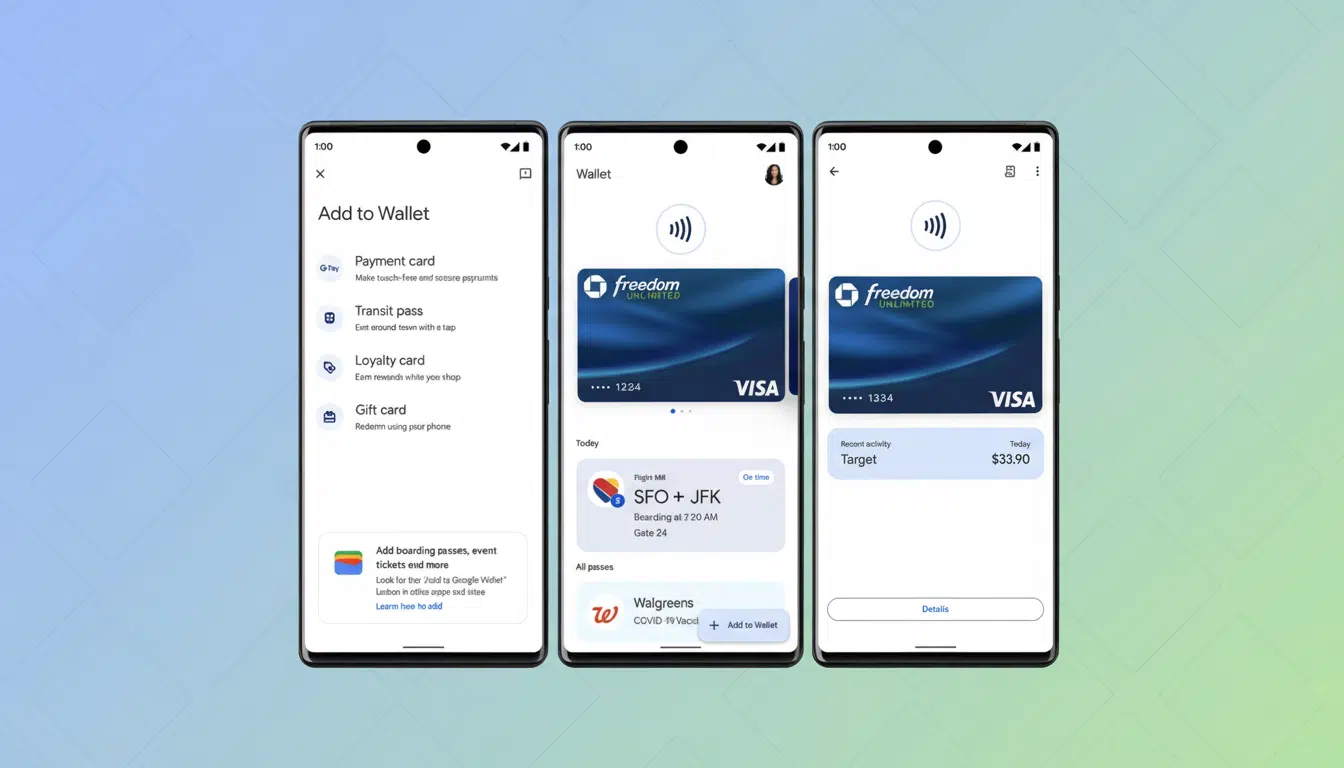
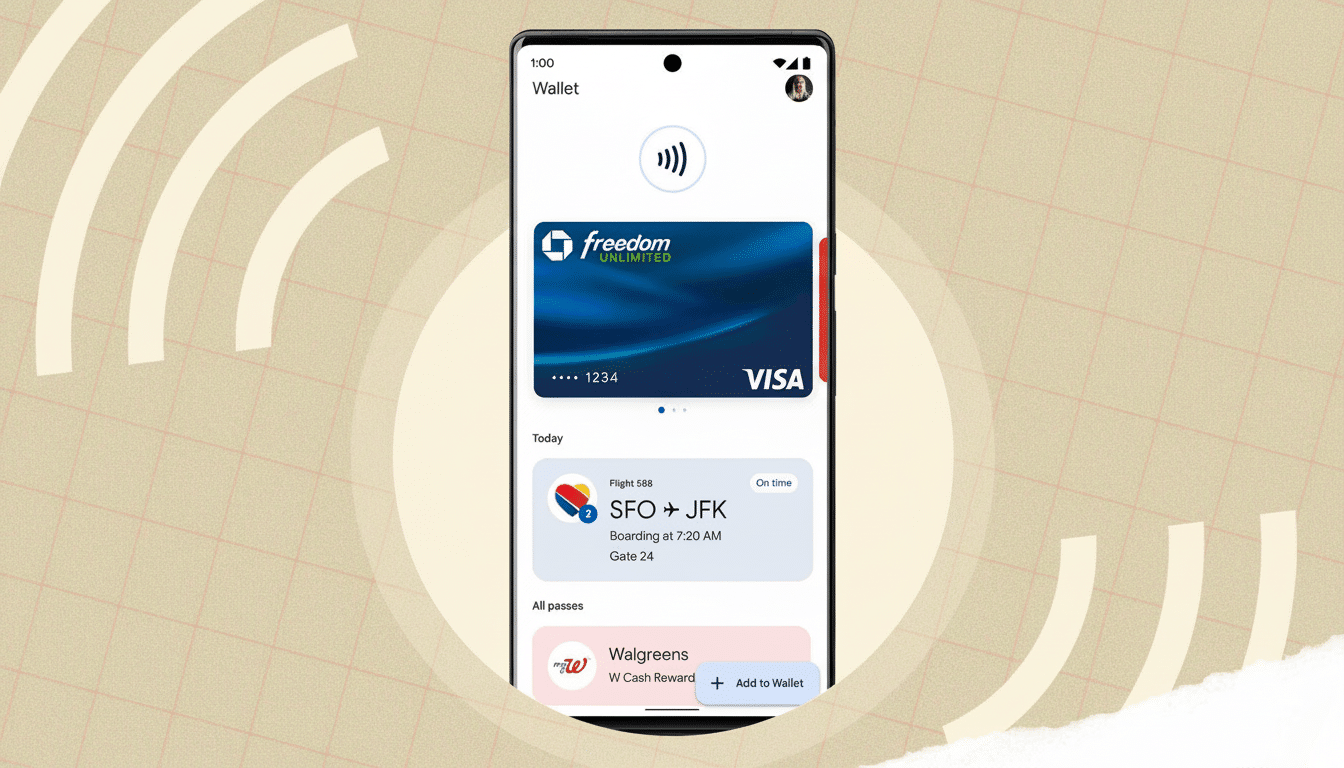
Use Google Wallet Tap to Pay for Faster, Safer Checkout
After we added their cards to Google Wallet and turned on NFC, they didn’t even have to get out a physical card.
Tap‑to‑pay supports biometric authentication and uses conforming standards established by industry bodies, such as EMVCo, to tokenize the cardholder’s information. Adoption rates for these systems have been increasing steadily based on Federal Reserve payment research. Pro tip: Add the Wallet tile to Quick Settings, and then make Wallet the default contactless payment app in settings for even faster checkout.
Use Do Not Disturb with Smart Exceptions for Peace
Midnight group chats and scam calls make a recipe for anxiety. I taught them to switch on Do Not Disturb from Quick Settings and allow exceptions for starred contacts and repeat callers. The upshot is straightforward: Family can still find them in an emergency, but the lawn‑care robocalls aren’t going to wake someone up from a nap. It’s the fastest upgrade to day-to-day peace of mind there is.
Use Quick Share for Pain‑Free, Fast File Transfers
Emailing huge photos is gone. Quick Share (the systemwide Android replacement for Nearby Share) transfers files via Bluetooth and Wi‑Fi. We set visibility to “Contacts” and renamed their phones to names that are easy for us to identify. Now vacation albums zip between devices in seconds — no cables, no cloud links, no deep thinking.
Set Instant Camera Launch and Use Volume Buttons as Shutter
Missed shots are a thing of the past with double‑press to launch your camera.
I also showed them how to use the volume buttons as a shutter for steadier shots. Between these two habits, you get more pictures that are in focus and fewer “wait, unlock, where’s the app?” delays.
Use Screen Sharing to Get Computer Help Remotely
Explaining settings over the phone is annoying for both people. When on a video call, they can tap the share icon in Google Meet to put their screen out for all to see, and I point around at the actual toggle. I recommend turning on Do Not Disturb to hide embarrassing notifications at the outset, and I remind them never to share passwords or two‑factor codes on a shared screen.
Gboard Essentials: Voice Typing and GIFs for Easier Texting
Two Gboard tricks opened up texting for my parents. Voice typing allows them to dictate messages hands‑free — saying “comma” or “new line” will improve punctuation. And, yes, I taught them how to search for and send GIFs; it makes family chats more fun and assists those few who can’t otherwise convey their tone in anything other than a wall of words.
Use Google Lens to Get Quick Visual Answers Anywhere
Lens essentially morphs the camera into a search box. We’ve used it to identify plants in the garden, translate menus on trips abroad and copy text off a printed form in no time at all. It’s often a more intuitive experience for non‑techies: point, tap, respond. On newer phones, Circle to Search provides a related trick — circle anything on your screen to look it up — though Lens remains the simpler starting point.
Download Offline Maps for Dead‑Zone and Travel Navigation
If your parents hike, travel or live in spotty‑coverage territory, offline maps are a must. We put the city and their favorite trails on it. We enabled auto‑update over Wi‑Fi. And we showed where to switch to offline. Directions, place info and search all still work without a signal (great for when service disappears mid‑rural road).
Real-Time Location Sharing for Meet-Up and Safety
Not “Where are you now?” texts; location sharing monitors progress in real time over a set duration. We reserve it for immediate family only and road trips. The feature is permission‑based and can be stopped any time — good privacy hygiene that still comes with peace of mind.
Turn On Live Caption for Clearer Videos, Podcasts, and Calls
Hearing deteriorates with age, and the World Health Organization estimates more than one‑third of people over 65 have some hearing loss. Live Caption runs on‑device, so audio data doesn’t leave your phone. Turn it on with a tap of the volume button, then the caption icon; it works for videos, podcasts and calls. It’s not perfect, but it goes a long way toward preventing “What did they say?” moments without sending audio off the device.
Small Victories Add Up to Confidence With Android Features
The pattern I’ve witnessed is this: Begin with one tap‑to‑pay or one photo sent using Quick Share, and then confidence snowballs. These aren’t “nice to have” tricks but quality‑of‑life upgrades that save time, reduce stress and keep family better connected. If your parents have an Android, these are the 10 features that will take them from tech resistant to tech savvy in minutes.
