


YouTube TV is overhauling multiview, moving beyond prebuilt grids and giving viewers the ability to mix and match live channels in layouts they design themselves. The upgrade, previewed by YouTube CEO Neal Mohan in an annual letter, turns multiview from a curated sports feature into a fully customizable control room for live TV across sports, news, weather, and entertainment.
What’s Changing For Viewers With YouTube TV Multiview
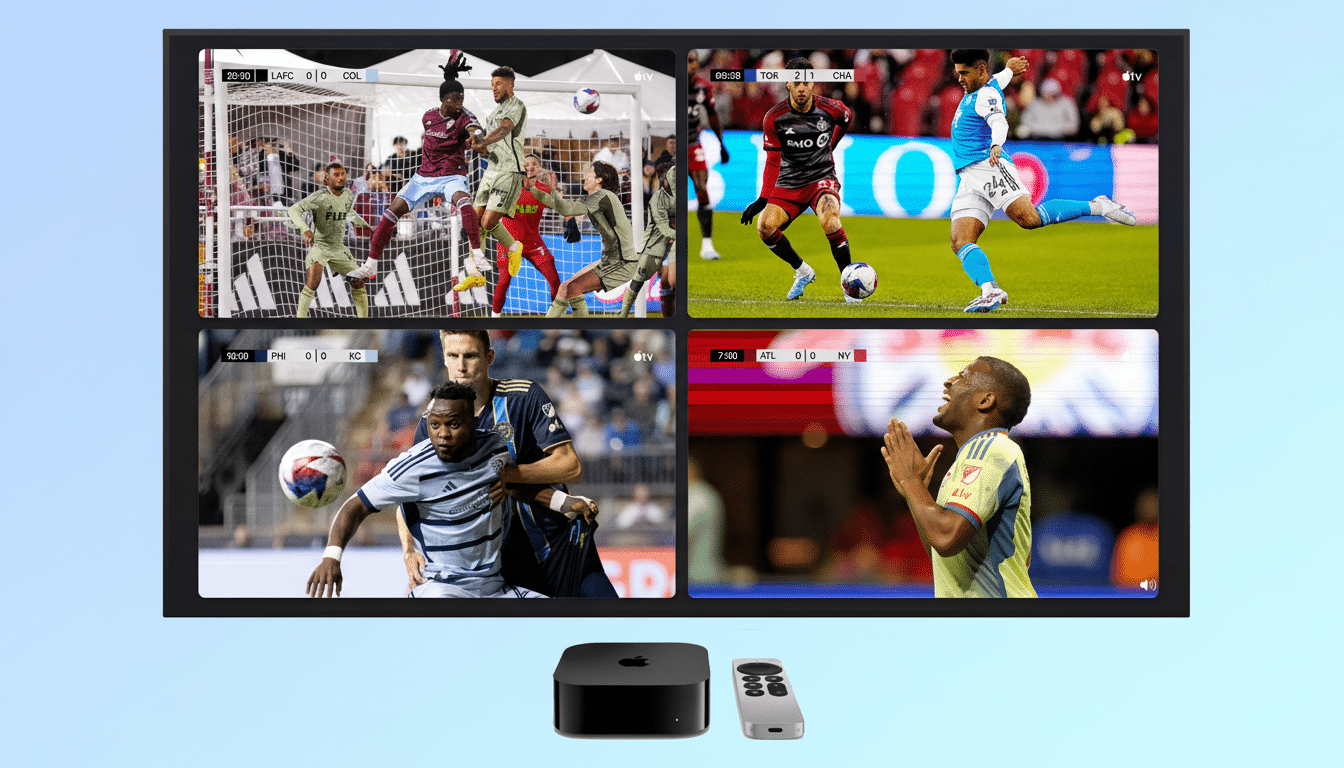
Until now, multiview largely surfaced preset combinations—great for a big game day, less useful when you wanted, say, a cable news panel, local weather, and a cooking show at once. The new experience lets you pick the exact live channels you want on screen and arrange up to four feeds without being limited to preselected bundles.
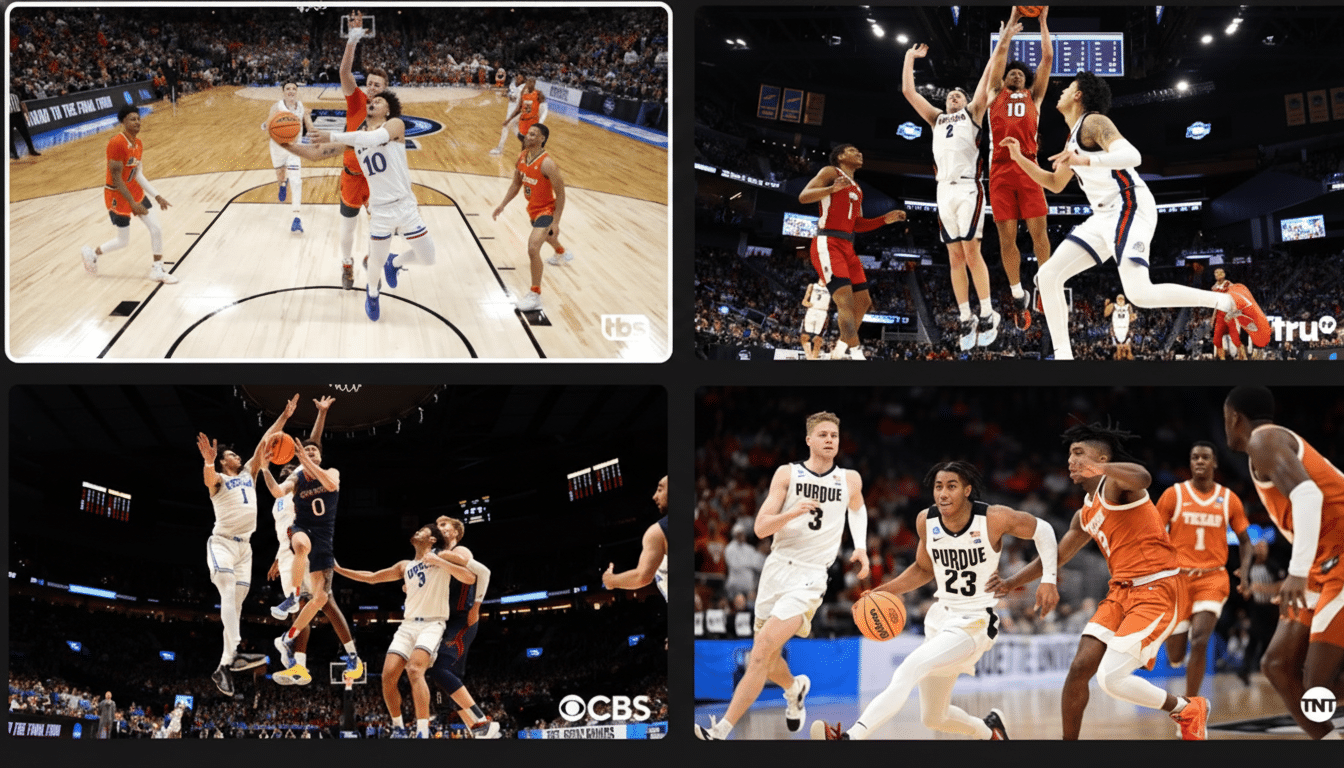
Audio and captions adapt as you move focus. Highlight a tile to switch primary audio, toggle closed captions, or pop a feed to full screen when the action heats up. Households can set up different mixes for different moments—election night coverage next to local updates, or a college basketball quad with a dedicated camera view in the top-left.
Access remains simple: from a live channel, open the player controls on your TV device, choose the multiview option, and add up to three more live channels. The feature continues to work on supported smart TVs and streaming boxes where YouTube TV’s player can render multiple feeds smoothly.
Why This Matters In The Streaming Wars Right Now
Custom multiview brings a cable-era behavior—channel flipping—into a streaming-native format that’s faster, more visual, and more social. Nielsen has consistently shown that live events, especially sports, dominate linear viewing. Multiview capitalizes on that by reducing the fear of missing out: keep the primary game in focus while tracking scores, breaking news, or a rival matchup.
It also plays to YouTube TV’s momentum. Alphabet has disclosed a subscriber base in the multimillion range, and last season’s rollout of NFL Sunday Ticket on the platform made multiview a signature differentiator during busy weekends. Giving viewers total control over which channels appear side by side should increase time spent and lower churn, a dynamic research firms like Parks Associates have linked to personalization and perceived value.
Families stand to benefit most. Instead of negotiating over the remote, a living room can run kids’ programming, a home improvement show, a local station, and a live game together. For news junkies, side-by-side coverage from competing networks during breaking stories becomes frictionless—and far faster than bouncing between apps.
Under The Hood And Likely Limits For Multiview
While YouTube hasn’t detailed the technical stack, earlier iterations used server-side compositing, sending one synchronized stream to the device rather than four separate decodes. That approach cuts device strain, improves battery life on streaming sticks, and helps maintain sync across feeds—important when scores update in near real time.
Expect a cap of four feeds and a focus on live channels for now. Rights rules still apply: regional sports blackouts, market-based restrictions, and picture quality constraints will mirror what you’d see in single-channel viewing. DVR functionality remains available; you can add individual programs to your Library even when watching them inside a multiview layout.
New Channel Packages On The Way For Subscribers
YouTube TV also teased genre-based channel packs designed to give subscribers more control over cost and content. Think clusters focused on sports, news, family, or entertainment. That approach echoes the “skinny bundle” trend: smaller, interest-driven lineups that reduce bloat and let households dial spending up or down without leaving the platform.
Analysts at firms like MoffettNathanson have long argued that simpler, modular packaging can ease price fatigue and lower switching. Paired with customizable multiview, YouTube TV is positioning itself as both flexible and power-user-friendly—useful for keeping subscribers engaged during marquee seasons and quieter programming lulls alike.
How To Get Started With YouTube TV Multiview
From any live channel on a supported TV device, open the player controls, select the multiview option, and choose additional live channels to build your layout. You can rearrange focus on the fly, switch audio with a click, and jump any channel to full screen instantly. For big events, consider setting one corner to a whip-around channel while dedicating another to your home team.
For YouTube TV, this is a quality-of-life upgrade with strategic bite. Custom multiview shrinks the distance between channels and viewers, turning the service into a programmable dashboard for live moments—exactly the kind of experience that can separate a modern TV bundle from the rest of the pack.