


YouTube is wrapping up the year with a twist on retrospectives, introducing for the first time a Recap video that bundles your top interests, go-to channels, and viewing habits as beautiful cards and stats to easily share.
It’s the platform’s most explicit embrace, to date, of the social ritual made popular by music services, with a practical benefit: straightforward routes to your watch history and buttons for managing it.
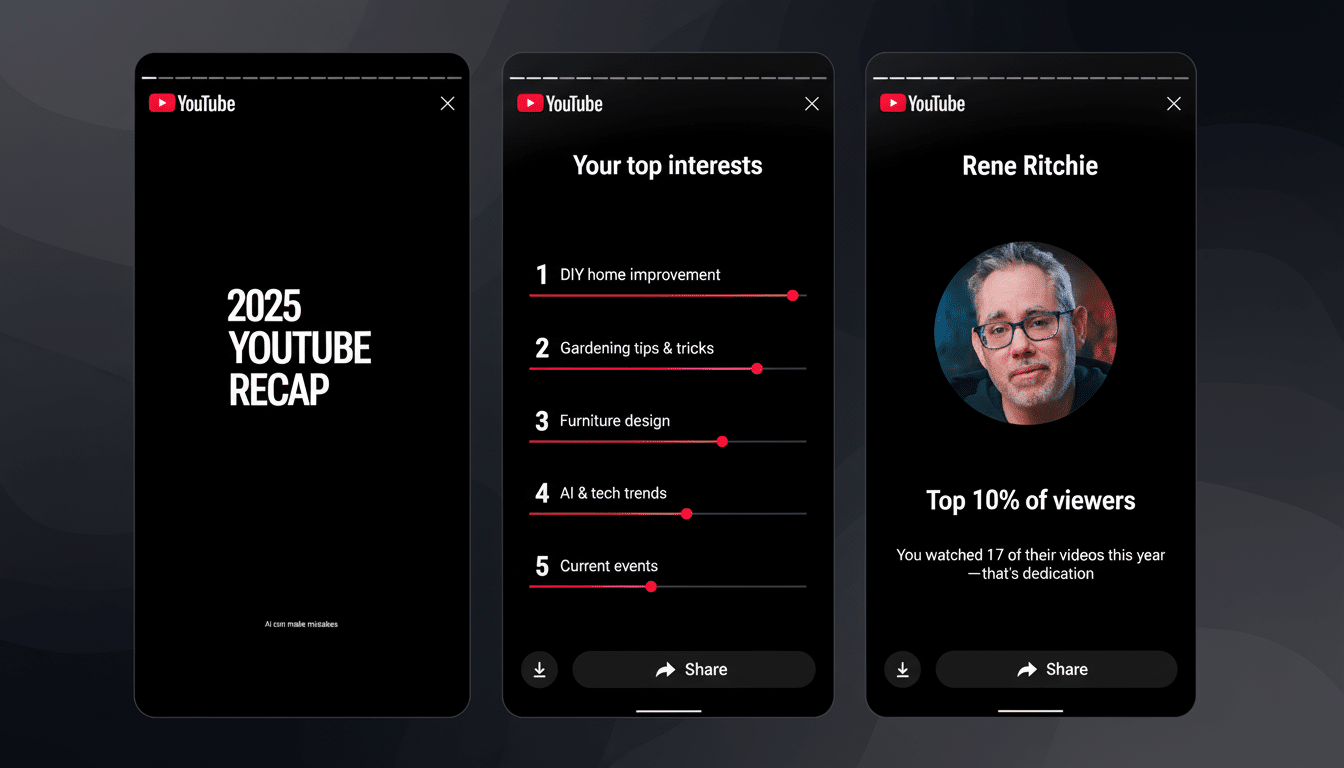
What YouTube Recap Includes and How It Reflects Your Year
The new Recap highlights the creators and categories you watched most and how your tastes changed over the entire year — from deep dives in explainers to quick Short binges. If you use YouTube Music as well, the experience could combine listening highlights for a more comprehensive view of your habits in audio and video.
To inject personality into the algorithm, YouTube has developed faux personalities that are emblematic of various highs and lows of viewing: The Skill Builder for how-to junkies, The Sunshiner for seekers of optimism, or The Wonder Seeker for people drawn to curiosity through saturnine viewers. There is also a light-hearted award line personalized to your watch history, designed to be shared on one’s social feeds. Johanna Voolich, YouTube’s chief product officer, has been quick to note that the Recap glorifies how people have been using the site in all its varied forms, not simply their binge watch time.
The rollout is gradual, beginning in North America and ultimately extending worldwide. The Recap is only available for a short window, so be sure to jump on it if you want to save or share your highlights.
How to Find Your Recap and Access Watch History
On mobile: Open the YouTube app, sign in, and tap the You tab at the bottom. Find the Recap banner close to the top. Your traditional watch History is here as well, just in the same You tab — tap History to view, search through your history, delete individual entries, or adjust settings.
On the web: Log in to YouTube and go to its dedicated Recap page by selecting it from the home screen modules when that pops up. To see your watch history, use the left-hand navigation on the YouTube dashboard and click History. You can then search through your history, delete videos, or press controls either to clear all of it or stop pausing it.
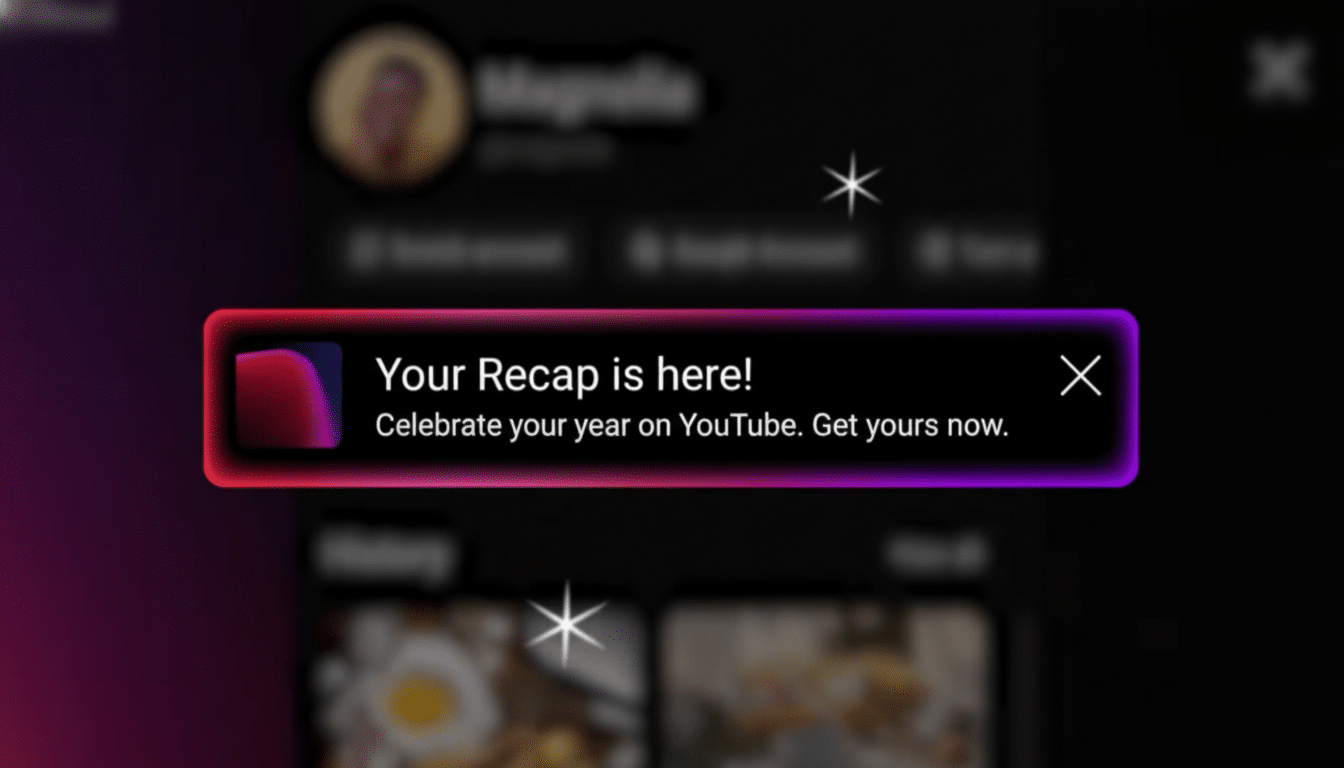
Tip: If your Recap looks thin, you might have paused watch history or auto-deletion turned on. An active watch history is required for YouTube to deliver strong Recap insights.
Control What YouTube Saves in Your History Settings
Your YouTube watch history is included in the account-wide setting called YouTube History. You can dive into controls to:
- Pause watch history to prevent future video saves (in case of sensitive searches or shared devices).
- Erase everything or delete a date individually for a fresh start.
- Turn on auto-delete to have your activity erased every 3 months, 18 months, or 36 months.
- Decide if your searches and YouTube Music activity will be part of your history.
Keep in mind that if you pause or heavily prune history, the consequence will be a change to refocusing as well as a coarser Recap. If you’d rather have better recommendations and more robust end-of-year breakdowns, leave history on but employ auto-delete (and remove things selectively) for balance.
Why This Recap Matters for Viewers and Creators Alike
Once again, YouTube is the leading online video site in the US according to Pew Research Center, which found that nearly 83 percent of adults get their fill of content there. Recaps have become a potent form of social currency, as users trade, compare, and debate their media diets, directing attention back toward creators and prodding them into returning to channels they enjoyed during the rest of the year.
For creators, year-end sharing can open up opportunities for discovery and re-engagement. According to YouTube’s own Creator Insider team, packaging viewing habits into bite-sized graphics helps fans translate thoughts like “I watch a lot of this” into posts that drive conversation and subscriptions. For YouTube, it’s part of reinforcing the feedback loop: people see their top genres and creators, jump back in, and then fine-tune recommendations through their history.
Fast Checklist to Maximize the Power of Recap
- Ensure you’re signed in on all devices you watch.
- The YouTube History switch must be set to on with an appropriate auto-delete window.
- Search History to easily find past favorites you want displayed in future recommendations.
- Save or share your Recap designs before the moment expires.
YouTube’s latest Video Recap puts a year of scrolling, learning, and laughing (and yes, we admit falling into one too many late-night rabbit holes) in the palm of your hand. Go to the You tab or web experience, check out your watch history, and grab your card before it vanishes.