


Once you install iOS 26, there’s no turning back. Apple is no longer “signing” iOS 18 builds, so you can’t downgrade your iPhone back to iOS 18 if an update causes problems. Ahead of hitting that Update Now button, know what all of this locks in — and how to live with the changes if you miss the old look and feel.
Apple’s signing system is a security checkpoint. Each install or restore of an iOS version is checked on Apple servers, and if the signing window for that software is closed by the company, your device won’t install it — no matter how hard you try to point it in the right direction using a local IPSW file. Sites that monitor Apple’s signing status, 9to5Mac and MacRumors among them, unanimously indicate that downgrades are generally disallowed within a week or two of a big release.
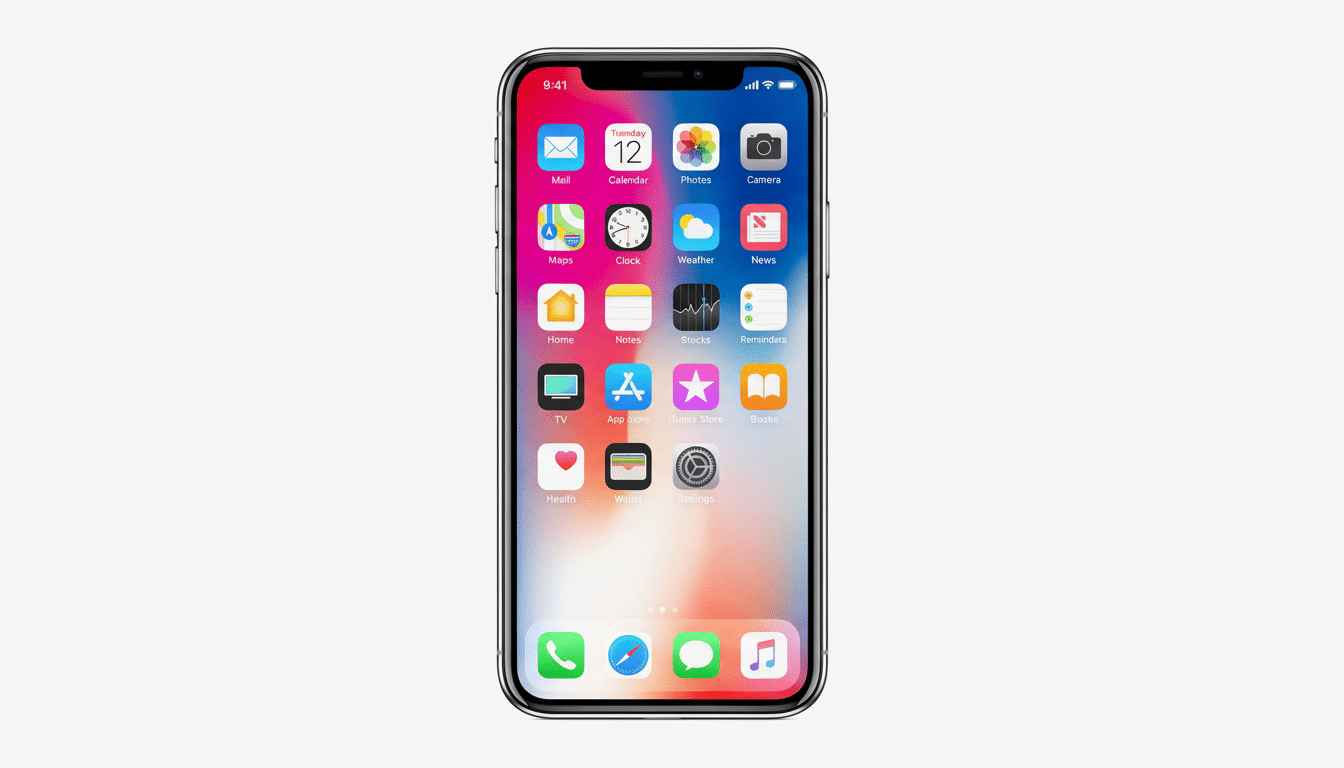
Why Apple Blocks Downgrades to Older iOS Versions
More than preventing fragmentation, the policy is a matter of security. Dozens of fixes are commonly included in Apple’s developer and security notes for each major release. Retaining the active user base on modern software reduces exposure to vulnerabilities that have already been patched. It also streamlines support for carriers, accessory manufacturers, and app developers who would otherwise have to chase bugs across several aging codebases.
In practical terms, that means no common restore tool — Finder on macOS or iTunes on Windows — will be able to circumvent the block. The restore will fail even with a clean IPSW if Apple isn’t signing it anymore. A more sophisticated technique using saved SHSH blobs is not endorsed by Apple, particularly when loading them onto newer iOS devices.
The Impact on Your Apps and Backups After Upgrading
There’s a catch, however: backups created in iOS 26 typically cannot be restored to iOS 18. And so, while a short signing window may reopen (occasionally it does, by accident), you may not be able to bring your data back down. Plan your backup strategy accordingly: archive an encrypted local backup before you apply the update, and think of it as an insurance policy for future disaster recovery on whatever comes after iOS 26, not as an Android-style way to back up and restore.
A breakneck speed of work sometimes demands a beat to catch up. Banks, enterprise tools, device-management clients, VPNs, and accessibility utilities are among the typical suspects. Big developers generally ship day-one updates, though smaller teams can be behind the curve. According to historical data that analytics firms like Mixpanel make available, iOS adoption tends to accelerate fairly rapidly and pushes developers to update fast — though not quite always fast enough for every workflow.
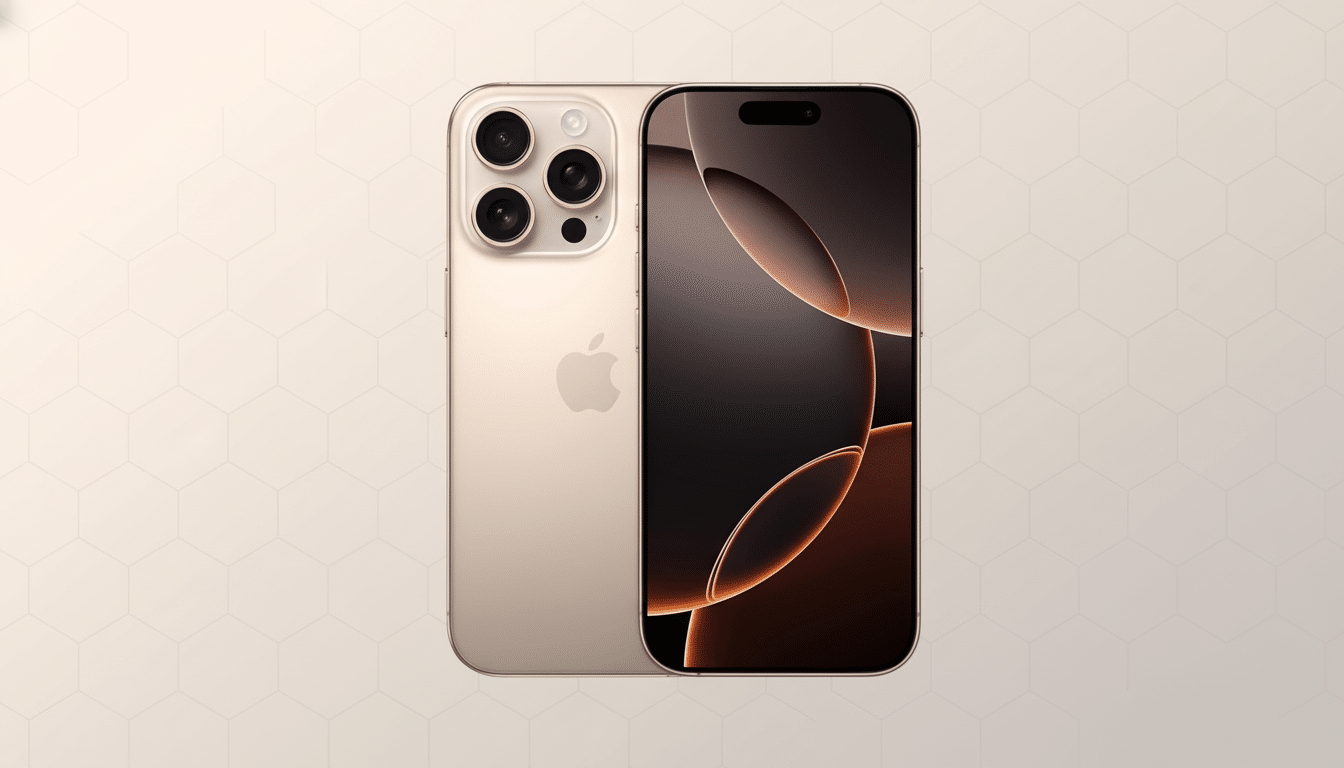
Not Loving Liquid Glass? Try These Fixes
The change that polarizes people the most in iOS 26 is the Liquid Glass design. It leaches depth and sheen from wallpapers, icons, and panels — although some users have reported visual clutter or motion-induced discomfort, particularly in dark mode. You do not have to downgrade to tame it.
- Open Settings > Accessibility > Display & Text Size and turn on Reduce Transparency to distinguish foreground elements from the background.
- Toggle on Increase Contrast for more defined borders around icons, widgets, and controls.
- If you don’t like movement with your navigation, go to Settings > Accessibility > Motion and turn on Reduce Motion.
- Use simpler wallpapers and avoid heavy parallax for a further reduction in visual noise.
That Battery Drop After Updating? What’s Normal
Batteries often drain faster than normal for a short time after a major iOS update. According to Apple’s support guidance, the system reindexes photos, files, messages, and data used by apps; downloads new assets; and performs background optimizations. This may require a few charging cycles. If you need a quick fix, turn off Background App Refresh on your less-essential apps by visiting Settings > General > Background App Refresh, and then check for outliers in Settings > Battery. Keep the phone connected to power and Wi‑Fi when possible so that maintenance tasks run instead of being suspended until an opportunity arises later in the day.
If problems continue after the settling period, update affected apps only, reset settings (without erasing content), or try a clean install of iOS 26 and restore from your most recent backup. Traditionally, the first .1 update has tackled early bugs, so watch Software Update.
A Pre-Update Readiness Checklist for iOS 26
- Check release notes or developer status pages from recent releases to make sure your “must-have” apps will run properly on iOS 26.
- Make an encrypted local backup (in Finder or iTunes) and validate that it finishes. Encrypted backups include Health data, passwords, and Wallet items.
- If you are on a work phone, ask your IT team or MDM administrator. Some companies make rolling updates in order to stay compliant with corporate apps and profiles.
- Review iCloud settings. New features can change data formats (Photos, Messages indexing), meaning that backward moves are trickier still.
Bottom Line: Treat iOS 26 Like a One-Way Door
And Apple’s decision to stop signing means that once you jump in, there’s no going back (to iOS 18). If you can tolerate a brief learning curve or are dying to try out some of the cool new features, go ahead and update — but make a backup first. If stability and visual coherence are more important to you than any of the new design features, then wait until the early fixes start appearing, or developers update their software. One way or another, it’s a final call.