


Most of us install and remove software on our computers without giving it much thought. Usually, the process is simple: open Windows Settings, click Uninstall, and the application disappears. Unfortunately, that wasn’t my experience recently.
A few weeks ago, I attempted to remove an old application from my PC. What should have taken only a minute turned into a frustrating troubleshooting session. No matter what I tried, the program refused to uninstall. Error messages appeared repeatedly, leftover files remained on my system, and Windows seemed unable to complete the task.
- The Problem: A Stubborn Application That Wouldn’t Uninstall
- Why Some Programs Refuse to Uninstall
- Discovering a Better Solution
- How I Forced a Clean Removal Step by Step
- Pros of Using IObit Uninstaller
- 1. Removes Stubborn Programs
- 2. Cleans Leftover Files
- 3. Easy to Use
- 4. Saves Time
- 5. Helps Organize Your System
- Cons of Using IObit Uninstaller
- Why Clean Removal Matters
- Final Thoughts

After trying multiple solutions, I eventually found a quick and effective way to force a clean removal using IObit Uninstaller, an uninstaller for Windows. Here’s what happened and what I learned from the experience.
The Problem: A Stubborn Application That Wouldn’t Uninstall
The issue started when I decided to remove software that I hadn’t used in months. I opened the standard Windows uninstall menu and selected the application.
Instead of uninstalling, I received an error message stating that required uninstall files could not be found.I made multiple attempts to remove the application, but each attempt ended with the same error and the software remained installed.
At first, I wasn’t concerned. I assumed a system restart would solve the issue. It didn’t. The application remained installed, its shortcuts were still visible, and it continued occupying storage space on my computer.
Why Some Programs Refuse to Uninstall
Many users assume uninstalling software simply removes everything associated with it. In reality, applications often create files and settings throughout the operating system.
Problems can occur when:
- Installation files become corrupted.
- Updates are interrupted.
- Required uninstall files are deleted.
- Registry entries become damaged.
- Software conflicts occur.
When these situations happen, Windows may struggle to remove the application properly.
That’s exactly what happened in my case.
Discovering a Better Solution
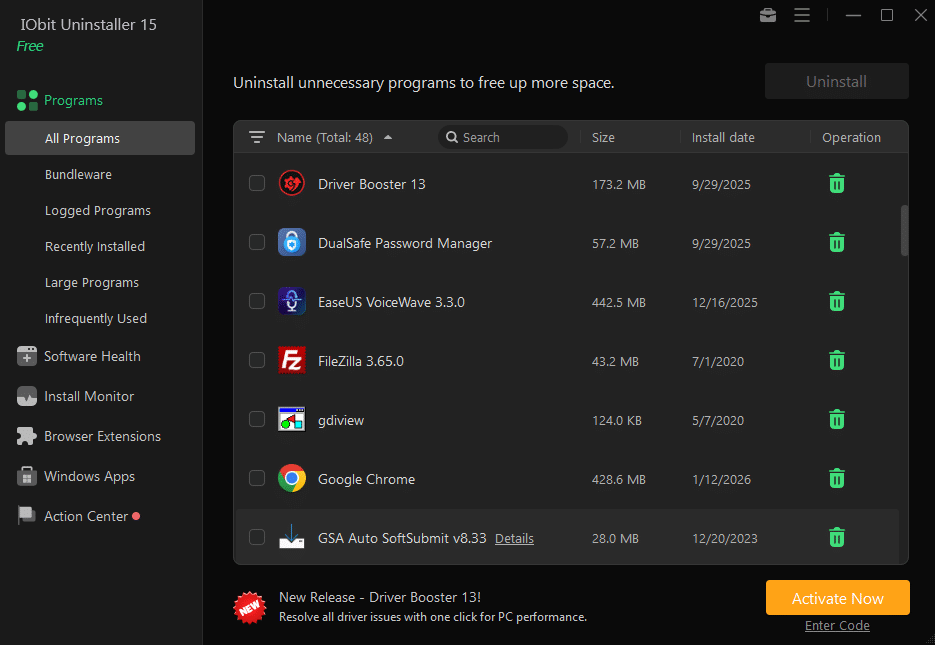
After wasting far too much time troubleshooting, I searched for software designed specifically to remove stubborn applications. That’s when I found IObit Uninstaller, an uninstaller for Windows that includes tools for removing programs that standard Windows uninstall methods cannot handle.
One feature immediately stood out: Force Uninstall. The feature is designed to remove applications even when their built-in uninstallers are broken or missing. Since I had already exhausted every other option, I decided to try it.
How I Forced a Clean Removal Step by Step
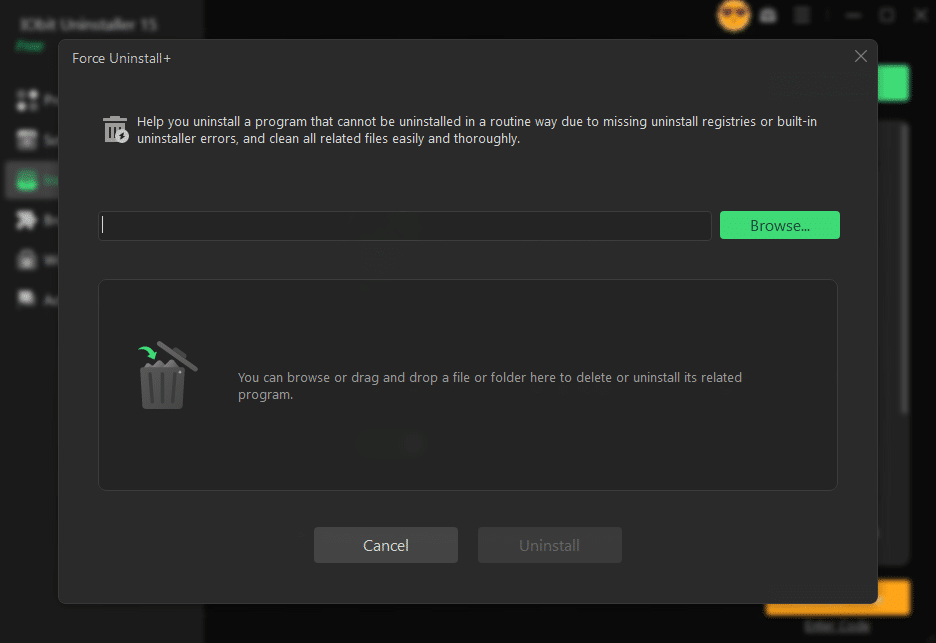
The process was surprisingly straightforward. After opening the software, in the main interface, locate the “Force Uninstall” icon, found in the top-right corner as a toolbox icon.
A window will appear, allowing me to browse for the specific file or folder of the program I want to remove. Then, I clicked the Uninstall button. The software quickly identified all files, folders, shortcuts, and registry entries associated with the application.
Within minutes, the program was completely removed. Even better, the software detected leftover files that Windows had missed during my earlier attempts and removed them as well. The result was a genuinely clean uninstall rather than a partial removal.
Pros of Using IObit Uninstaller
After using the software, I found several advantages worth mentioning.
1. Removes Stubborn Programs
The biggest benefit is its ability to remove applications that refuse to uninstall normally.
2. Cleans Leftover Files
The software searches for residual files, folders, and registry entries that often remain after standard uninstall procedures.
3. Easy to Use
The interface is straightforward and beginner-friendly.
4. Saves Time
Instead of manually searching for files and troubleshooting errors, the process is largely automated.
5. Helps Organize Your System
Removing unnecessary leftovers can help keep software management more organized.
Cons of Using IObit Uninstaller
While my experience was positive, there are a few considerations.
1. Some Features Are Premium
Certain advanced tools may require access to paid versions.
2. Not Every Problem Is Software Related
Some uninstall issues may stem from deeper system problems that require additional troubleshooting.
Why Clean Removal Matters
Many people don’t realize how much leftover data software can leave behind.
Old programs often create:
- Temporary files
- Installation folders
- Registry entries
- Startup items
- Configuration files
Over time, these remnants can accumulate and create unnecessary clutter.
While a single leftover folder may not cause noticeable issues, regularly cleaning unwanted software helps maintain a more organized system.
Final Thoughts
What began as a simple attempt to uninstall an unwanted application quickly became a frustrating experience. Standard Windows tools failed repeatedly, and manual troubleshooting consumed far more time than expected.
Fortunately, using IObit Uninstaller, an uninstaller for Windows, provided a simple solution. The Force Uninstall feature removed the broken application, cleaned up leftover files, and saved me from additional troubleshooting.
If you’ve ever tried to uninstall a program only to hit a dead end, don’t assume you’re stuck with it forever. Sometimes the quickest solution is using a dedicated uninstall tool that can handle the job properly and leave your system clean in the process.