


You can tap Install, fool around for about a minute and then tap Uninstall. Simple. Also wrong. Android now provides several smarter ways to try, remove or reclaim apps—larger than before—that have always come with clutter and privacy risk on your phone. If you’re still in full, old-school install–test–purge mode, you’re leaving performance and storage—and control—on the table.
This isn’t nitpicking. AppsFlyer’s benchmarks have long demonstrated there can be a 40–50% uninstall rate during the first 30 days for many categories; many trial flights do not rocket. Google Play Protect, meanwhile, is scouring hundreds of billions of apps every day to keep you safe—but your best defense remains testing an app first in a safer area on your phone before cleanly uninstalling it when it’s no longer needed.
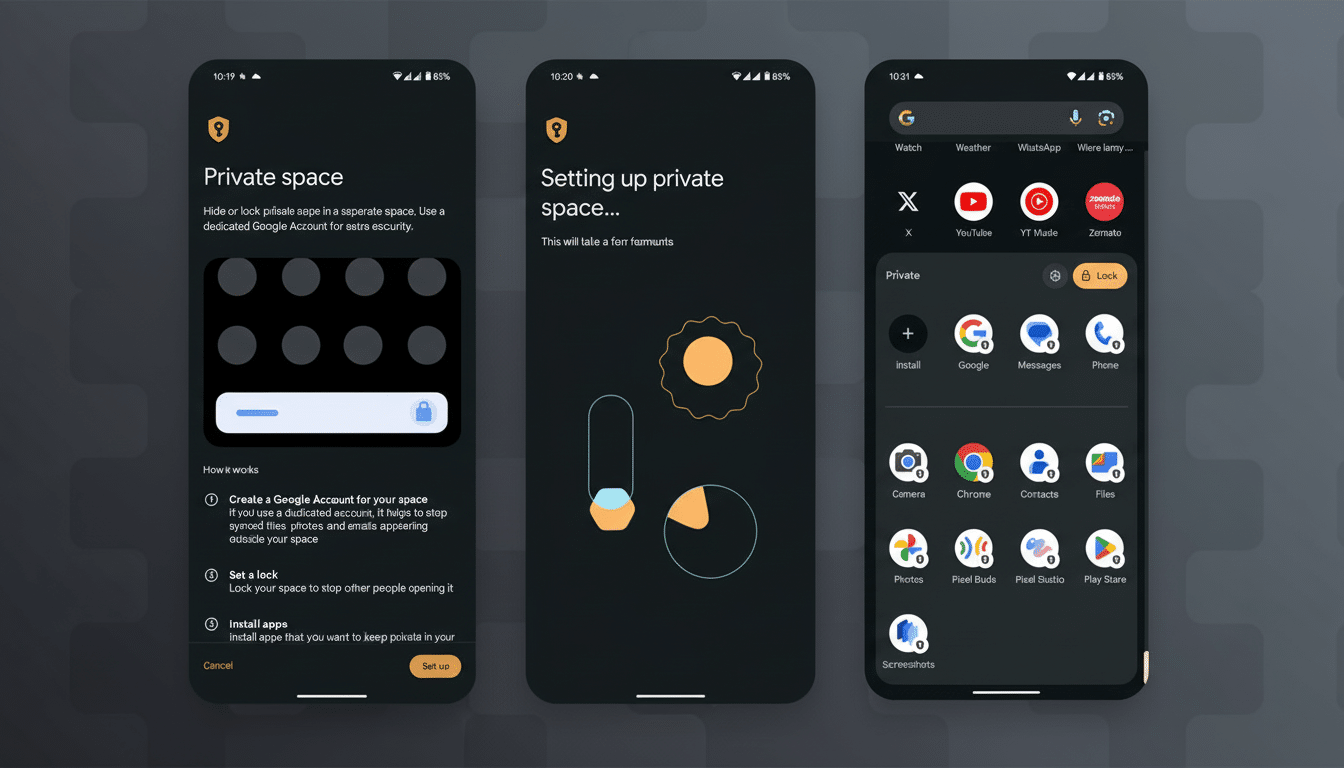
Try new apps in a sandbox, not where you live
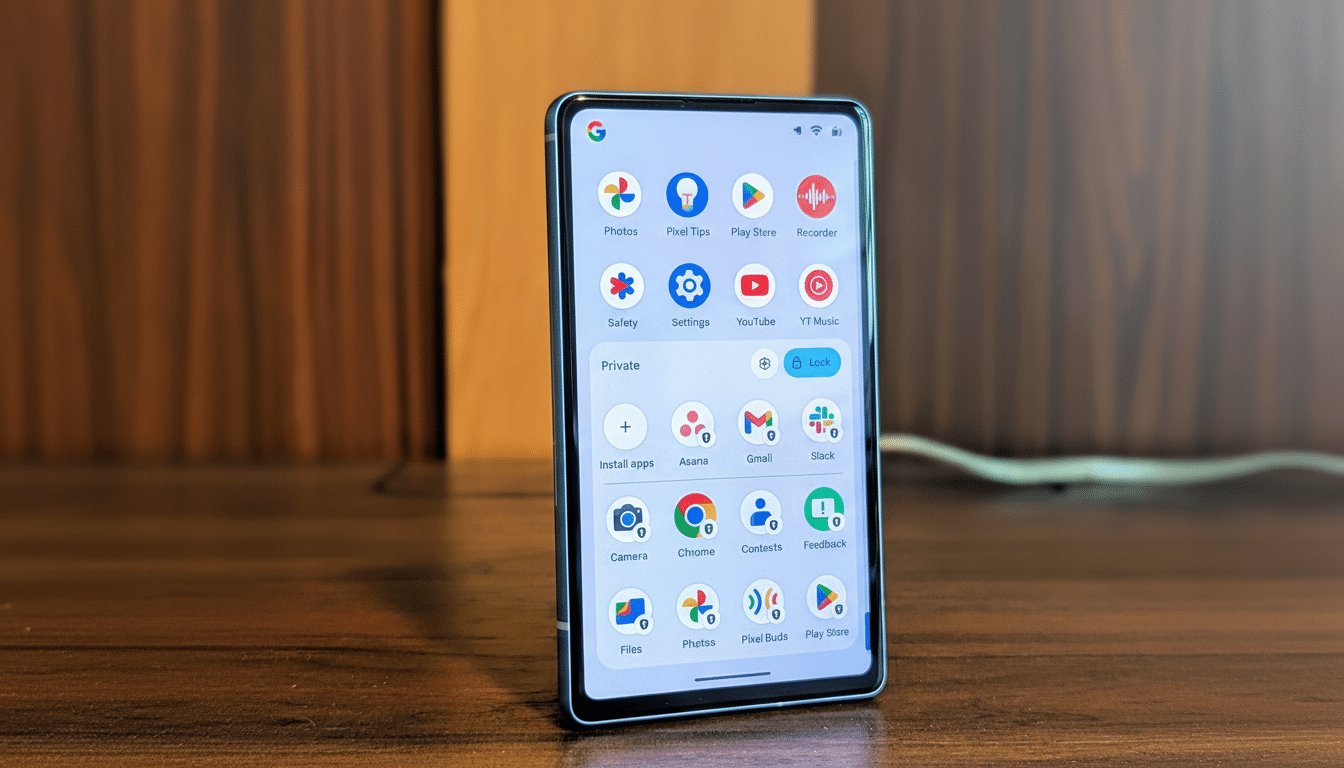
Give it a test run in an isolated room before granting full access. Recent Pixel models have Private Space, which stores apps and data behind their own lock. Secure Folder from Samsung also serves as a true sandbox, and there’s even Multiple Users on many Android phones—which provides a second user profile that you can keep as your “temporary lab.”
Why it matters: A newly installed app can ask for extensive permissions, run background tasks and begin emitting notifications before you’ve decided they’re worth it. In a sandboxed profile, you can see how it behaves, lock down permissions, and decide if the app genuinely resolves an issue. Travel tickets, a one-off service delivery, or a utility you need for this weekend are good candidates to sandbox.
Bonus: after the experiment is over, if you switch to that profile and delete the app, its footprint on your daily driver goes *poof* — less cruft, fewer surprises.
Leverage Play Instant and one-time permissions
There are a number of titles with a “Try now” tap through Google Play Instant. It streams a lightweight version, so you can try the most important features in the app without downloading it. Not every service offers it, but where you can find it, it’s the quickest and least risky way to vet a download.
When you do invest, use Android’s new permission model to help. Choose “Only when using the app” rather than always-on access, and use one-time-only permissions for location services, microphone or camera. If an app hard-stops with no access contingent on eternity, that’s a good red flag.
Archive apps instead of deleting to save space and time
Automatic app archiving from Google Play came out to help manage storage-hungry apps, and with newer Android versions there’s system-level archiving so you can manually offload apps while still retaining their data.
Archiving also discards the executable portions of the app, but retains your account, preferences, and permissions for near-immediate restoration.
This is well suited for seasonal or situational tools: airline and transit apps, tax and benefits services, a sports streaming app that you use only during one tournament, or a retailer you shop with once a year. Rather than uninstalling and re-installing them each and every time, archive them. And then, if you need the app again, simply tap restore and pick up from where you left off.
Argh, so many devices are still shipping with an embarrassingly paltry 128GB of storage or letting you save for nothing on your computer. Photos and video have not made the jump to lower resolutions (in fact they are ballooning in size), and don’t even get us started on Outlook’s sucky two-factor and offline maps.
This means that archiving remains a pain to set up once—if at all—but it makes keeping your phone trim easy without sacrificing any convenience.
When You Actually Uninstall, Do It Right
Uninstalling will delete the app and its private information that is not already in the hands of third parties, but it may not clear everything that has been tied to your identity. If the service set up its own cloud account, delete that account in the app initially. Google announced that Play policies now mandate a true account deletion option and an admission of how long retained data will be kept. Use it.
Next, revoke third-party sign-in tokens. If you employed “Sign in with Google” or “Sign in with Facebook,” go to the page of your account’s connected apps and revoke access. Finally, clean up shared storage: some apps create folders in Pictures, Movies, Music or Downloads which are left behind even after the app has been uninstalled. If you don’t want those files, delete them by hand.
Power users: manage installs with advanced tools
Side-loading? Just use a trustworthy installer that supports split APKs able to verify the signature, allowing you to pre-approve permissions and auto-deleting the package after install. Certain advanced features need Shizuku or root — strong, not for average people. If you do go this route, leave Play Protect enabled and verify your sources; Google’s Android Security team has made clear that apps from the Play system carry a substantially lower risk profile than elsewhere.
Set your app routine to match the way you really use apps
Data.ai’s usage research: people depend on a very small set of apps every day, and cycle through many others from time to time. Your install strategy should be based on this reality. Try risky or unknown apps in a sandbox. Use “Try now” and one-time permissions, where possible. Archive the apps you’ll need and delete the ones you might not — with account cleanup.
The tap-and-hope era is over. With a few clever habits, you can save yourself time later by keeping your phone faster, safer and often less cluttered, while cutting back on time spent tweaking the same apps in the same ways over and over.