


Linux feels utterly different from a fresh install to another. Some distros include a kitchen sink in the box, others are minimalist. After a few decades of approaching machines for work, development and home use, I carry with me unchanged my shortlist of 11 apps that turn any desktop into a (pre)loaded vessel ready for anything or anyone. Here’s what happens first, and why it sticks.
Office And Productivity That Doesn’t Get In Your Way
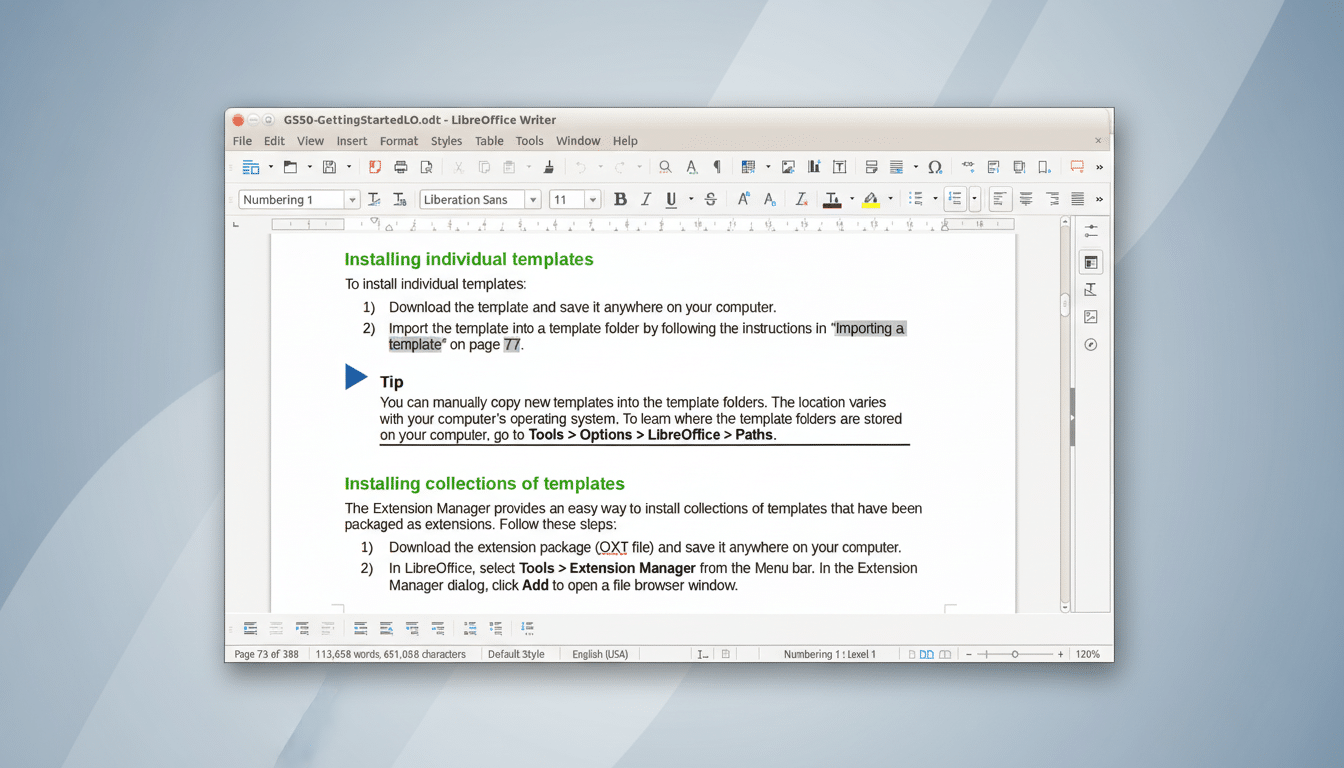
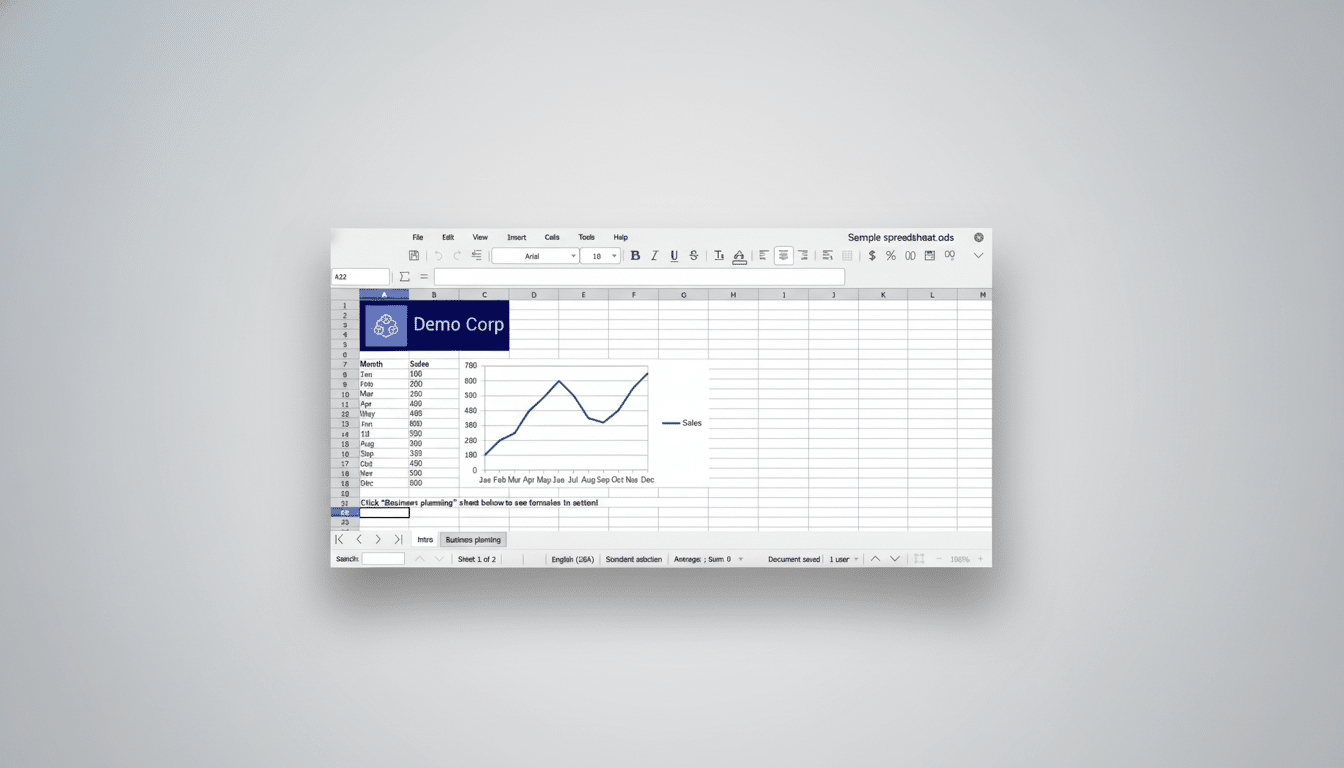
LibreOffice is my go-to office suite on any distro. The Document Foundation guesses its user base numbers in the hundreds of millions, and it shows in rock-solid compatibility with modern .docx and .xlsx files. Writer, Calc, Impress, Draw, and Base take care of the basics, and it’s easy to set Microsoft formats as defaults to keep that back-and-forth friction at a minimum. And for teams tending to long documents or data-heavy sheets, the styles system and pivot tables offer fast payback.
I’m still using Thunderbird as my main email client, and that’s because it copes with the real world without theatrics. Add-ons can bring IMAP, Exchange, and multi-account management to the mix, while built-in OpenPGP encryption and a calendar make for fewer browser tabs and fewer privacy trade-offs. Thankfully, it is now backed by MZLA Technologies who have sped up updates but maintained the familiar interface power users have come to know and love.
Simplenote is my frictionless scratchpad. It syncs fast between devices, is maintained by Automattic, supports tags, and maintains version history. It purposely doesn’t have heavy rich-text content, which is why it’s on every workstation—quick notes, ideas, terminal snippets are all cleaned up and everywhere I go.
Media and Aesthetics That Just Work on Linux
VLC is the very first media player I install, bar none. The cross-platform super-app plays virtually any file, streams network content and supports countless compression types, has subtitle timing, filters and “just works” for the most part. A tool with billions of downloads, claimed by its maintainers to be the media Swiss Army knife you need when a client gives you that baffling file.
GIMP does everything I need doing with images, from quick crops to sophisticated compositing. Professional features like layers, masks, paths and a high-bit-depth workflow provide almost everything you need to get the most out of your images, and in case it’s not enough, there’s even a G’MIC plug-in that adds hundreds more filters for denoising, color grading, and creative effects. Coming from a commercial product? Map your shortcuts and enable Single-window mode for a smooth transition.
Spotify wins out for discovery and focus. On Linux, an official client is easy to install (as a Flatpak or Snap) and offers hardware acceleration on most desktops. Whether it’s on flights for premium users, or to soundtrack a coding session, offline playlists keep your productivity moving!
Security & Recovery You Will Actually Use
For passwords, secure notes and credentials I recommend Bitwarden. It’s open source, offers end-to-end encryption and has been audited by independent firms such as Cure53. Broad support for TOTP codes, strong password generation and (increasing) passkey support mean it’s a future-proof pick, while the desktop app plus browser extensions keep your sign-ins fast.
Timeshift is the safety net that makes “I broke something” into a five-minute fix. It can snapshot with rsync or use Btrfs for near-instant restores, and this is the default snapshot application in popular distributions like Linux Mint. Schedule either daily or weekly jobs, exclude large folders like Videos, and you can roll back bad drivers, misbehaving updates or ill-fated tweaks without reinstalling.
Generally, Always Open To System Control And Package Freedom
GNOME Tweaks is a must-have tool for GNOME-based desktops. It opens up useful tweaks that the main Settings app doesn’t surface—font scaling, title-bar buttons, touchpad behavior, theming and extensions management. Two minutes in Tweaks will often save hours of frustration down the road.
Stacer provides a nice, visual grip of what your system is up to. Use it to check resource usage, launch processes or apps at startup, prune caches and unused logs, and manage services. The native app uninstaller and repository manager are nice to have; just be conservative in bulk “cleaning” actions—know what it is you’re removing (I/O), especially on servers.
Hence, given the existence of Flatpak and Snap, they are fantastic tools for pulling in more software. Flatpak, backed by the freedesktop.org community, and Snap, from Canonical, package apps and their dependencies to run in a consistent environment within sandboxes for more isolation. In this way, you can get a first-party release of a tool like Slack or some proprietary editor on distros that would not otherwise support it. If you’re on a distro that prefers one format over the other, enabling the second takes some commands but brings rewards.
How This List Saves Time Or Simplifies At Every Setup
These 11 tools touch on the daily necessities—documents, mail, notes, media for entertainment, security for peace of mind, snapshots and history to cover your butt when something goes wrong, system control that you ignore at your own risk and universal packaging for turning in homework or installing web servers—and the system lets you bounce between ways of doing things without getting locked into a single workflow. Most are available in mainstream repositories; all but a Flatpak or Snap away from your reach. Install them once, export settings and the next machine you touch will be home in less than an hour.