


If your tablet dies faster and faster with every charge, your habits are probably behind the problem. Lithium‑ion batteries don’t merely age; they decay fastest when kept hot, full or empty. The good news: there are ways to significantly slow the slide with some small adjustments.
The basics are simple enough that both independent battery testing groups and manufacturers agree on the big points: Partial charges are better than full, and moderate temperature is better than hot or freezing. And you do not need to take the full charge off the battery once it hits 100 percent, as most people do. What will shorten the battery’s life is using an out-of-date charger, particularly if it’s the sort that promises a rapid charge. The phone hooks up to the charger, and the charger tells the phone how much power to draw. The problem comes from the phone and the charger not communicating fully, because by plugging in with the wrong charger, the battery does not get the option of drawing only as much power as it wants.
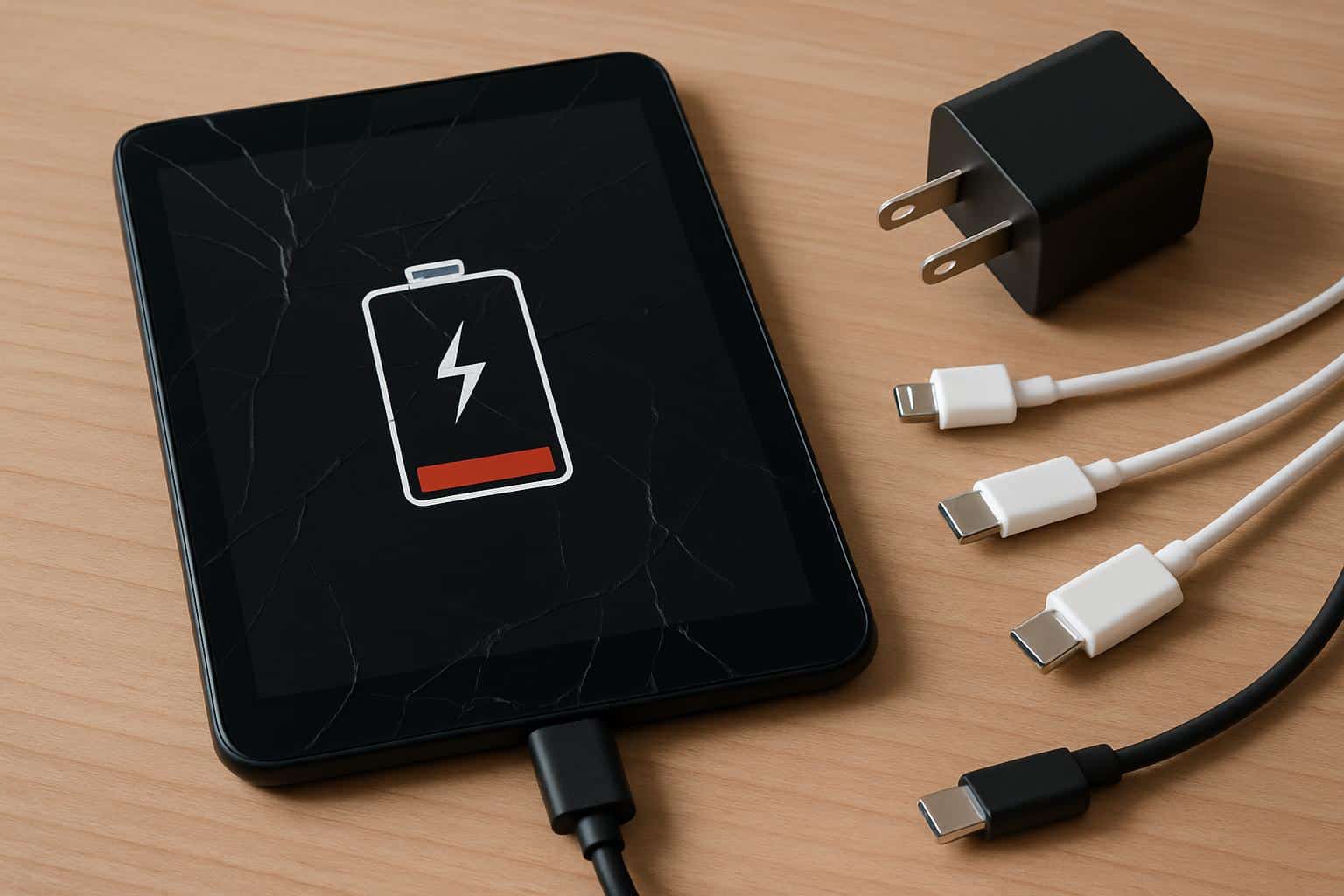
Battery University’s reinterpretation of lab data demonstrates that cells coddled at 100% state of charge (SoC) will lose capacity several times faster than a cell stored at 40–60%, and high heat will speed up the loss even more.
Mistake 1: Parking at 100% all night
Leaving your tablet in all night seems harmless enough. In fact, that last 10% is the toughest on the cell. In the constant-voltage “top-off” phase, the battery remains at a high voltage while the charger pushes back to 100% just about the time the battery naturally finds itself at 99%. High SoC + a little bit of heat is a formula for accelerating chemical aging.
Battery University references long‑term tests in which cells stored near a full charge lost a significantly higher capacity after a year than those stored near a mid‑charge, even at room temperature. Consider the last few percent “premium miles” you buy with lifespan.
Better: Unplug at around 80–90%, or use built‑in features that slow down charging. Apple’s Optimized Battery Charging and Samsung’s Protect Battery also designed to cut down on time at 100%. USB Power Delivery battery protection modes are also widely supported by Android tablets.
Mistake 2: Allowing it to run to 0% and keeping it empty
Repetition of deep discharges is another battery killer. Your tablet turns off before real zero to save itself, but an “empty” pack still self‑discharges in a drawer. Let that voltage drop too low, and the cell’s insides can be irreversibly damaged, so it’ll never charge up again.
Energy agencies and scholarly papers — including work published by the Journal of Power Sources — suggest that keeping lithium‑ion between about 20 and 80 percent significantly lessens stress on the solid‑electrolyte interphase, the fragile layer that determines long‑term health. Frequently bottoming out that layer ages it more quickly and may actuate safety circuitry that will not charge it.
Better: Charge when at ~20 😱 – 30% and never leave the battery empty. If you’re going to store a tablet in a drawer for a few weeks, power it down at somewhere around 50 percent and check on it at one-month intervals.
Mistake 3: Inexpensive or mismatched chargers and cables
That cheap charger is another charging port’s worse enemy. If you use non‑certified bricks and cables, it may cause unstable voltage and power negotiation. Any ripple, voltage spikes or excess heat contribute to the decay – even risks damaging the ports in extreme cases.
Ensure both your charger and your hardware are USB‑IF certified for Power Delivery, or reputable, UL‑listed. Size it to the tablet’s spec (a 20W PD adapter for lots of iPads, up to 45W for a handful of Galaxy Tabs). If your device is capable of drawing higher current then use an e‑marked USB‑C cable that is rated at 5A and negotiate properly and all this is moot, as the tablet can negotiate with the power supply what it is safe to pull.
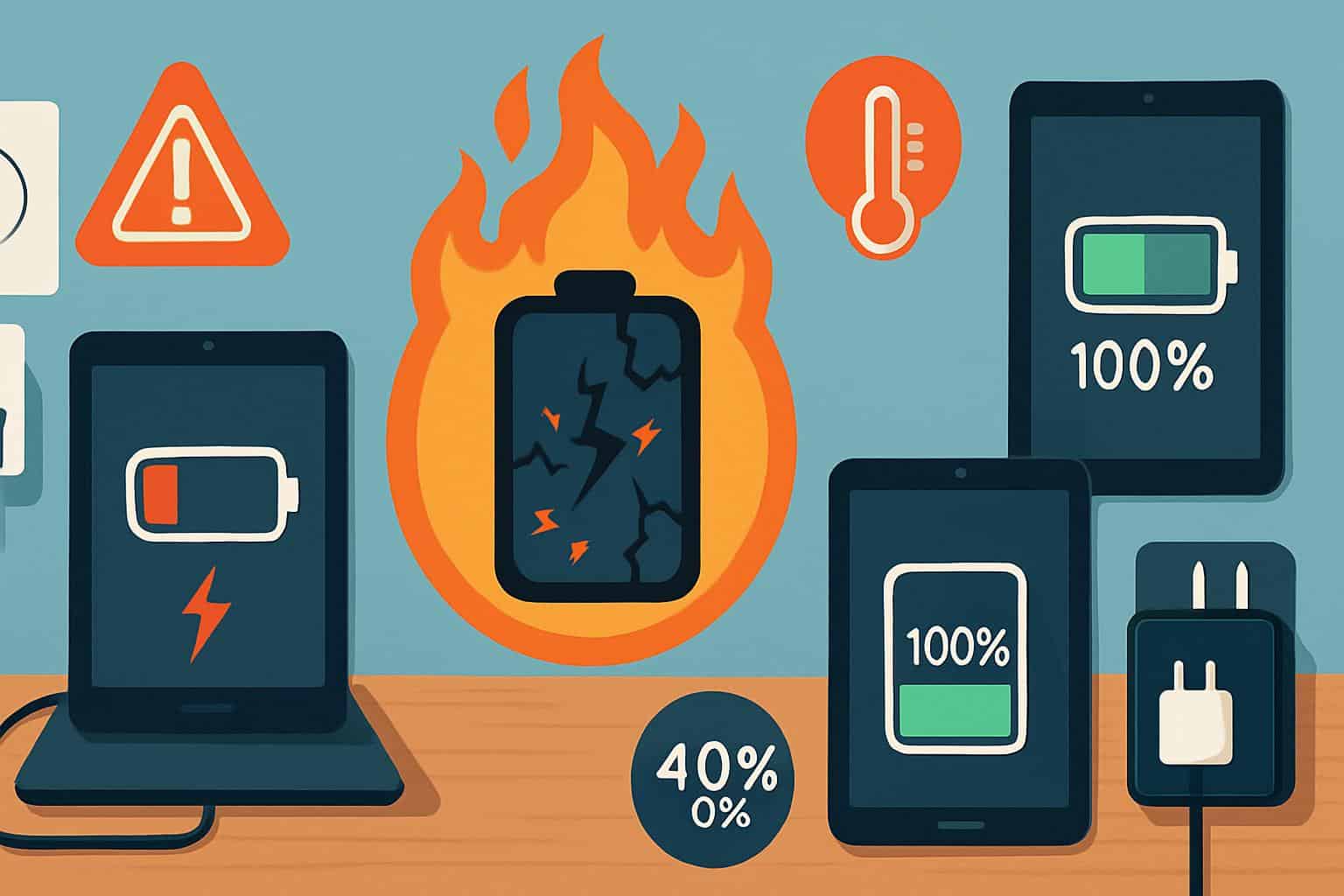
How to correctly charge a tablet
Reside in the 20–80% zone when it’s possible. This maintains cell internal resistance and voltage in a more pleasant range, slowing down capacity fade without turning you into a neurotic hovering over the battery meter.
Enable charging optimizers. And features such as Optimized Battery Charging and Protect Battery apply the same battery approach that leading battery researchers do: Spend less time at 100% and don’t charge to 100% unless you need to.
Control heat. Research by the IEEE has found that increased temperatures approximately doubles reaction rates for each ~10°C increase. Charge on a hard surface, not under a pillow; take off bulky cases during fast charging; and don’t game or video edit while plugged in.
Use the right power gear. Certificated PD Charger and high quality cable, decrease electric noise and heat. Sure, fast-charge when you need to, but don’t insist on maximum wattage every day—there’s very little real‑world time saved after you cross 60–70%.”
Store smart. For multi‑week breaks, power down the tablet to ~50% and store it in a cool place. Battery University’s long‑term storage data demonstrates mid‑charge storage preserves much higher capacity than full charge, in particular if heat is a factor.
What to watch for early
Look for faster drops within that last 20%, a tablet that gets unusually warm for sitting idle on the charger, or charge times that keep increasing. Most devices display battery health figures in settings; if yours doesn’t, measure screen‑on time between charges over a few weeks.
And if the battery gauge always seems a bit off, the occasional recalibration is benefiting the meter — not the chemistry. Drop down to about 10% on the tablet, and then right back up to 100% without stopping. Avoid making this a habit.
Bottom line
Your tablet’s battery isn’t necessarily ruined by age alone. And stay away from the big three — overnight 100% top‑offs, deep discharges and loud, sketchy chargers — and you’ll immediately slow the wear trajectories significantly. Add that to moderate temperatures and built‑in optimization and you’ll get the more of the battery you paid for.