


If you’ve ever spotted TTY in your phone settings and wondered what it does, you’ve stumbled on one of telephony’s oldest accessibility tools. TTY, short for teletypewriter, enables people who are deaf, hard of hearing, or have speech disabilities to communicate by typing over a phone line. Despite the shift to IP networks and messaging apps, TTY remains available on modern smartphones and still matters where legacy phone systems and specialized services are in play.
What TTY Means on a Phone and How It Helps
Classic TTY devices turn typed characters into tones that travel across a voice line, then decode them back to text on the other end. On smartphones, TTY mode mimics that behavior so your handset can talk to a physical TTY machine or another phone running TTY. The feature typically offers three modes: TTY Full for text-only, TTY HCO for Hearing Carry Over (you speak, you read replies as text), and TTY VCO for Voice Carry Over (you type, you listen to replies).
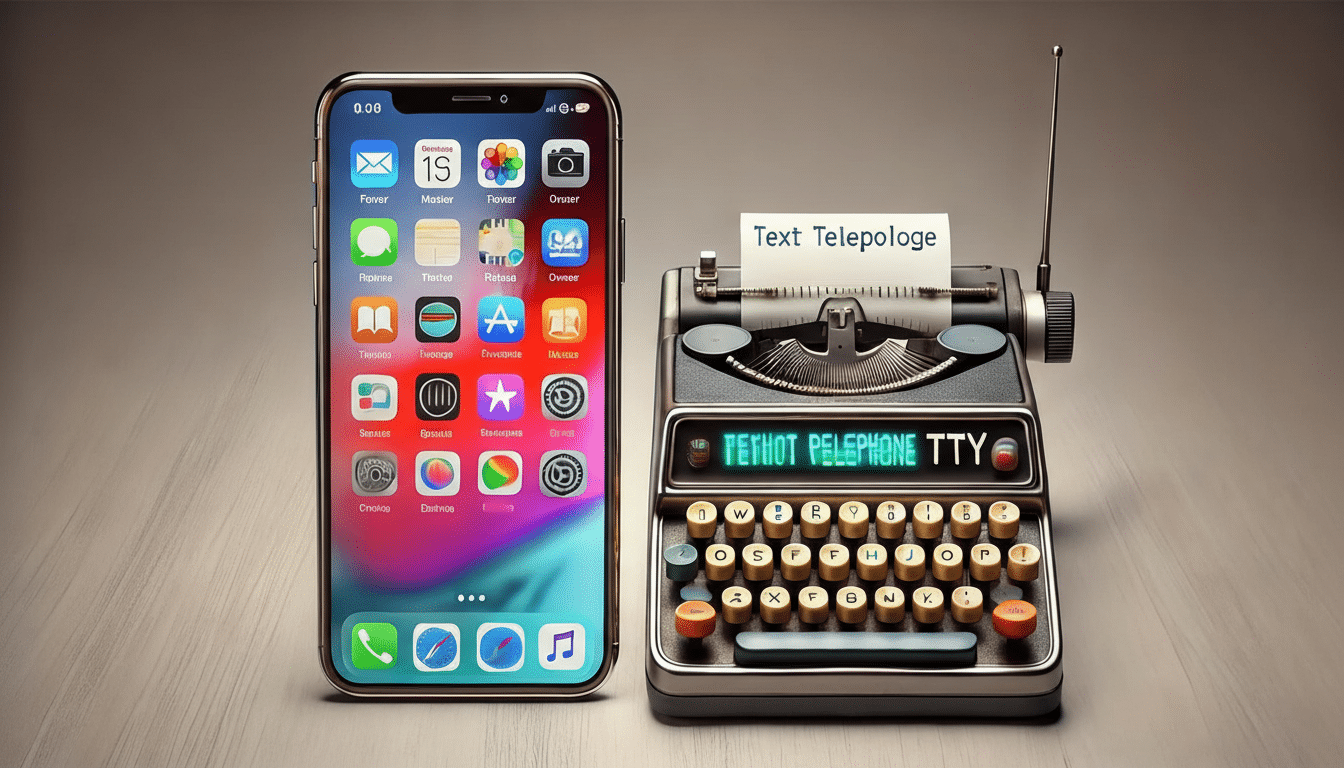
The U.S. Federal Communications Commission has long required accessible options for telephone communication under Title IV of the Americans with Disabilities Act, which is why TTY support has remained present even as networks evolved. While it’s old tech, it’s still a lifeline in environments that rely on plain old telephone service, from hospitals to government offices.
How TTY Works on Modern Smartphones and Networks
On many Android phones, TTY lives inside the Phone app’s settings under Accessibility. On iPhone, it’s bundled with Real-Time Text (RTT) in Accessibility settings. When you enable TTY, the phone routes typed text through the voice call channel. If you’re connecting to a dedicated TTY machine, you’ll typically need a cable or adapter; with headphone jacks disappearing, that often means a USB-C or Lightning audio adapter.
Be aware that TTY was designed for circuit-switched voice lines. On all-IP services like VoLTE and 5G, TTY can be unreliable. That’s why regulators and carriers have moved toward RTT, which delivers text natively over IP during a call. The FCC formally recognized RTT as the TTY successor for modern networks, and major carriers support it. Still, TTY remains in settings for backward compatibility and specific use cases.
Step-by-Step Setup and Use on Android and iPhone
On Android, open the Phone app, go to Settings, find Accessibility, and select TTY mode. Choose TTY Full, HCO, or VCO based on your needs. If you plan to communicate with a standalone TTY device, connect the appropriate cable or adapter before placing a call. Start the call as usual and type within the interface your device provides; the other party will read your text on their TTY screen.
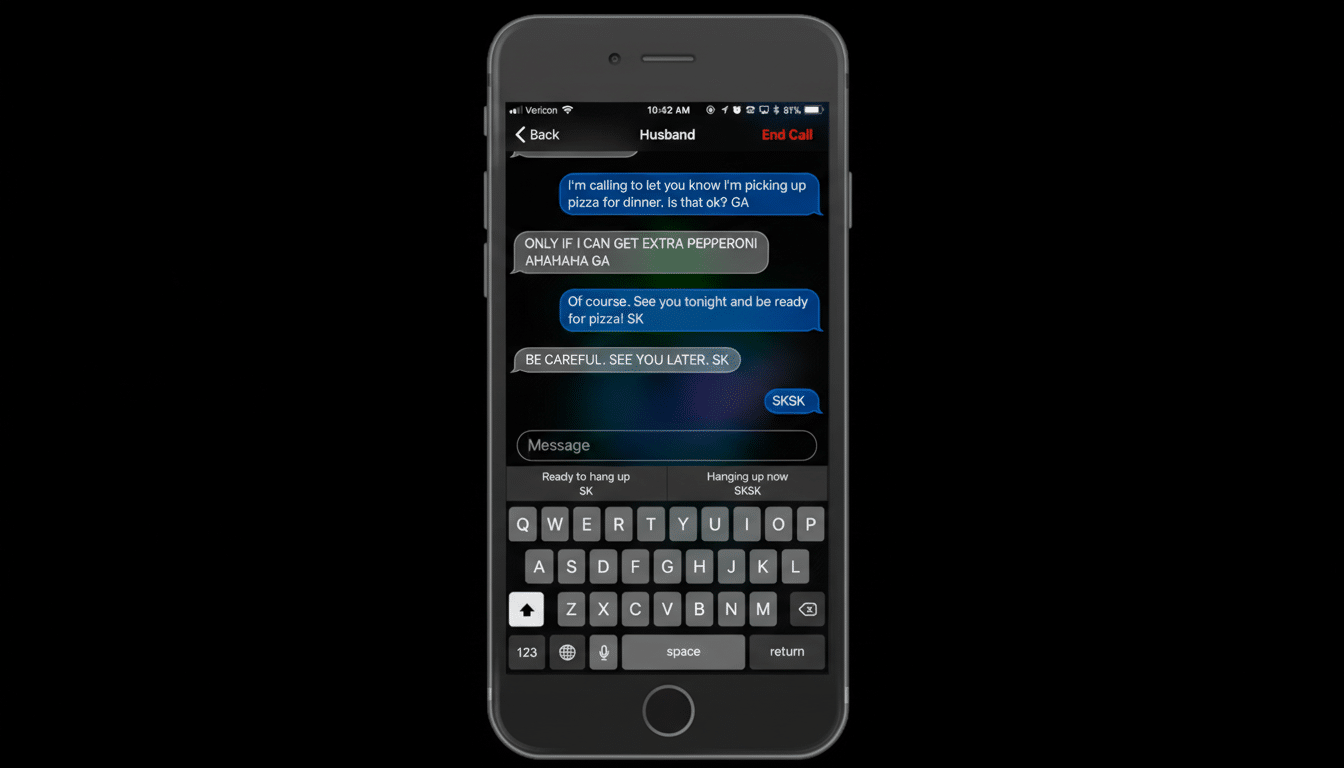
On iPhone, go to Settings, Accessibility, then RTT/TTY. Enable Software RTT/TTY, add a relay number if you use a relay service, and place a call. An on-screen RTT button appears during the call; tap it to start typing. Messages are transmitted live, character by character, which can speed up conversations compared to the “turn-taking” rhythm typical of legacy TTY.
TTY Versus RTT and Text Messaging: Key Differences
TTY uses audio tones over the voice channel; RTT sends text directly over IP while you type. Functionally, RTT is faster, more reliable on modern networks, and better for emergency services that support it. Text messaging is different again: SMS or data-based chats don’t ride the voice call at all and aren’t a substitute for TTY/RTT in services that require a live call context, such as certain relay or customer support lines.
For assistance, many users rely on Telecommunications Relay Services by dialing 711 in the U.S., where a communications assistant converts between voice and text. For emergencies, call 911 first; if you cannot speak, use TTY or RTT if available. Text-to-911 is increasingly supported across public safety answering points, according to the FCC, but coverage is not universal, so check your locality.
Why TTY Still Matters for Accessibility and Legacy Use
The World Health Organization estimates that more than 1.5 billion people live with some degree of hearing loss worldwide, and the U.S. National Institute on Deafness and Other Communication Disorders reports that roughly 15% of American adults have some trouble hearing. While video relay, captioned telephony, and RTT are rising, TTY remains relevant for legacy systems, institutional compliance, and users who already own dedicated TTY hardware.
Pro Tips and Caveats for TTY and RTT on Smartphones
If you use an acoustic coupler or external TTY, keep the phone stable and reduce background noise to avoid errors. Turn off Bluetooth headsets to prevent audio routing conflicts. Expect HD Voice and some noise-canceling features to be disabled during TTY. If your carrier or device limits TTY over IP, switch to RTT when possible; it’s designed for today’s networks and generally works more smoothly.
Bottom line: TTY on your phone is a bridge between legacy accessibility and modern calling. Know where to enable it, which mode suits you, and when to choose RTT instead. With the right setup, your smartphone can communicate clearly with both classic TTY equipment and contemporary IP-based services.