


Concerned that a 128GB Pixel will run out of space quickly? There’s a trick built in that keeps your phone feeling roomy without having to babysit your gallery. It’s called Smart Storage, and it makes the cleanup of photos and videos automatic, as soon as they’re safely backed up to Google Photos.
The Silent Fix Buried In Files By Google
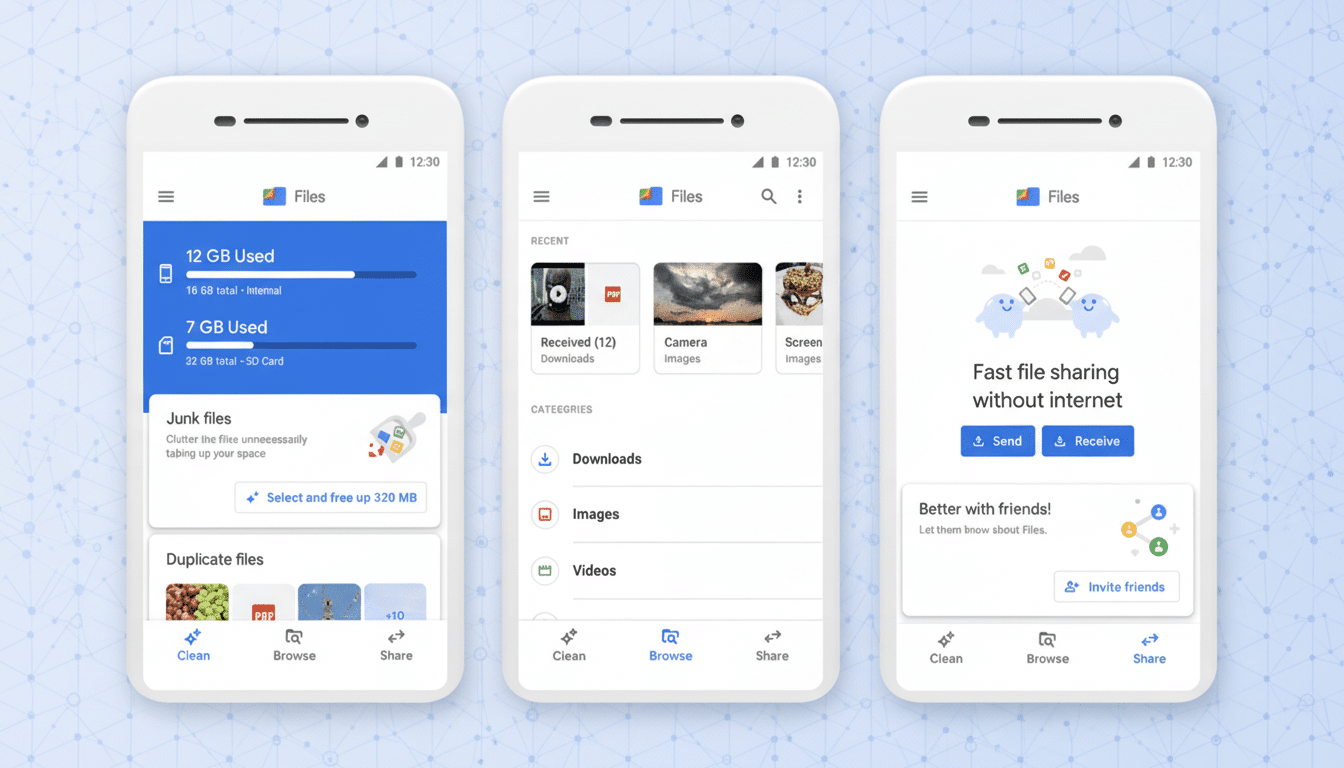
Smart Storage doesn’t live in Google Photos or Google One, where you might expect it. It lives in the Files by Google app, which explains why so many Pixel owners have likely never run across it. Once you turn it on, it automatically gets rid of the local copies of media that’s already backed up to Google Photos if one of two criteria are met: the items are more than 60 days old or your phone’s storage dips below 25 percent full.
- The Silent Fix Buried In Files By Google
- Why This Is Important for 128GB Pixel Devices
- Comparing to iPhone storage optimization options
- How to enable Smart Storage in Files by Google quickly
- Performance and longevity benefits of keeping free space
- Caveats and what still needs work and wider support
- Bottom line: Smart Storage keeps 128GB Pixels usable
That 60-day period provides you with a nice cushion to keep originals on-device for easy sharing or editing. From that point, the files stick around in your Google Photos library at full quality until you tap to download them when you need access. Meanwhile, the 25 percent threshold helps your phone maintain its mojo by preventing performance from tapering off when flash memory starts getting full.
Why This Is Important for 128GB Pixel Devices
Modern media is heavy. A minute of 4K video can easily mow through hundreds of megabytes, and RAW photos from a Pixel can weigh in at tens of megabytes apiece. On a weekend trip, you’re hitting the high teens in gigabytes with 500 photos and 30 minutes of 4K footage. With no plan, a 128GB phone fills up quickly.
Enter Smart Storage — this is what you pay the money for; the sums add up. It allows you to freely shoot, confident that older media (backed up or not) doesn’t have to stay on-device forever. Google has said its Photos service stores trillions of images and is adding tens of billions of new photos and videos every week — demonstrating that cloud-first habits are the rule. Smart Storage brings the phone in line with that reality without requiring continual manual cleanup.
Comparing to iPhone storage optimization options
Optimize iPhone Storage from Apple’s iCloud Photos does this, relying on a smaller locally stored version and fetching full-res files as needed. Google Photos by default prompts you to manually “Free up space” by purging local copies which have already been backed up. Smart Storage bridges that, at least on Pixels, by automating the process — no tapping through prompts every couple of weeks.
It’s not identical, though. Smart Storage deletes the local originals; it does not downscale them on-device. In terms of function, the results are nearly identical: you free up space and full-resolution files are never more than a tap away in Google Photos.

How to enable Smart Storage in Files by Google quickly
Open Files by Google on your Pixel and find Smart Storage under the Clean section in settings. Toggle it on and confirm. From there, your phone will automatically remove local copies of media that have been backed up after 60 days or when storage is depleted to below 25 percent, whichever happens first.
You don’t have to alter the way you shoot or share. Your Photos library remains intact; it’s searchable and kept updated across all your devices. When you tap to open an older photo or video on your phone, it downloads the media in the background as necessary.
Performance and longevity benefits of keeping free space
Flash storage degrades as it fills up, which is why it’s important to maintain a buffer that will improve responsiveness when you install an app, process photos, or export video. By automatically making space before your storage is maxed out, Smart Storage secures that “day one” experience as long as possible — essential if you want to keep using your phone for years.
Caveats and what still needs work and wider support
There are two catches. For Smart Storage specifically, it’s only available for Pixel phones, and yet Files by Google is included on many Android handsets. Second, putting it inside Files (and not Photos) means you could easily miss it. And power users might like to see granular controls: per-album exclusions, shorter or longer grace periods, Wi‑Fi‑only rules.
The next logical place is deeper integration into Google Photos’ backup settings, in which users already control quality and account storage quotas. Some kind of consolidated toggle with better explanations would undoubtedly increase adoption and stretch the base storage out more for most users.
Bottom line: Smart Storage keeps 128GB Pixels usable
Those 128GB Pixels aren’t doomed, but 256GB would be a better default. Flip on Smart Storage, lean on Google Photos, and you’ll keep local space in check without having to constantly micromanage your files. It’s a little switch that makes a huge difference to how usable a 128GB phone might be.