


Samsung hides some of its best tricks in plain sight, and Separate App Sound is one of those sleeper features that quietly changes how you use your phone. It lets you send audio from a specific app to a different device than everything else—so your music can pump through a speaker while calls, pings, and alarms stay on the phone. It’s been around since the Galaxy S8 era, but it’s finally getting the attention it deserves because it solves real, everyday annoyances.
What Is Separate App Sound and How It Works on Galaxy
Separate App Sound routes audio from chosen apps to a designated output—typically a Bluetooth device—while the rest of your system audio uses another output. Think of it as per-app audio plumbing. Start Spotify on a Bluetooth speaker without blasting every notification to the room, or keep a work call in your earbuds while YouTube Shorts and game sounds remain on your handset.
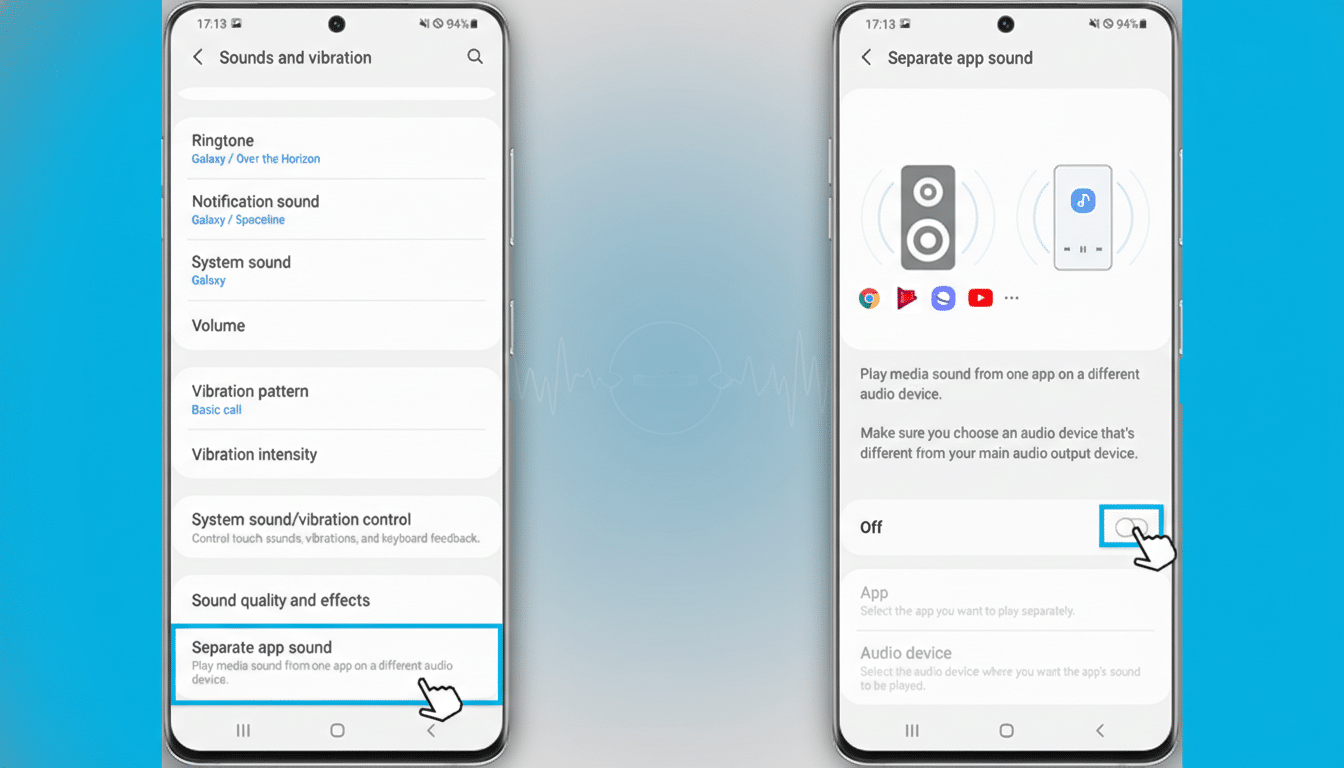
Samsung introduced the capability in 2017 and continues to support it across recent Galaxy phones running One UI. Unlike generic “media vs. call” audio toggles, this is app-specific and far more precise. The approach aligns with broader industry trends—Bluetooth SIG reports billions of Bluetooth devices ship every year, and headphones are among the most popular categories—so the need for smarter routing is only growing.
How to Turn It On and Set App Audio Routing in One UI
Before you start, connect your target audio device (earbuds, speaker, car stereo) via Bluetooth to ensure it appears as a selectable output.
- Open Settings on your Galaxy phone.
- Tap Sounds and Vibration, then select Separate App Sound.
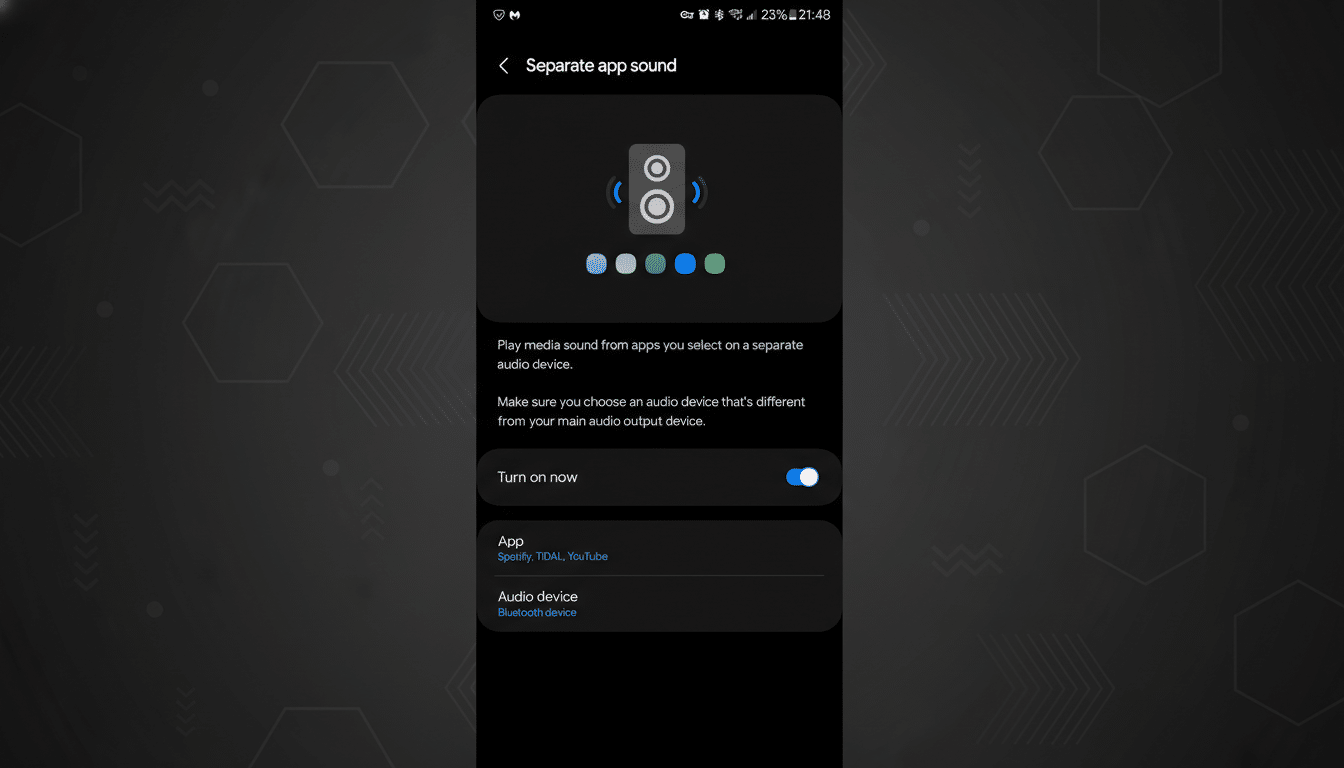
- Toggle Use Separate App Sound to On.
- Tap App and choose the app you want to route (for example, Spotify, YouTube Music, YouTube, Zoom, or Teams).
- Tap Audio Device and pick your destination output (such as your connected Bluetooth speaker or earbuds). If the device isn’t listed, reconnect it and return to this screen.
- Start playback in the selected app. System sounds and other apps will continue using your phone speaker unless you route them elsewhere.
Tip: If you see a prompt about changing your main audio output, confirm it—Samsung will preserve your app’s custom route while moving the rest of the phone’s audio to the default path you expect.
Why You Should Use It for Smarter Per-App Audio Control
- House music without house alerts: Stream playlists to a living room speaker while messages, alarms, and ringtones stay private.
- Car-friendly listening: Keep navigation cues and notifications on your phone while sending only your music app to the car stereo, reducing jarring interruptions. The National Safety Council recommends minimizing in-car distractions—cleaner audio routing helps.
- Work calls without cross-talk: Route Google Meet or Teams to earbuds and leave social media clips on the phone so accidental videos don’t blare into a meeting.
- Shared spaces, fewer side-eyes: In offices, dorms, or libraries, direct a single app to headphones and keep everything else muted or local to the device.
- Content creation and monitoring: Musicians, podcasters, or streamers can monitor a specific app on headphones while referencing other audio on-device.
Pro Tips and Limitations for Samsung Separate App Sound
- Connect first: The Audio Device picker only shows available outputs. Pair your Bluetooth device before configuration for a smoother setup.
- One app, one route: Separate App Sound focuses on routing selected apps; it doesn’t mix multiple apps to multiple devices simultaneously. You can add multiple apps to the list, but they share the same chosen output.
- Mind app behavior: Some apps aggressively grab “audio focus.” If a call app temporarily takes over your earbuds, Samsung will usually hand routing back when the session ends.
- Battery impact: Running Bluetooth continuously can nudge power use upward. Samsung’s Power Saving and Adaptive Battery features help, but expect modest overhead during long playback sessions.
- Compatibility: Most media and communications apps work well. Certain niche recorders or casting apps may ignore custom routing due to how they implement audio APIs.
Troubleshooting Quick Checks for Separate App Sound
- Audio still coming from the phone speaker: Reopen Separate App Sound and confirm the correct app and Audio Device are selected. Ensure the Bluetooth device is connected for media, not just calls.
- Device doesn’t appear: Unpair and re-pair your earbuds or speaker, then reopen the Separate App Sound menu. Firmware updates on earbuds can also resolve routing quirks—check the manufacturer’s companion app.
- Conflicts with other sound features: If you use Dual Audio or external casting (like Smart View), disable them temporarily to verify Separate App Sound behavior, then re-enable as needed.
Separate App Sound isn’t flashy, but once you set it up, it feels essential. With hundreds of millions of wireless earbuds shipping annually according to Counterpoint Research and more audio endpoints competing for your attention, Samsung’s per-app routing gives you the control modern life demands—without the noise.