


Google is also adding new hand gestures to the Pixel Watch 4, which change how you interact with the watch when tapping on it wouldn’t be ideal. Two motion controls — Double Pinch and Wrist Turn — come switched on by default after you upgrade to Wear OS 6.1, with on-screen prompts popping up to let you know where they don’t work. It’s a smart and often useful idea, but coverage is spotty and one of the gestures is far more valuable than the other.
What’s new and who gets it on the Pixel Watch 4
For now, the new controls are available only on the Pixel Watch 4 for Wear OS 6.1. They are not currently supported on older models such as the Pixel Watch 2 and Pixel Watch 3. The feature set is itemized in Google’s release notes and support materials, describing it as part of the latest release wave, with the watch popping up instructional cards to educate you on the motions as soon as the update finishes.
- What’s new and who gets it on the Pixel Watch 4
- How to enable or disable gestures on Pixel Watch 4
- The two motion gestures to know on Pixel Watch 4
- What actually works right now across apps and system
- Tips to improve gesture reliability and recognition
- Limitations and caveats for current gesture support
- Bottom line on Pixel Watch 4 gestures right now
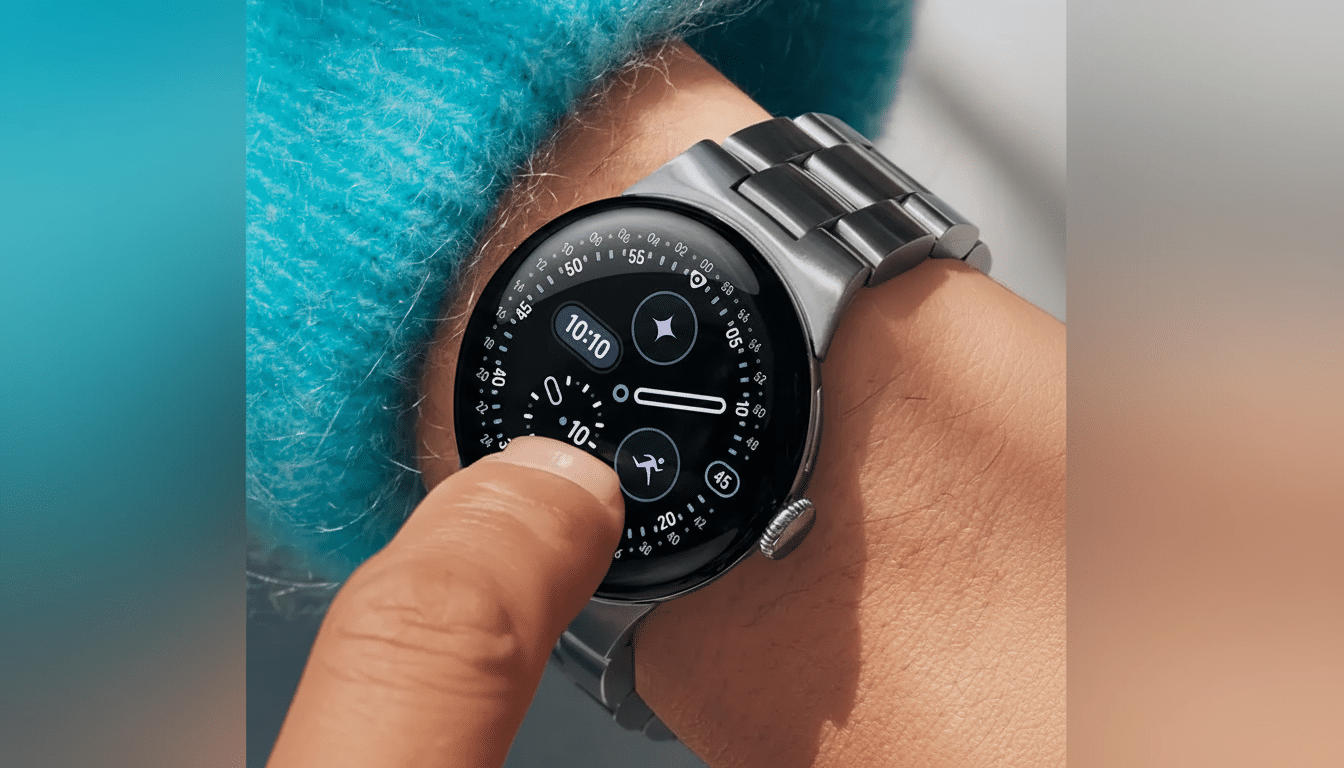
On the watch itself, you will see hints appear on the screen where a gesture can be used. That context-aware approach is important: gestures aren’t system-wide replacements for swipes and taps so much as they are shortcuts that appear in certain places across the interface.
How to enable or disable gestures on Pixel Watch 4
On the watch, go to Settings and tap Gestures, followed by Hand gestures to switch the feature on. From there, you can start Education to revisit the tutorial whenever. Google also emphasizes a “What’s New” explainer immediately after updating and sends an additional reminder the next day, so don’t sleep through the walkthrough.
Open the Google Pixel Watch app on your phone, tap Watch settings, Gestures, and then Hand gestures to toggle hand gestures on or off. The phone route mirrors what you’ll see on the watch, so it’s straightforward to manage if the watch isn’t charged or is out of reach.
The two motion gestures to know on Pixel Watch 4
Double Pinch is the headliner. Click your thumb and first finger together two times quickly. When the on-screen prompt to pinch appears, Double Pinch selects the action or feature that’s currently highlighted (think “Open,” “Snooze,” “Stop,” and “Play/Pause”). It can even press the secondary button without having to touch the screen.
Wrist Turn is simpler and has a more limited range. Rotate your wrist back and forth. Today, it’s mostly employed to dismiss expanded notifications. It’s fast, though the coverage is restricted compared to Double Pinch.
What actually works right now across apps and system
Notifications are the most uniform use case. Double Pinch to perform the context action: if you expand the notification, the watch will shimmer with context actions; double pinch while something is focused when it shimmers (e.g., “Open,” “Clear”). Wrist Turn reliably dismisses the expanded card; it feels natural when you don’t feel like reaching for the screen.
Hands-free is useful for alarms and timers. If there’s a timer or alarm sounding and you double pinch, the interface will usually surface “Snooze” and “Stop,” with a two-finger pinch activating the action that’s currently selected onscreen. Where the feature really shines is if you’re cooking or have wet hands.
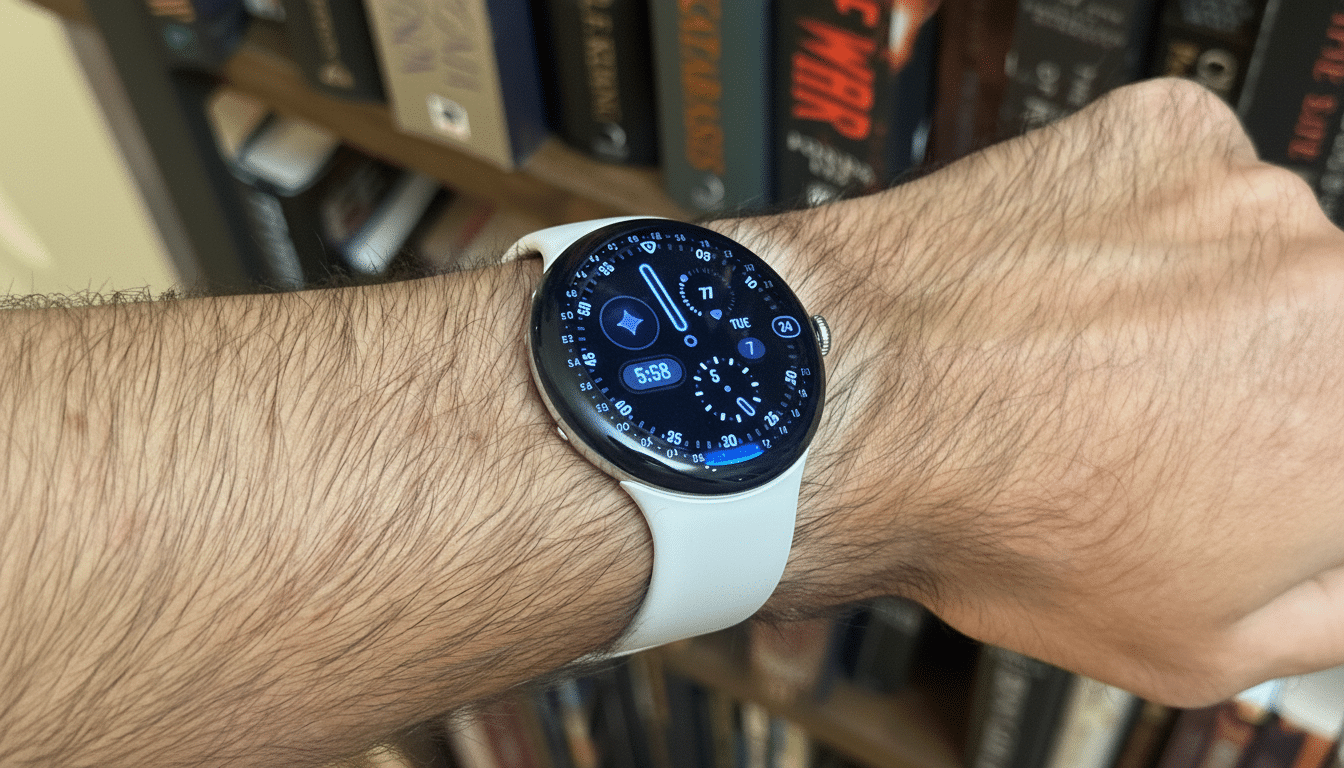
Media controls now have Double Pinch support when playing audio and your play/pause button is focused in Now Playing or on compatible media tiles. If you happen to catch the cue, two fast pinches will switch playback without a swipe or tap.
System prompts and standard dialogs are well supported. Every time Wear OS presents a default button using the platform’s standard components — permissions and confirmations, for instance, or an app action to send a message to someone — a double pinch acts as a digital click. And apps that comply with Google’s Material guidelines for Wear OS usually get support automatically, too (although you can’t take it for granted with very custom interfaces).
Navigation remains mostly traditional. You won’t be swiping to scroll any lists, flipping tiles, or jumping in and out of apps. The feature is for confirming focused actions and tentatively dismissing cards for now — swipes and the crown take care of navigation.
Tips to improve gesture reliability and recognition
- Rely on the visual signal before pinching. It won’t work if gestures aren’t supported on the screen, and the tiny on-screen icon indicates the watch is listening for movement.
- Keep the watch snug and your grip steady. Two quick pinches work better than a long squeeze, and keeping your arm at a natural angle helps the sensors register it more cleanly.
- Make sure the screen is awake. Raise to wake or nudge the crown to bring the interface into focus; gestures are linked to what’s in focus, so an idle or dimmed screen won’t respond.
Limitations and caveats for current gesture support
Coverage is inconsistent across apps. First-party experiences and platform-standard buttons are the safest bets; apps with custom layouts may ignore the signal. This should improve as developers update their Wear OS apps with Google’s latest design components.
Wrist Turn is limited. Its primary task at the moment is to dismiss expanded notifications. And if you’re hoping to swipe or flick your wrist to navigate around and control your media — well, you’ll have to stick with the crown and swipes for now.
Compatibility is restricted to recent hardware and software. Pixel Watch needs to be Pixel Watch 4 with Wear OS 6.1; earlier Pixel Watch versions are not supported. Availability can depend on region and device, according to Google’s support pages and release documentation for Wear OS.
Bottom line on Pixel Watch 4 gestures right now
Double Pinch seems really useful when you get used to remembering to look for the cue, particularly for notifications, timers, and quick confirmations. Wrist Turn, although good for dismissing cards, is much more limited. If you’re on a Pixel Watch 4, enable gestures and run through the built-in tutorial — think of them as targeted shortcuts rather than a new system for navigation. As more apps get on board with the standard components and adoption of Wear OS 6.1 spreads, look out for the best parts of this feature to work their way into your daily muscle memory.