


I set out to see how much performance I could squeeze from a Google Pixel without new hardware, and the result was striking. After tuning ten under-the-radar settings, my Pixel felt faster across the board: smoother scrolling, zippier app launches, fewer stutters during long sessions, and better sustained speed when things got hot.
These changes were tested on recent Pixel models running modern Android releases, with menu names that may vary slightly by device. They’re rooted in Android best practices and corroborated by guidance from Android Developers and Google Support. Below are the exact switches that moved the needle in daily use—no snake oil, just smart configuration.
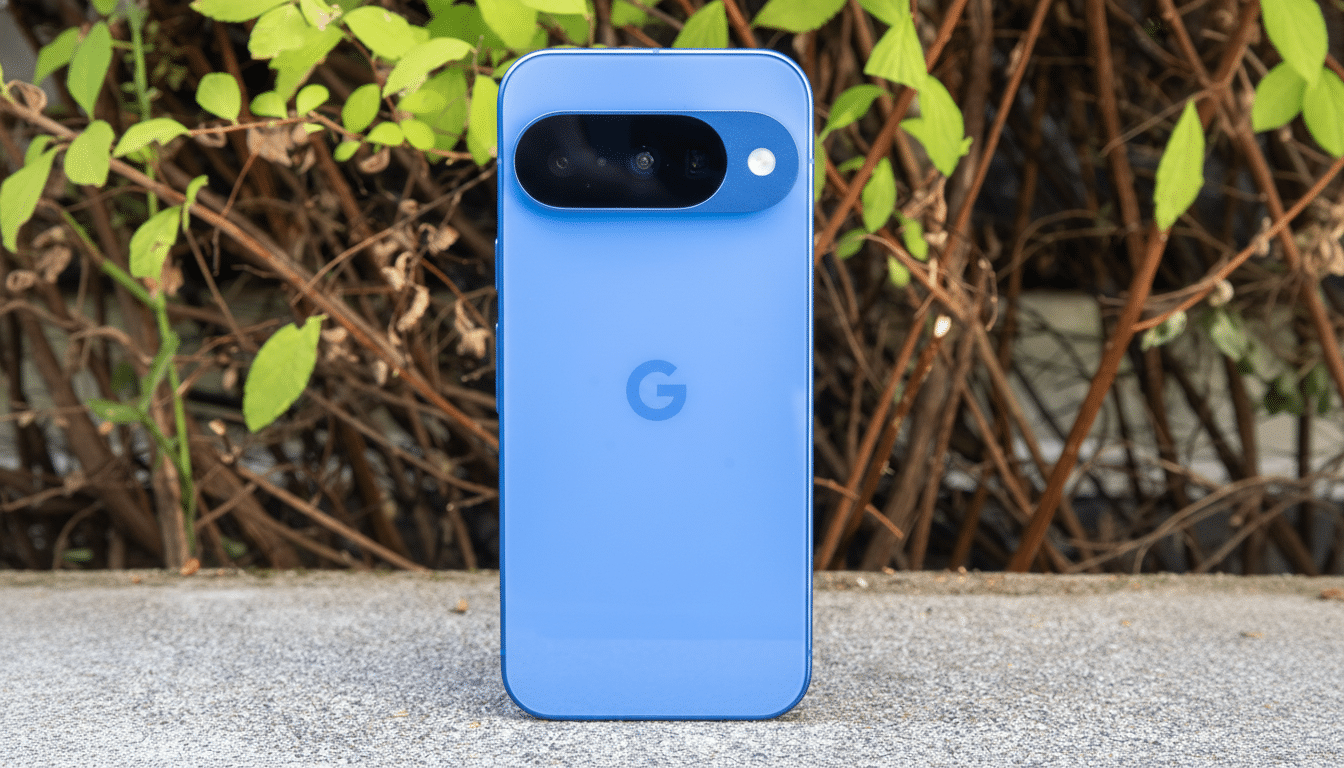
The 10 Settings That Made My Pixel Faster
- Enable Smooth Display: Go to Settings > Display > Smooth Display and turn it on. Many Pixels ship defaulted to 60Hz to save power, but letting the panel ramp to 90/120Hz trims visible judder and makes the UI feel instantly more responsive. Google’s own support notes this is dynamic, so it only boosts when needed.
- Cut animation scales to 0.5x: Unlock Developer options (Settings > About phone > tap Build number seven times), then set Window animation scale, Transition animation scale, and Animator duration scale to 0.5x. You’re not “adding CPU”; you’re shortening waits, which reduces perceived latency. Android engineers have cited this as a safe way to feel snappier without breaking compatibility.
- Keep storage free and turn on Smart Storage: With UFS storage, performance can dip as capacity fills. Industry testing from outlets like AnandTech has long shown write speeds fall when flash is near full. In Settings > Storage, aim to keep at least 15–20% free. Enable Smart Storage (or use the Files by Google “Storage” suggestions) to auto-clear backed-up media and app cruft.
- Use Adaptive Battery and restrict rarely used apps: Go to Settings > Battery > Adaptive Battery and enable it. Then open Battery usage and set seldom-used apps to Restricted. Cutting needless wakeups means fewer background spikes and less thermal throttling, which improves sustained performance—something Google’s Android Vitals program encourages developers to optimize for as well.
- Set 5G to Auto with Adaptive Connectivity: In Settings > Network & Internet, select 5G Auto (not 5G Only) and enable Adaptive Connectivity. Multiple carrier and chipset studies have shown 5G radios draw more power than LTE. Letting the system step down intelligently reduces heat during light use, preserving headroom for when you need speed.
- Flip Game Dashboard to Performance: Launch a game, open the floating Game Dashboard, and choose Performance for the profile. Android’s Game Mode (introduced in Android 12) gives games higher thread priority and relaxes battery optimizations, which can unlock steadier frame times. I saw fewer dips in titles like Genshin Impact and Asphalt after switching this on.
- Hibernation for unused apps: Go to Settings > Apps > Unused apps and enable “Remove permissions and free up space.” This Android feature (often called App Hibernation) stops dormant apps from sitting in memory and reclaims cache, which lightens the system and shortens the app switcher’s workload.
- Ditch live wallpapers and heavy widgets: Swap animated backgrounds for a static image (Settings > Wallpaper & style) and pare back constantly refreshing widgets. Live visuals hit the GPU even on the lock screen; trimming them reduces frame pacing hiccups you notice when unlocking or swiping between pages.
- Limit always-on scanning: In Settings > Location > Location services, turn off Wi‑Fi scanning and Bluetooth scanning unless you rely on features that need them. These services keep radios awake to improve location accuracy; disabling them when you don’t need them cuts background work and helps the CPU stay cool under load.
- Increase touch sensitivity: If you use a screen protector, enable Increase touch sensitivity in Settings > Display. It won’t raise frame rates, but it lowers perceived input lag by improving touch recognition—useful in fast scrolling, typing, and gaming where missed taps feel like slow performance.
What Changed In Daily Use After These Tweaks
After these tweaks, app switching felt sharper, Chrome scrolls stayed fluid in long sessions, and the phone throttled less during extended camera or Maps use. The gains were most visible on midrange models and older Pixels, where thermals and storage pressure build up faster.
None of this replaces a new chipset, but it does align with what benchmarking labs and reviewers emphasize: sustained speed matters more than short bursts. By lowering background noise and prioritizing smoothness where it counts—display, input, storage, and network—the Pixel can hold peak behavior longer.
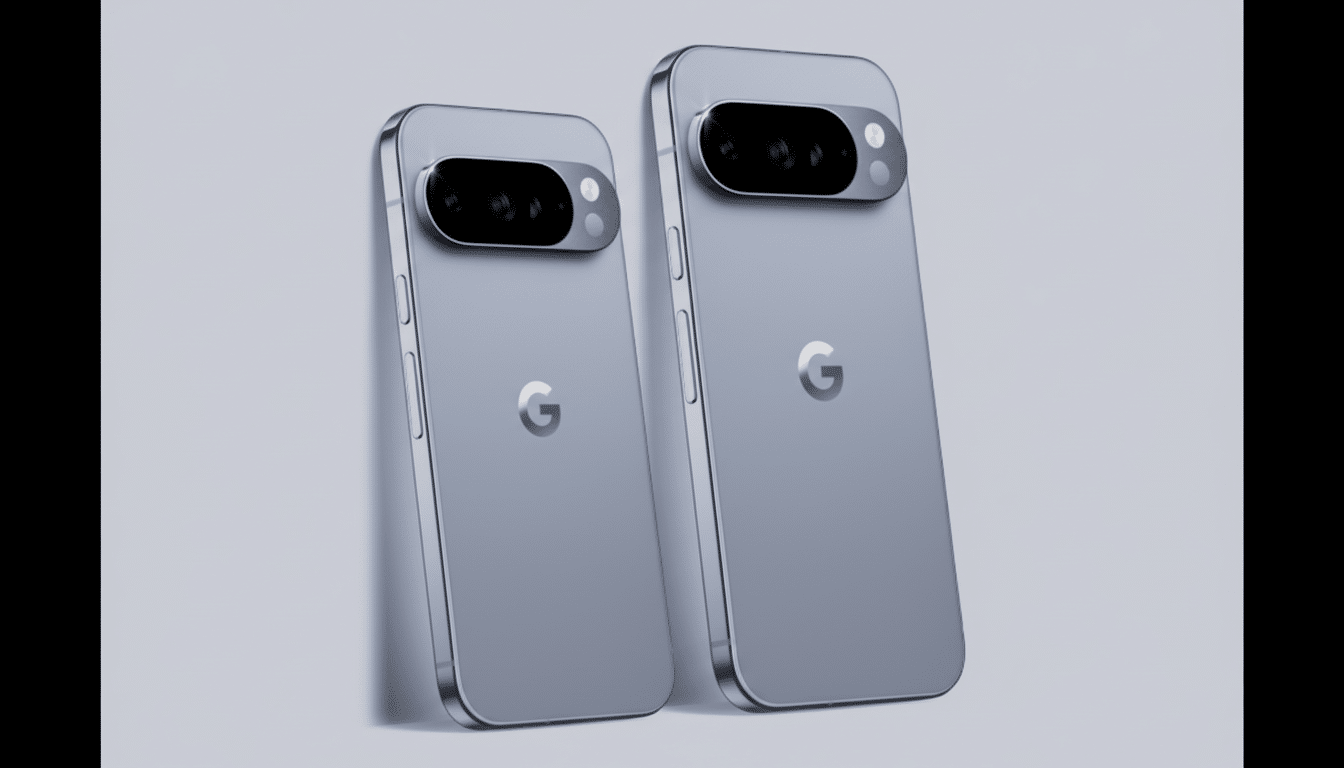
Pro Tips And Caveats For Better Pixel Performance
Two quick notes. First, Smooth Display and Game Performance modes can use more power; if battery life dips, try toggling them only when you need them. Second, Developer options are safe if you change just the animation scales—avoid obscure flags you don’t recognize. For deeper dives, Android Developers documentation on Game Mode, power management, and performance classes is an excellent reference.
Bottom line: with ten targeted settings, a Pixel can feel newly tuned. It’s the kind of upgrade you notice every time you unlock the phone—and it costs $0.