


Do Not Disturb is misbehaving on recent Galaxy Watches after phones pick up the One UI 8 update, with the watch’s quick toggle turning itself off moments after you enable it. Samsung has acknowledged the bug and says a fix is in the works.
Why Do Not Disturb fails after One UI 8 on Galaxy Watches
The issue appears when you activate Do Not Disturb from the watch’s quick panel and set it to “Until I turn it off.” Instead of staying active, the state reverts within seconds. Samsung says the failure stems from a sync problem between the watch and the paired phone, where the command initiated on the watch doesn’t reliably persist on the phone, which then overwrites the watch’s state.
- Why Do Not Disturb fails after One UI 8 on Galaxy Watches
- Which Galaxy Watch models and One UI versions are affected
- Temporary workarounds to keep Do Not Disturb enabled now
- Why a broken Do Not Disturb matters on a smartwatch
- Other Wear OS 6 quirks reported after recent updates
- What to expect next from Samsung’s upcoming watch fix
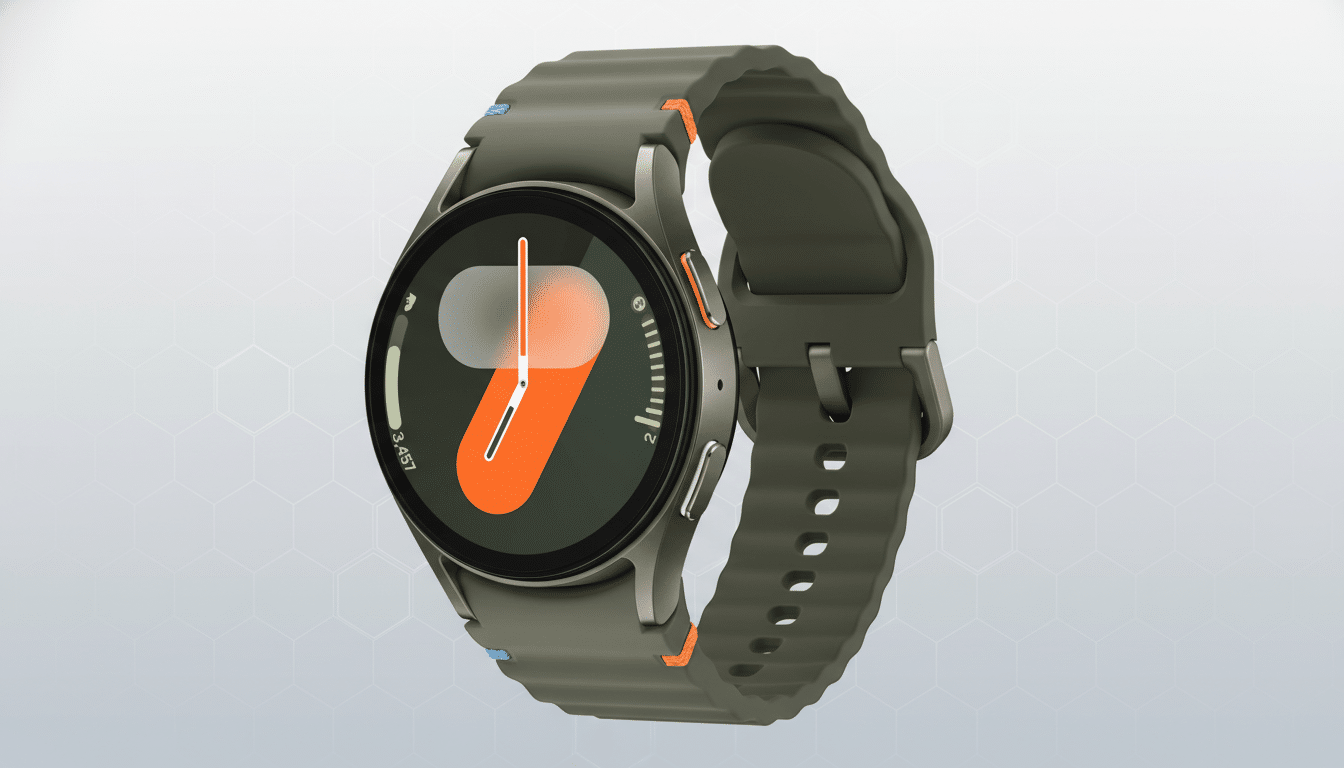
Practically, this looks like a two-way handshake breaking down: the phone treats the watch’s DND request as transient and pushes its own state back, flipping the toggle off on your wrist. Alarms are not the core issue here—DND itself is failing to remain enabled.
Which Galaxy Watch models and One UI versions are affected
Reports cover Galaxy Watch models from Watch 4 through Watch 8 when paired with phones running One UI 8. Many users surfaced the behavior in Samsung’s Community forums, and a community moderator confirmed the scope and root cause as a sync error. Devices on earlier One UI versions do not appear to exhibit the same quick-toggle regression.
The timing aligns with the broader Wear OS 6 rollout for recent Galaxy Watches, which increased the surface area for phone–watch state synchronization, including DND, Bedtime Mode, and Focus-style settings.
Temporary workarounds to keep Do Not Disturb enabled now
Until a patch lands, the most reliable workaround is to bypass the quick panel on the watch and use the full settings path. On the watch, open Settings, go to Notifications, and turn on Do Not Disturb there. Users and Samsung moderators report that this path sets DND in a way the phone respects.
Alternatively, enable Do Not Disturb from your phone’s quick settings. That state should sync down to the watch and remain active until you turn it off from either device. If you rely on routine-based silencing, consider using Modes and Routines on the phone to schedule quiet hours, then confirm the schedule propagates to your watch.
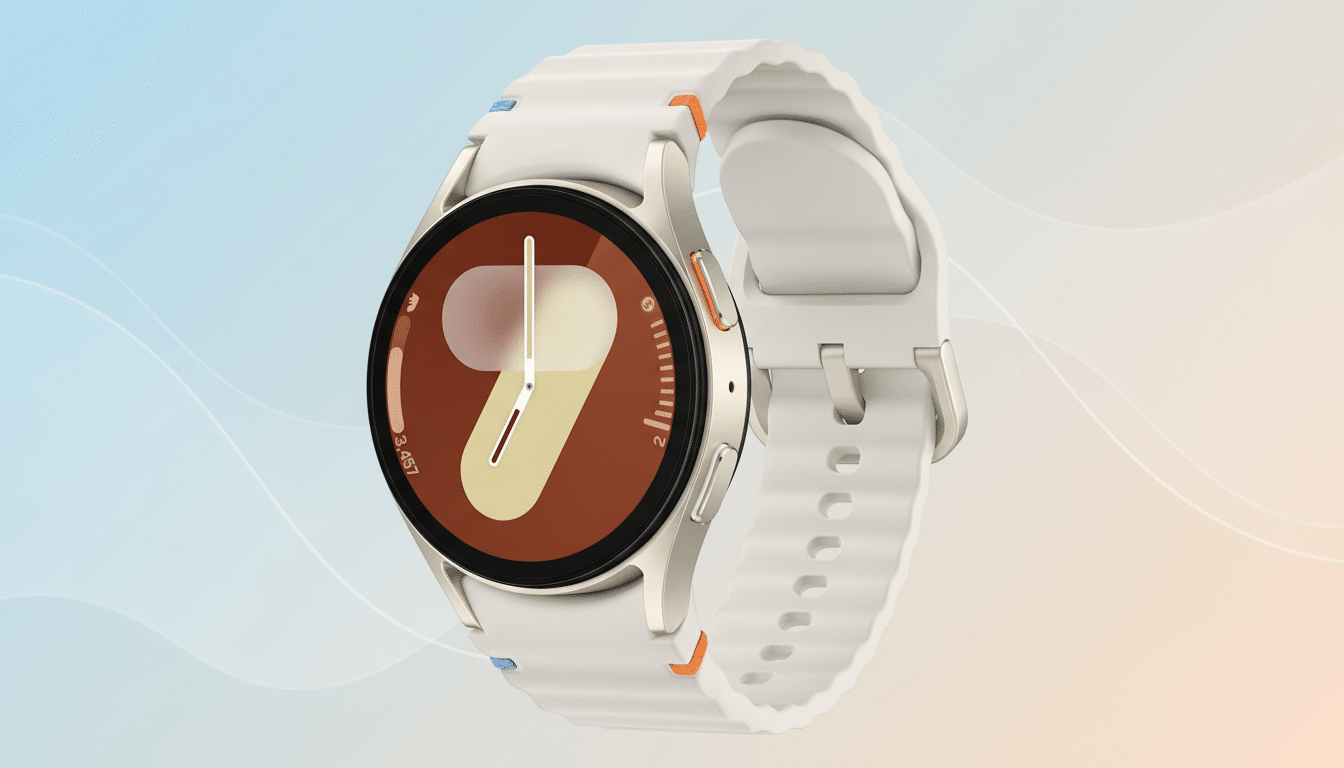
Why a broken Do Not Disturb matters on a smartwatch
DND is foundational for a wearable—one accidental buzz in the middle of a meeting, workout, or sleep can defeat the whole point of a smartwatch that’s always on your wrist. With Galaxy Watches ranking among the top Wear OS devices globally, according to industry trackers like Counterpoint Research, even a small failure rate translates to a lot of disturbed wrists.
The nuance here is that the quick panel and the deep settings screen don’t write state the same way. It suggests a mismatch in how the phone validates the watch’s request, possibly around “sticky” states such as “Until I turn it off” versus timed DND. That kind of divergence is exactly what companion frameworks aim to avoid, which is why Samsung is prioritizing a fix.
Other Wear OS 6 quirks reported after recent updates
This isn’t the only post-update headache. Users have also flagged a sensor glitch on some Watch 4 Classic units affecting health features like ECG, and a display issue that distorts certain third-party watch faces on Wear OS 6 devices. While these reports don’t affect every watch, they highlight the complexity of major platform updates across multiple generations of hardware.
What to expect next from Samsung’s upcoming watch fix
Samsung says a software update for affected Galaxy Watches is on the way. To catch it quickly, keep the Galaxy Wearable app and watch plugins updated, and check for watch firmware updates from the Watch settings under Software Update. After installing the patch, verify the fix by toggling DND from the quick panel and confirming it persists.
If you depend on DND day to day, stick with the settings-menu method or phone-side toggle for now. It’s not as convenient as a quick swipe and tap, but it preserves the silence—until the permanent fix arrives.