


Have an aging laptop or a dusty desktop that feels too slow for modern use? Omega Linux, a lightweight distribution built on Arch Linux, is drawing attention for how convincingly it turns older hardware into a snappy, reliable daily driver without the bloat.
Why Omega Linux Stands Out on Older Hardware
Unlike many “lite” spins that strip features to the bone, Omega Linux leans on Arch’s rolling-release foundation for up-to-date kernels, drivers, and packages while keeping the base system lean. That combination matters on legacy machines, where efficient software can be the difference between a usable computer and a doorstop.
- Why Omega Linux Stands Out on Older Hardware
- Performance and System Footprint on Legacy PCs
- Hardware Support and Requirements for Omega Linux
- How to Bring an Old PC Back to Life With Omega Linux
- Everyday Use on Aging Hardware With Omega Linux
- Who Should Choose Omega Linux for Older Computers
- Pro Tips for Maximum Responsiveness on Older PCs
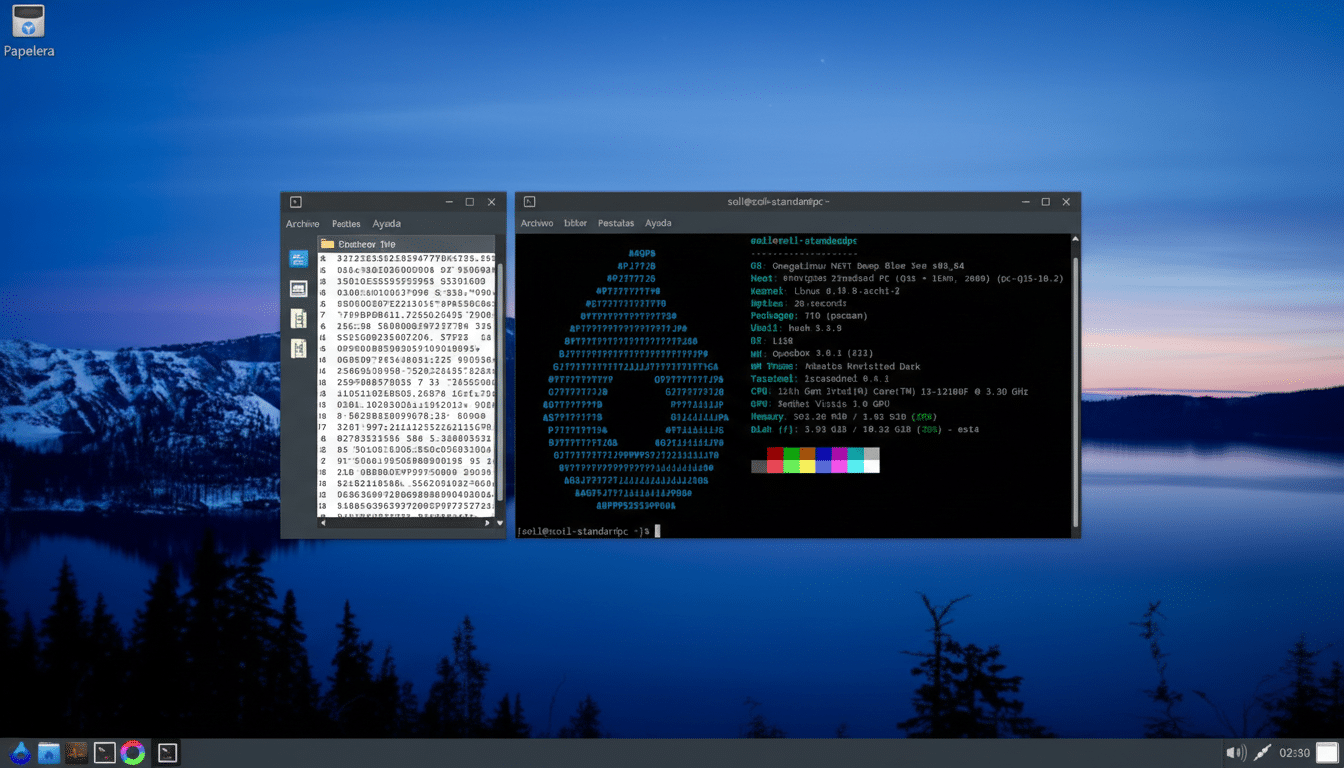
Omega favors a command-line-first approach for package management, relying on pacman. That choice trims overhead from graphical front ends and reduces background services, translating directly into more CPU cycles and memory for your apps. If you’re comfortable with a terminal—or willing to learn—this design pays dividends in speed and predictability.
Performance and System Footprint on Legacy PCs
In hands-on tests, Omega Linux idled at roughly 1% CPU usage, a telling sign of how little work the system does when you’re not actively pushing it. Memory consumption stayed in the low hundreds of megabytes on a clean boot, leaving plenty of headroom even on 4GB machines.
Application launches feel immediate. LibreOffice opened in under a second, and GIMP—a heavyweight by any measure—came up in about five seconds on first run, then faster on subsequent launches as caches warmed. That’s the kind of responsiveness you notice when you’re used to waiting on older operating systems.
The gains aren’t just anecdotal. The Arch Linux ecosystem is known for minimal defaults and current kernels, which can reduce I/O wait times and improve scheduling on older CPUs. Combine that with a light desktop setup and you get a machine that feels decades younger without upgrades.
Hardware Support and Requirements for Omega Linux
Omega Linux targets hardware from roughly the past decade: dual-core Intel or AMD processors, integrated graphics, and modest storage are all fair game. Older Intel HD Graphics and many Radeon GPUs work well with open-source Mesa drivers. Broadcom wireless adapters may need extra firmware—common on Linux—and the Arch Wiki remains the go-to resource for quick fixes.
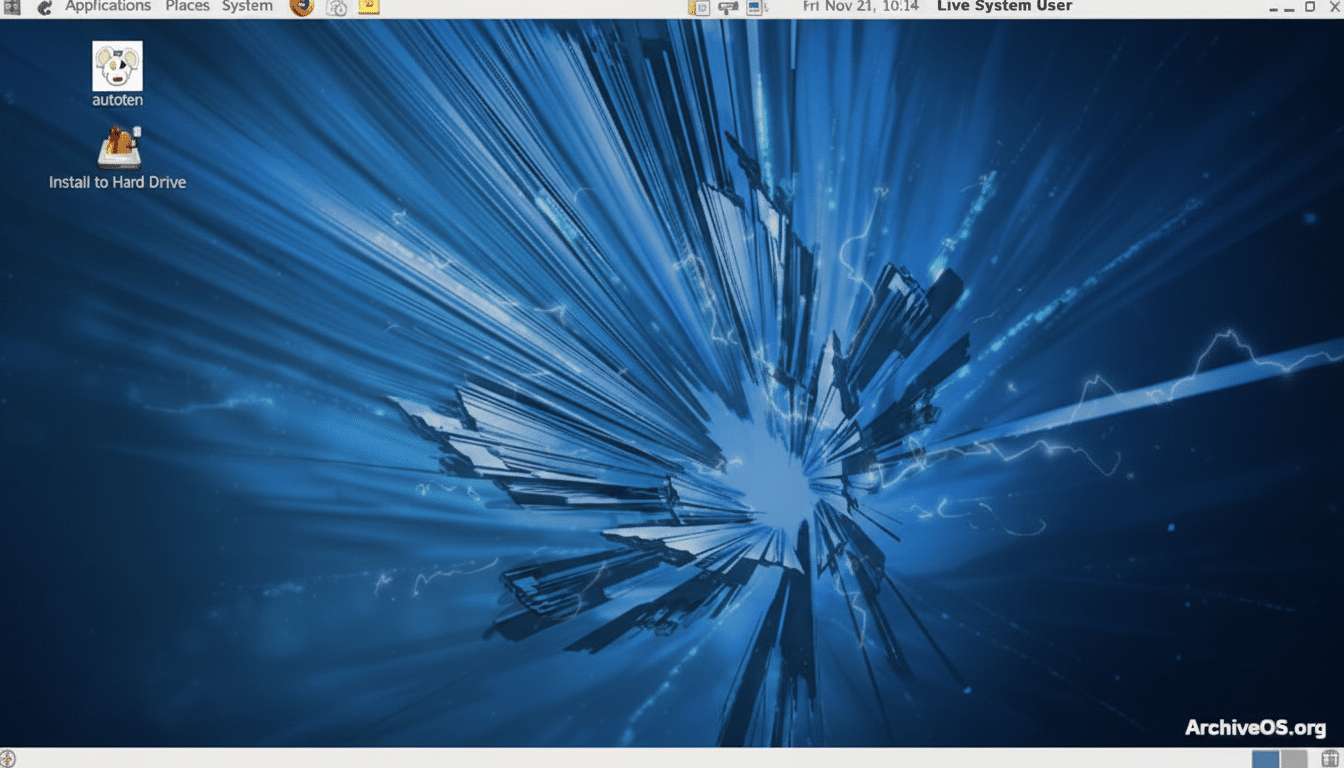
An SSD helps any old PC feel new, but Omega also runs comfortably from traditional hard drives. If you’re repurposing a system with 2–4GB of RAM, you’ll especially benefit from the distro’s lean background footprint and fast boot times.
How to Bring an Old PC Back to Life With Omega Linux
- Back up anything important from the old machine. Wipe-and-install is the cleanest route to performance.
- Download the Omega Linux ISO on a working computer and write it to a USB stick using a tool like Rufus or balenaEtcher. Boot the old PC from that USB.
- Follow the installer prompts. Omega keeps things straightforward, but expect a text-driven flow. Create your user, set your locale, and choose a filesystem. If you have an SSD, enabling TRIM support later is a good idea.
- After first boot, update your system with pacman -Syu. Then grab essentials with pacman -S firefox libreoffice gimp vlc or swap in your preferred apps. Pacman is fast, reliable, and well documented by the Arch community.
- Tweak for speed: disable unneeded startup services, set a lightweight theme, and consider enabling zram for better memory handling on low-RAM systems. Small changes compound into a noticeably zippier desktop.
Everyday Use on Aging Hardware With Omega Linux
Web browsing, office work, music playback, and photo editing feel natural on Omega—even on hardware that struggled with heavier operating systems. Choosing efficient applications helps: a Chromium-based browser with ad blocking, a mail client like Thunderbird, and image tools such as GIMP or Pinta keep resource use in check without sacrificing capability.
Because Omega rides on Arch’s rolling updates, security patches and driver improvements arrive quickly. That’s particularly useful for older Wi-Fi cards and GPUs where newer kernels can unlock stability and performance improvements over stock drivers from years past.
Who Should Choose Omega Linux for Older Computers
Pick Omega if you want a fast, modern system and don’t mind a command-line workflow for software management. It’s tailor-made for tinkerers, developers, and practical users who value speed over hand-holding. If you prefer a point-and-click app store and graphical tools everywhere, consider beginner-friendly alternatives like Lubuntu or Linux Lite instead.
Pro Tips for Maximum Responsiveness on Older PCs
- Favor lightweight apps where possible.
- Keep extensions minimal in your browser.
- Use pacman -Syu regularly to maintain performance and security.
- If available, enable SSD TRIM and limit background services.
- Monitor usage with tools like htop so you can spot and remove bottlenecks quickly.
Bottom line: Omega Linux delivers the rare mix of modern, rolling-release software and stripped-down efficiency. If you’ve got an old PC to save, this is one of the most convincing ways to make it feel fast again—no new hardware required.