


Now the feature is available to regular users, because Microsoft’s piloting a new testing ground called Windows AI Labs where anyone can try out experimental AI features before they roll out en masse.
First up is Microsoft Paint, and although access is somewhat restricted, you can set your PC to be one of the first to gain entry. Here’s what the program entails, how it differs from traditional previews, and exactly how to opt in.
- What is Windows AI Labs and how does it work?
- How it’s different from Windows Insider previews
- Who is eligible and what you need to participate
- Step-by-step: How to opt into Paint and start testing
- What’s being tested in Paint first through AI Labs
- How your feedback shapes the features over time
- Privacy, data, and control for Windows AI Labs users
- Troubleshooting availability and resolving common issues
- Why Windows AI Labs matters for everyday Windows users
What is Windows AI Labs and how does it work?
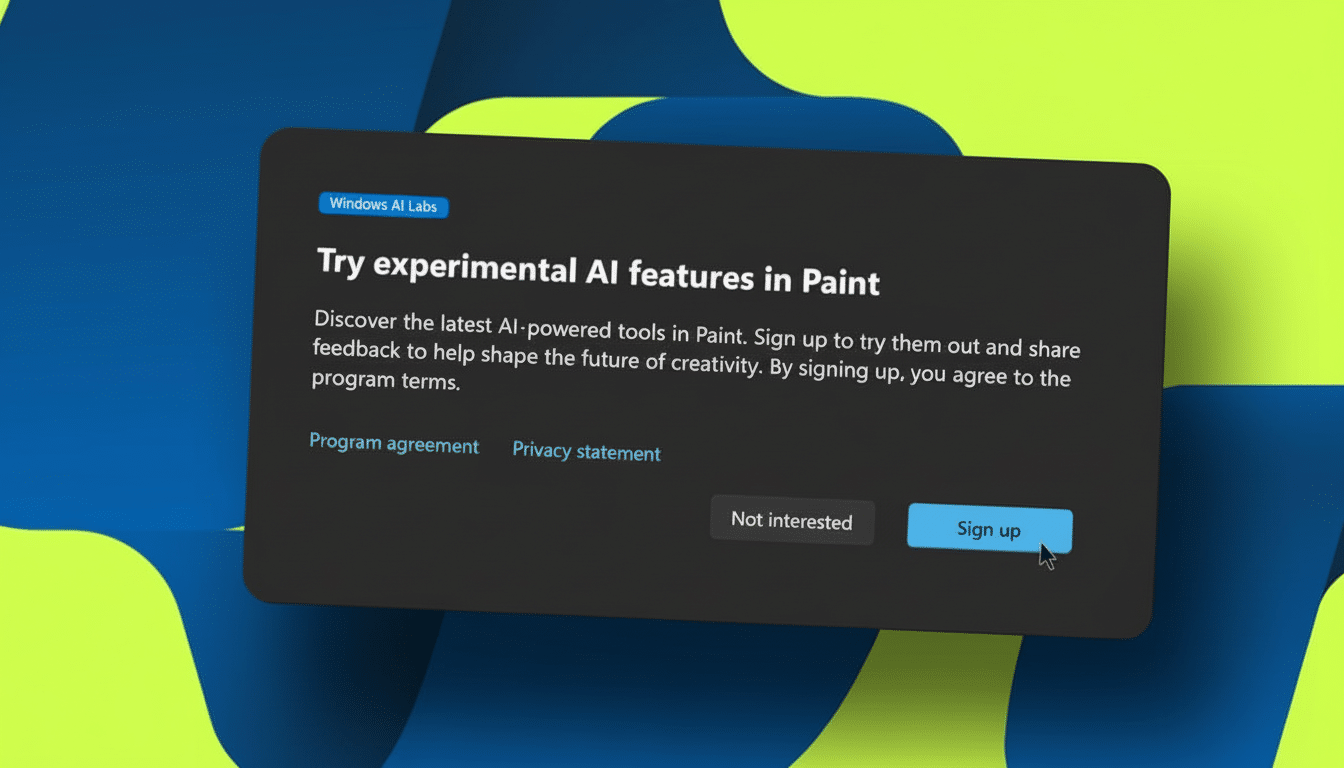
Windows AI Labs is a pilot program to test features that use AI inside core Windows applications. Think of it as an app-level testing ground: Microsoft could send lean, rapid iterations of features to market, gather focused feedback and either polish, broaden or retire them.
Microsoft employees have also referred to the effort as a rapid feedback loop around usability, customer interest, and product-market fit. Reporting by The Verge suggests the idea is to move fast: get features in front of eager testers, iterate quickly, and push out improvements without waiting for full OS updates.
How it’s different from Windows Insider previews
In other words, it’s not like the Windows Insider Program, which tests full OS builds; instead, Windows AI Labs tests features inside certain apps. That means less to download, faster iteration, and lower risk to your system. It feels more like a precision A/B test than a wholesale upgrade, and it lives next to your existing Windows installation.
Who is eligible and what you need to participate
Registration is opt-in and, at present, limited. Microsoft is gating availability through a phased rollout, so you may see the invitation on one PC but not another. The earliest reports on the program were spotted by Windows Latest, which reported that not all users see the prompt initially.
Crucially, you need to permit optional diagnostic data. That lets Microsoft evaluate how well features actually work, how reliable they are, and how people really use the tools—information that is used to determine what gets shipped broadly. Jack is an experienced web developer who loves Firefox on the desktop, but he works for a company that has those features disabled in their enterprise policies or local or regional settings, and managed devices are out of luck.
Step-by-step: How to opt into Paint and start testing
- Open Settings in Windows 11, then click Privacy & security. Choose Diagnostics & feedback and turn “Send optional diagnostic data” to On.
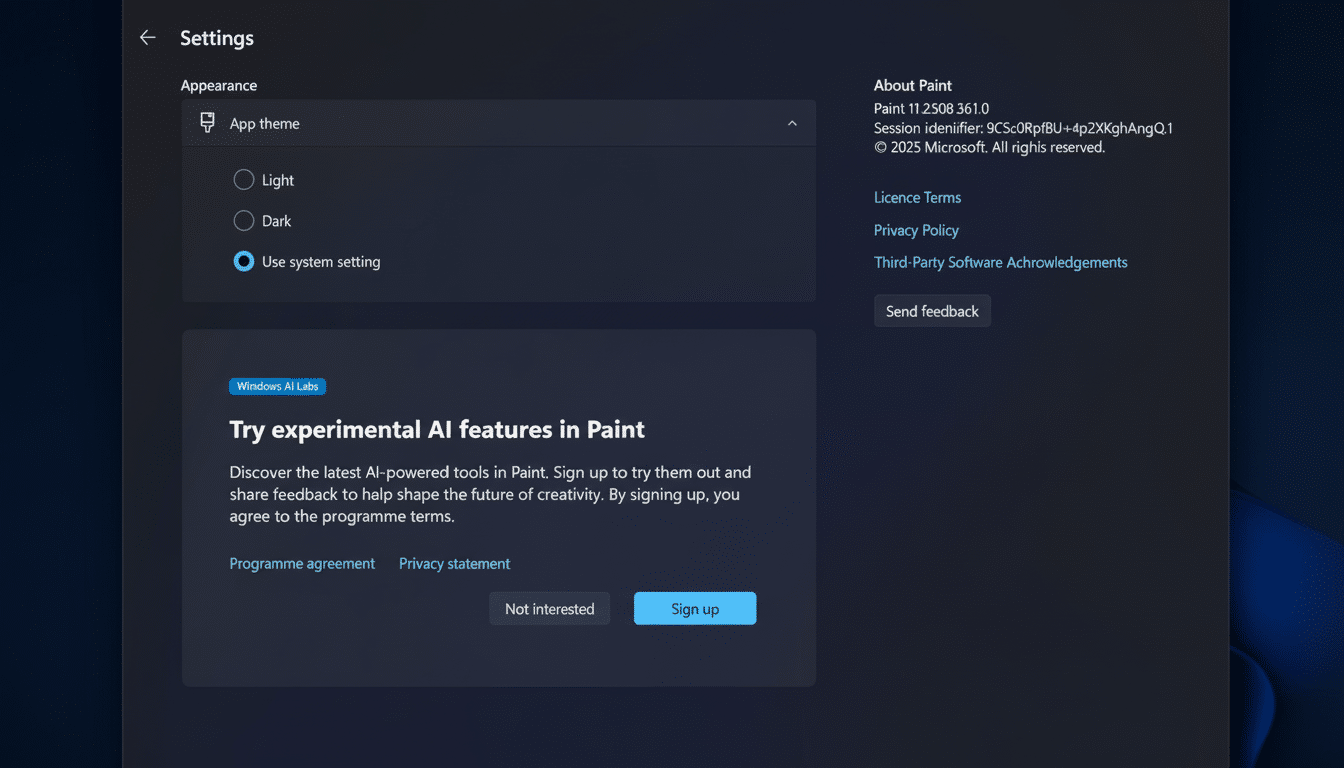
- Launch Microsoft Paint. You might receive a prompt to join Windows AI Labs. If not, tap on the Settings gear inside Paint.
- Find a section named Windows AI Labs. Opt in to try the newest AI-powered experiences, and then select Sign up. You will be alerted once new tasks are prepared on your device.
If you’re uninterested, choose Not interested and we’ll never bother you again. You can also turn off optional diagnostic data at any time.
What’s being tested in Paint first through AI Labs
The canvas of Paint has quietly become a canvas for Microsoft’s ambitions with artificial intelligence. A recent update has added layers, project files, and now AI-assisted image creation via Cocreator, where text prompts and style choices like Charcoal, Ink Sketch, Watercolor or Photorealistic are turned into editable images.
Windows AI Labs will push similar such experimental capabilities to a subset of users to verify real-world usefulness: Will a gesture-based tool make quick mockups faster? Do layer-aware edits happen in less time than switching to pro-grade editors for simpler tasks? Look for experiments that will cut down on clicks, automate repetitive edits, and subtly blend AI assistance with the tools you already use.
How your feedback shapes the features over time
Microsoft depends on a combination of in-app prompts, telemetry and targeted surveys to learn what features you use most. This is the same approach Microsoft takes to Windows development more broadly, controlled feature flights that let them strip away the edges of a design before wider release.
Because of Windows’ enormous installed base — Microsoft has publicly said there are more than a billion active devices — tests with even a small number of percentage points can still offer insights that are statistically significant. That scale is precisely why the influence of opt-in testers looms large: a few minutes’ worth of feedback can change features used by millions.
Privacy, data, and control for Windows AI Labs users
Optional diagnostic data includes information about your device, its settings and capabilities, app usage, as well as reliability signals (such as shutdowns, hangs, or reboots), the operating system’s state to detect incorrect conditions or behaviors that could lead to failure scenarios, and device performance and health. According to Microsoft’s documentation, stuff like your personal files and your drawings in Paint are not collected by default, though prompts and interactions may be aggregated to improve models and features.
You’re in control: You can opt out of Paint, retract optional diagnostic data at Settings, and uninstall featured previews sent through app updates.
Troubleshooting availability and resolving common issues
If you don’t see the Windows AI Labs toggle, update Paint from the Microsoft Store, sign in with your Microsoft account and make sure that your device isn’t being managed by an organization that limits telemetry. Remember that rollouts are at random and region-based; not getting the option today doesn’t mean you’re being excluded forever.
Why Windows AI Labs matters for everyday Windows users
Windows AI Labs is a pragmatic strategy to ship small experiments, validate if there’s value quickly, and iterate, instead of shipping half-baked features and bloating the OS. For users, it’s an opportunity to help shape the future of everyday tools like Paint and experience early versions of AI that significantly reduce the time spent on creative and editing tasks.
If you want to be on the front lines of Windows’ next wave of AI, turn on optional diagnostic data and watch Paint’s settings in action — it’s the fastest way in.