


Microsoft’s free PC Manager promises a tidy, faster Windows machine with a single click. I installed it on a well-used Windows 11 laptop to see if a first-party cleanup could outperform my usual routine. The short version: it freed space, trimmed background clutter, and nudged responsiveness up a notch, but it didn’t transform performance. On a messy PC, though, the gains could be far more noticeable.
What The Tool Claims To Fix On Windows PCs
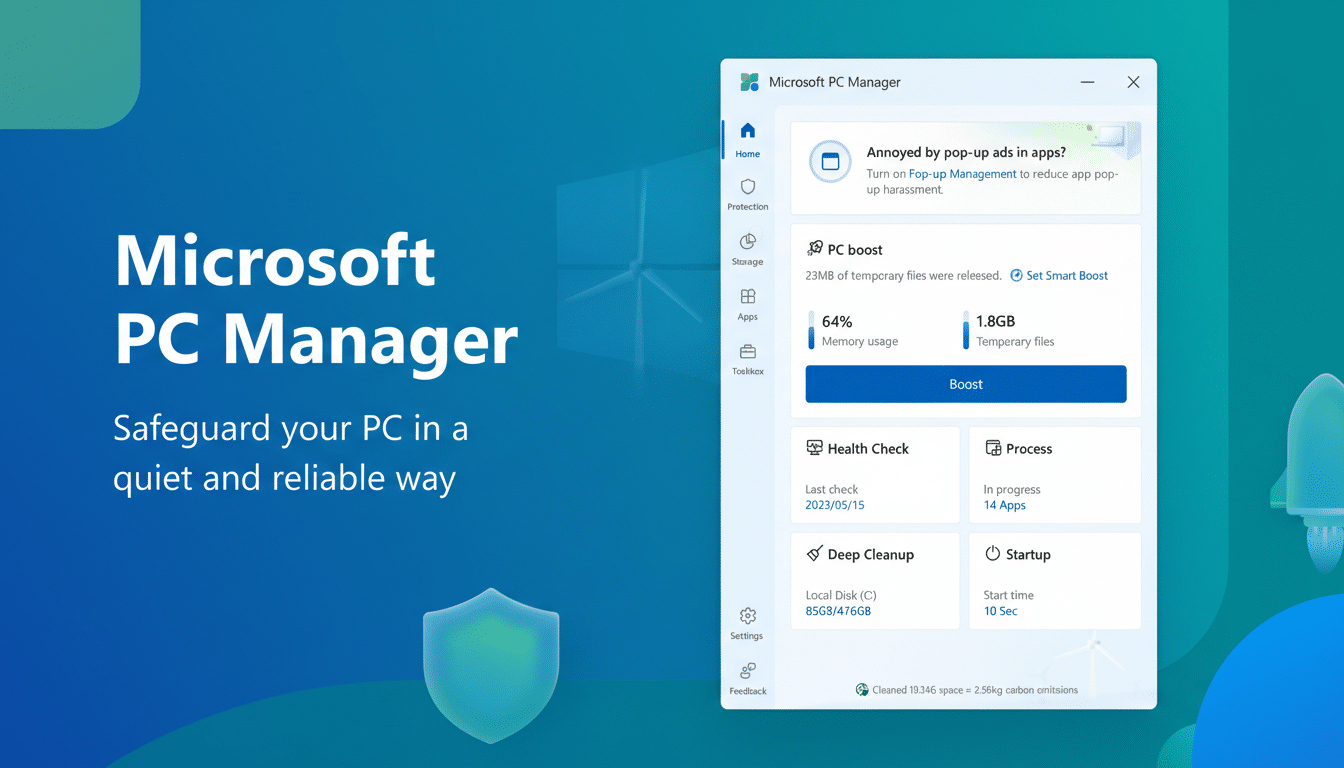
PC Manager is Microsoft’s all-in-one cleanup and tune-up utility for Windows 11 and 10. It bundles Health Check, Deep Cleanup, startup and process management, a Boost button to reclaim memory and clear temp files, Smart Boost for automatic cleanup thresholds, pop-up management, and a “toolbox” with quick-access utilities like Screenshot, Translator, and Calculator. Microsoft’s product notes emphasize safer cleanup than aggressive registry-tweaking utilities and tighter integration with system features such as Storage Sense and Windows Update.

How I Tested PC Manager On A Windows 11 Laptop
I used a 12th‑gen Core i5 Windows 11 Home laptop with 16GB RAM and a 512GB NVMe SSD, running everyday apps including Chrome, Office, Slack, and Spotify. Before touching PC Manager, I recorded baseline metrics using Task Manager and a stopwatch: cold boot averaged 40 seconds from power button to a usable desktop, idle RAM sat around 5.2GB, and free storage was 134GB. No third‑party cleaners or registry tools were installed.
The test sequence was simple: run Health Check recommendations individually, perform Deep Cleanup, review startup suggestions, enable pop-up management, use Boost and Smart Boost, and then re-measure. I avoided changing unrelated settings so the results reflected the tool’s actions.
Cleanup And Speed Results On A Used Windows PC
Health Check surfaced temp files, Windows Update residue, browser caches, and a handful of “rarely used” items. I approved everything except deleting recent browser cookies. Deep Cleanup went further, identifying old crash logs and thumbnail caches. In total, PC Manager removed 2.9GB of clutter; most of it came from update leftovers and temp folders.
The startup review was conservative. It flagged only nonessential items, and its advice to delay some auto-updaters mirrored what Windows’ own Startup tab suggests. I disabled two vendor updaters and left critical services alone. Boost immediately cleared temp files and trimmed background tasks; Smart Boost set to auto-kick in at 1GB of temp files and high memory pressure.
Post‑cleanup, boot time averaged 36 seconds—a roughly 10% improvement. Idle RAM dropped to about 4.9GB, a 6% reduction. App launches felt snappier when the system was under light load, particularly opening Office apps after a fresh boot. Under heavier multitasking (15+ Chrome tabs, Slack calls, and a OneDrive sync), the difference was subtle but present: fewer momentary stalls when alt‑tabbing.
These results align with what performance analysts often caution: on SSD‑based systems, the biggest wins come from cutting startup baggage and memory pressure, not from generic “optimizations.” UL’s PCMark 10 isn’t designed to reflect cache purges, and Microsoft’s own Windows team has said modern Windows manages memory and storage aggressively; dramatic gains typically appear on heavily cluttered PCs, not on reasonably maintained machines.
Useful Extras And What To Watch Before You Click
The App Check section that monitors usage duration is genuinely helpful for spotting stealthy resource hogs over time. Deep Uninstall, which promises to clear leftover files and registry entries, was careful in my trial removals and didn’t break file associations—something that plagues some third‑party uninstallers. The pop-up management toggle curbed ad‑like notifications from a few apps without silencing system alerts.
However, PC Manager doesn’t fully explain certain recommendations. For example, a vague “optimize startup” suggestion doesn’t clarify which services will be delayed or disabled. There’s also no obvious global undo beyond manually re-enabling items. If you accept browser cache cleanup, expect to be logged out of sites. My advice: review each suggestion, skip anything you don’t recognize, and recheck your browser and startup list afterward.
How It Stacks Up To Built‑In And Third‑Party Tools
Compared with using Storage Sense, Disk Cleanup, and Task Manager individually, PC Manager’s value is consolidation. It centralizes common maintenance in one panel and adds gentle automation via Smart Boost. It’s less intrusive than utilities that promise “registry repairs” or “driver updates,” categories that independent labs like AV‑TEST and AV‑Comparatives have repeatedly warned can cause instability when overused.
If you already manage startup items, run Storage Sense, and keep Windows Update tidy, PC Manager won’t unlock hidden horsepower. If you rarely clean temp files and let updaters pile up, it can provide a safer, first‑party tune‑up with minimal risk.
Bottom Line: PC Manager Delivers Modest Improvements
PC Manager is a thoughtful freebie that delivers modest, measurable improvements on a healthy Windows 11 system and likely bigger gains on a cluttered one. It freed nearly 3GB, shaved boot time by 10%, and smoothed light multitasking without breaking anything. Use it as a monthly maintenance pass—eyes open, recommendations reviewed—and you’ll keep Windows leaner without gambling on aggressive third‑party cleaners.