


Microsoft has acknowledged it can hand over BitLocker recovery keys to law enforcement when those keys are stored in the company’s cloud. Reporting has highlighted a case in Guam where the FBI obtained recovery keys from Microsoft to unlock suspects’ PCs during an unemployment fraud probe. For anyone who relies on Windows encryption, the takeaway is simple but urgent: key custody determines who can unlock your data. Here’s how to keep your encryption key safe from both cloud providers and government requests without giving up the protection BitLocker offers.
Why Cloud-Based BitLocker Key Backups Create Risk
BitLocker’s protection is solid, but the recovery key is the skeleton key. If the key sits in your Microsoft account or Entra ID, it’s reachable by whoever can lawfully compel Microsoft, and by anyone who compromises that account. Microsoft says it receives roughly 20 requests per year for BitLocker keys; most can’t be fulfilled because users never escrowed keys to the cloud. Transparency reports from major tech firms show that lawful data demands are routine, and centralizing keys raises both legal and breach exposure.
- Why Cloud-Based BitLocker Key Backups Create Risk
- How to Check Your Current BitLocker Key Exposure
- Create Offline BitLocker Backups the Right Way
- Harden BitLocker Against Hands-On Attacks
- Special Cases: Windows Home and Alternatives
- Guidance For Businesses And Frequent Travelers
- Bottom Line: Key Custody Determines Your Privacy

How to Check Your Current BitLocker Key Exposure
First, verify whether your key is in the cloud. If you sign into Windows with a Microsoft account or your device uses Windows “Device Encryption” (common on Windows 11 Home), the recovery key is often auto-uploaded. On Pro, Enterprise, and Education editions, users are typically prompted to choose where to back up the key during setup.
On Windows 11 or 10, open Settings and search for “BitLocker” or “Device Encryption.” If encryption is on, find the option to manage or back up the recovery key. If you see a note that it’s saved to your Microsoft or Entra ID account, plan to remove that cloud copy after creating an offline backup.
Create Offline BitLocker Backups the Right Way
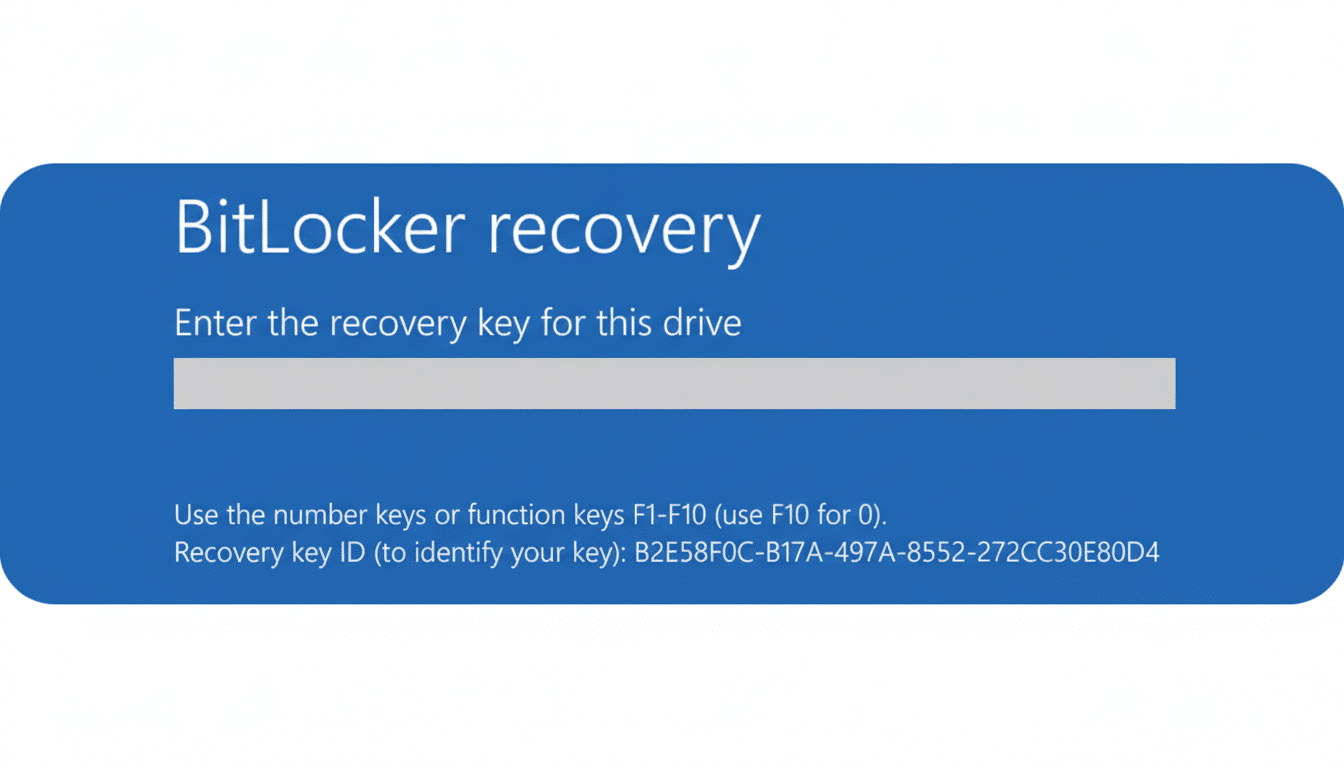
When offered backup options, choose Save to a file or Print. Do not select Save to your Microsoft account or Save to your work account if you want to avoid escrow. Store the file on a removable USB drive, not on the system drive, and keep that drive in a safe place away from the computer.
If you store a digital copy, wrap it in strong encryption. A simple approach is to place the .txt key file inside a 7-Zip archive using AES-256 with a long, unique passphrase, and record that passphrase in a reputable password manager. Keep a second backup: either another encrypted file in a separate secure location or a printed copy in a home safe or bank safe deposit box.
After you have offline backups, sign into your Microsoft account or organizational portal and delete any stored recovery key entries for the device. Removing escrow cuts off an easy legal or account-compromise path to your data. If you suspect your key has been exposed, suspend and then resume BitLocker protection to regenerate a new recovery key, and repeat the offline backup process.
Harden BitLocker Against Hands-On Attacks
Most users rely on TPM-only protection, which unlocks drives without a prompt once the system boots. For better resilience against theft or “evil maid” attacks, add a startup PIN. On Pro or higher, enable the “Require additional authentication at startup” BitLocker policy and set a PIN that’s distinct from your Windows password. Shut down instead of sleeping when traveling to avoid keys lingering in memory.
Protect the accounts tied to your encryption. Even if you keep keys offline, a weak Microsoft account undermines your security. Turn on phishing-resistant multi-factor authentication where possible, use a password manager to generate long unique passwords, and lock down recovery options.
Special Cases: Windows Home and Alternatives
Windows 11 Home’s Device Encryption often auto-escrows keys to your Microsoft account with limited user control. If you want encryption without cloud escrow on a Home edition, consider upgrading to Pro so you can choose local-only backups, or use a mature third-party tool like VeraCrypt that never uploads recovery material. Whatever you use, the rule stands: you control the key, you control access.
Guidance For Businesses And Frequent Travelers
Enterprises commonly escrow keys in Entra ID or on-premises Active Directory to meet support needs. If that’s required, restrict who can retrieve keys, log every access, and require managerial approval. Segment roles so help desk staff can view only the minimum needed. Regularly rotate and attest key custody as part of compliance audits, and ensure BitLocker recovery events are monitored.
When crossing borders, understand that legal standards for device searches vary. Consult counsel on policies for traveler devices, consider using clean laptops with no sensitive data, and rely on secure remote access after arrival. Civil liberties groups such as the EFF offer guidance on your rights and on reducing risk during border screenings.
Bottom Line: Key Custody Determines Your Privacy
BitLocker still protects against the most common threat: a lost or stolen powered-off laptop. The catch is where the recovery key lives. Keep it out of the cloud, back it up offline in two secure places, add a startup PIN, and lock down your accounts. Microsoft’s confirmation that it can lawfully provide keys underscores a simple principle—encryption is only as private as your key management.