


If you’re not particularly fond of the Windows 11 interface, you’re in good company. I spend much of my day in Linux, where swapping desktops is a sport, and I wanted my Windows machine to feel more like GNOME or KDE or macOS without flipping between dual-booting. The quickest way I discovered was Seelen UI, a free, highly customizable desktop environment that sits on top of Windows and reworks the experience from dock to top bar.
Why transform the Windows 11 look and workflow feel
Windows 11 is finished, but it is opinionated. These sorts of features have found favor among users of Linux, a platform that’s often obsessed with control: panels where we want them, tiling or floating windows when needed, and launchers that are fast and keyboard-first. If you are a macOS user, you probably appreciate how clean and focused the top bar is, and especially the dock. Bringing some of that philosophy to Windows can help a mixed-OS workflow feel seamless.
- Why transform the Windows 11 look and workflow feel
- The tool that changes everything: Seelen UI for Windows
- Set up Seelen UI in minutes on Windows 11 with WebView2
- Make Windows feel like macOS with a dock and top bar
- Make Windows more Linux-like with GNOME or KDE layouts
- Security and stability checks before customizing Windows
- The payoff: a familiar, fast desktop without heavy tweaks
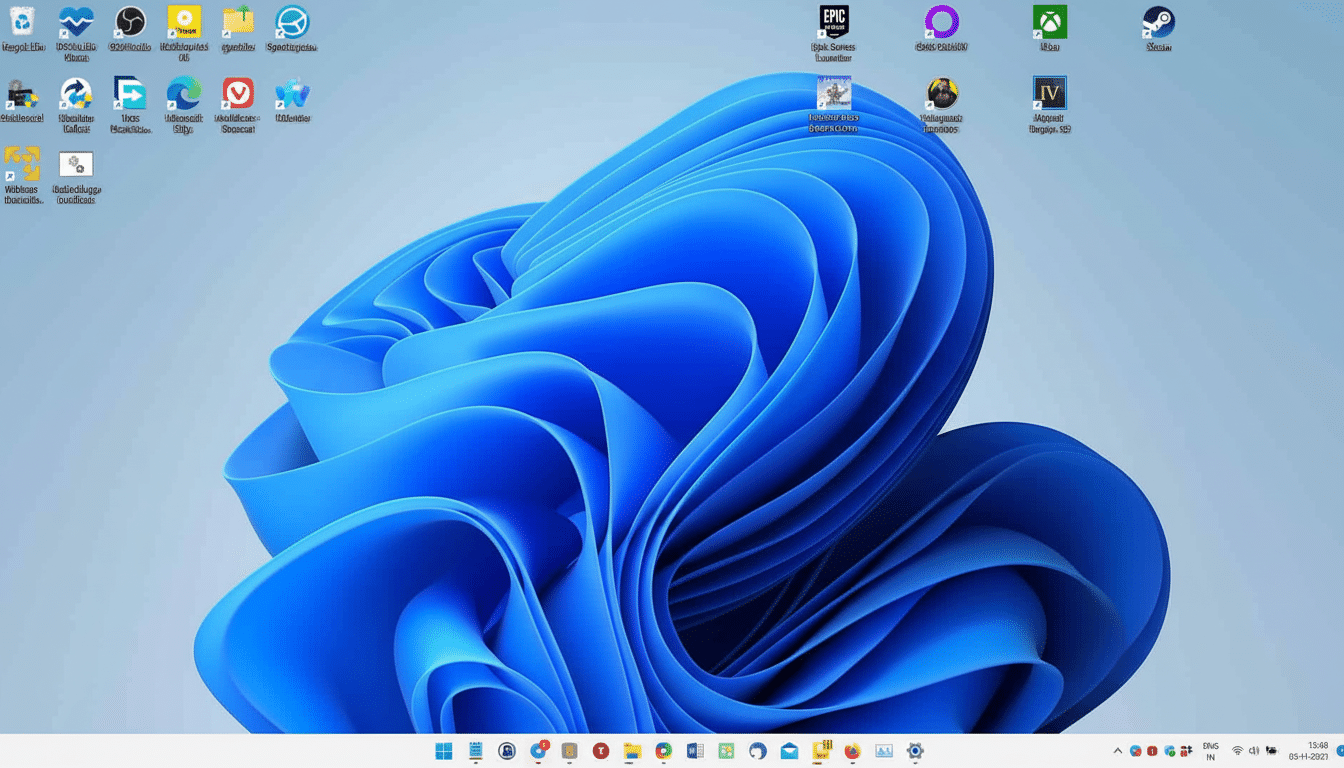
There’s practical value too. According to StatCounter, Windows 11 powers around a third of Windows PCs, but feedback forums and usability studies reveal continuing demand for less clutter and easier navigation. A lightweight desktop layer can provide less friction without distorting the underlying OS.
The tool that changes everything: Seelen UI for Windows
Seelen UI is an open-source desktop environment designed for Windows, aimed at allowing you to develop a window manager on top of it to imitate other OSes (Windows 7 and GNOME/Debian-style)!
Think of it as a composable shell that respects Windows, not a skin fighting it. It’s distributed through the Microsoft Store and is also maintained on GitHub, and it takes advantage of Microsoft Edge and WebView2 for rendering — which have to be installed.
What sold me is that it can reproduce familiar layouts surprisingly fast too. A few quick flips, and suddenly I had a dock that looks like (but is more configurable than) macOS’s, plus a top bar reminiscent of GNOME, and workspace indicators along the same lines as what you’d see on a typical Linux desktop but not stock Windows.
Set up Seelen UI in minutes on Windows 11 with WebView2
Installation is simple: get Seelen UI from the Microsoft Store or run the signed installer, and ensure WebView2 is enabled. A welcome wizard guides you through the first modules and themes. I would suggest that you enable autostart to load the environment with Windows.
For an unobstructed view, auto-hide the regular taskbar (Settings > Personalization > Taskbar > Taskbar behaviors > Automatically hide). That makes Seelen’s dock and top bar take over nicely without needing to patch system files.
Resource usage on my midrange laptop was negligible — at idle, CPU usage hovered around zero and memory in the low hundreds of megabytes — about the same as a standard launcher-and-dock combination. Games and heavy apps worked fine thanks to Seelen UI, which resides above the shell rather than in place of it.
Make Windows feel like macOS with a dock and top bar
Start with a translucent, centered bottom dock. In Seelen UI, it looks like you have the Dockbar module enabled; set zoom to something reasonable, with pinned core apps. Install separators to separate work and personal tools. For a cleaner look, try a glass or acrylic theme and dial up a discreet blur.
Next, build a top bar. Turn on the topbar module, put system status, Wi‑Fi, battery, and time on the far right, and workspace indicators on the far left to mimic macOS’s uncluttered status area. Windows isn’t going to give us an honest global menu, but a restrained top bar makes the visual beat recognizable.
If you want a Spotlight-style search, combine Seelen UI with PowerToys Run and set it to Alt+Space. It’s fast, keyboard-centric, and it closes the productivity gap with macOS at once.
Make Windows more Linux-like with GNOME or KDE layouts
Emulate GNOME: a single top bar with an app launcher, workspaces, and a system tray; keep the dock hidden unless hovered.
Apply a minimal, flat theme to minimize chrome and distractions. I prefer workspace labels to numbers, which is closer to how many GNOME installs are configured.
If you prefer the flexibility of KDE Plasma, set up a traditional bottom panel with a classic task switcher, quick launch icons, and plenty of room in the system tray, then add another panel above for window title and global controls. Pair this with PowerToys FancyZones to get in the realm of tiling and snap layouts like you’d find on a Linux tiler, without going all in on i3 or Sway.
Go for a Budgie-like vibe by selecting a round-edged toolbar theme for the top panel, keep widgets to a minimum, and go with a neat dock with distinctive app icons. The end result is serene and efficient, especially when dealing with small screens.
Security and stability checks before customizing Windows
Just like any shell-level customization, only accept code from sources you trust. Source and install from the Microsoft Store where feasible, allow Windows Security to scan new binaries when downloaded, and don’t dabble with unsigned third-party themes. It’s just not worth the hassle. It covers Microsoft’s security guidance and common sense — review permissions, don’t disable UAC prompts.
If an update goes south, it’s trivial to revert: just stop the Seelen UI autostart, sign out and back in, or uninstall.
Recovering from it is effortless as well, since it doesn’t actually modify system DLLs — not something we can say for most old-school skinning tools.
The payoff: a familiar, fast desktop without heavy tweaks
After a brief afternoon of tweaking, my Windows 11 desktop no longer fought my habits. The workspaces feel like GNOME, the dock acts like macOS, and app launching is instant. If you love the look of Linux (or macOS) but need to stick with Windows, Seelen UI offers a low-friction/high-reward facelift that’s light on performance and leaves your OS ready for action.