


State of Play is PlayStation’s fastest way to show you what’s next for PS5 and now for PS VR2, too, and Sony keeps things simple: a lean, edited broadcast streamed globally with instant language versions. Here’s how to watch it live, how to get the best quality, and where to find clean 4K trailers afterward.
Where to watch the State of Play stream on official channels
The broadcast will be simulcast on YouTube and Twitch via PlayStation’s official channels, the two platforms Sony Interactive Entertainment typically uses for State of Play. Generally, the PlayStation Blog confirms all platforms and any additional regional feeds, such as local audio or subtitles.
- Where to watch the State of Play stream on official channels
- Set reminders and notifications on YouTube and Twitch
- Best ways to watch on TV, console, and mobile devices
- Dial in superior video quality during and after the stream
- Accessibility and language options for captions and audio
- Watching the replay and catching up quickly after it ends
- Guidance for co-streamers and hosts of State of Play watch parties
- Identifying the real stream and avoiding scams
- Quick checklist to prepare for PlayStation’s State of Play
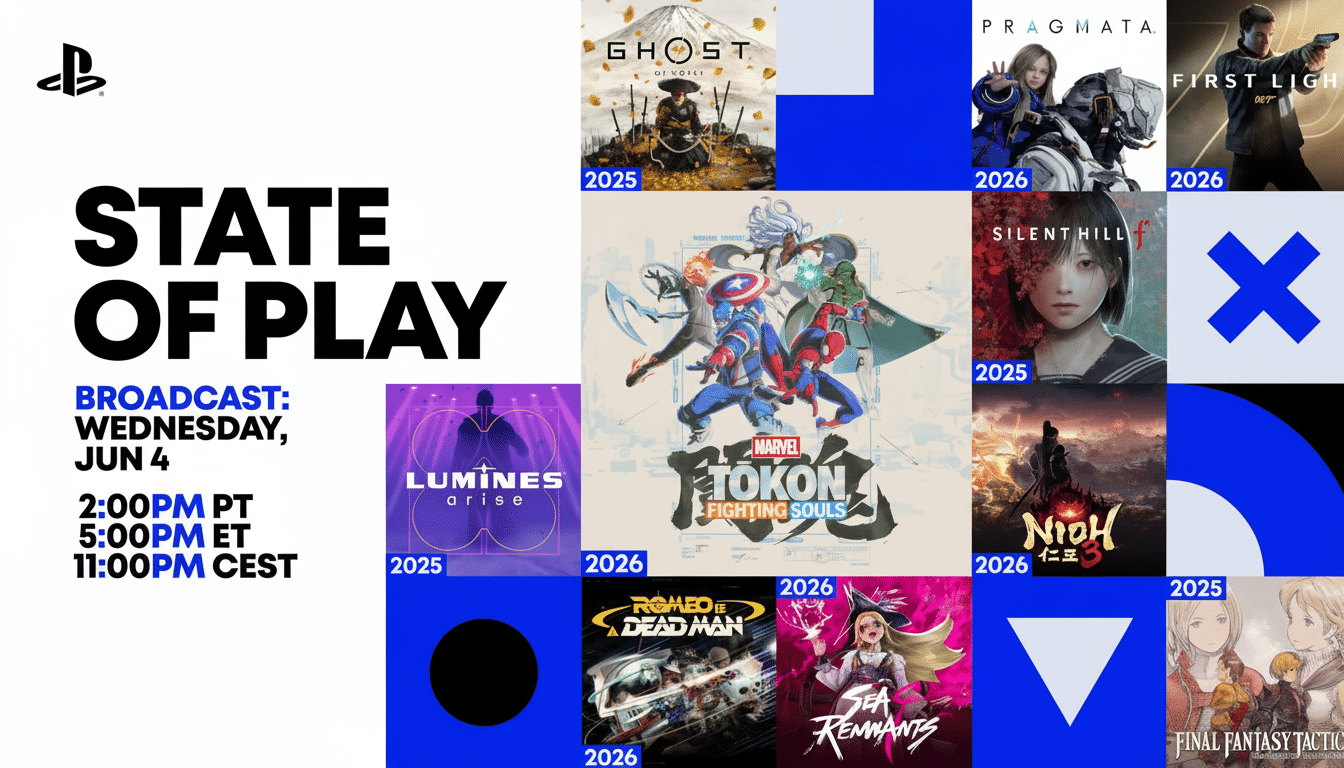
You will also find social snippets on PlayStation’s X and TikTok accounts, but the full show streams end-to-end on YouTube and Twitch.
If you like your VOD seamless and immediate after the stream, YouTube is typically first to upload full replays and standalone trailers.
Set reminders and notifications on YouTube and Twitch
On YouTube, open the event page and click “Notify me.” That generates a mobile push alert and a banner reminder for smart TVs and consoles. For Twitch, follow the official PlayStation channel and turn on notifications for “Go Live” alerts. These platform tools are the best way to ensure you won’t miss the start of a keynote, which is almost always packed with quick-hit announcements.
Best ways to watch on TV, console, and mobile devices
If you’re putting this on in the living room, watch from the YouTube or Twitch app on your PS5, an Apple TV (or wherever they may keep that Gen Z media), a Roku device, an Amazon Fire TV Stick, or a smart TV with all the fixings. The YouTube app is the best means of viewing on PS5; it plays 1080p60 comfortably and offers casting from your phone if you’d rather queue up on mobile.
Desktop viewers can watch the stream on Chrome, Edge, Firefox, or Safari. On mobile, you’ll almost always have access to the higher-bitrate playback and better live chat experience of the native YouTube or Twitch app over a browser.
Dial in superior video quality during and after the stream
The vast majority of State of Play live streams are in 1080p at 60 fps, while 4K assets will be uploaded to YouTube shortly after the broadcast.
On YouTube, change the quality setting via the gear icon to 1080p60. Switch to “Source” quality on Twitch if it isn’t already selected by default.
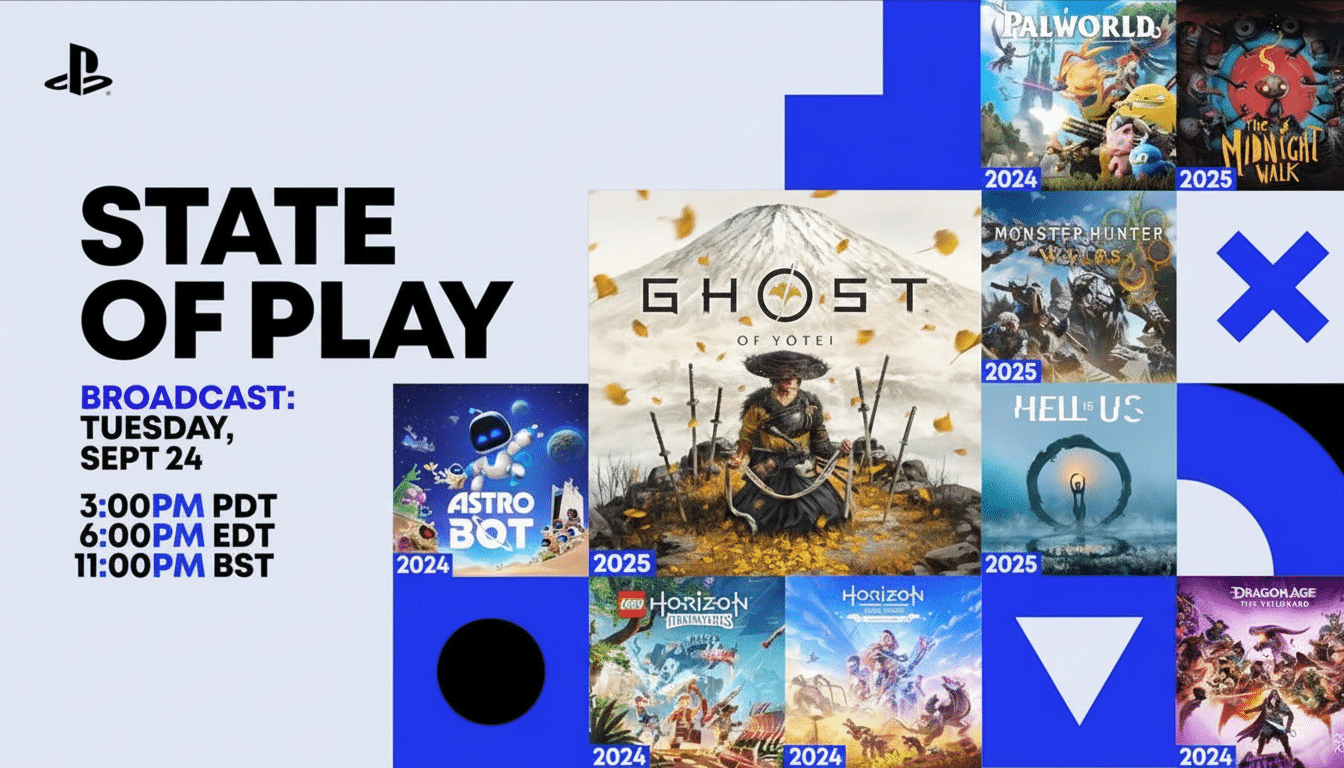
To stream without buffering, YouTube Help suggests at least 5 Mbps for 1080p; for 4K options (after the initial live broadcast), you’ll want more than 20 Mbps. If you have a shaky connection, drop to 720p60 for fewer dropped frames. Buffering is reduced with a wired Ethernet connection, while 5 GHz Wi‑Fi will help prevent slowdowns when multiple viewers are watching streams at the same time—it can number in the hundreds of thousands.
Pro tip: If you geek out over pixel-perfect fidelity, watch the live stream as the announcements unfold and then return to PlayStation’s channel for 4K uploads of the trailers. Publishers often encode those assets at a higher bitrate than the live feed.
Accessibility and language options for captions and audio
PlayStation frequently provides closed captions on YouTube, and localized subtitles for key markets. Click on CC in the player and choose English if available. Some broadcasts also offer audio description or country-specific audio tracks on separate channels; those feeds typically show up in the announcement post on the PlayStation Blog.
Watching the replay and catching up quickly after it ends
If you can’t catch the live show, the full VOD regularly surfaces on YouTube immediately after the stream wraps up, along with individual trailers and gameplay cuts.
Replays frequently include chapters, so you can skip directly to a specific reveal. The PlayStation Blog also releases a recap with the big announcements, trailers, and official screenshots.
Guidance for co-streamers and hosts of State of Play watch parties
Co-streaming is a great way to do that, but watch out for licensed music in trailers. Twitch’s Creator Camp advises that VODs can be muted or flagged for copyrighted tracks; consider showing a separate VOD track with music muted, or leave your VOD private and upload edited highlights at another time. On YouTube, Content ID might flag sections with licensed songs—so try not to repost unedited trailers if you don’t have the rights.
If you host a watch party on Discord, throw up the official YouTube or Twitch feed, as opposed to one of those rebroadcast channels being restreamed. This minimizes the chances of takedowns and guarantees good quality.
Identifying the real stream and avoiding scams
Only watch on official PlayStation channels. Be careful with restreams promising console giveaways or airdrops—phishing scams have long been popular during major gaming shows. Don’t believe the “claim link” hype. If a channel wants you to leave for a “claim link,” it’s bogus. Subscriber counts, verified badges, and of course the announcement on the PlayStation Blog are your avenues to authenticity.
Quick checklist to prepare for PlayStation’s State of Play
- Subscribe to PlayStation on YouTube and Twitch, and enable live notifications.
- Watch at 1080p60 during the live show; get the 4K trailers afterward.
- A stable connection: 5–10 Mbps for 1080p; 20+ Mbps for 4K on demand.
- Captioning is available, so you can choose your preferred language.
- Steer clear of fake restreams and off-platform “giveaway” links.