


Google has sneaked a new experimental search app onto Windows, and it quickly sets the bar for what desktop search feels like: fast, unified, invisible until you need it.
Press Alt+Space, and the airy command palette appears to scour local files, installed apps, Google Drive (and the web at large) simultaneously. It’s the seamless, keyboard-first flow that power users have been asking for — on an operating system where search is still a frequent frustration.
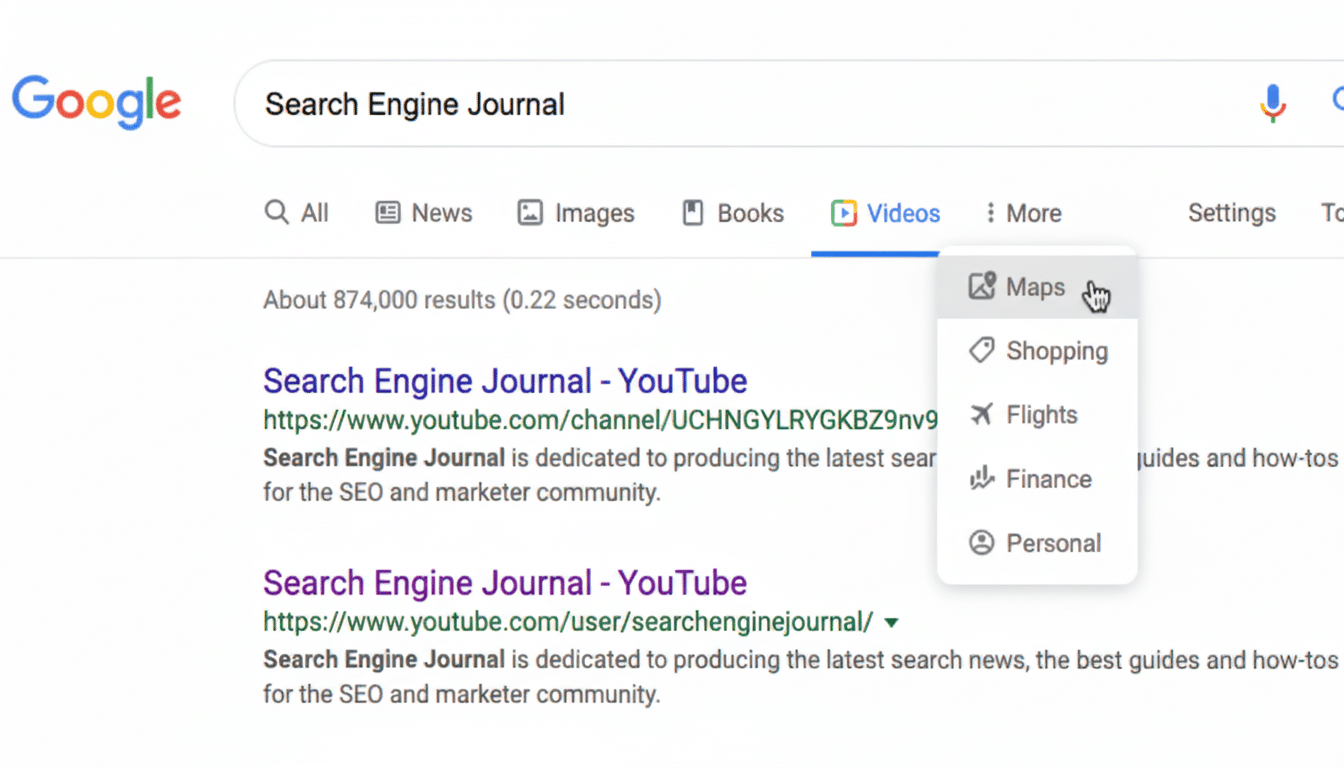
How Google’s desktop search works on Windows
The app functions like a system-level launcher. Begin typing, and results will appear right away without taking you out of what is currently being displayed. On your PC, documents and cloud files from Google Drive are mixed together, as are apps and web search results, in the same easy-to-use layout. Most importantly, the search bar can float over other windows, meaning that you don’t lose context when searching for something or opening a tool.
There’s also a screen-level Google Lens mode to choose any place on the screen to translate text, get information about something, or identify what is in an image. It’s a practical one for students, researchers, and anyone else toggling between screenshots and PDFs, in which “findable” data is frequently stubbornly trapped inside pictures.
A different experience from Windows Search
Windows Search has gotten better but still regularly earns complaints for slow indexing, spotty performance, and distracting web tie-ins. Microsoft has also layered in web results, ads, and AI features — at the risk of perhaps oversaturation. Google’s app, meanwhile, seems to have been purpose-built: a quick indexer with opinionated ranking that brings up what you probably wanted in the first few keystrokes.
Imagine macOS Spotlight with, you know, Google’s internet heritage and Drive baked in. It also aligns with ChromeOS’s single search principle that doesn’t make a distinction between local content and files stored in the cloud. And with Windows powering most of the PCs on the planet — StatCounter pegs Windows’ desktop OS share at around seven in ten machines due to its popularity overseas — if this strategy sticks, it could be massive.
Lens and AI, not at the expense of your workflow
Google offers an optional AI mode for more personal, conversational responses and follow-ups. The best part is that the app doesn’t shoehorn AI into every question. If you don’t, then classic search behavior — speedy lookups and immediate responses — needn’t bother with the AI layer at all. That restraint matters. Productivity search should be nearly instantaneous; long-form reasoning should be something you choose, not one you fight off.
This is the same idea behind Lens overlay. Want to translate a slide in a webinar, grab the text out of a screenshot, or determine what kind of chart you’re looking at? Drag, select, done. It is a useful companion to keyboard search, not a replacement.
Where it beats (and borrows from) tools like these already out there
Power users already depend on utilities such as PowerToys Run, Everything, Flow Launcher, or Listary to fix Windows search. Google’s app itself actually steals that “launcher” feel, and it uses the same default shortcut as PowerToys Run (Alt+Space) — which just goes to show how ingrained that muscle memory is. The great thing about Google’s implementation is how effectively it combines local search, Drive, web results, and Lens in one UI, with intelligent defaults that are usable out of the box.
Microsoft has similar pieces available across Windows, Edge, and Copilot, like visual search and OCR tools as well, but they seldom feel as cohesive or close at hand. Google wins here with orchestration: fewer hops, less chrome, and a better result.
Early constraints and enterprise questions
Google is calling the app experimental, and with good reason. It’s a trial, and you’ll need your own individual Google account to give it a try. Availability is still U.S.-only, in English, and will roll out to devices running Windows 10 or higher. Just be prepared for a bit of rawness and performance tuning while the indexer gets to know your machine. There’s also a critical enterprise footnote: because it lacks support for work accounts and admin controls, IT departments can’t deploy this on a broad basis, and many organizations won’t permit unmanaged apps that index local content.
And there is the practical question of coexistence, as well. If you depend upon the shortcut functionality provided by PowerToys Run, then you’ll need to either configure or disable the conflicting shortcuts. And while Google powers an excellent search function out of the box, power users will want configurable scopes, privacy controls, and per-source weighting — features third-party launchers have been perfecting for years.
The broader message to Microsoft on Windows search
Less Google attacking Windows and more a realignment of what desktop search should be. The formula is fairly simple: speed, integration of local and remote data sources, maintain context, and don’t get in the way with AI. That’s the bar now. If Microsoft bakes these lessons into Windows Search — tighten indexing, reduce noise, flatten the handoff to results — it can also whittle away the cognitive tax users pay every time they press that Windows key.
For everyday people, the lesson is easy: whoever gets me from want to answer the fastest wins. Google’s Windows app (and it’s far from optimized at the moment) also feels designed around that truth, and demonstrates just how gracefully desktop search can work when every millisecond you wait for results and keystroke you let tumble out really counts.