


My living room’s most memorable upgrade didn’t show up in the form of a new app row or faster home screen, however. The answer was a basic Google TV setting that has nothing to do with streaming at all: making the screensaver a rotating gallery from my Google Photos account. It’s a small feature, but it turns dead time into something surprisingly personal and engaging.
What Sets This Screensaver Setting Apart on Google TV
Lots of TVs have slideshow screensavers, but Google TV’s tie-in with Google Photos feels frictionless. And because it links directly to your Google account, you’re not juggling extra apps or accounts to get your personal images on the big screen. Choose a handful of albums and you’re finished. Live Albums and Favorites make this even better, updating the selection behind the scenes without worrying about manual curation every week.
- What Sets This Screensaver Setting Apart on Google TV
- How to Turn It On: Enabling Google Photos on Google TV
- The Power of Personal Photos Over Stock Art
- Privacy and Practical Considerations for Shared Living Rooms
- How It Compares With Other TV Platforms and Ecosystems
- A Win for Quality of Life in Google TV Homes
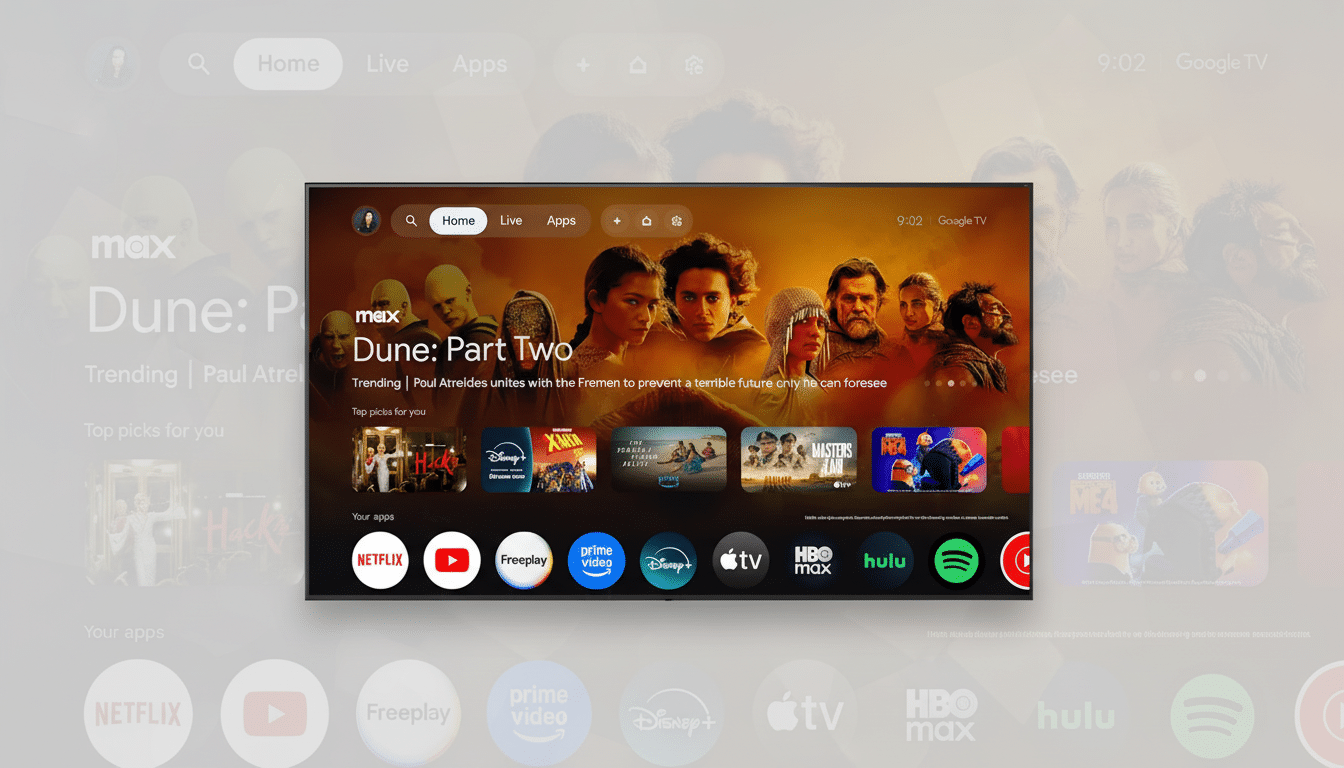
It’s a small flourish with the power of muscular artistry. Rather than stock landscapes, your TV displays forgotten trip shots, candid pet photos and family snapshots that would otherwise get left to rot in the cloud. Google says Photos has more than a billion users, and chances are if you’re already trying to organize your pile of collections, you’ll immediately notice the payoff on TV.
How to Turn It On: Enabling Google Photos on Google TV
It might vary slightly depending on your device, but you can go through this setup quickly.
- Open the Settings app on your Google TV device.
- Select Screen Saver or Ambient Mode.
- Pick Google Photos.
- Select the albums you want to see.
You can also change when the screen saver turns on, brightness, and whether to display photo info. If you have several Google accounts on the device, verify which account’s library you are pulling the photos from.
Power user tip: create a “TV Album” that contains nothing but solid, crowd-pleasing images and add to it over time. If you lean on Live Albums, face grouping will ensure that the display stays relevant with new photos of family and pets without any added effort.
The Power of Personal Photos Over Stock Art
Personal imagery alters the space between shows. The screen transforms itself into an ambient memory surface, not merely a menu awaiting your next click. That’s perfect for the high‑idle reality of today’s TV sets; according to research from Leichtman Research Group, nearly nine in 10 American households have an internet‑connected TV device, and these screens spend no small amount of time paused or idle.
The emotional lift is real. Rediscovering old photos on a 55‑inch panel is better than thumbing through your phone’s gallery. Travel panoramas appear stagey, candid pet sequences become running gags, and those “I should print that” snaps finally readjust to their proper station. In practical use, it encourages you to keep up the albums and makes Google Photos feel more worthwhile on a day-to-day basis.
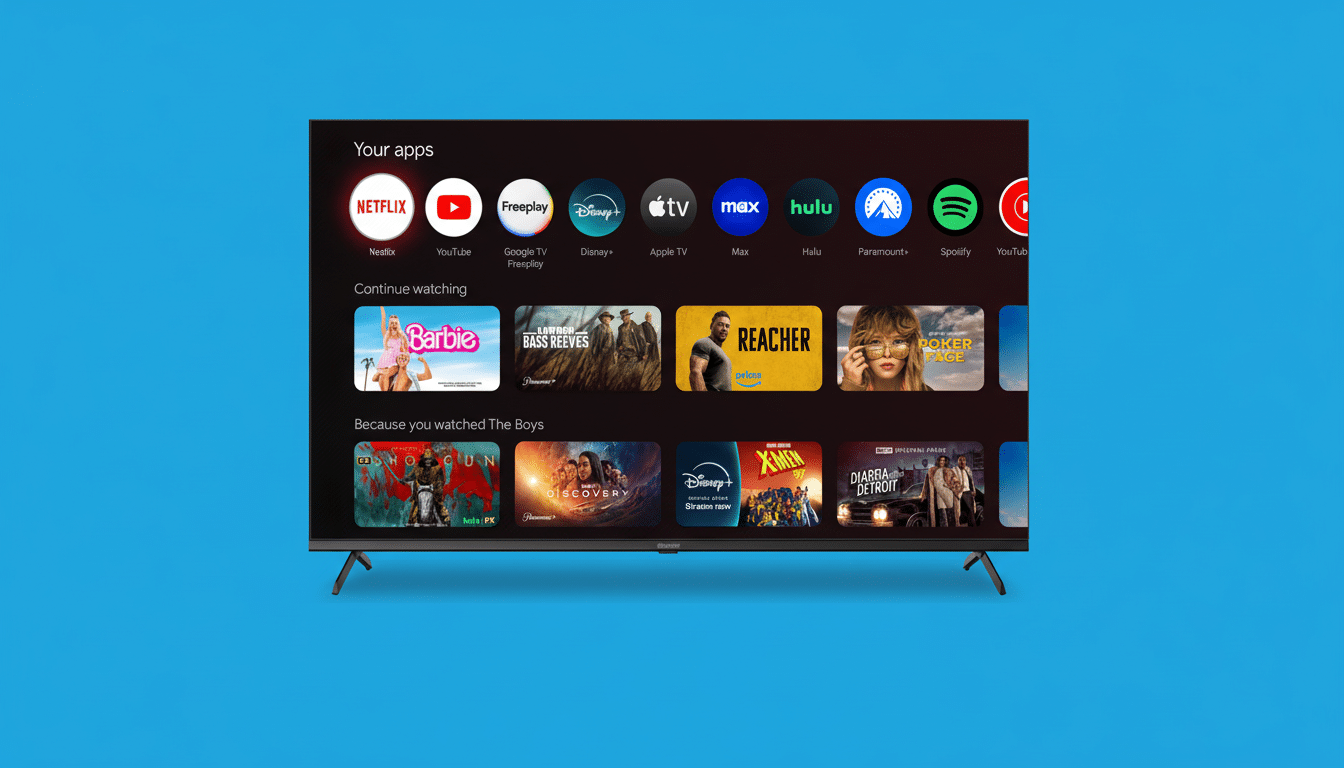
Privacy and Practical Considerations for Shared Living Rooms
Since your TV might be in full view of guests or kids, choose wisely what kind of photos appear on it. Stick with certain albums, not your entire library, and make a “Living Room” album. If your household has individual Google TV profiles, select an album per profile and each member will see the correct set. For shared libraries, partner sharing in Google Photos can help you consolidate the pictures you want to show into one place without exposing everything.
Energy settings matter too. Ambient Mode can be dimmed and set to kick in after a set period; meanwhile, modern TVs are quite aggressive about shifting elements to avoid burn‑in. If you’re sensitive to light at night, lower the Ambient Mode level or set a display sleep timer after prolonged idle time.
How It Compares With Other TV Platforms and Ecosystems
There is support for iCloud Photos slideshows and curated “Memories” on Apple TV, for example, and Amazon’s Fire TV taps Amazon Photos within an Ambient Experience. Samsung and LG also provide ambient displays with art packs and the ability to upload your own personal photos. The distinction with Google TV is just how fast it works if you’re already ingrained in the Google ecosystem. No additional app downloads, no secondary log-ins — just select albums and go.
Google also offers curated art sets and, on certain devices, experimental AI‑generated art. They’re there if you want them, but the true power is in your own images. The best screensaver is not clever — it’s you.
A Win for Quality of Life in Google TV Homes
Streaming services compete on content discovery and speed, but small, human‑centric touches are often what make our day. A photo screensaver of your kids won’t solve subscription fatigue or content overload, but it does help make the TV feel less transactional and more like part of the home. And with connected TVs now almost universally spread, and Google Photos having such a huge footprint, this is a feature that quietly serves millions.
If you have ignored screensavers in the past, try hooking up a favorites album and letting it play for a week. You may discover your living room has a whole new drama that isn’t a show at all.