


Google has quietly published a design guide that spells out how Android XR will operate on AI glasses, laying down everything from physical controls to on-screen ergonomics. The documentation points to two product classes—AI Glasses without a display and Display AI Glasses with see-through screens—and explains how users will tap Gemini, capture media, manage notifications, and preserve battery life on face-worn hardware.
Why Android XR on AI Glasses Matters for Developers and Users
Android XR has long been discussed in the context of headsets, but this guide shows Google is treating glasses as a first-class target. Codifying inputs, UI patterns, and power budgets now gives developers a consistent foundation and signals that an ecosystem of apps and accessories is imminent. It also sheds light on how Google intends to merge ambient AI, voice, and subtle visuals into something practical enough for all-day wear.
- Why Android XR on AI Glasses Matters for Developers and Users
- Two Glasses Categories And Core Controls
- Gemini-First Interaction and Natural Gestures on Glasses
- A Battery-Budget UI for Efficient, Comfortable All-Day Wear
- Privacy Signals Built In for Camera Use and Bystanders
- What Developers Should Prepare for on Android XR Glasses
- How This Positions Android XR for a Unified Glasses Ecosystem
Two Glasses Categories And Core Controls
Google defines two form factors. AI Glasses emphasize audio and sensors without a screen, acting as a voice-first assistant with cameras and LEDs. Display AI Glasses add transparent displays for glanceable overlays—think navigation prompts, notifications, and context cards layered into your field of view.
Across both types, Google mandates a power button, a dedicated camera button, and a touchpad on the temple. Display-capable models add a display button tucked under the stem to toggle or manage the screen. A single press on the camera button snaps a photo; press-and-hold records video. A two-finger swipe adjusts volume on all models, while a downward swipe triggers system back on Display AI Glasses.
Gemini-First Interaction and Natural Gestures on Glasses
Gemini sits at the center of the experience. Touch-and-hold on the touchpad launches Gemini, and a wake word is supported for hands-free access. This reinforces Google’s pivot from a command-and-control assistant to conversational AI that can summarize scenes, translate in real time, or act on context from sensors. Expect a blend of cloud and on-device processing—Google has been pushing lighter-weight Gemini models on phones—to trim latency and preserve battery.
On Display AI Glasses, Android XR presents a minimalist Home inspired by a phone’s lock screen. It surfaces contextually relevant info—like the next calendar event or commute status—without pulling focus. Notifications arrive as pill-shaped chips that expand on focus, keeping glance time short and avoiding clutter in a narrow field of view.
A Battery-Budget UI for Efficient, Comfortable All-Day Wear
The guide is unusually explicit about display power. Developers are urged to avoid sharp corners and to prefer energy-efficient colors. Green is identified as the least power-hungry, while blue is the most. That aligns with well-documented display physics—green subpixels are typically more luminous per watt than blue in OLED and microdisplay stacks, as noted by display analysts and lab tests.
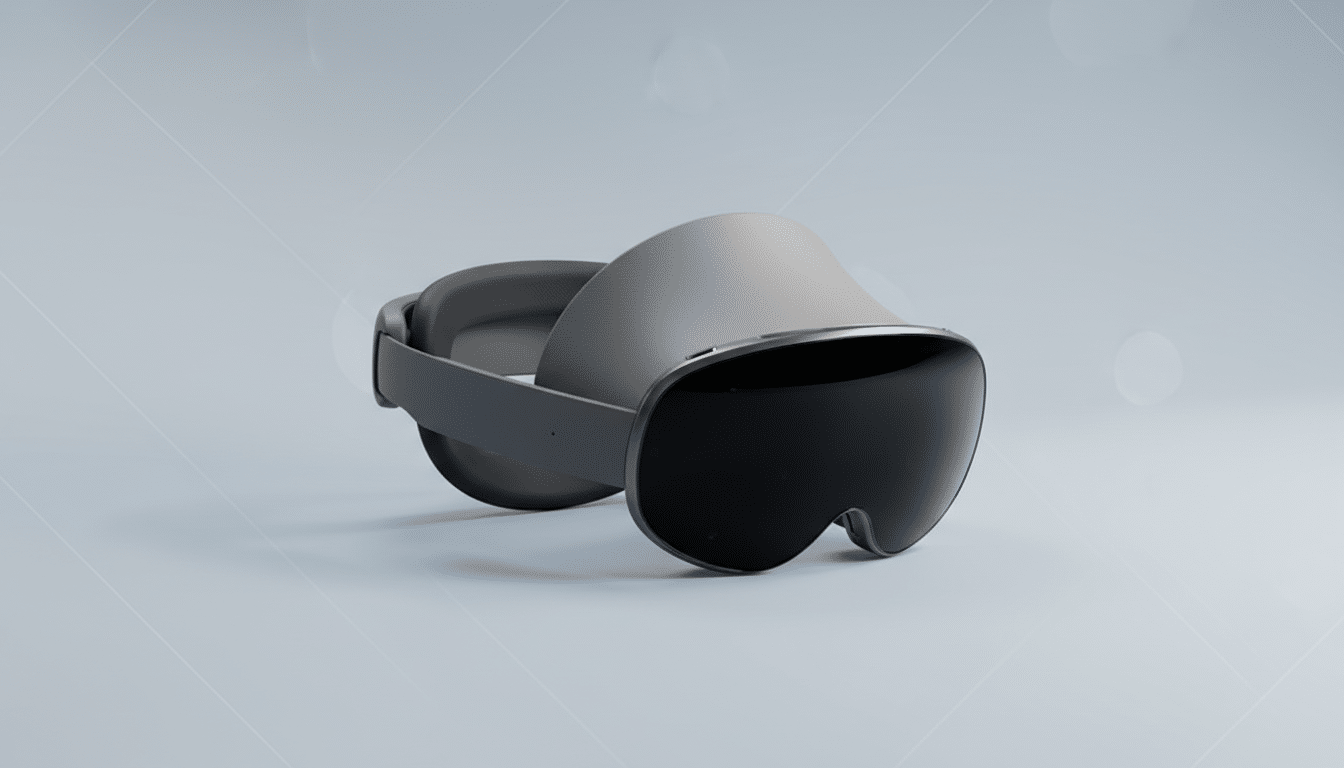
Google also recommends lighting as few pixels as possible and limiting brightness to curb heat. Thermal headroom is tight on eyewear; even premium headsets wrestle with limits—Apple’s Vision Pro, for example, leans on an external battery rated around two hours for typical use. On glasses, smart UI color choices and minimal screen time can translate directly into comfortable wear and longer sessions.
Privacy Signals Built In for Camera Use and Bystanders
Every model includes two system LEDs—one visible to the wearer and another to bystanders—that signal states like camera activity. These indicators are treated as unchangeable system UI, reflecting lessons from earlier smart glasses. Consumer advocates and regulators, including data protection authorities in Europe, have previously scrutinized discreet recording on eyewear, prompting today’s stricter, always-on signaling.
What Developers Should Prepare for on Android XR Glasses
Design for glances, not sessions. Keep content legible, high-contrast, and rounded, with safe areas that avoid the periphery. Favor green accents, sparse backgrounds, and dark themes on see-through displays. Use notifications as short chips that expand only on focus. Build primary flows around voice and Gemini, with touchpad gestures as reliable fallbacks.
Plan dual modes. On AI Glasses, deliver audio-first experiences with succinct feedback and haptics, reserving LEDs for state cues. On Display AI Glasses, treat the screen as a complement to voice, not a replacement—surface just enough context to reduce cognitive load and power draw.
How This Positions Android XR for a Unified Glasses Ecosystem
By standardizing controls, privacy lights, and UI economics, Google is signaling a platform approach akin to early Android on phones. It also dovetails with industry momentum around lightweight glasses: Meta’s camera-forward smart glasses and enterprise AR devices have shown real-world utility in quick capture, translation, and coaching. The difference here is a unified Android XR layer with Gemini at the core, which could accelerate a cross-brand app ecosystem spanning glasses and future headsets.
The design principles read as pragmatic—optimize for seconds, not minutes, and respect the face’s thermal and social constraints. If developers embrace those constraints, Android XR on glasses could deliver the most approachable version of ambient AI yet.