


Google is introducing a conversational editing experience in Google Photos on Android that allows people to say or type what they want changed and then watch the app do the rest. Run by Gemini, the assistant-style tool translates plain-language requests with a voice or text input into exact photo edits you seek without rifling through sliders or menus.
How the new editing flow operates in Google Photos
Within the editor, a new “Help me edit” entry point leads you to provide an explanation of what you want to do.
- How the new editing flow operates in Google Photos
- What it can (and likely can’t) do today in Google Photos
- Availability and eligibility for Android users in the U.S.
- Why this is important for mobile editing
- How it stacks up against rivals in mobile photo editing
- Prompts that work well for conversational photo edits
- What to remember when using AI edits in Photos
You could say “brighten the subject and warm up the tones,” “erase the person in the background,” or just “make it better.” If unsure, Google has suggested prompts as jumping-off points.
Gemini breaks down intent and maps it to a chain of edits, which can include exposure and white balance tweaks, selective masking, or object removal — and shows a preview. You can follow that conversational process along (“a little less contrast,” “restore more detail in the sky”) until it looks right. Edits are non-destructive, preserving the original.
What it can (and likely can’t) do today in Google Photos
The assistant performs basic fixes, such as lighting adjustments, color correction, and perspective straightening, as well as more sophisticated functions that once would have required manual selections. That includes elements that may be distracting — cleaning up backgrounds, for instance — and older pictures with faded colors or other minor damage.
For more creative play, you can request stylizations, like bringing out golden-hour warmth, giving a portrait a soft cinematic touch, or adding some whimsical AI-generated elements.
Results are mixed, depending on the image, but the system has been tuned for realism first and creativity second — mirroring Google’s overall philosophy of computational photography.
Availability and eligibility for Android users in the U.S.
Google says the feature is available to Google Photos users on Android in the U.S., for people 18 years and up. It was introduced on the latest Pixel phones and is expanding to additional Android devices with the release of the new Google Photos app. Like all other cloud-based edits, a network connection is needed to run the edit.
Why this is important for mobile editing
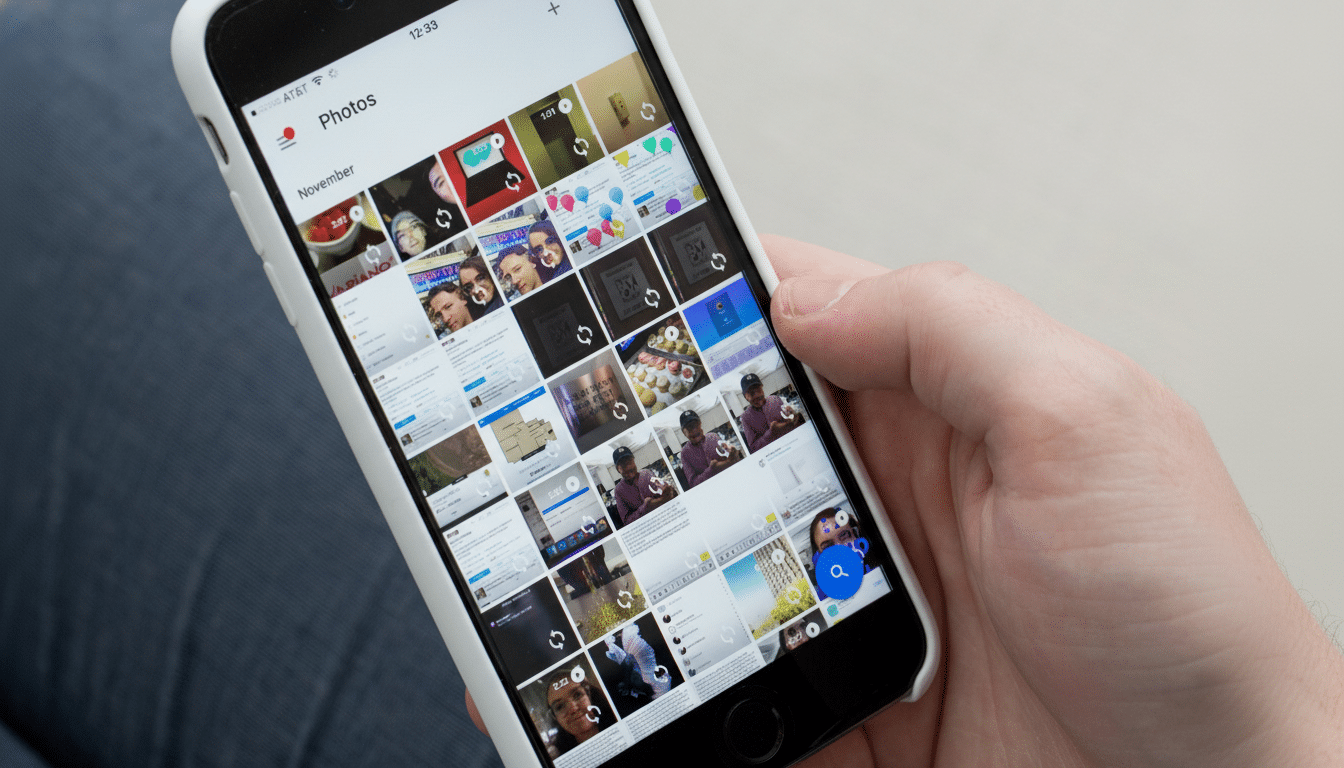
Natural-language edits reduce the barrier for hundreds of millions of people who snap photos but seldom process their pictures. Google has said before that Photos supports over a billion users and processes tens of billions of uploads each week — at that scale, even small changes to approachability can affect how often everyday photos get sharpened up and shared.
This update also unifies recent AI work from Google — such as its Magic Eraser, Photo Unblur, and generative background enhancement tools — under one conversational roof. Rather than picking up the features one-by-one, users tell Gemini what they want to accomplish and Gemini figures out the way to do it.
How it stacks up against rivals in mobile photo editing
Adobe’s Photoshop and Express apps already have text-guided edits with the help of Firefly, while Samsung’s Gallery has brought Galaxy AI features on board, like Generative Edit. Apple has provided tools like Clean Up in Photos, relying on on-device machine learning for everyday deletions. Google’s spin is ubiquity: baking conversational AI directly into the default Photos app that many Android users already depend on, and folding it into its proven computational photography stack.
While competing edit apps often relegate “magic” features to their own separate thing outside of core editing, Google’s assistant can combine several actions into a single move, helpful for new editors and a time-saver for quick experts who know where they want to go but don’t want to tap through nested settings.
Prompts that work well for conversational photo edits
- “Lighten the face/Decrease under eyes a bit with a subtle warm dot.”
- “Get rid of the exit sign and the window reflection.”
- “Restore this old photo and enhance the text on the jersey.”
- “We want the sky to be more dramatic but not the skin tone.”
- “Crop for Instagram portrait and straighten the horizon.”
What to remember when using AI edits in Photos
AI edits are recommendations, not dictates — use the follow-up prompts to nudge the look until it aligns with your intention. More complex scenes with overlapping subjects or heavy compression may require two tries. As with any generative feature, use caution when making drastic changes to documentary photos and consider saving both the original and altered versions for context.
The bottom line for Android users is straightforward: you don’t need to know any longer which slider will fix a flat photo. Simply tell Gemini the outcome that you want, and let it sort out all of that behind-the-scenes detail — then carefully nuance those results by speaking to it as if it were a talented retoucher.